Table of Contents
Mario Teaches Typing is a DOS-era program, so it does not run directly like a modern Windows app. If you own a legitimate copy of its files or original media, you can run it inside DOSBox. Do not download an unofficial archive: old game bundles are a common source of modified executables, and the software remains copyrighted.
Before you begin
- Use a supported operating system for everyday work. Microsoft no longer supports Windows XP or Windows 7, so installing either system just for this program creates unnecessary security risk.
- Obtain DOSBox from the official DOSBox website.
- Keep the Mario files in a dedicated folder such as
C:DOSGAMESMARIO. - Scan the files before opening them, especially if they were copied from old removable media.
Never mount the root of your Windows drive in DOSBox. The DOSBox manual recommends mounting a dedicated games folder so the emulated program cannot access unrelated personal files.
Install Mario Teaches Typing from legitimate files
If your copy is already installed and contains MARIO.EXE, you may be able to skip this section and launch it from DOSBox. If the media includes INSTALL.EXE, use the following sequence.
1. Start the DOS installer
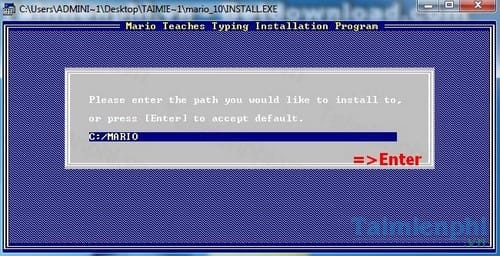
Place the source files inside your dedicated DOS folder, mount that parent folder in DOSBox, and run INSTALL.EXE. The installer is keyboard-driven; press Enter to accept the initial selections unless your copy requires a different path.
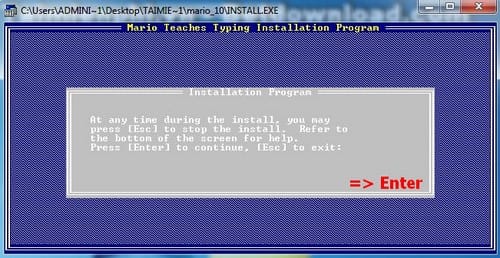
Confirm the first prompt with Enter.
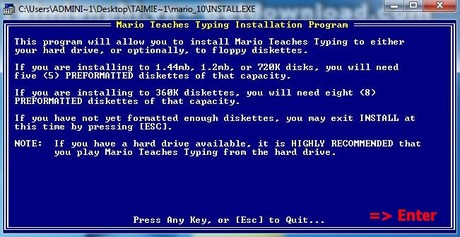
Review the destination shown by the installer, then press Enter to continue.
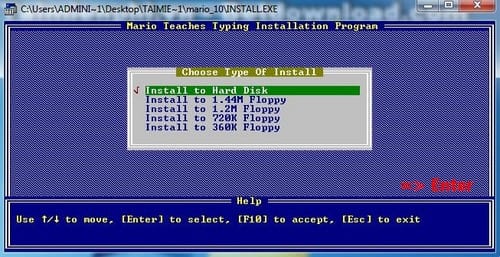
Continue only if the displayed source and destination refer to folders inside your dedicated DOSBox directory.
2. Confirm file creation
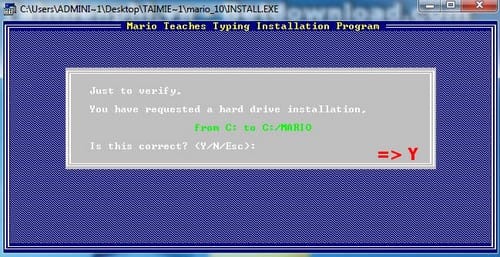
When the installer asks for a yes/no confirmation, choose Y only after verifying the destination.
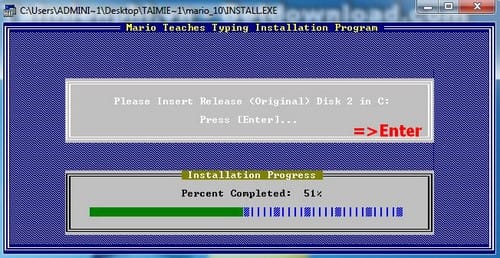
Press Enter as the installer advances through the remaining screens.
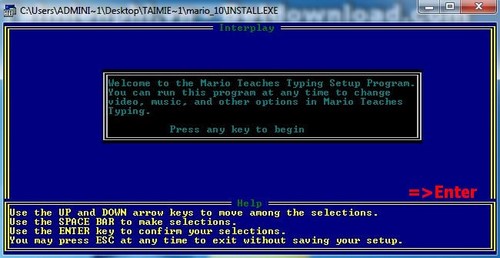
At the final prompt, confirm the installation and return to the DOS command line.
Run Mario Teaches Typing in DOSBox
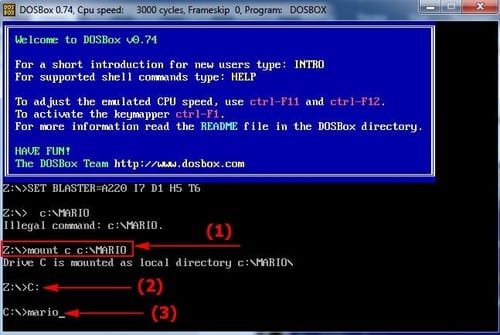
Assuming the game is stored in C:DOSGAMESMARIO, start DOSBox and enter:
mount c C:DOSGAMES
c:
cd MARIO
mario.exe
If your folder name contains spaces, put the Windows path in quotation marks. If DOSBox reports that the file does not exist, type dir to list the files and confirm the executable name.
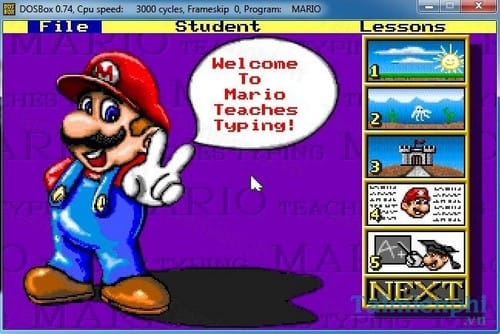
The main menu should appear after the executable starts.
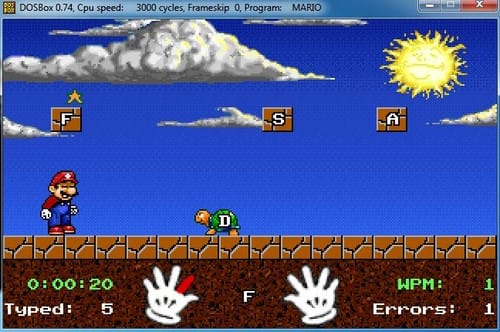
Choose a lesson and practice
The program includes progressively harder typing activities. Begin with the key or home-row lesson instead of selecting the most difficult game immediately.
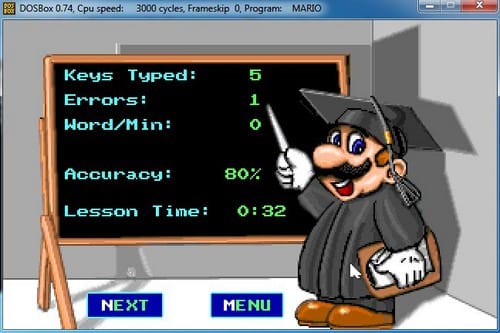
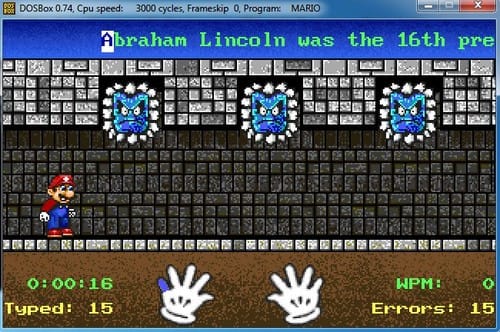
Use the score screen to review errors and pace. Repeat an exercise when accuracy is poor.
Later levels add longer words and faster prompts.
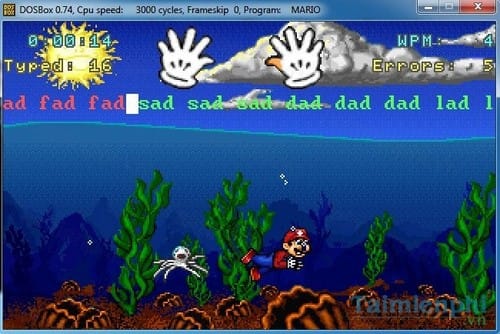
The most difficult activities require sustained attention across more of the keyboard.
Touch-typing technique
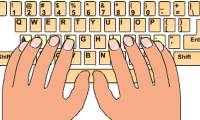
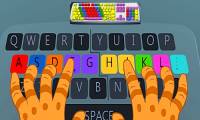
- Rest the left fingers on A, S, D, F and the right fingers on J, K, L, ;.
- Use the finger assigned to each key and return it to the home row.
- Keep your eyes on the game text rather than the keyboard.
- Practice for 10–15 minutes at a time and prioritize accuracy over the score.
- Stop and adjust your position if your wrists, hands, or shoulders become uncomfortable.
Troubleshooting
DOSBox opens but the game does not
Use dir to verify the folder and executable. Mount the parent folder as drive C, then change into the Mario directory. Avoid mounting C: or a Windows system folder.
The program runs too fast or too slowly
Use DOSBox's CPU-cycle controls rather than changing Windows compatibility settings. The DOSBox status bar and manual identify the shortcuts for the installed version.
There is no sound
Old DOS software may expect a particular emulated sound device. Check the game's setup utility and select a device supported by DOSBox; keep a backup before changing configuration files.
You do not own the original files
Use a current typing tutor instead of an unofficial download. TipsMake has guides to the Mario lessons and gameplay, browser-based touch-typing practice, and RapidTyping for Windows.
Related Articles
 How to Install Mario on Windows 74 minutes read
 Tux Typing - Free Typing Practice Tool for Kids: Main Insights6 minutes read
 How to Practicing Fast and Efficient 10-Finger Typing for Beginners7 minutes read
 Software for Practicing 10-Finger Typing and Increasing Typing Speed11 minutes read
 5 Best 10-finger Typing Software That Is Easy to Download and Fastest4 minutes read
 Top Websites for Practicing 10-Finger Typing and Improving Keyboard Speed11 minutes read
Reader Comments 0
Sign in with email or Google to join the discussion.