Table of Contents
To update an iPhone, connect it to power and Wi-Fi, then open Settings > General > Software Update. If Apple offers an update for your model, tap Download and Install and follow the prompts. The phone restarts during installation, so begin when you can leave it unused for a while.
Before you update
- Back up important data. Use iCloud or an encrypted backup on a Mac or Windows PC. An update normally preserves data, but a current backup protects you if the installation or hardware fails.
- Connect to power and Wi-Fi. Keep the phone charging until the update finishes. A stable network prevents repeated downloads.
- Check free space. Go to Settings > General > iPhone Storage. iOS may temporarily remove downloadable app data, but clearing unused files yourself can be more predictable.
- Know your passcode and Apple Account password. You may need them during or after installation.
- Leave beta updates off unless you intend to test. A public or developer beta can contain unfinished software and is a poor choice for a phone you depend on.
If you are moving to another phone rather than updating this one, follow the separate guide to transfer data from an old iPhone to a new iPhone.
Update iOS from Settings
- Open Settings, tap General, then tap Software Update.
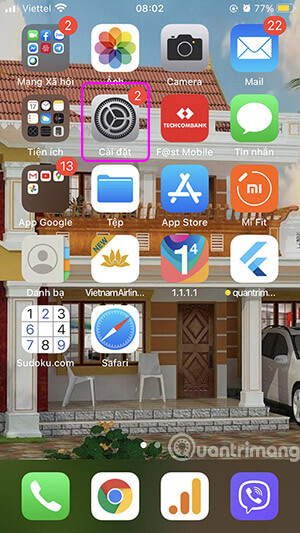
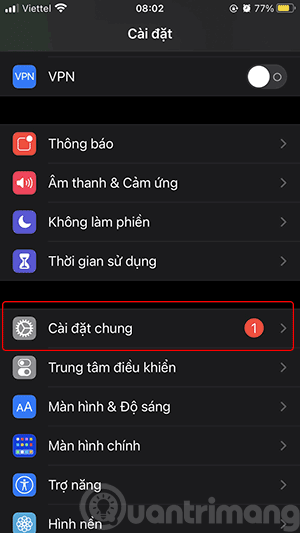
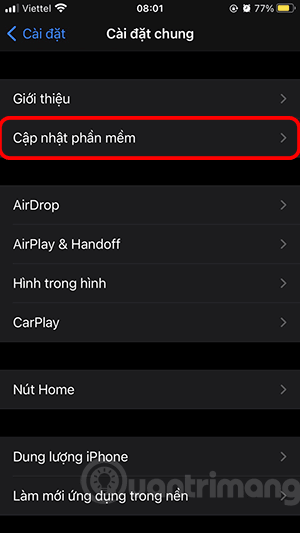
- Wait while the iPhone checks Apple's update service. Read the version and release notes shown. If more than one option appears, choose the update you intend to install.
- Tap Download and Install or Update Now, then enter the device passcode if requested.
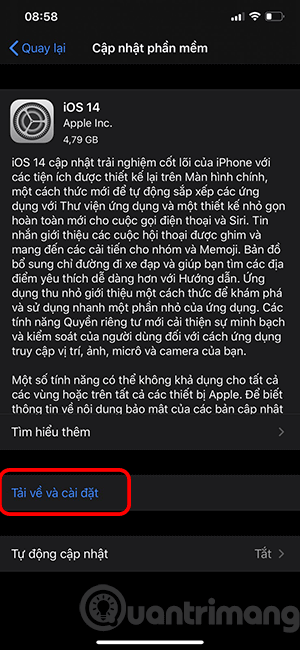
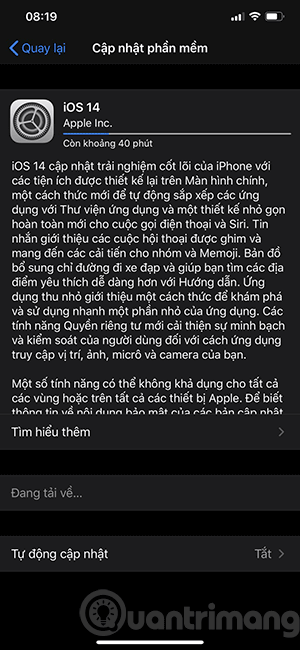
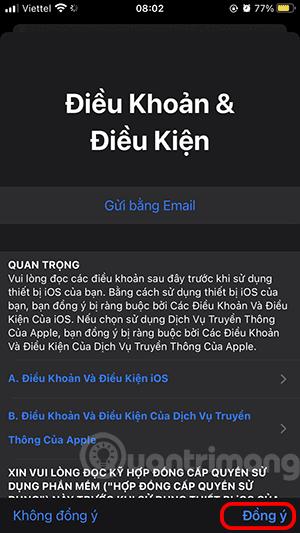
- Accept any terms shown and let the download finish. You can usually continue using the phone during the download.
- Tap Install Now when prompted, or schedule the installation for later. Do not force-restart or disconnect power while the Apple logo and progress bar are displayed.


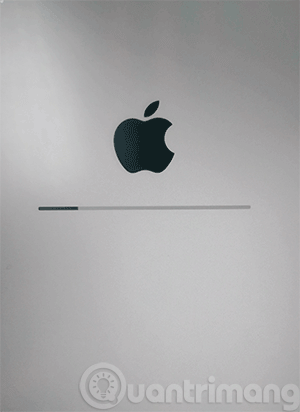
- After the restart, enter your passcode and complete any short setup screens. Confirm that calls, Wi-Fi, and essential apps work before you rely on the phone.

Turn on automatic updates
Go to Settings > General > Software Update > Automatic Updates. The available controls can separately download and install iOS updates and security responses. Automatic installation normally occurs overnight while the iPhone is charging and connected to Wi-Fi, and iOS notifies you before installing.
Automatic updates reduce the chance of missing security fixes, but you can still return to Software Update at any time to install an available release manually.
Update with a Mac
A computer update is useful when the iPhone lacks free space, the wireless download repeatedly fails, or you already maintain local backups.
- On a Mac with macOS Catalina or later, open Finder.
- Connect the unlocked iPhone with a compatible USB or USB-C cable and tap Trust if prompted.
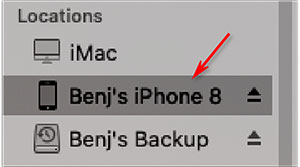
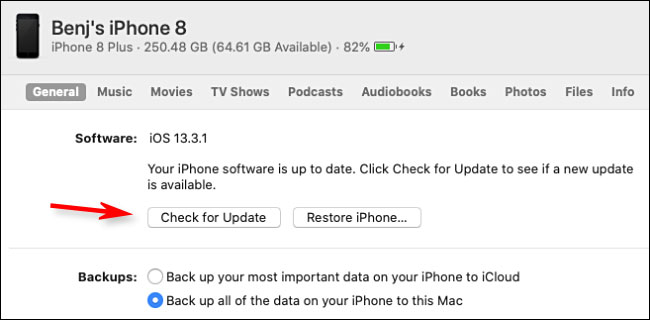
- Select the iPhone under Locations, open the General tab, and click Check for Update.
- Click Download and Update, then follow the prompts. Leave the cable connected until the device restarts and reappears.
Update with a Windows PC
On current Windows systems, use Apple's Apple Devices app. Connect the iPhone, select it in the sidebar, choose General, and click Check for Update or Update. Apple's Windows update guide shows the current interface.
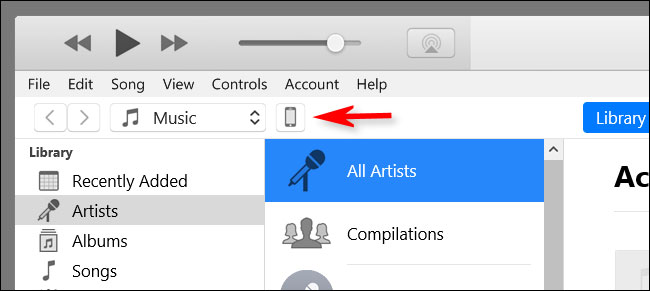
iTunes remains relevant on older supported setups: select the device button, open Summary, click Check for Update, then Download and Update.
If the iPhone will not update
- No update is offered: The newest iOS release may not support your model, or the phone may already have the newest version available to it.
- Not enough storage: Review Settings > General > iPhone Storage, offload unused apps, or update through a computer.
- Download stalls: Confirm the internet works, disable an active VPN temporarily, connect to another trusted Wi-Fi network, and try later if Apple's servers are busy.
- Unable to verify: Set date and time automatically, restart the phone, and download the update again. Do not install firmware from an untrusted source.
- The computer does not see the iPhone: Unlock it, approve Trust, try another data-capable cable or USB port, and update Finder, Apple Devices, or iTunes.
Apple lists the required power, storage, network, and compatibility checks in its current iPhone update troubleshooting guide. If the problem involves cloud storage or backup status, review these common iCloud problems and fixes first.
Confirm the installed iOS version
Return to Settings > General > Software Update. The page shows the installed version and whether another update is available. You can also check Settings > General > About > iOS Version.

Related Articles
 How to Update Itunes to the Latest Version6 minutes read
 How to Update Skype to the Latest Version: Step-by-Step5 minutes read
 Evaluation of iPhone 12 Pro Max to iOS 14.6: No Longer10 minutes read
 How to Update Applications on iOS 115 minutes read
 How to Update to the Latest iOS 20225 minutes read
 How to Update Ccleaner to the Latest Version4 minutes read
Reader Comments 0
Sign in with email or Google to join the discussion.