Table of Contents
While it's not possible to remove the suggestions section in the Windows 11 Start Menu, you can hide the suggestions section to make the Start Menu cleaner.
The Suggestions section on the Windows 11 Start Menu displays a list of recently added apps, recently opened items, and websites. While you can't delete the Suggestions section on the Windows 11 Start Menu, you can hide the Suggestions section to make the Start Menu more organized. Here's how to hide the Suggestions section on the Windows 11 Start Menu.
How to hide Windows 11 Start Menu suggestions
The suggested Start Menu interface on the computer is as below.
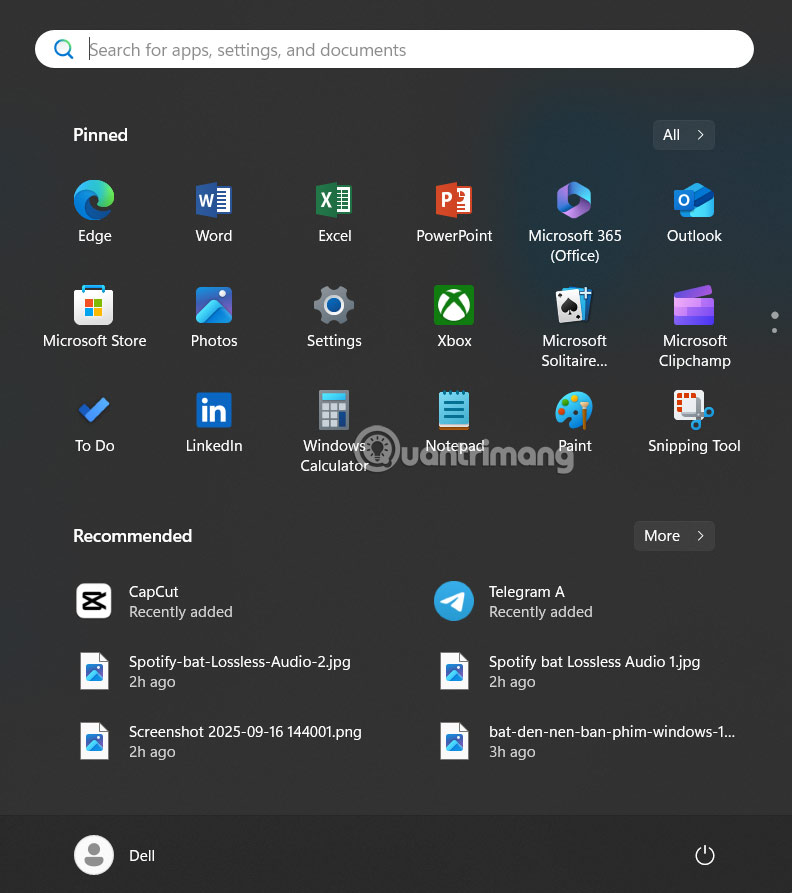
Step 1:
You open Settings on Windows 11, then you click on Personalization .
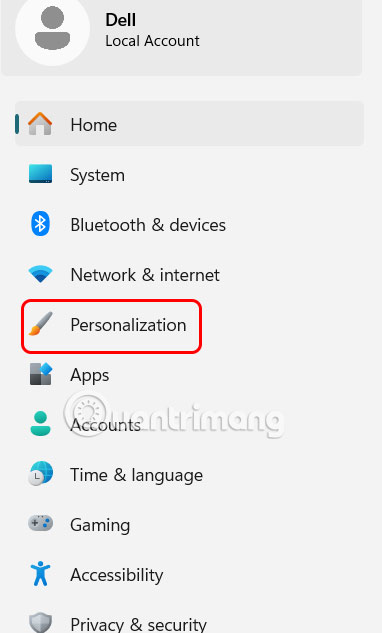
Now you look to the side and scroll down and Select Start To adjust.
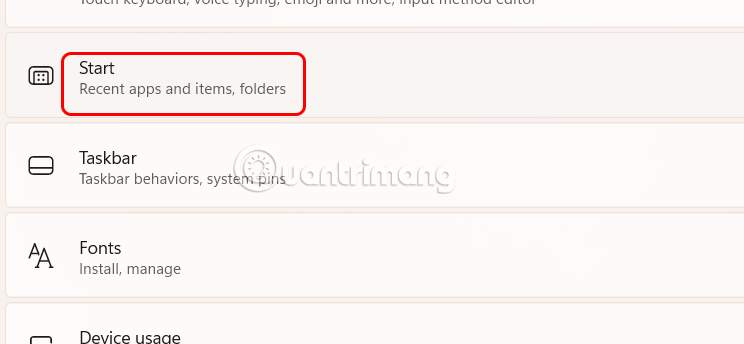
Step 2:
In the Start menu customization interface, Click More pins As shown below.
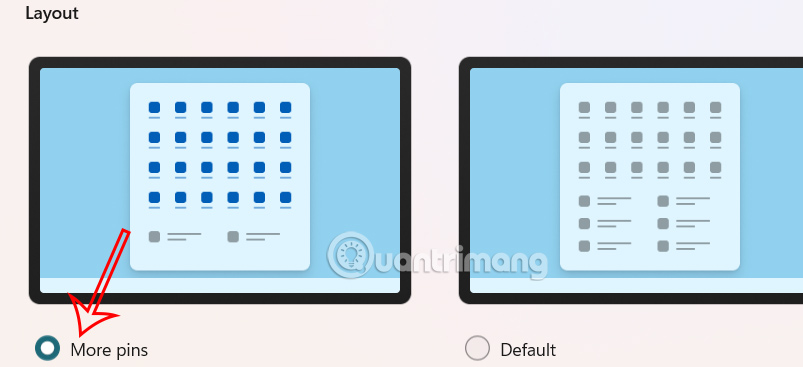
Step 3:
Continue scrolling down below and you Turn off the setting Show recently added apps , Turn off the setting Show recently opened items in Start, Jump Lists, and File Explorer .
This will clear your recent items list and will also stop showing recently opened items.
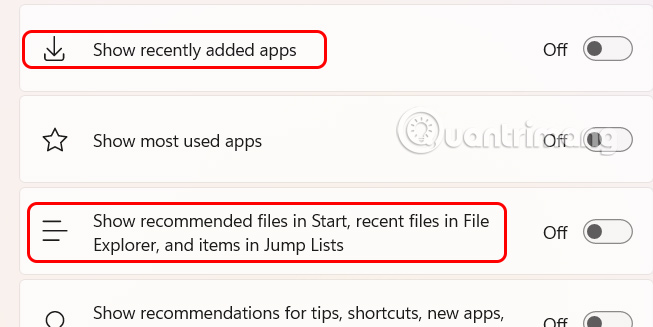
Step 4:
Continue scrolling down below to turn off Show websites from your browsing history and turn off Show recommendations for tips, shortcuts, new apps, and more if available.
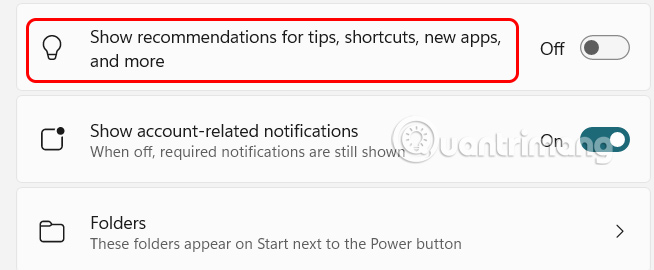
Now reopen the Start menu interface and you will see that the suggested interface has been completely hidden.
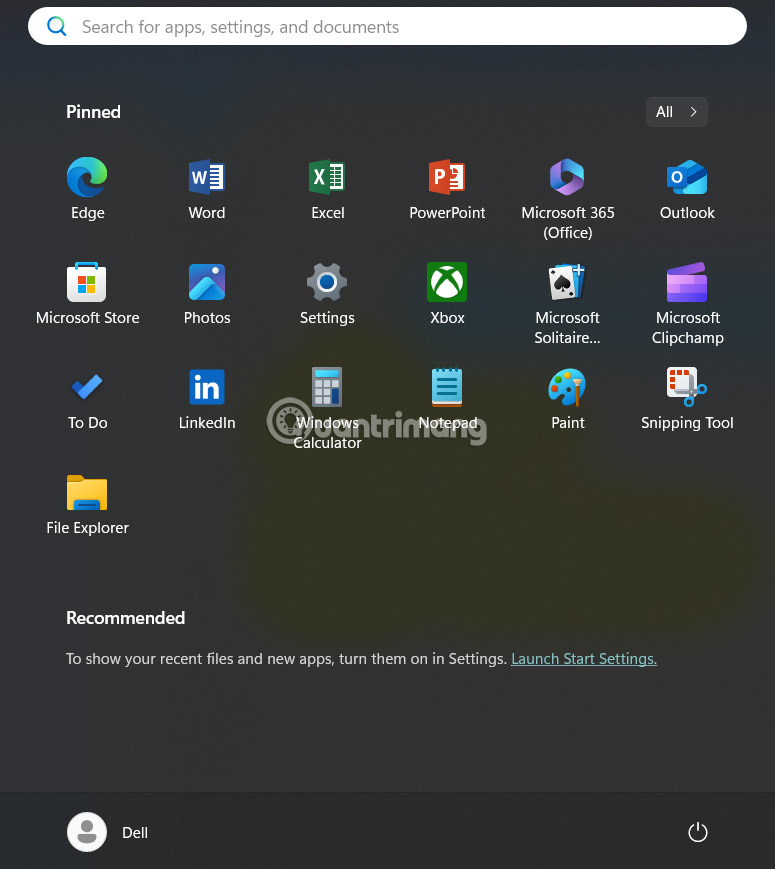
FAQ
How do you hide suggestions in Windows 11 start menu: step-by-step guide?
In practical terms, while it's not possible to remove the suggestions section in the Windows 11 Start Menu, you can hide the suggestions section to make the Start Menu cleaner.
What should you check before getting started?
Review the requirements, compatible device or software version, and any warnings described in the guide before making changes.
What should you do if the steps do not work?
Repeat the steps in order, confirm that your app or system is up to date, and review the troubleshooting details provided above.
Related Articles
 How to Turn Off Website Suggestions on Windows 11 Start Menu4 minutes read
 How to Turn Off Application Loading Suggestions on Windows 103 minutes read
 How to Hide the All Apps List in the Windows 11 Start Menu: Step-by-Step Guide4 minutes read
 How to Hide Recently Accessed Files and Folders in the3 minutes read
 How to Hide the List of Most Used Applications in Windows 104 minutes read
 3 Ways to Fix Start Menu on Windows 10 Stopped Working5 minutes read
Reader Comments 0
Sign in with email or Google to join the discussion.