Table of Contents
Windows Tools is a Control Panel folder containing administrative utilities in Windows 11. The quickest way to open it is to search for Windows Tools from Start. You can also use Run, a desktop shortcut, or Command Prompt. Opening the folder itself does not require an administrator prompt, though individual tools may.
1. Search or use Control Panel
Press the Windows key, type Windows Tools, and open the matching result. Or open Control Panel and select Windows Tools from its items. Microsoft describes the folder and included tools. If you need help finding Control Panel, see these Windows 11 opening methods.
2. Create a desktop shortcut
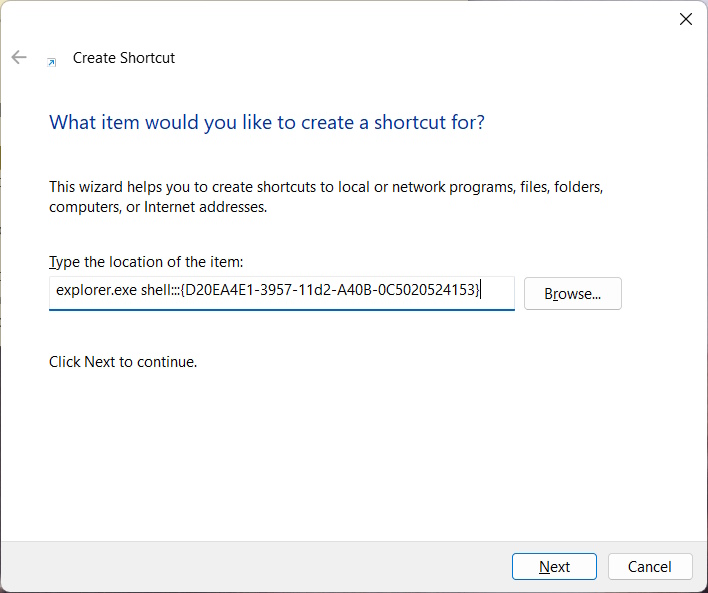
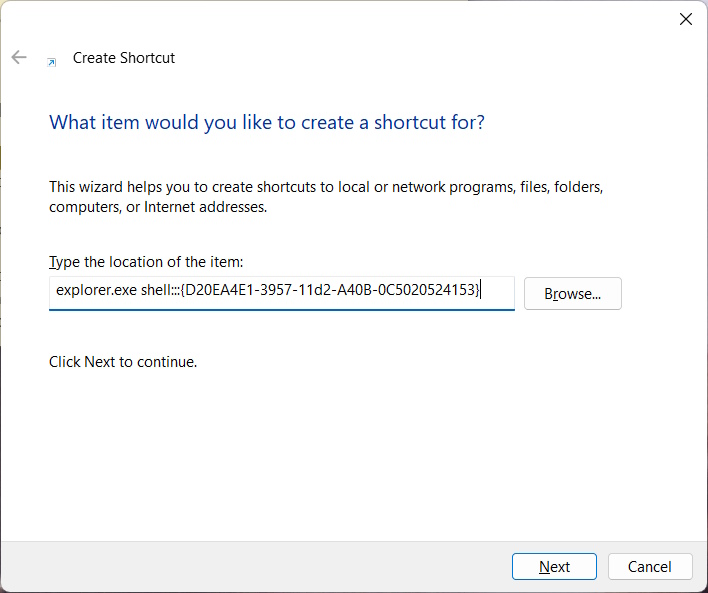
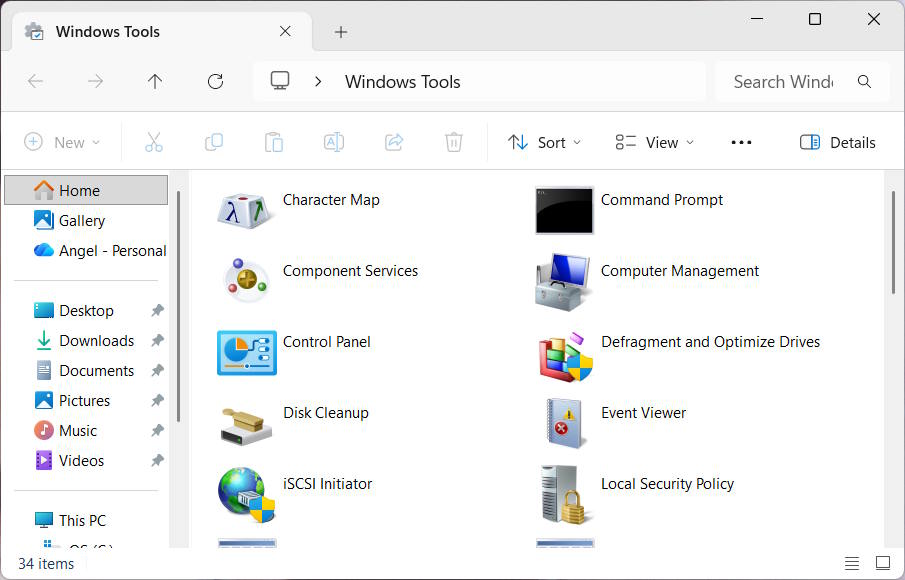
Right-click an empty area of the desktop, choose New → Shortcut, and enter explorer.exe shell:::{D20EA4E1-3957-11d2-A40B-0C5020524153} as the location. Name it Windows Tools and finish the wizard. Double-click the shortcut to check it opens the folder.
3. Pin the search result
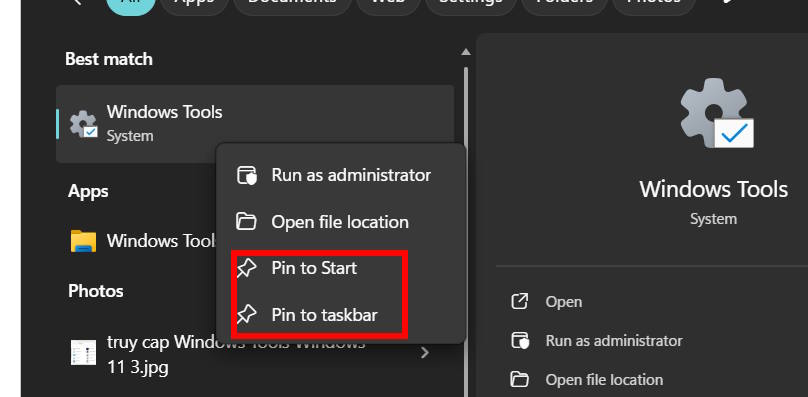
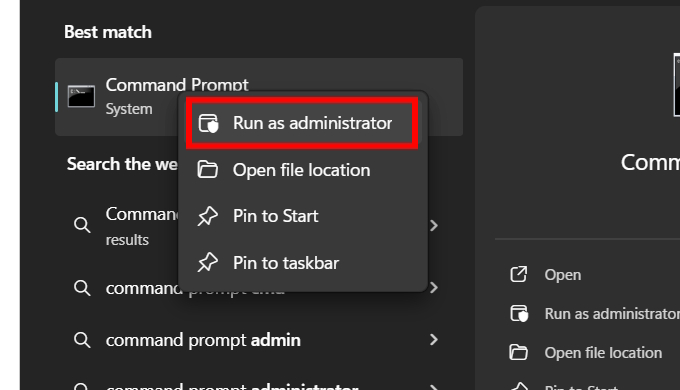
Search for Windows Tools, right-click the result, and choose Pin to Start if offered. Some builds may also show Pin to taskbar; use the option available on your PC. The screenshot below shows the menu on one build.
4. Use Run
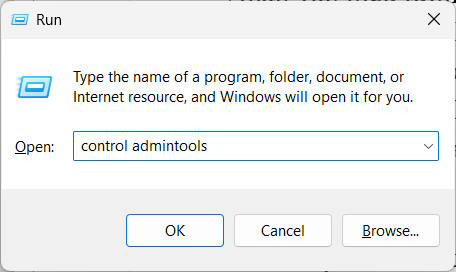
Press Windows+R, enter control admintools, and press Enter. Microsoft documents this command for the Administrative Tools folder. You can also use it when the folder is difficult to find in Control Panel.
5. Use Command Prompt or Terminal
Open Command Prompt or Windows Terminal, type control admintools, and press Enter. There is no need to run the shell as administrator just to open the folder. If a particular utility later requires elevated access, Windows will prompt when appropriate.
Optional: add a desktop context-menu entry
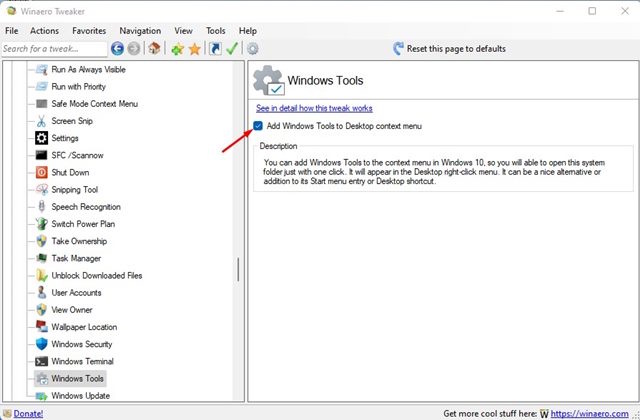
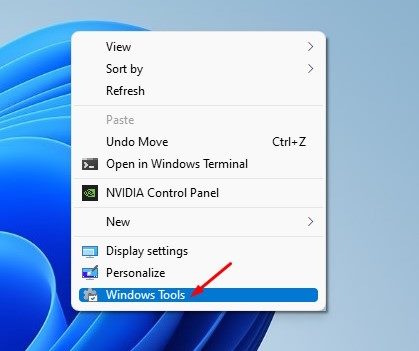
The original screenshots show a third-party route in Winaero Tweaker: Context Menu → Windows Tools → Add Windows Tools to the desktop context menu. This changes the right-click menu and is unnecessary if a shortcut or pin is enough. Check the current tool and obtain it from its publisher before changing the menu. TipsMake has a separate Winaero Tweaker overview.
Related Articles
 How to Access Settings in Windows 10, How to Open Settings on Windows 105 minutes read
 MS Access 2003 - Chapter 10: Using Additional Tools7 minutes read
 6 Ways to Access Control Panel on Windows Server 20123 minutes read
 Use Daemon Tools to Create ISO Image in Win 78 minutes read
 MS Access 2003 - Lesson 2: Using an Access Environment9 minutes read
 MS Access 2003 - Lesson 39: Analyzing Tables: Microsoft Access9 minutes read
Reader Comments 0
Sign in with email or Google to join the discussion.