Table of Contents
Microsoft Edge can use machine learning to make its saved-information suggestions more context-aware when you fill in web forms. You can disable this enhancement without deleting your saved addresses or turning off basic autofill.
The setting is available in supported Edge versions on Windows, macOS, and iOS; it is not supported on Android. Update Edge if the option is missing, and be aware that a work or school administrator can lock the setting with policy.
Turn AI-powered autofill suggestions on or off
- Open Microsoft Edge and select the three-dot Settings and more menu.
- Select Settings, then Passwords and autofill.
- Open Personal info.
- Turn AI-powered autofill suggestions on or off.
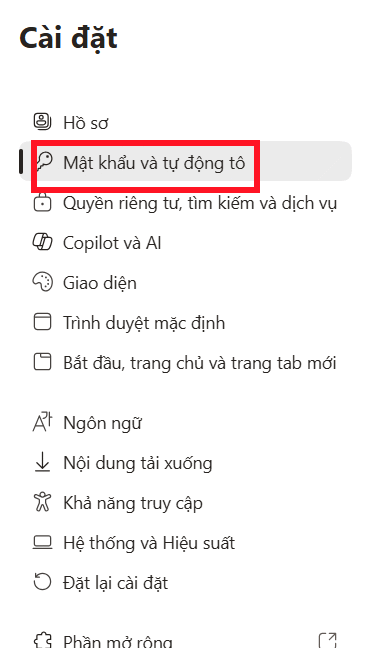
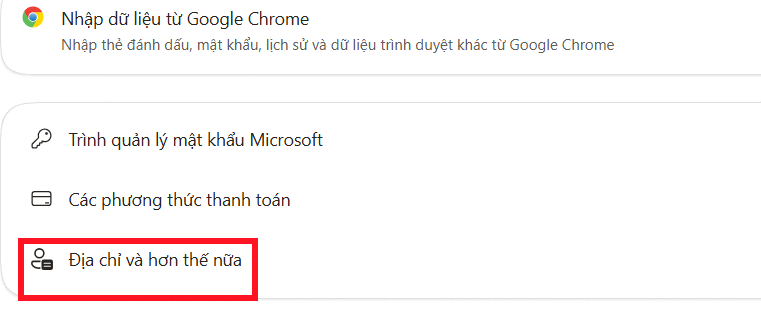
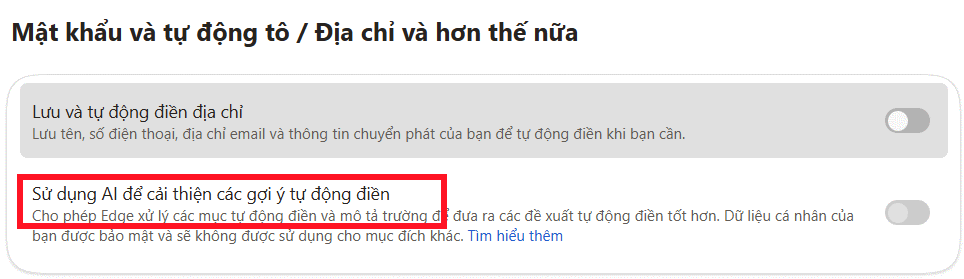
Some releases label the destination Addresses and more or the toggle Enable machine learning powered autofill suggestions. You can also paste edge://settings/personalinfo into the address bar; if that internal address changes in a later release, navigate through Settings instead.
What changes when you disable it?
With the option enabled, Edge uses cloud-based machine-learning models to interpret form metadata and historical autofill information, then offers context-aware matches from information already stored in your profile. Microsoft says user-entered values and identifiers are not sent to its form-fill service; the service receives form information such as a hashed hostname and the types of fields present.
Turning the option off stops the machine-learning-enhanced suggestions. Basic autofill can still suggest saved personal information, provided Save and autofill personal info remains enabled.
Turn off personal-information autofill completely
If you do not want Edge to save or insert names, addresses, phone numbers, email addresses, birthdays, and similar form data, open the same Personal info page and disable Save and autofill personal info. This also disables the machine-learning enhancement.
Passwords and payment cards have separate controls. Turning off personal-information autofill does not by itself disable password or card suggestions.
Review or delete saved autofill information
On the Personal info page, inspect saved entries and edit or remove anything outdated. To remove form data in bulk:
- Open Settings > Privacy, search, and services.
- Find Clear browsing data and select Choose what to clear.
- Choose a time range and select Autofill form data.
- Select Clear now.
If personal-info sync is enabled, deleting synced autofill data while signed in can remove it from other Edge installations using the same account. Check Settings > Profiles > Sync before clearing data if you want to keep a copy elsewhere.
If the toggle is unavailable
- Update Edge: open
edge://settings/helpand let the browser check for an update. - Enable basic autofill first: the AI option is disabled when personal-information autofill is off.
- Check for management: open
edge://policy. Organizations can control the feature with theEdgeAutofillMlEnabledpolicy. - Check the platform: the feature is not supported in Edge for Android, and rollout can vary by browser version and market.
Disabling AI-powered suggestions is the appropriate choice when you want standard saved-data autofill without cloud-based machine-learning enhancement. Turn off the parent autofill setting as well if you do not want Edge to offer personal information in forms at all.
Related Articles
 Instructions to Enable Password Autofill on Edge: Explained4 minutes read
 How to Turn Off Password Autofill on Microsoft Edge: Step-by-Step Guide2 minutes read
 How to Enable and Disable Video Background in Microsoft Edge4 minutes read
 How to Enable/disable Enhance Images in Microsoft Edge: Step-by-Step Guide6 minutes read
 How to Disable Custom Scroll Bars on Microsoft Edge3 minutes read
 How to Enable and Disable Full Screen Mode in Microsoft Edge5 minutes read
Reader Comments 0
Sign in with email or Google to join the discussion.