Table of Contents
Choose an iPad app for the task that slows you down. MyScript Notes handles handwriting, Moleskine Planner helps you see commitments alongside tasks, and Allume lets you arrange research visually. Trimbox and TIDE address two narrower jobs: clearing newsletters and timing a focus session.
1. MyScript Notes (formerly Nebo)
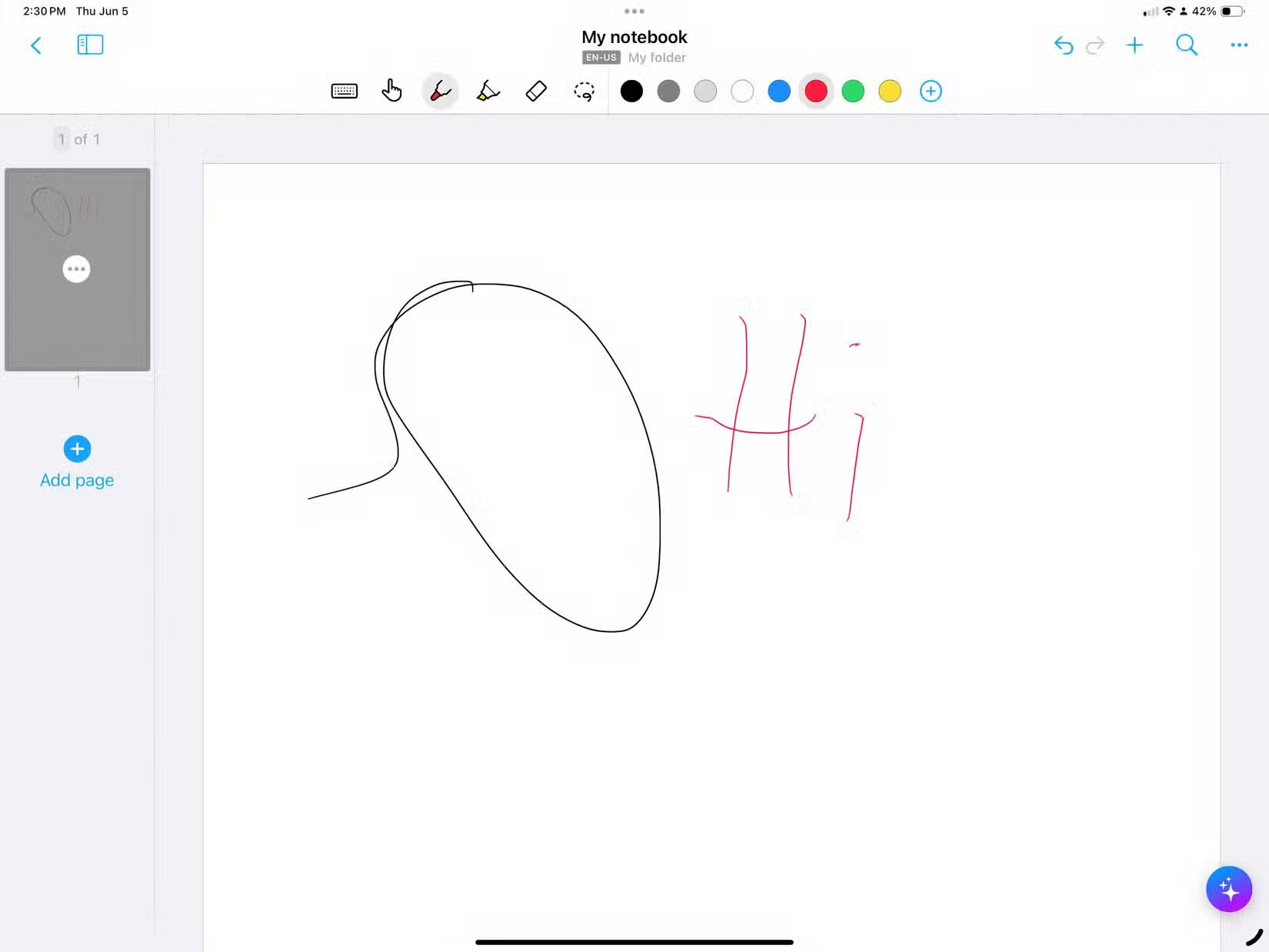
Use it if you take notes with Apple Pencil and need editable text afterward. Write a short page of your actual notes, convert it, and check how it handles names, abbreviations, and equations. Try exporting the result to the app you use for writing before moving a whole notebook.
2. Moleskine Planner
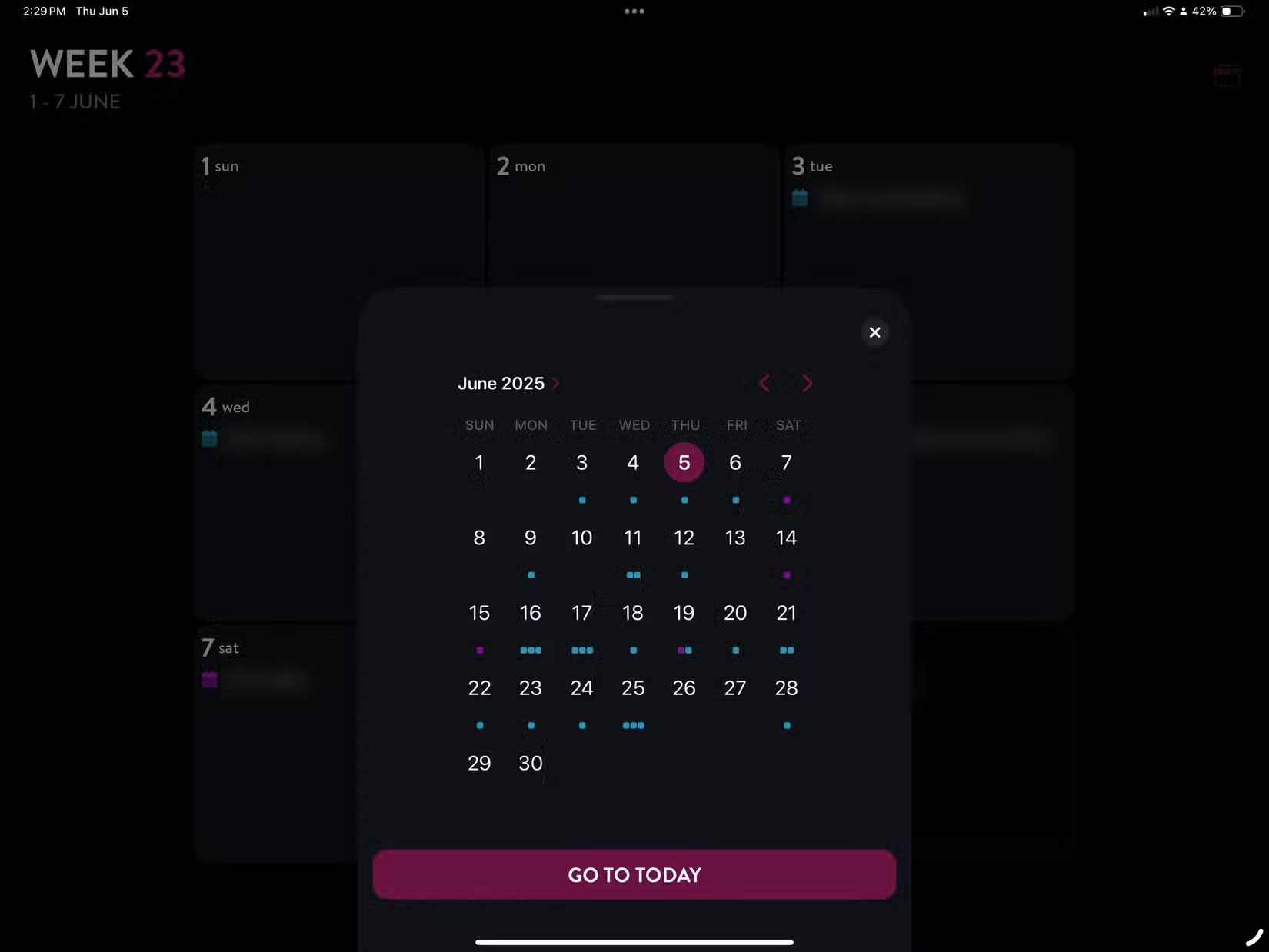
Use it to plan work around appointments. Start by adding one calendar and a short list of tasks, then check the weekly view for blocks when you can do focused work. Review the current App Store plan details if you need a feature that asks for a subscription.
3. Allume (formerly Muse)
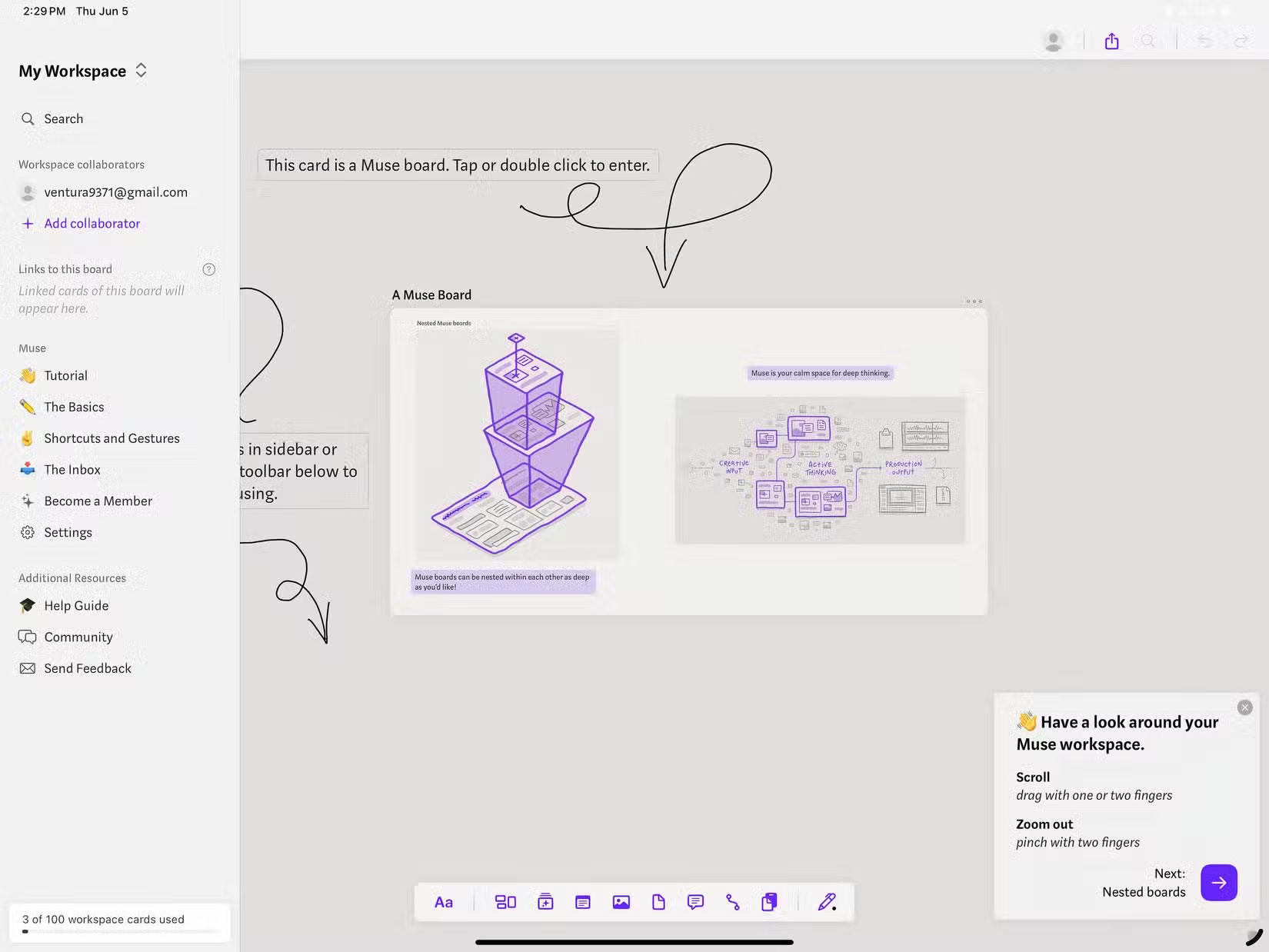
Use it when a project involves several PDFs, links, and sketches. Start with a board for the project and use nested boards for parts that need their own space. The App Store listing explains the name change and supported features.
4. Trimbox
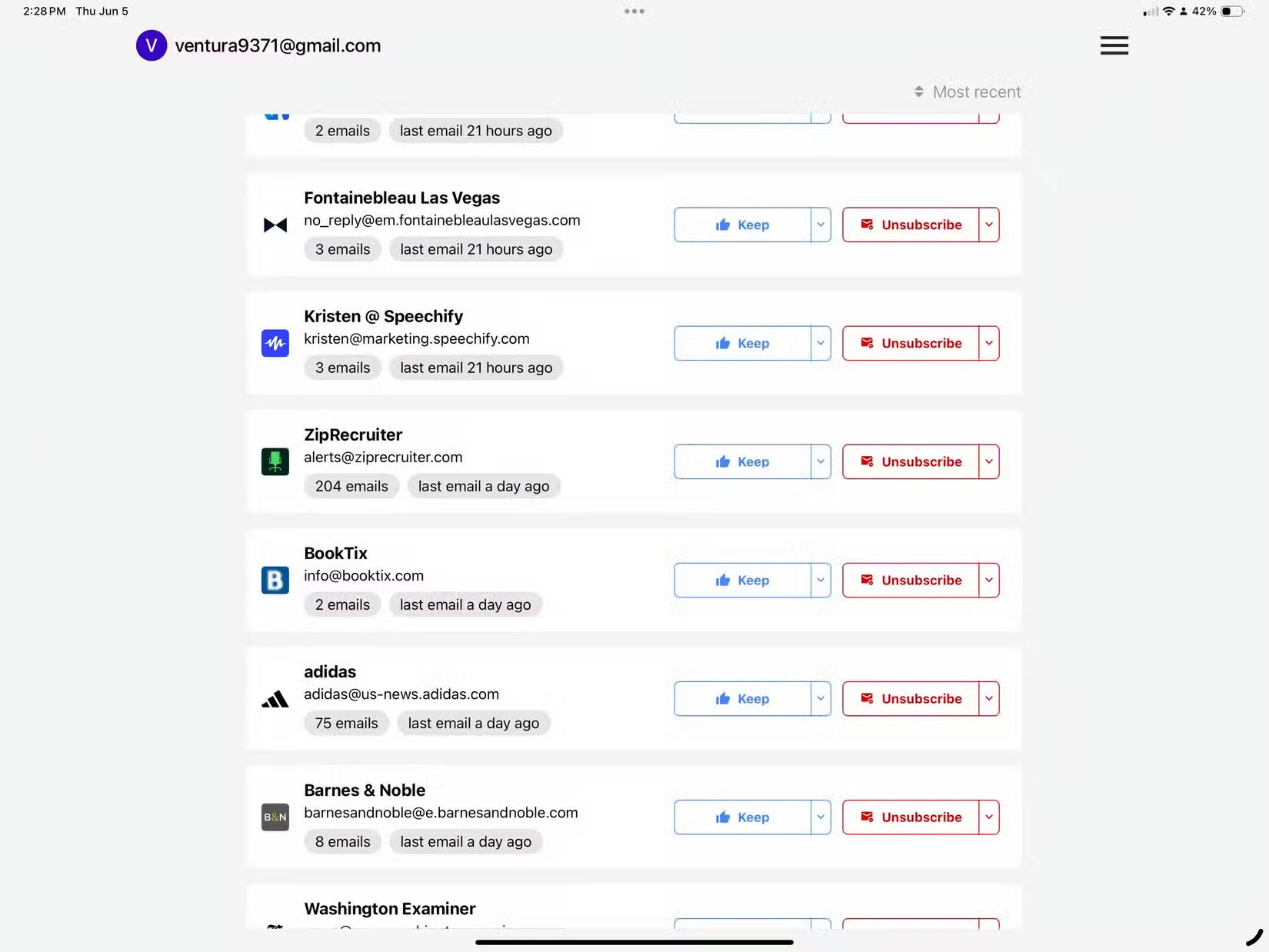
Use it to sort frequent mailing lists and unsubscribe from legitimate newsletters you no longer read. Check what mailbox access it requests before connecting an account and start with a small batch. Report suspicious messages as spam instead of opening their unsubscribe links.
5. TIDE
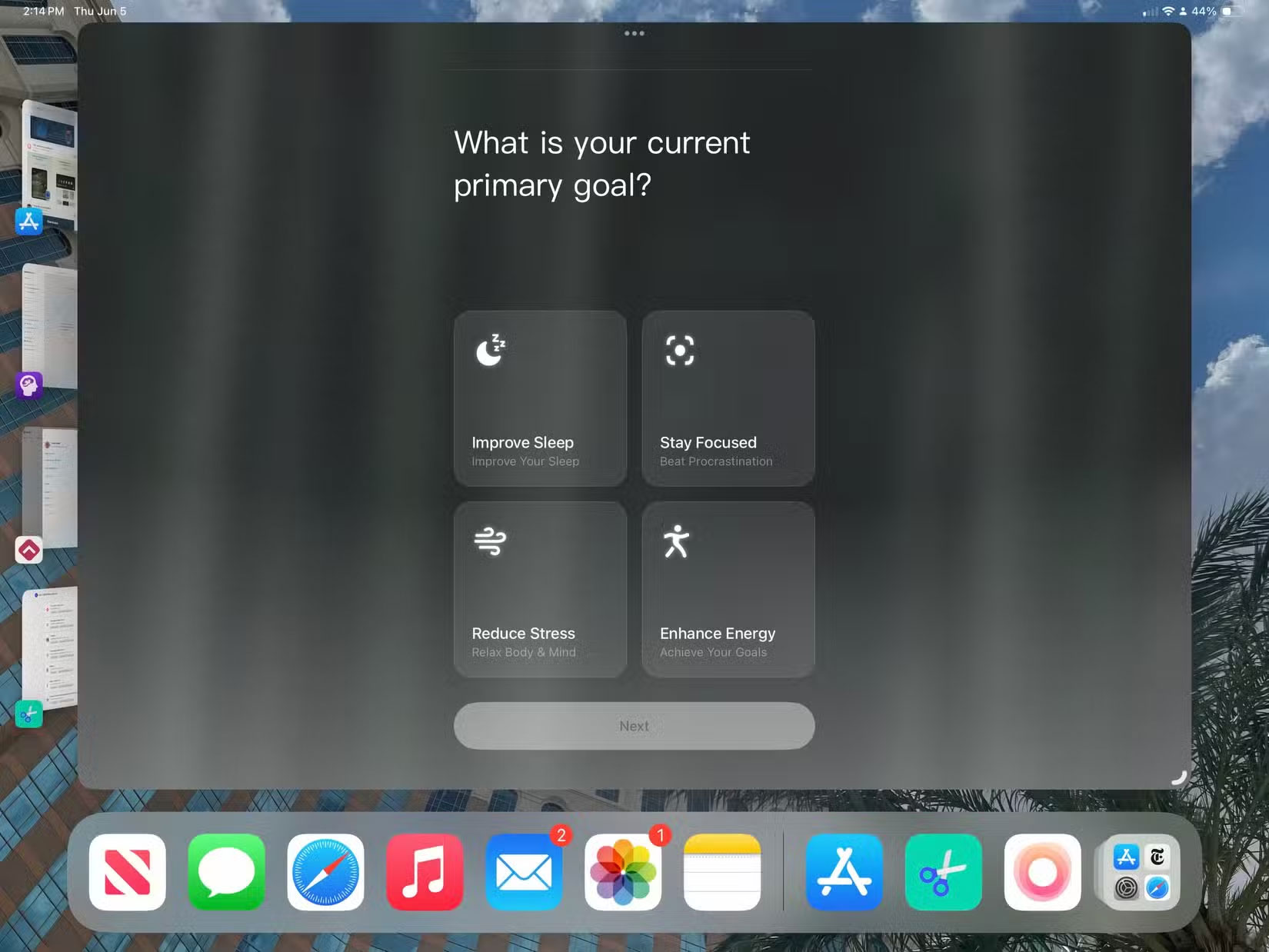
Use TIDE to give a task a clear start and end. Start a timed session for one job, such as drafting a page, and choose whether a soundscape helps you concentrate. If you only need a countdown, the built-in Clock app may already cover it.
If your main problem is switching between a document and your notes, start with the built-in windowing tools in iPadOS 26 before changing apps.



Reader Comments 0
Sign in with email or Google to join the discussion.