Table of Contents
ChatGPT can do more than answer a prompt in a standard chat. Depending on your plan, region, device, and workspace settings, it can browse and act through Agent, hold a voice conversation, connect to external apps, organize long-running work in Projects, run scheduled tasks, and edit substantial drafts in Canvas.
Feature availability and limits change over time. If an option below is missing, update the app, check the relevant menu, and review your plan or workspace administrator's settings.
1. ChatGPT Agent for multi-step online tasks
ChatGPT Agent can research across websites and connected sources and perform supported actions such as completing forms or editing a spreadsheet. It is useful when a task requires several browser steps rather than a single answer.
Good requests define the objective, constraints, preferred sources, and stopping point. For example: “Compare these three laptops using the manufacturers' specifications, put the differences in a table, and stop before visiting a retailer.”
Watch the run and inspect the result. Agent can misread a page, select the wrong item, or encounter malicious instructions embedded in a website. Keep sensitive data to a minimum, take over when needed, and review consequential actions before they are submitted. Availability and usage limits vary by plan.
OpenAI's current instructions are in the ChatGPT Agent guide.
2. Voice for hands-free conversation
Select the Voice icon in the message composer to speak with ChatGPT and hear a spoken response. Voice is helpful for pronunciation practice, rehearsal, brainstorming while your hands are occupied, and talking through an outline.
- Language practice: specify your level, target language, and whether corrections should interrupt you.
- Interview rehearsal: provide the role and ask for one question at a time followed by concrete feedback.
- Idea development: dictate rough thoughts, then ask for a structured written outline.
- Accessibility: use speech when typing or reading a long screen is difficult.
Voice output can still contain factual errors. It is not a therapist, doctor, or emergency service, and important advice should be checked with an appropriate professional. Mute or end the session when discussing private matters around other people.
3. Apps and plugins for connected services
Apps let ChatGPT search, reference, or act on information from external services. In 2026, OpenAI moved discovery to the Plugin directory; a plugin can provide apps and other workflow capabilities. The names and permissions available depend on the plugin, your plan, and workspace policy.
To connect one, open the Plugin or Apps area, select the service, review the permissions, and complete its authorization flow. In a managed Business, Enterprise, or Edu workspace, an administrator may need to enable it first.
After connecting an app, be specific about the source and scope: “Summarize unread support messages received this week, but do not send replies.” Do not assume every app can take every action.
Before authorization, check which files, messages, contacts, or actions the app can access. Disconnect integrations you no longer use. The official Apps in ChatGPT overview explains the current model.
4. Projects for recurring context
A Project keeps related chats, files, and project-specific instructions together. It is useful for a client engagement, course, research topic, or any multi-session job where repeatedly pasting the same background wastes time.
- Create a Project and give it a narrow, descriptive name.
- Add only the reference files needed for that work.
- Write project instructions that define the audience, terminology, constraints, and desired output style.
- Start separate chats inside the Project for distinct tasks.
Project context does not guarantee a correct answer. Keep source files current and ask for citations or quoted locations when a response depends on them. Do not mix unrelated clients or confidential data in the same Project.

5. Scheduled Tasks for reminders and recurring work
Scheduled Tasks can run once or repeatedly, send reminders, produce briefings, or monitor for a meaningful change. You can create one from ChatGPT's Scheduled page or ask for it directly, such as: “Every Monday morning, summarize my three priorities from this project.”
State the time zone, cadence, data source, and condition clearly. For monitoring, define what counts as a meaningful change so you are not notified about unchanged results. Review, pause, edit, or delete tasks from the Scheduled page.
Tasks have plan-dependent limits and do not support every ChatGPT tool. A task associated with a deleted chat may pause, and files in a Project may not be available to the task. Check the Scheduled Tasks documentation before relying on one for an important deadline.
6. Canvas for focused drafting and editing
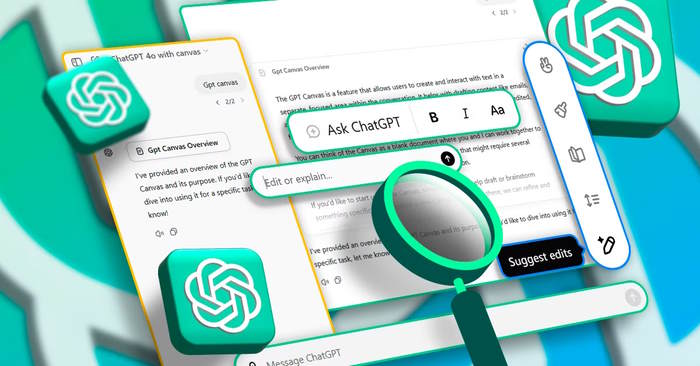
Canvas opens a larger editing workspace beside the conversation. It is better suited than a chain of chat messages when you are revising a report, article, code file, or other substantial draft.
Ask ChatGPT to open a canvas or choose Canvas when it is offered. Then select a specific passage and request a bounded change: shorten it, clarify an explanation, adjust the reading level, or identify unsupported claims. Review the full document after local edits because a change to one section can create repetition or contradictions elsewhere.
For high-stakes or collaborative work, export or copy the final draft to the system of record and use its version history, comments, and approval controls.
Choose the smallest feature that fits the task
| Need | Feature |
|---|---|
| A direct answer or short draft | Standard chat |
| Several supervised browser steps | Agent |
| Hands-free discussion | Voice |
| Authorized external data or actions | Apps or plugins |
| Shared context across many chats | Projects |
| A future or recurring run | Scheduled Tasks |
| Focused work on a long draft | Canvas |
Using more tools does not automatically improve the result. Start with the simplest feature, grant only the permissions needed, and verify source-dependent or consequential output before acting on it.
Related Articles
 ChatGPT Has Many Features in 2026: Here Are 3 Features You Might Have Missed7 minutes read
 ChatGPT Has Many Features in 2026: Here Are 5 Features You Might Have Missed!8 minutes read
 Learn About ChatGPT-4o: Features, Benefits and How to Use It: Complete Guide7 minutes read
 How to use ChatGPT to unlock your hidden potential4 minutes read
 Why Do Many People Regret Ignoring This ChatGPT Feature for So Long: Key Facts7 minutes read
 How to Use the ChatGPT API: a Complete Guide from a to Z12 minutes read
Reader Comments 0
Sign in with email or Google to join the discussion.