Table of Contents
The Gemini API lets an application send text, images, audio, video, and documents to supported Google models. For a new project, Google recommends the Interactions API, a unified interface for single prompts, multimodal input, conversations, tools, agents, streaming, and background work. The older generateContent API remains supported, but examples built around Gemini 1.0 or 1.5 model names are outdated.
What you need
- A Google account and a Google Cloud project visible in Google AI Studio
- A Gemini API key associated with that project
- Python 3.9+ or a current Node.js version if you use an SDK; alternatively, use cURL or Postman
- A currently available model ID from Google's model catalog
This tutorial uses the stable gemini-3.6-flash model. Model names, limits, pricing, and availability change, so verify the ID before deploying.
Create and protect a Gemini API key
- Sign in to Google AI Studio.
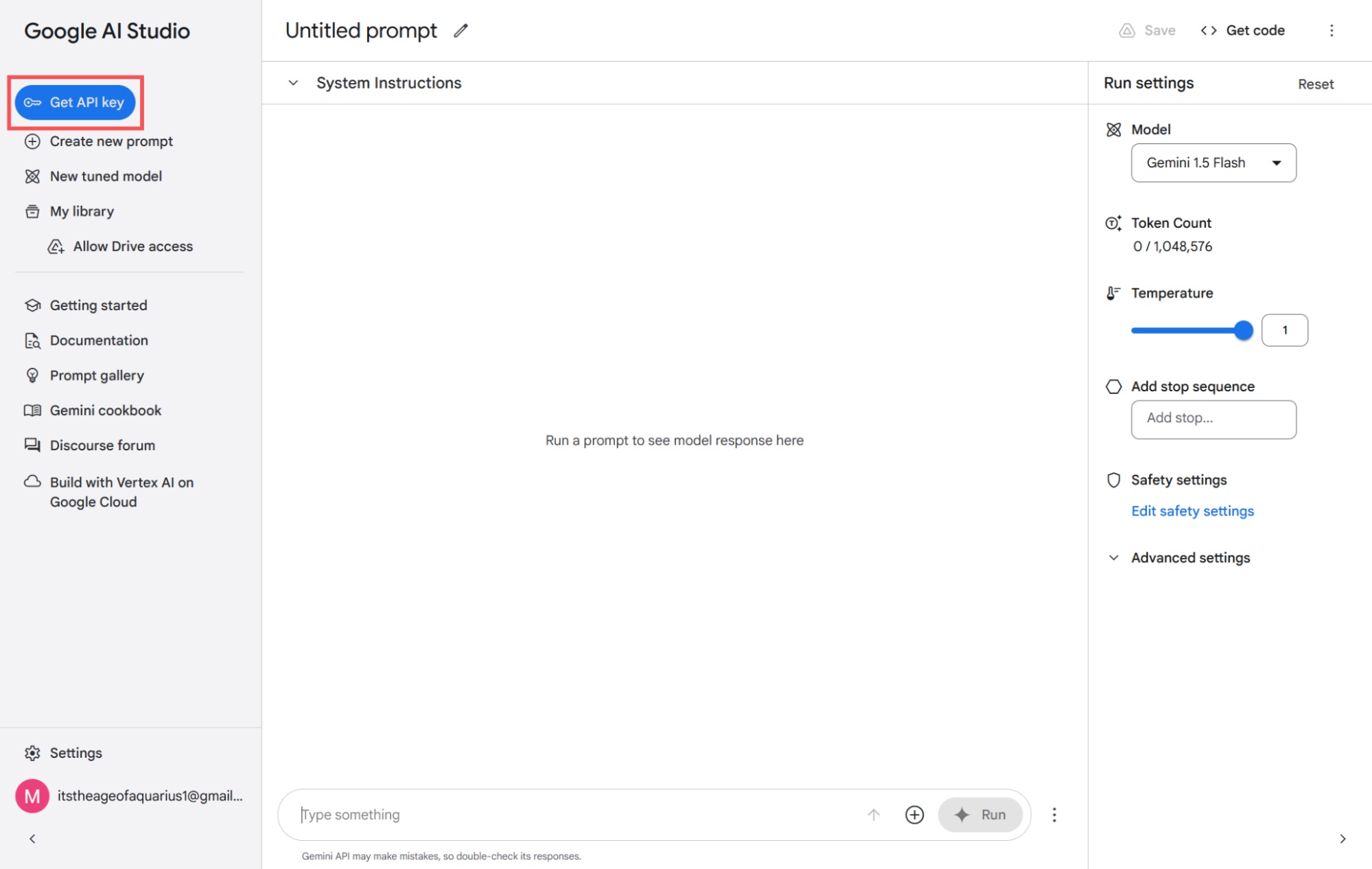
- Open the dashboard and select API Keys. New users may receive a default project and key after accepting the terms.
- If necessary, import an existing Google Cloud project from Dashboard > Projects.
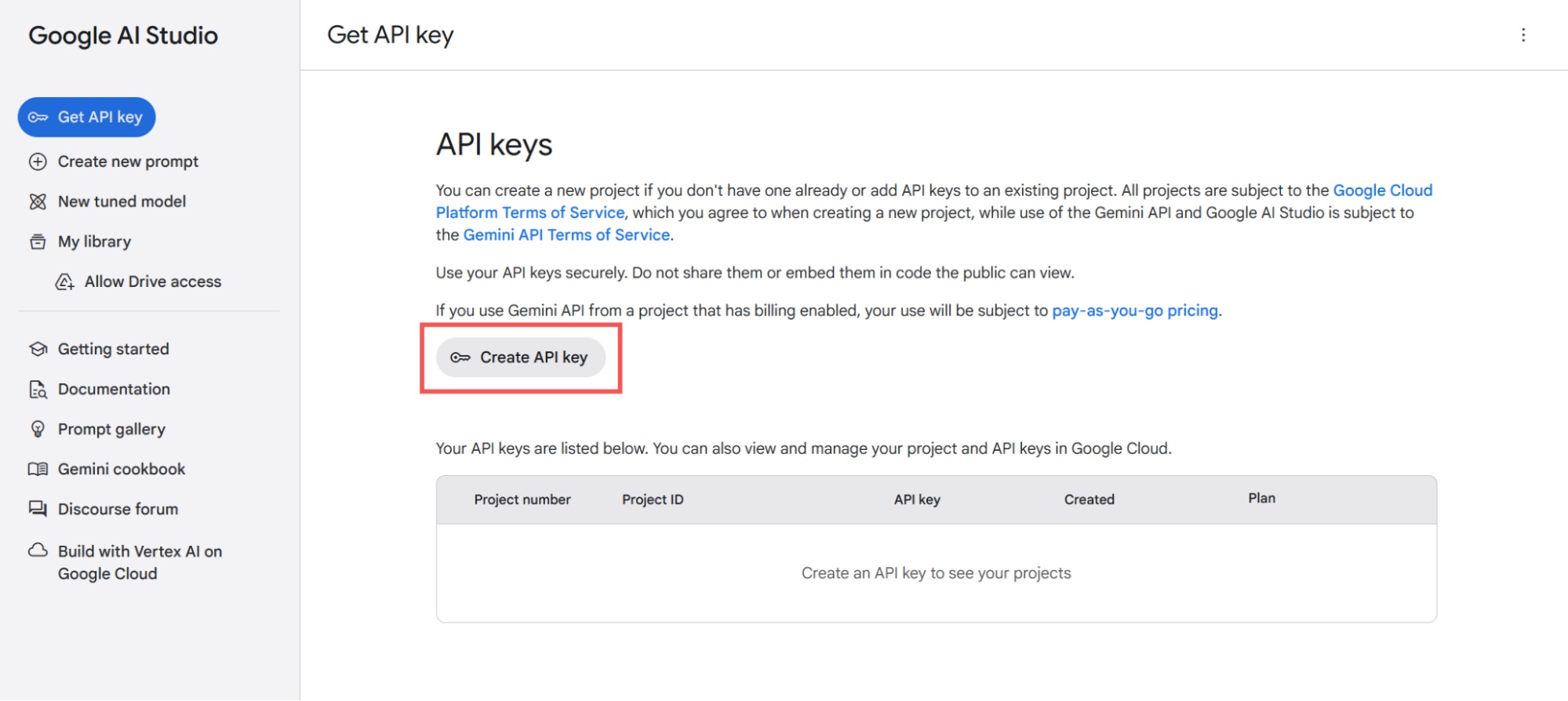
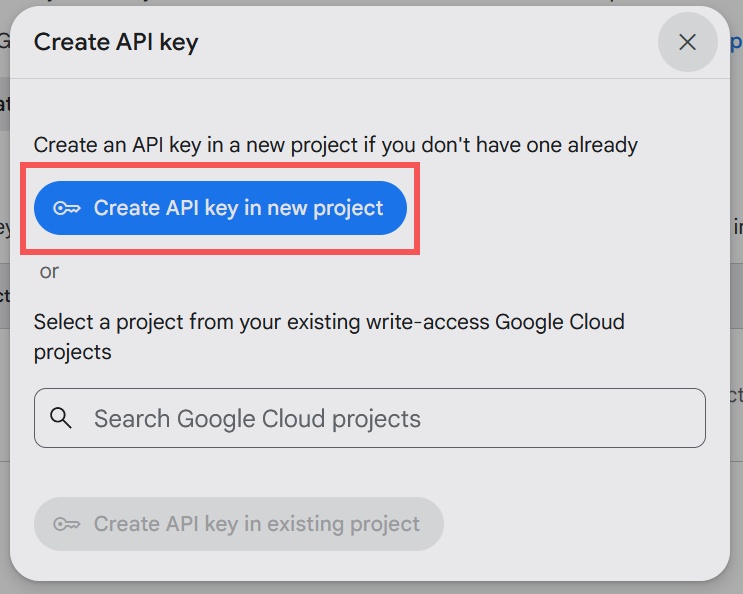
- Select Create API key and choose the intended project.
- Copy the key once and store it in a password manager or secrets service.
Set the key in an environment variable rather than pasting it into source code:
export GEMINI_API_KEY="YOUR_API_KEY"Do not put the key in browser-side JavaScript, a mobile app bundle, a public repository, screenshots, or support messages. Send requests through your own server and apply rate limits. Revoke and replace a key immediately if it leaks.
Google is moving the Gemini API from standard keys to service-account-bound authorization keys. New AI Studio keys are authorization keys by default. Unrestricted standard keys are already rejected, and Google says remaining standard keys will stop working in September 2026; migrate older keys before then.
Make your first REST request
The current Interactions endpoint accepts the model and input in a compact JSON body:
curl -X POST "https://generativelanguage.googleapis.com/v1beta/interactions"   -H "x-goog-api-key: $GEMINI_API_KEY"   -H "Content-Type: application/json"   -d '{
    "model": "gemini-3.6-flash",
    "input": "Explain how a heat pump works in three sentences."
  }'
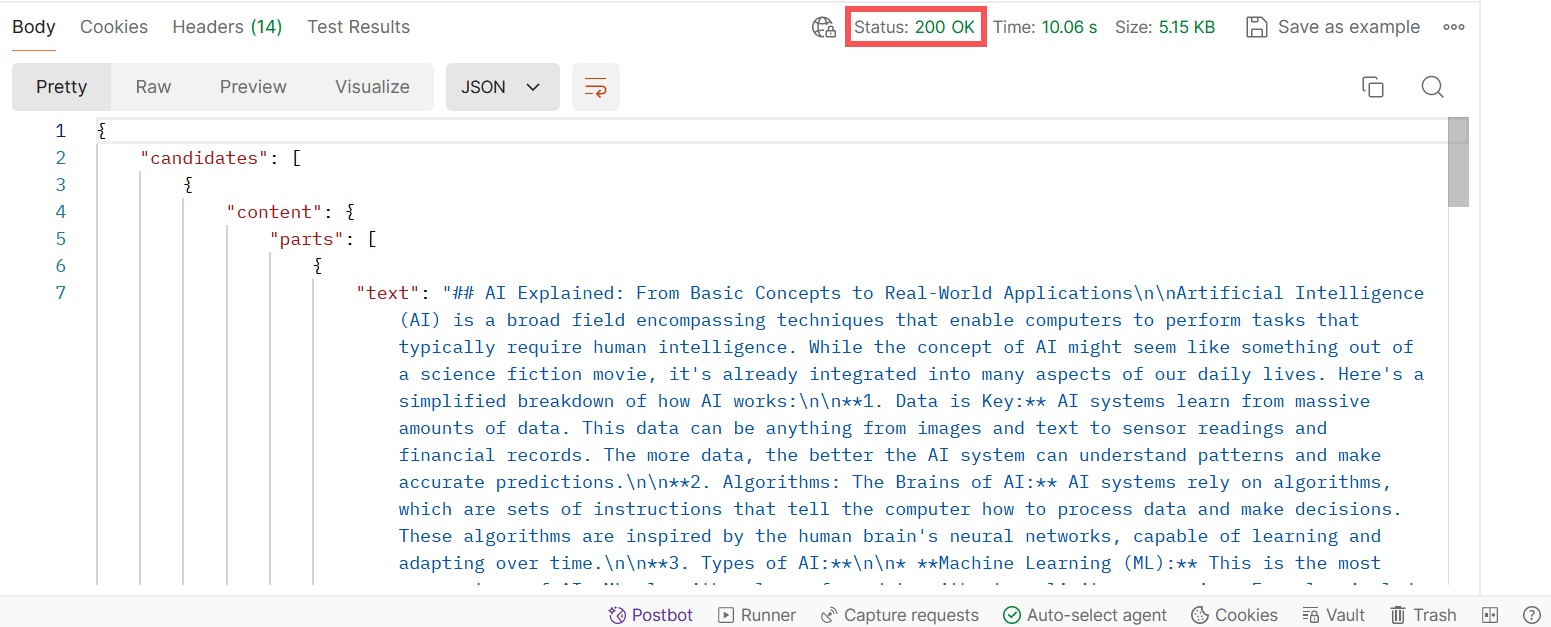
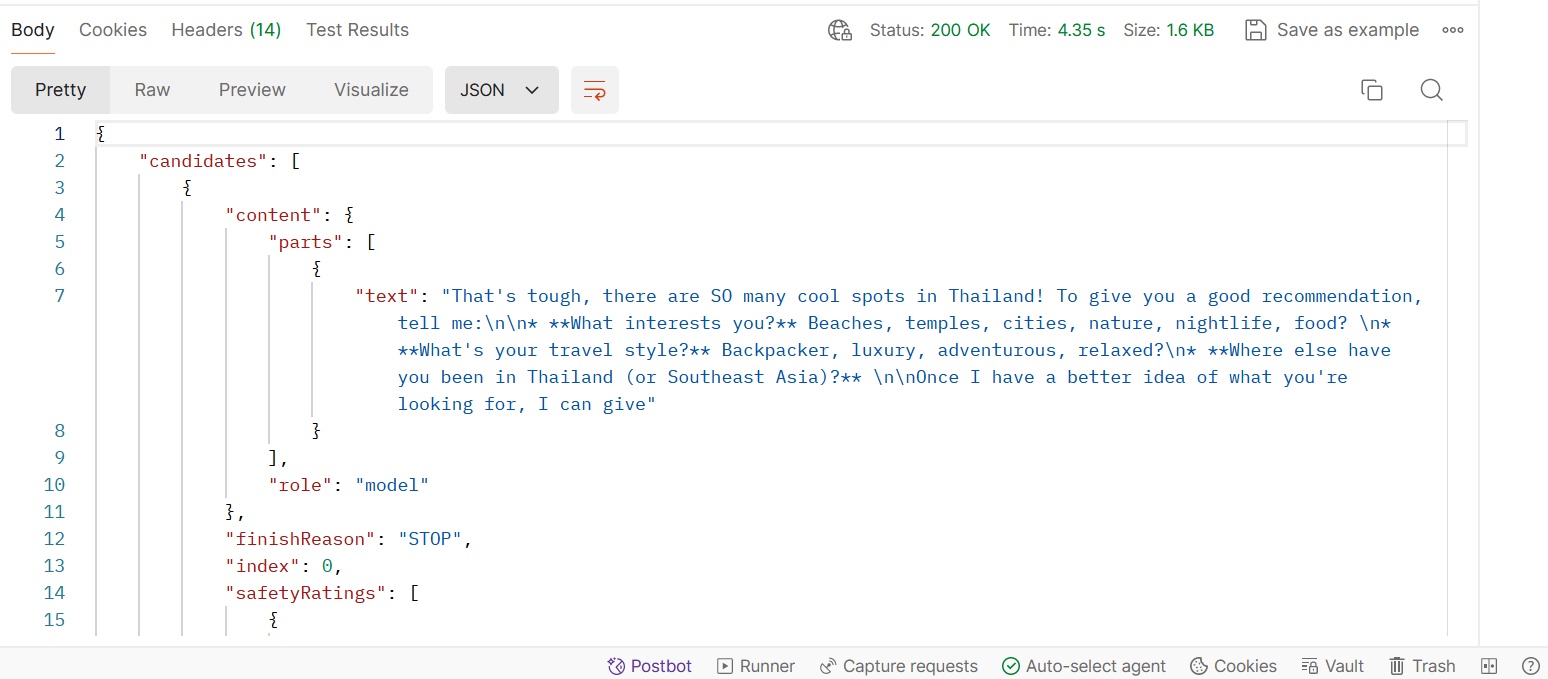
A successful response has HTTP status 200 and an interaction object containing an ID, status, token usage, and a steps array. Final text appears in a model_output step.
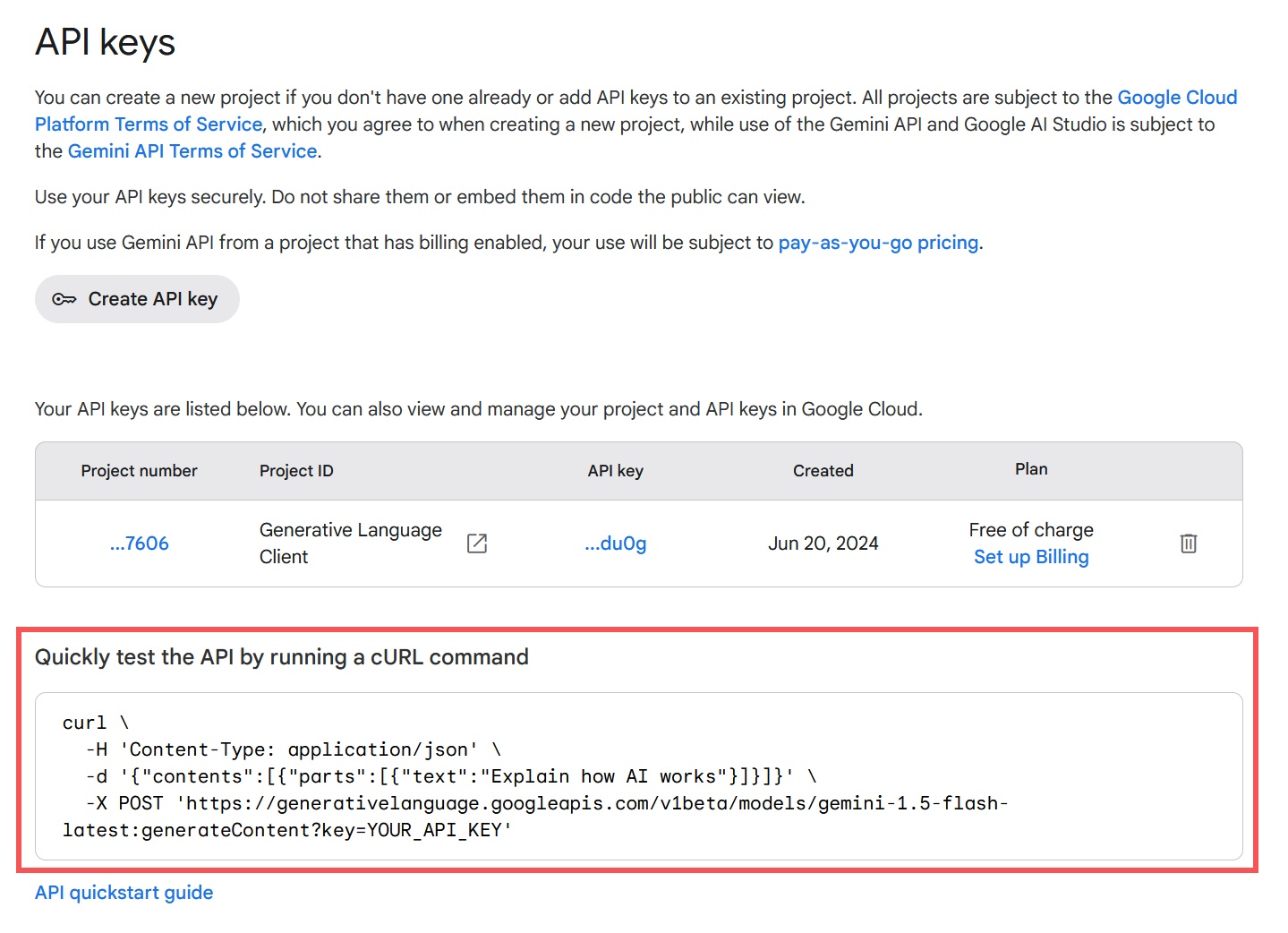
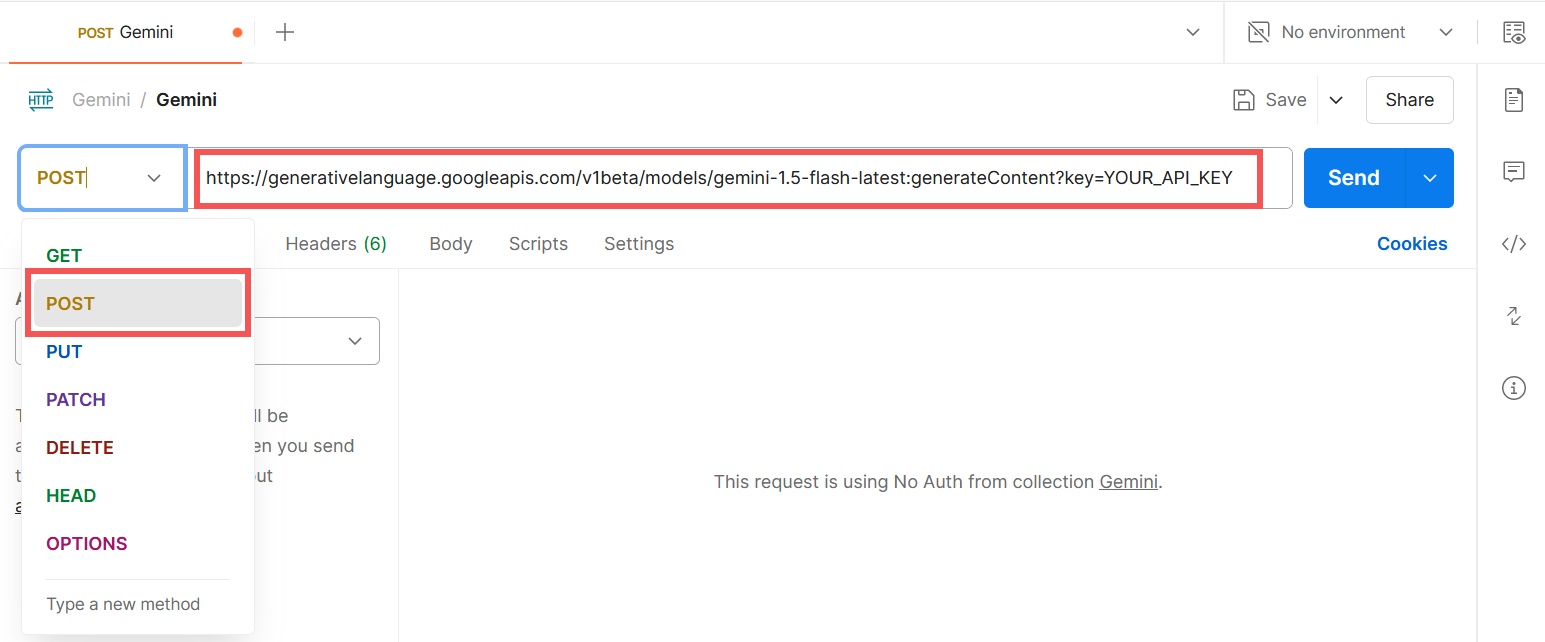
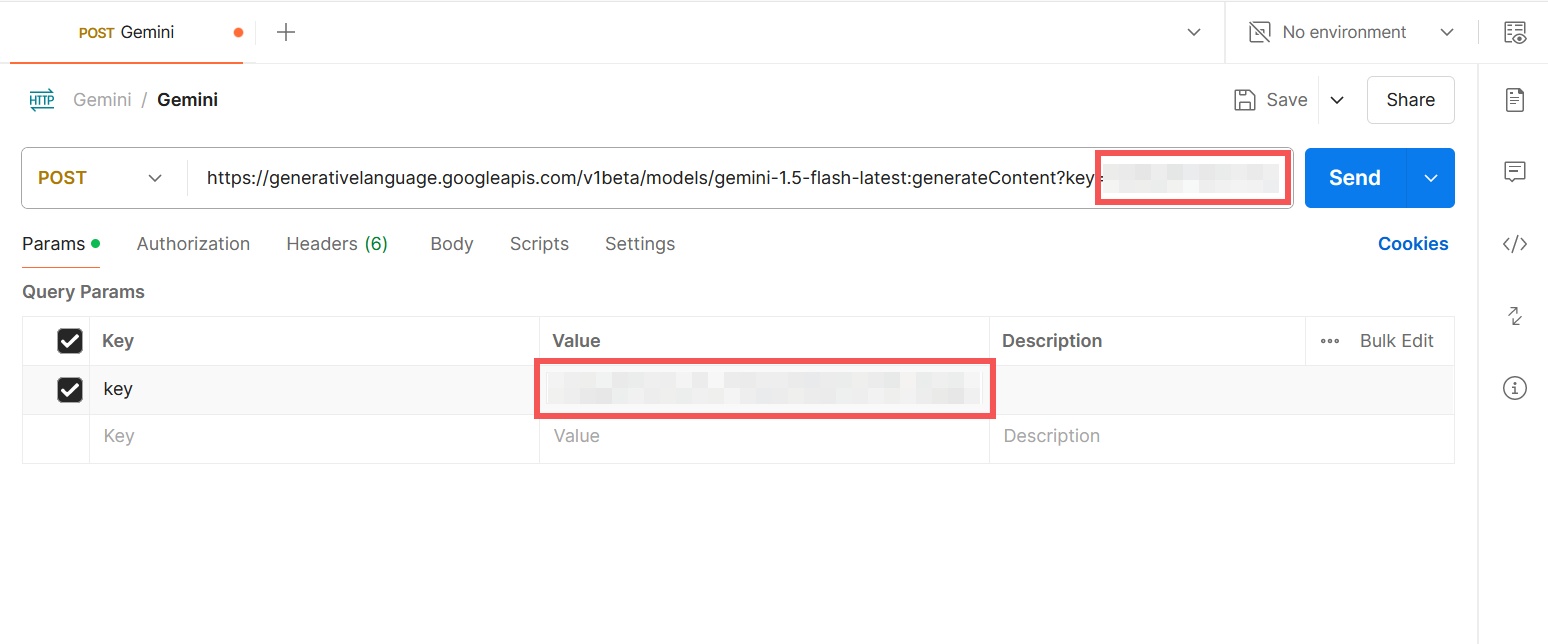
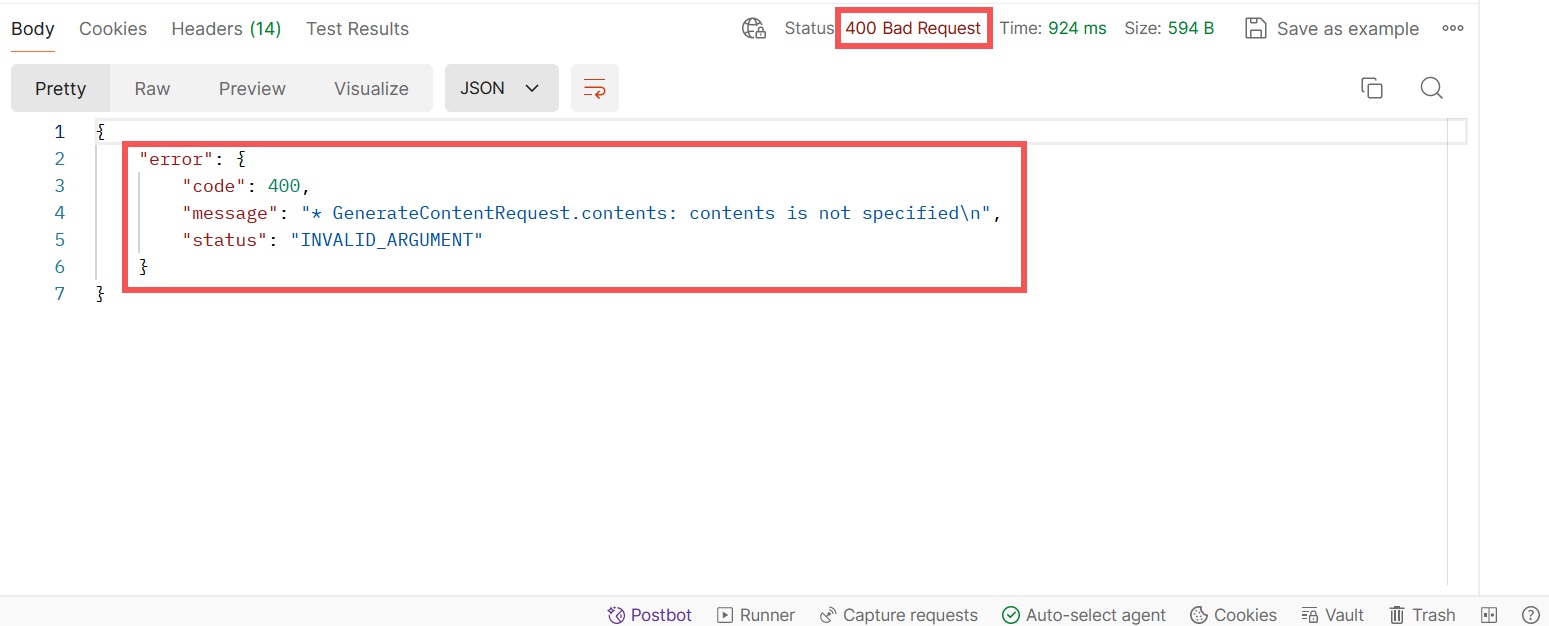
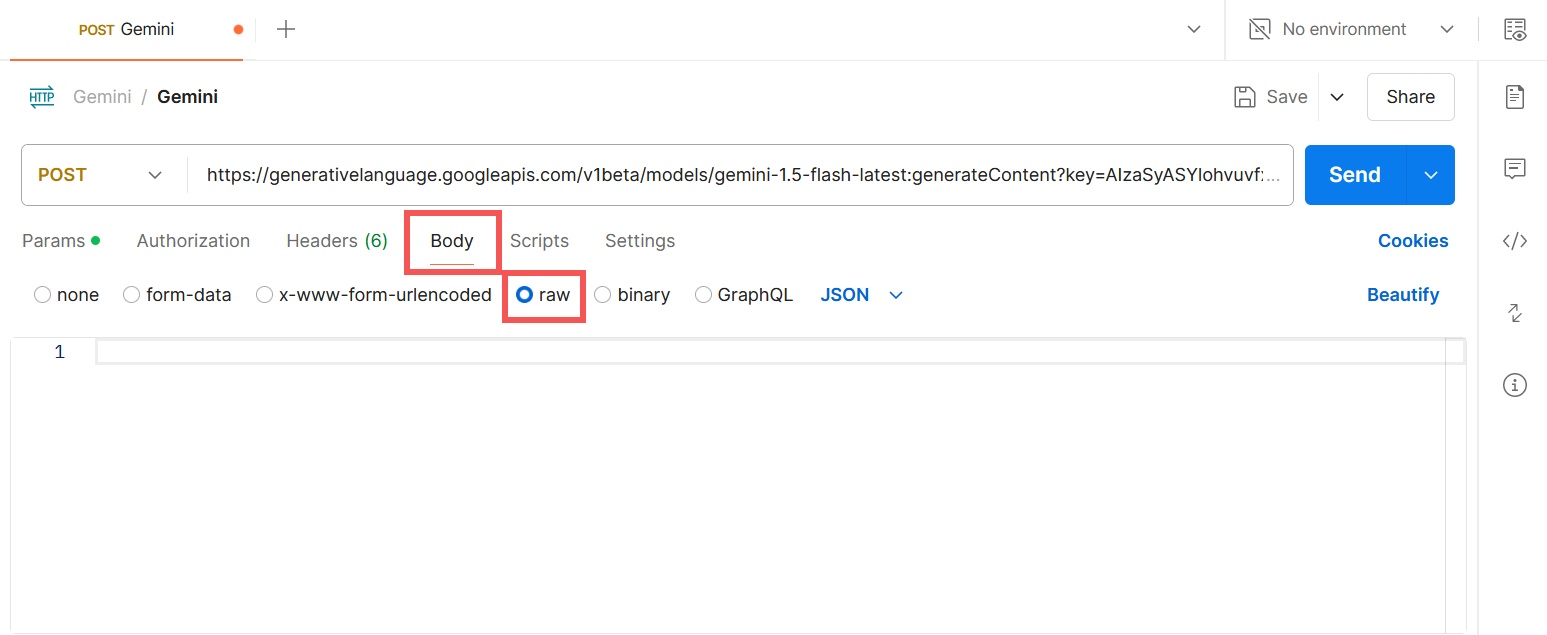
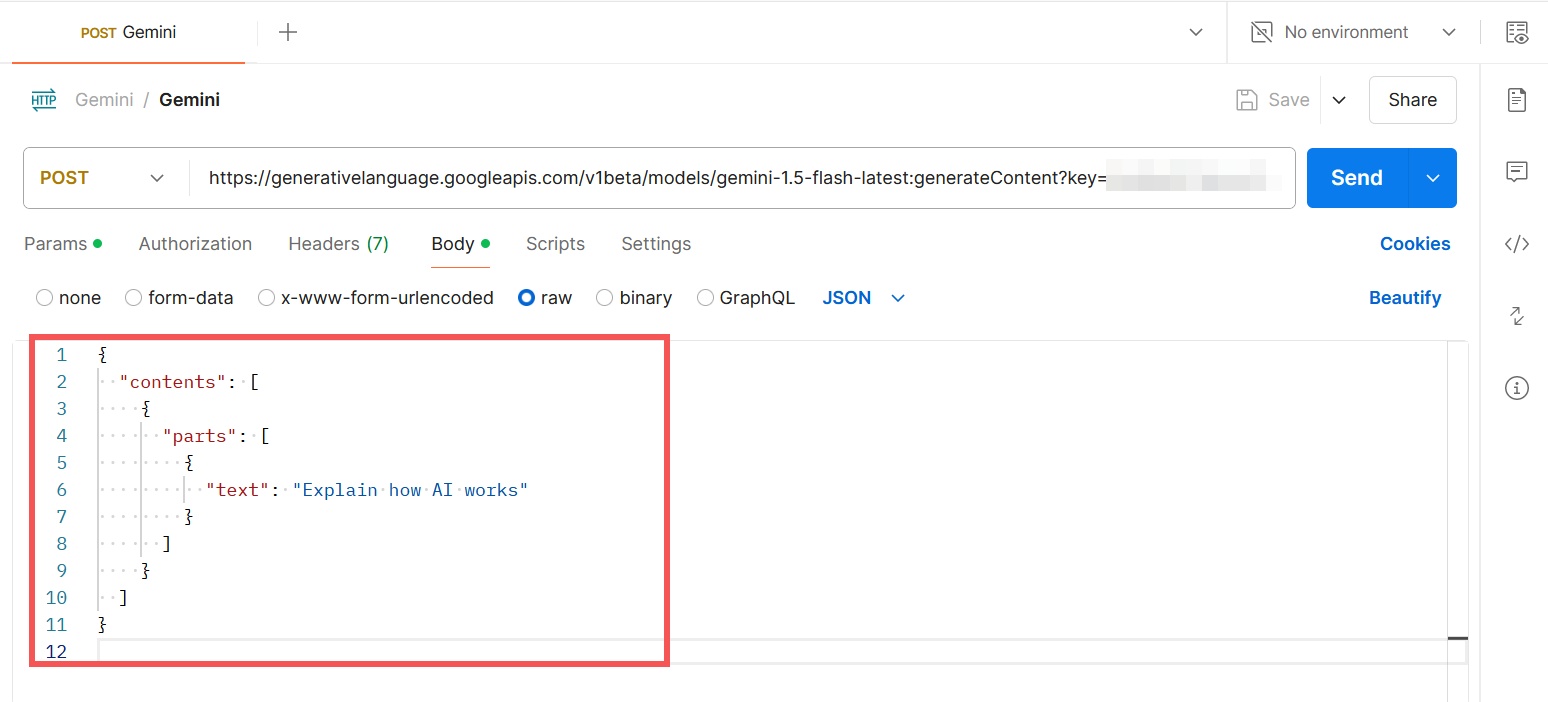
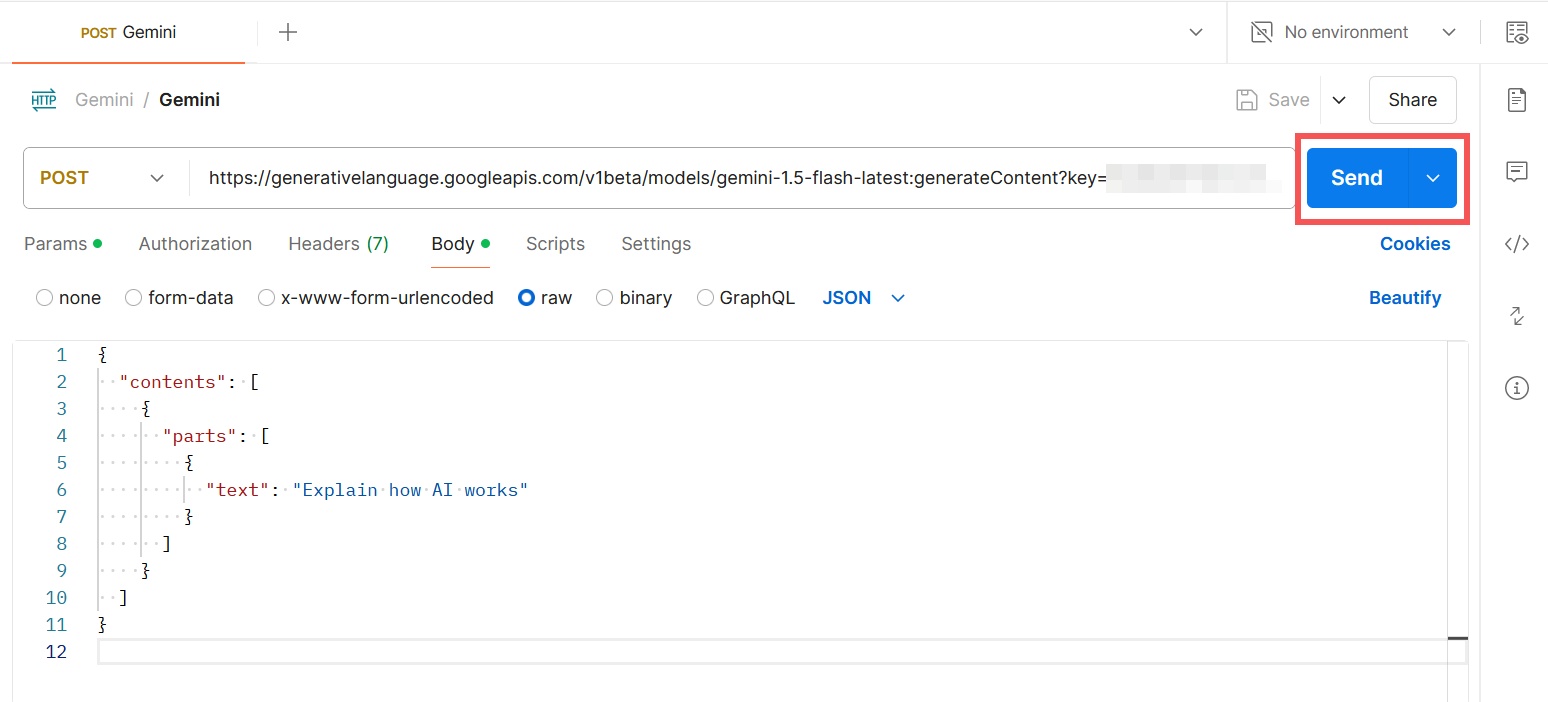
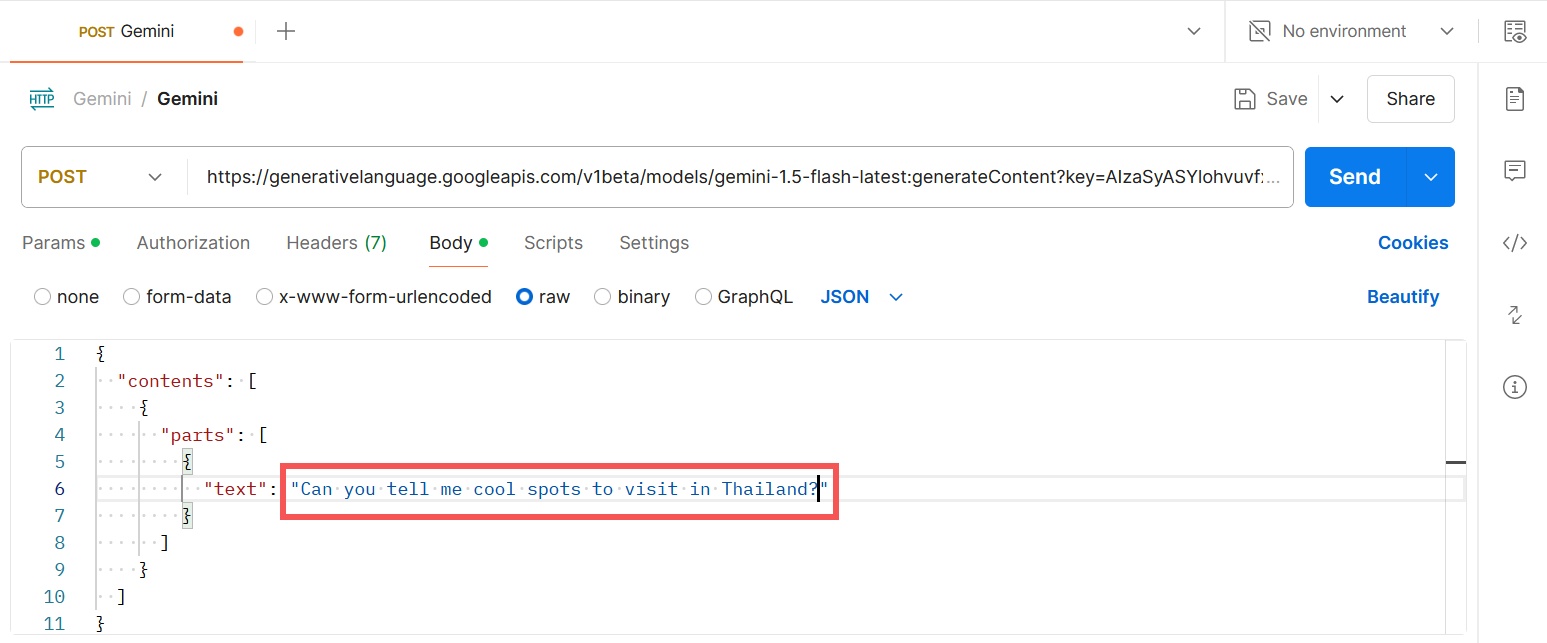
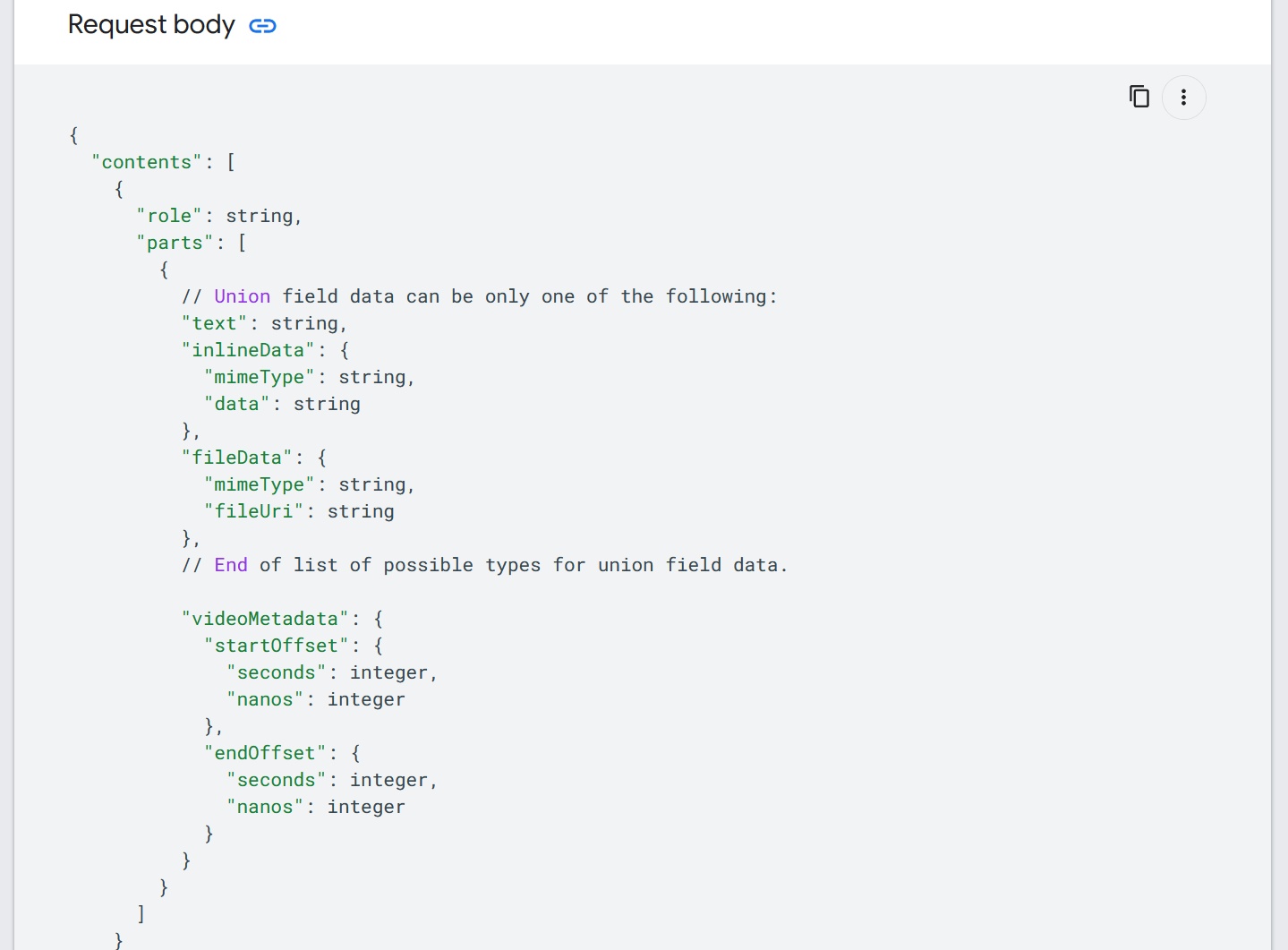
The older request format placed the key in the query string and sent a nested contents object to :generateContent. That format still appears in the screenshots below, but new projects should use the header and Interactions request shown above.
Send the same request from Postman
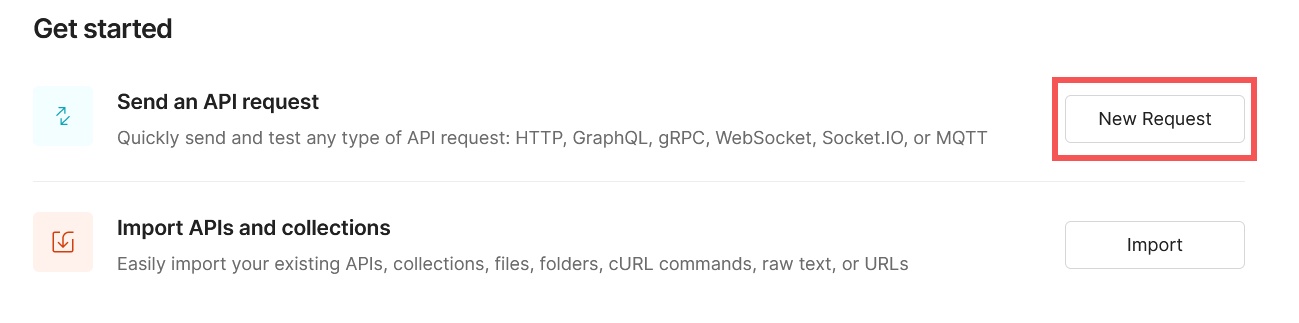
- Create a new request and set its method to POST.
- Use
https://generativelanguage.googleapis.com/v1beta/interactionsas the URL. - Under Headers, add
x-goog-api-keywith your key andContent-Typewithapplication/json. - Under Body, choose raw and JSON.
- Paste
{"model":"gemini-3.6-flash","input":"Explain how AI works in a few words"}, then select Send.
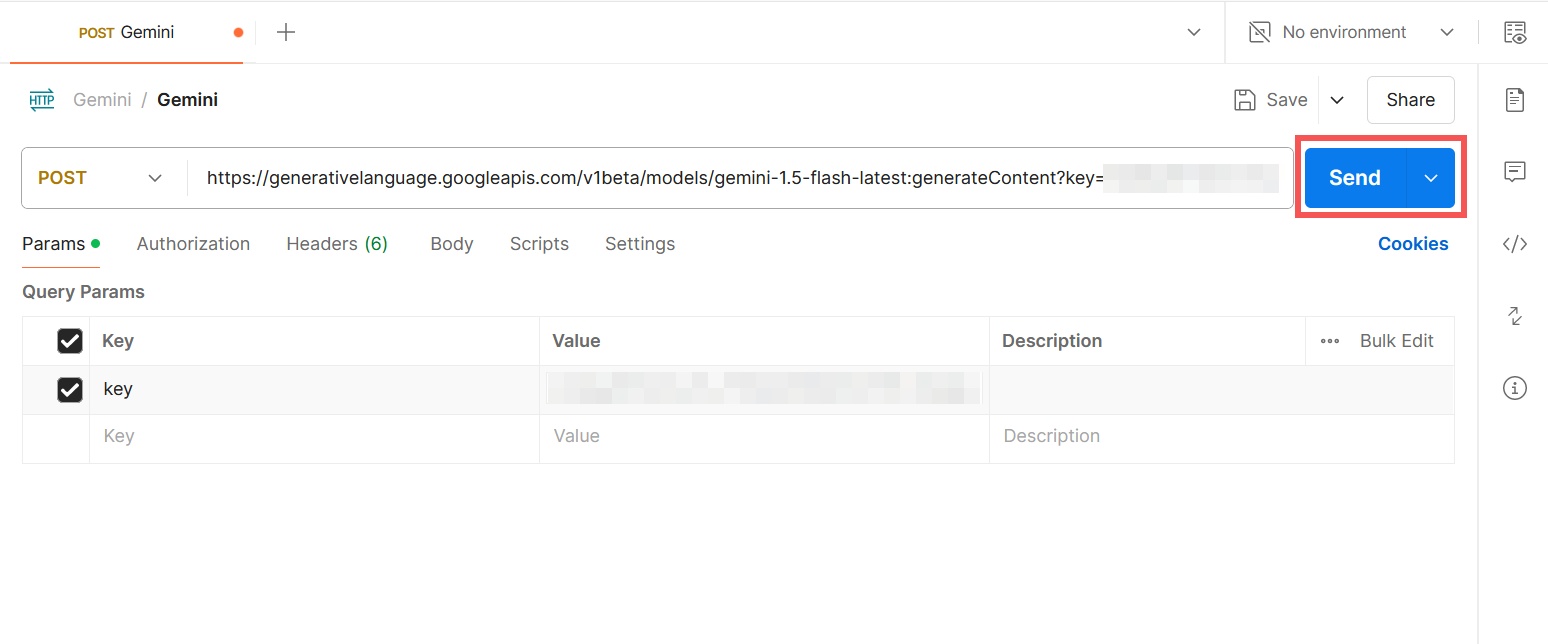
An HTTP 400 response usually means the body is empty or malformed. A 401 or 403 response points to a missing, invalid, restricted, or unauthorized key. HTTP 429 means the project reached a rate or quota limit.
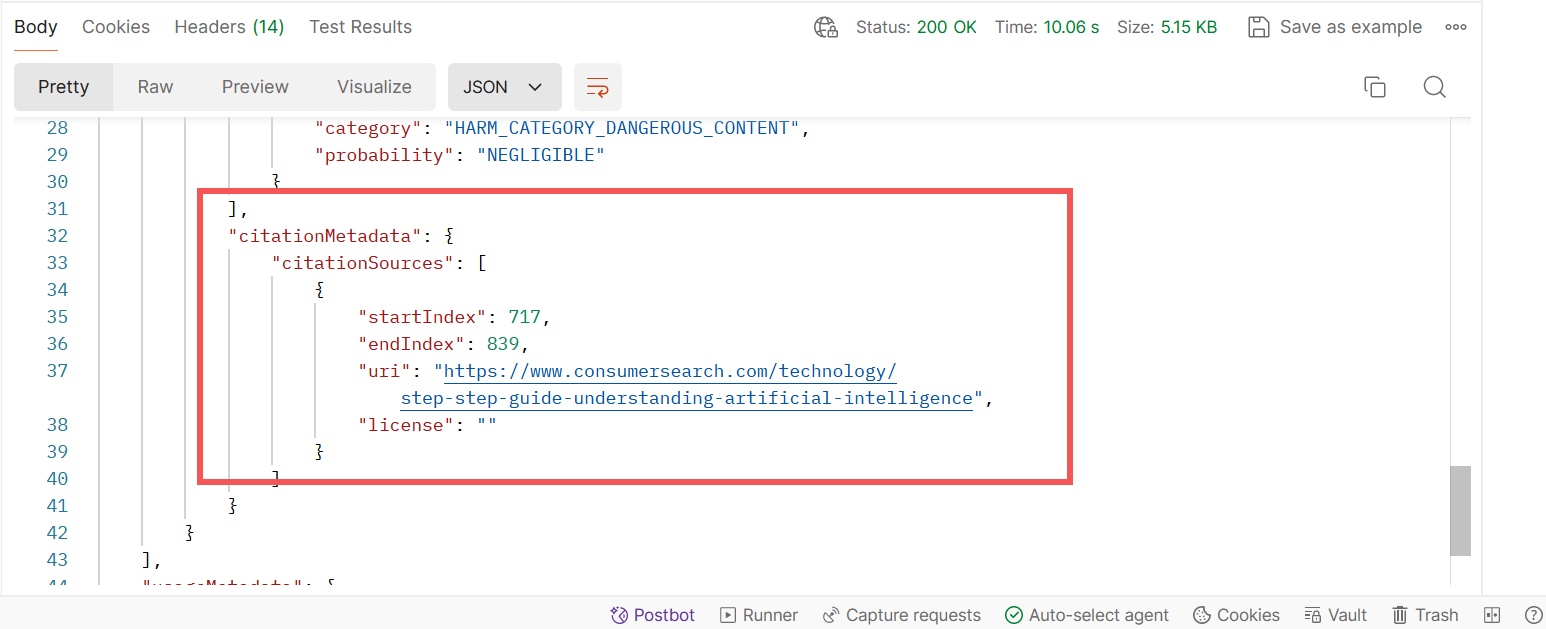
Do not assume citation fields mean that every answer was web-grounded. Search citations appear only when a supported Google Search grounding tool is enabled and used. A normal model response can be fluent but unverified.
Use the Python SDK
Install Google's current SDK:
pip install -U google-genaiBecause GEMINI_API_KEY is set, the client reads it automatically:
from google import genai

client = genai.Client()

interaction = client.interactions.create(
    model="gemini-3.6-flash",
    input="List three checks to perform before deploying an API."
)

print(interaction.output_text)
Use the JavaScript SDK
npm install @google/genaiimport { GoogleGenAI } from "@google/genai";
const ai = new GoogleGenAI({});
const interaction = await ai.interactions.create({
model: "gemini-3.6-flash",
input: "List three checks to perform before deploying an API.",
});
console.log(interaction.output_text);Run this code on a trusted server or development machine. Do not bundle the API key into front-end code.
Change the prompt and generation behavior
For Postman, edit the value of input in the JSON body and resend the request.
The Interactions API supports generation configuration, system instructions, structured output, and tools. Use only parameters documented for the chosen model and API. Old parameter screens may not match the current schema.
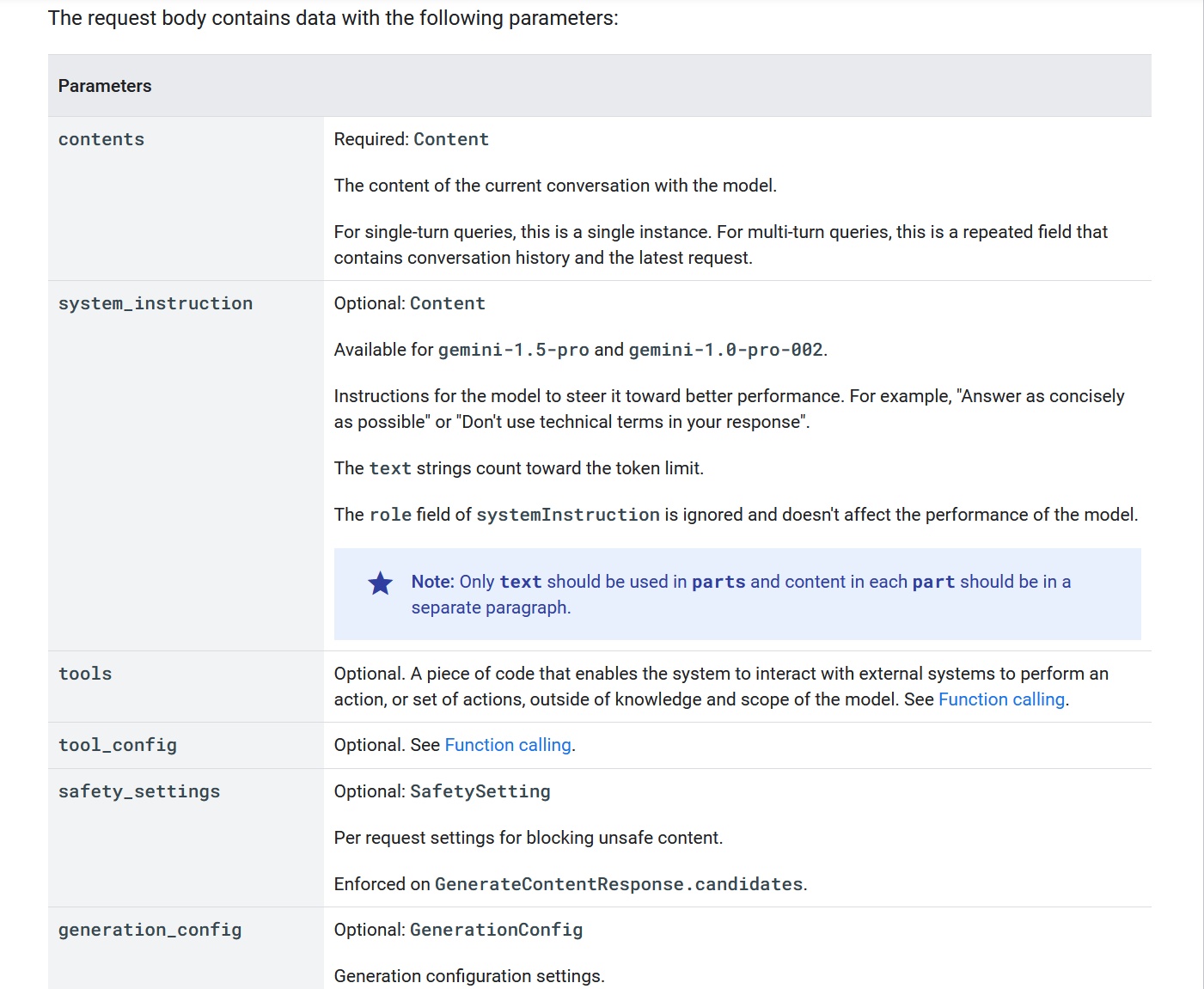
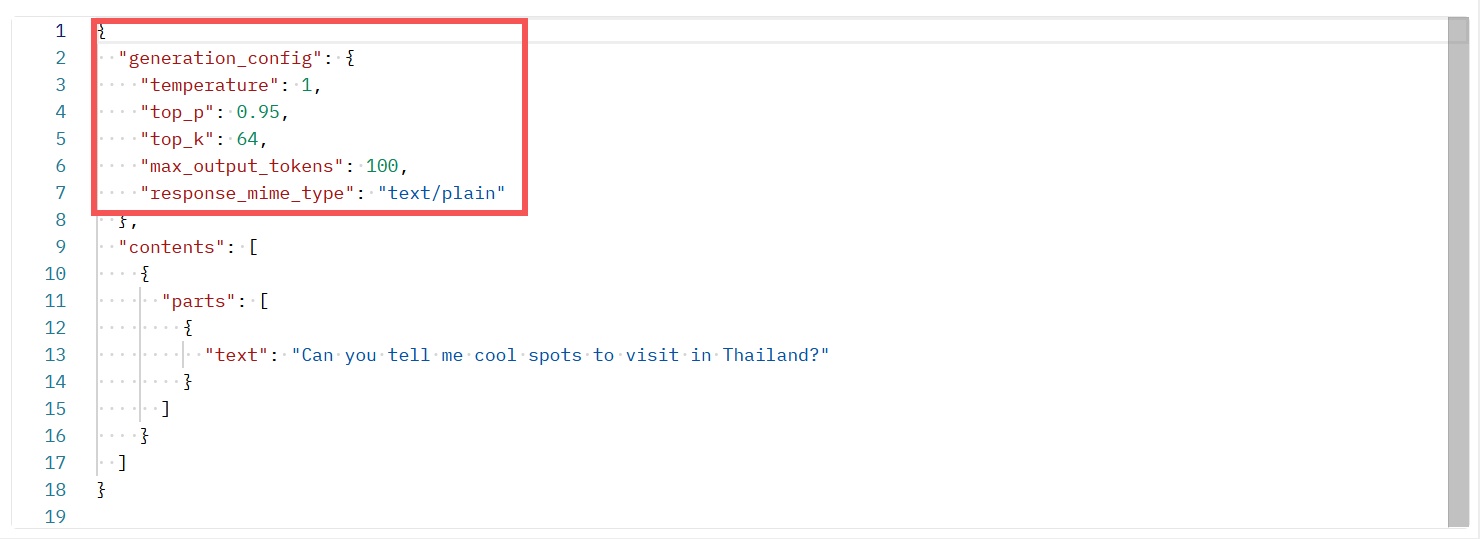
- Temperature affects variation in token selection; lower values generally make output more consistent, but not necessarily more factual.
- Top-p limits sampling to a probability mass. Avoid tuning it and temperature aggressively at the same time unless testing shows a benefit.
- Maximum output tokens caps the generated response. A cap that is too small can truncate an answer.
- Structured output is preferable to “return only JSON” when a supported model can enforce a schema.
Choose and pin a model
Change the model value to a currently available ID. Google's model catalog classifies IDs as:
- Stable: a specific production-oriented model version, such as
gemini-3.6-flash. - Preview: a model that may be used for production but has more restrictive limits and shorter deprecation notice.
- Latest: an alias that can move to a newer release; convenient for testing but risky when behavior must remain stable.
- Experimental: subject to rapid change and generally unsuitable for production.
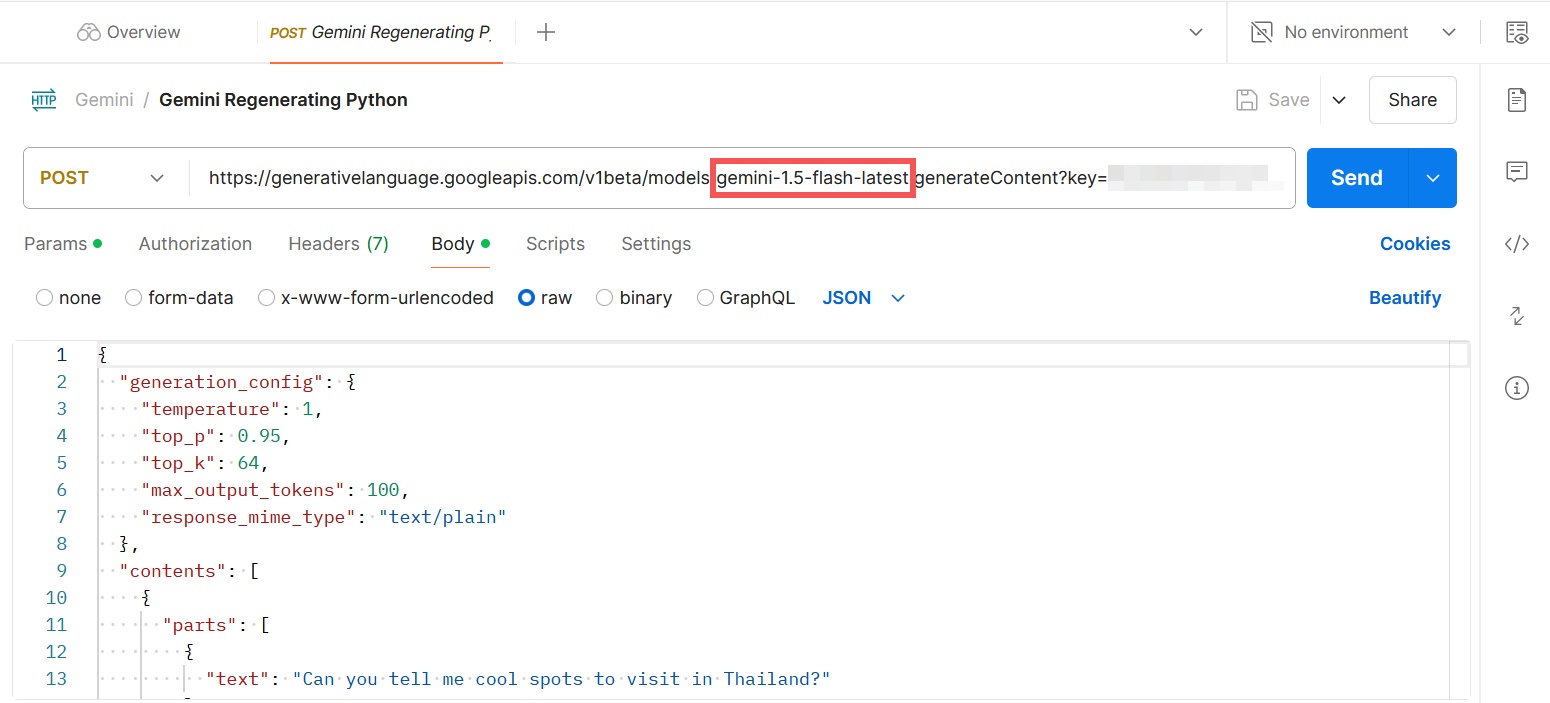
Use a stable, explicit model ID for production and monitor the Gemini API release notes. Never copy retired IDs such as gemini-1.5-flash-latest from an old tutorial.
Continue a conversation
The Interactions API stores server-side state by default. Pass the first response ID to continue:
first = client.interactions.create(
    model="gemini-3.6-flash",
    input="I have two dogs."
)

second = client.interactions.create(
    model="gemini-3.6-flash",
    input="How many paws is that?",
    previous_interaction_id=first.id
)

print(second.output_text)
If your data policy does not permit stored server-side state, set store=False and manage the complete interaction history yourself. Read Google's retention documentation before sending personal, confidential, or regulated data.
Google AI Studio API or Vertex AI?
Use the Gemini Developer API through AI Studio for quick prototypes and direct Gemini integration. Use Gemini on Vertex AI when a Google Cloud deployment needs enterprise IAM, regional configuration, Cloud observability, governance, or integration with other Vertex AI services. The authentication and endpoints differ, so do not mix examples from the two platforms.
Production checklist
- Keep keys server-side, use authorization keys, and apply least privilege.
- Set billing alerts, quotas, request timeouts, retry limits, and exponential backoff.
- Log request IDs and errors without logging secrets or sensitive prompt content.
- Validate structured data before using it in code or a database.
- Review model output before high-impact decisions or publication.
- Pin a stable model and test changes before upgrading.
- Consult the current Gemini API quickstart for SDK and schema changes.
Related Articles
 Gemini 3.1 Pro or Gemini 3 Pro: Better?8 minutes read
 Instructions for Getting Started with Gemini Embedding 211 minutes read
 How to Turn Gemini into a Powerful Productivity Tool: Step-by-Step Guide8 minutes read
 4 Google Apps That Work Better with Gemini: Explained5 minutes read
 Instructions for Using the Gemini Utility: What to Know4 minutes read
 What Is Google Gemini? How Does Gemini Work?6 minutes read
Reader Comments 0
Sign in with email or Google to join the discussion.