Table of Contents
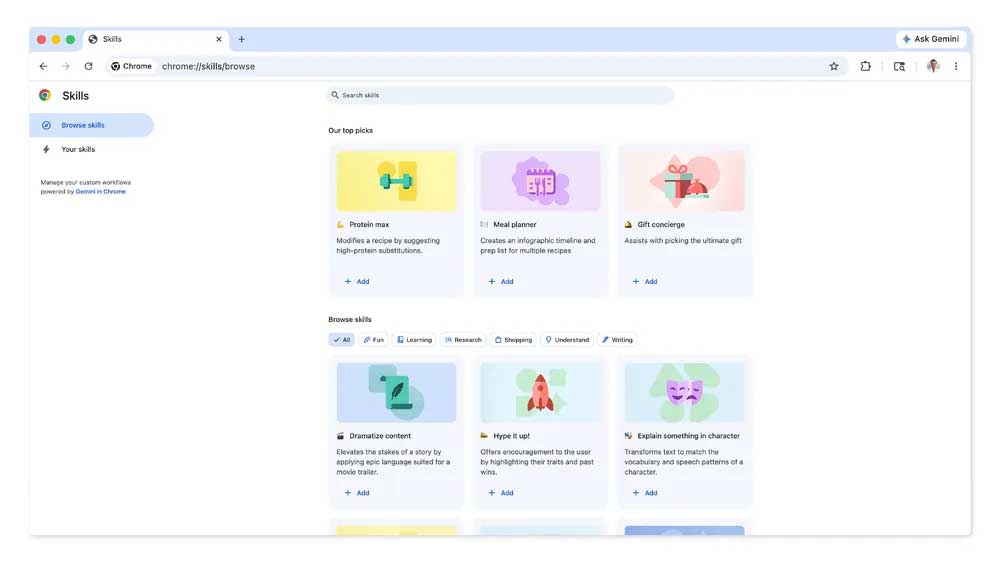
Skills in Chrome are saved prompts for Gemini in Chrome. Instead of rewriting the same instruction on every page, you give the prompt a name and run it from the Skills menu. A Skill can use the page you are viewing and, when selected, other open tabs as context. It is best suited to repeatable reading, comparison, extraction, and drafting tasks—not decisions that require unquestioned factual or professional accuracy.
Who can use Chrome Skills?
Google is rolling out Skills gradually as part of Gemini in Chrome. Google's Chrome Skills requirements currently list:
- A Chromebook Plus, Mac, or Windows computer
- The latest version of Chrome
- Gemini in Chrome turned on
- A signed-in personal Google Account
- Chrome language set to English (United States)
- A supported region and the required minimum age
Managed work or school accounts may not receive the feature unless the administrator enables it. If the Ask Gemini button or Skills menu is missing, update Chrome, check the account and language requirements, and remember that rollout may not have reached the account yet.
How a Skill works
A Skill stores instructions, not a fixed answer. Each time it runs, Gemini applies those instructions to the current page and any additional tabs you deliberately include. The result can therefore change with the source content, model behavior, or prompt edits.
Examples of suitable Skills include:
- Turn the current article into a five-point briefing with a list of unresolved questions.
- Compare model number, capacity, warranty, dimensions, and price across selected product tabs.
- Extract deadlines, owners, and deliverables from a project page.
- Rewrite selected copy in a defined tone while preserving names, numbers, and links.
- Explain a technical page for a specified reader and define unfamiliar terms.
Run a built-in Skill
- On a desktop computer, open Chrome and visit the page you want Gemini to use.
- Click Ask Gemini at the top of the browser.
- In Gemini's text box, type a forward slash (
/) to open the Skills menu. - Browse the available Skills and hover over one to review its purpose.
- Select the Skill, add any requested context, and press Enter or choose Send.
- Check the result against the source page before using it.
The built-in library provides prompts for common tasks and can serve as a starting point. Remix the instructions when the expected output, audience, or exclusions differ from the template.
Create your own Skill
- Open Gemini in Chrome and type
/. - Select Add skill.
- Give it a short action-oriented name, such as Compare product specs.
- Write the complete prompt, including inputs, output format, and limitations.
- Save the Skill, then test it on a page where you already know the correct answer.
Google also allows a useful prompt to be saved as a Skill from Gemini in Chrome chat history. The exact menu labels can change during rollout, so use the current Skills panel as the source of truth.
A prompt pattern that produces more reliable Skills
Reusable prompts need more structure than one-off questions. Include these five parts:
- Task: state the single job the Skill should perform.
- Sources: say whether to use only the active page or all selected tabs.
- Output: specify a table, checklist, brief, or other useful format.
- Constraints: identify facts that must not be inferred, rewritten, or omitted.
- Verification: require uncertainty, missing fields, and conflicting source values to be labeled.
For example:
Compare the products in the selected tabs.
Use only information explicitly shown on those pages.
Return a table with model, capacity, dimensions, warranty,
listed price and shipping cost.
Write “not stated” for missing values.
After the table, list any conflicting specifications and
identify the tab where each value appears.
This is more useful than “compare these products” because it defines the evidence boundary and makes missing data visible.
Use a Skill with multiple tabs
Open the relevant pages, start Gemini in Chrome, run the Skill, and select only the tabs needed for the task. Keep the comparison set small enough to inspect. Pages can use different units, regional variants, taxes, dates, or product revisions, so the Skill should preserve exact model numbers and label those differences.
For shopping, do not ask the Skill to name a universal “best” item without criteria. Provide the budget, required features, unacceptable trade-offs, country, and whether refurbished products are allowed. Then verify the final price, availability, return policy, and warranty on the seller's page.
Edit or delete a Skill
Open the Skills menu with /, choose the option to browse or manage Skills, and open the saved item. Edit the name or instructions, copy them for a variant, or delete a Skill that is no longer useful. After any material edit, test it again on known source content.
Privacy and security limits
- Gemini needs page context to apply a Skill. Do not run it on banking, medical, payroll, password, confidential client, or private account pages unless the account's data rules explicitly permit that use.
- Select only the tabs the task requires. An unrelated signed-in tab can contain sensitive information.
- Do not put passwords, API keys, recovery codes, or authentication tokens into a Skill.
- A saved prompt can be reused on the wrong page. Read the active tab and selected-tab list before running it.
- Review drafts before sending messages, creating events, purchasing, submitting forms, or changing account data.
- For a managed account, follow organizational policies and the administrator's Gemini settings.
What Skills do not guarantee
Skills make a prompt repeatable; they do not make its output deterministic or automatically correct. Gemini can omit a condition, misread a table, confuse product variants, or invent a value that the source does not contain. The page itself can also be outdated or misleading.
Require citations to page sections where the interface supports them, preserve exact figures, and independently verify medical, legal, financial, security, and purchase decisions. A Skill should reduce repetitive setup while leaving judgment and final action with the user.
Google introduced the feature in its Chrome Skills announcement. For context on how Chrome compares with other integrated assistants, see TipsMake's overview of AI-enabled browsers.
Related Articles
 Users Can Turn Off Tab Sounds on Chrome: Google Chrome2 minutes read
 How to Disable Chrome Software Reporter Tool7 minutes read
 How to Turn Off All Utilities on Chrome with Just One Click7 minutes read
 How to Turn Off Automatic Login on Chrome: Log in to Your a Google Account3 minutes read
 Click: How to Calibrate the Colors on a Mac4 minutes read
 5 Tools to Help You Create the Perfect Prompt for Your AI Chatbot8 minutes read
Reader Comments 0
Sign in with email or Google to join the discussion.