Table of Contents
Gemini in Google Workspace can help teams draft, summarize, organize, and analyze work without constantly switching applications. The best results come from assigning it a narrow task, giving it the right context, and checking the output before it becomes part of a decision or customer-facing document.
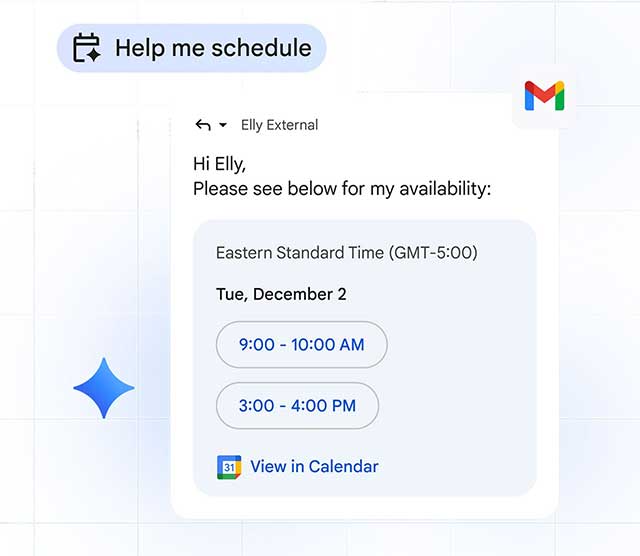
Availability varies by Google Workspace edition, administrator settings, language, and region. If the Gemini button or a feature described below is missing, check your organization's plan and admin configuration rather than assuming every account has the same tools.
Write prompts that are easy to verify
A practical work prompt usually includes four parts: the task, relevant context, constraints, and output format. A role can help when it adds real criteria, but it is not required.
Summarize the attached project update for the leadership team. Use only the document, keep the result under 150 words, separate decisions from unresolved risks, and cite the section supporting each risk.
Specify the audience and desired tone, but avoid asking Gemini to sound “authoritative” when the source is uncertain. For important work, ask it to identify missing information instead of filling gaps. Teams evaluating a broader suite can compare other AI workspace platforms.
1. Turn Gmail threads into an action list
Use the Gemini side panel in Gmail to summarize a long thread, identify decisions, or draft a reply. Ask for names, deadlines, and open questions in separate sections. Then compare the summary with the original messages before sending anything.
A good request is: “Summarize this thread for the project owner. List confirmed decisions, action items with owners, and questions that still need an answer. Do not infer a deadline that is not written in the thread.”
2. Draft and revise documents in Google Docs
Gemini can produce an outline, rewrite a section for a specific audience, or help turn notes into a draft. Give it the source material and explain what must remain unchanged. For a proposal, for example, ask it to preserve approved pricing and scope while simplifying the explanation.
Review facts, contractual language, citations, and permissions yourself. Generated text can be polished while still being unsupported or incomplete.
3. Build and analyze trackers in Google Sheets
In Sheets, Gemini can create a table, suggest formulas, summarize data, generate charts, and perform supported formatting actions. Describe the columns, valid status values, and calculation rules rather than asking for a generic project tracker.
Create a project tracker with task, owner, start date, due date, status, dependency, and risk columns. Use only the supplied project list. Add a formula that flags overdue items, but do not invent owners or dates.
Inspect every generated formula and chart. Check cell ranges, absolute references, date handling, blank values, and whether the chart remains linked to the data you expect. Google's Gemini in Sheets help page lists current capabilities and their limits.
4. Prepare presentation material
In Slides, use Gemini to generate or refine visual material, draft slide content, or help summarize a source document. Start with the narrative: audience, decision required, evidence, and slide count. Generated images still need a relevance, accuracy, rights, and brand review.
For video-oriented business content, see TipsMake's guide to creating presentations with Google Vids.
5. Research from a controlled source set
Gemini Notebook, formerly NotebookLM, is useful when a team wants answers grounded in a selected set of reports, web pages, or files. Create a notebook for one project, add authoritative sources, and ask it to show which source supports each conclusion.
Source grounding reduces guesswork but does not make weak or outdated material reliable. Check the original passage before using a summary in a decision. The comparison of Gemini Notebook and ChatGPT explains when a source-focused notebook is useful.
6. Capture meeting notes in Google Meet
Eligible accounts can use Take notes with Gemini in Meet. The notes are created in a Google Doc and may be shared according to the meeting and organization settings. Tell participants when automated notes are being used and follow applicable consent, privacy, and retention rules.
After the meeting, verify speaker attribution, decisions, tasks, and dates against the recording or participants' recollection. A generated summary should not silently turn a suggestion into an approved decision. See Google's Meet note-taking instructions for current steps.
7. Adapt communication without losing meaning
Gemini can shorten an update, change its tone, translate a draft, or produce versions for different audiences. Give it the non-negotiable facts and ask it to flag phrases that may sound accusatory, vague, or overly certain.
For sensitive HR, legal, financial, security, or customer issues, a qualified person should review the final message. Do not paste confidential data into an AI feature unless your organization's policy and Workspace configuration permit it.
Roll out one workflow at a time
- Choose a repetitive, low-risk task with a clear success criterion.
- Create a prompt template and two or three representative test cases.
- Record what data Gemini may use and who reviews the result.
- Measure errors and rework as well as time saved.
- Expand only after the team can explain when the workflow should not be used.
The goal is not to add AI to every step. It is to remove avoidable work while keeping ownership, evidence, and human judgment visible.
Related Articles
 Tips to Help You Use Gemini Effectively7 minutes read
 Google Launches New Tool to 'Woo' Business Users from Microsoft: Key Details4 minutes read
 How to Comfortably Transition from School Teams to Work10 minutes read
 What Is Google Gemini? How Does Gemini Work?6 minutes read
 Microsoft Teams: Complete Guide3 minutes read
 5 Ways Gemini Helps Students Learn Smarter7 minutes read
Reader Comments 0
Sign in with email or Google to join the discussion.