Table of Contents
Moving to Google Gemini does not always mean starting from zero. Depending on the features available to your account, you may be able to import saved context or conversation data from another AI assistant. You can also download your Gemini data through Google Takeout. Because these options can vary by account, region, and product version, check the labels shown in your own Gemini settings before proceeding.
Before transferring anything, review the material and remove passwords, financial details, private work documents, health information, and other sensitive data that the new service does not need.
Memory and chat history are different
Memory is a compact set of preferences or facts an assistant uses to personalize later replies. Chat history is the record of complete conversations. A short memory summary is easier to move between services, while a history import normally requires an export file in a format the receiving service supports.
Importing either type of data does not guarantee that Gemini will interpret every item in the same way as the previous assistant. After an import, test a few important preferences and correct anything that is missing or inaccurate.
Import a memory summary into Gemini
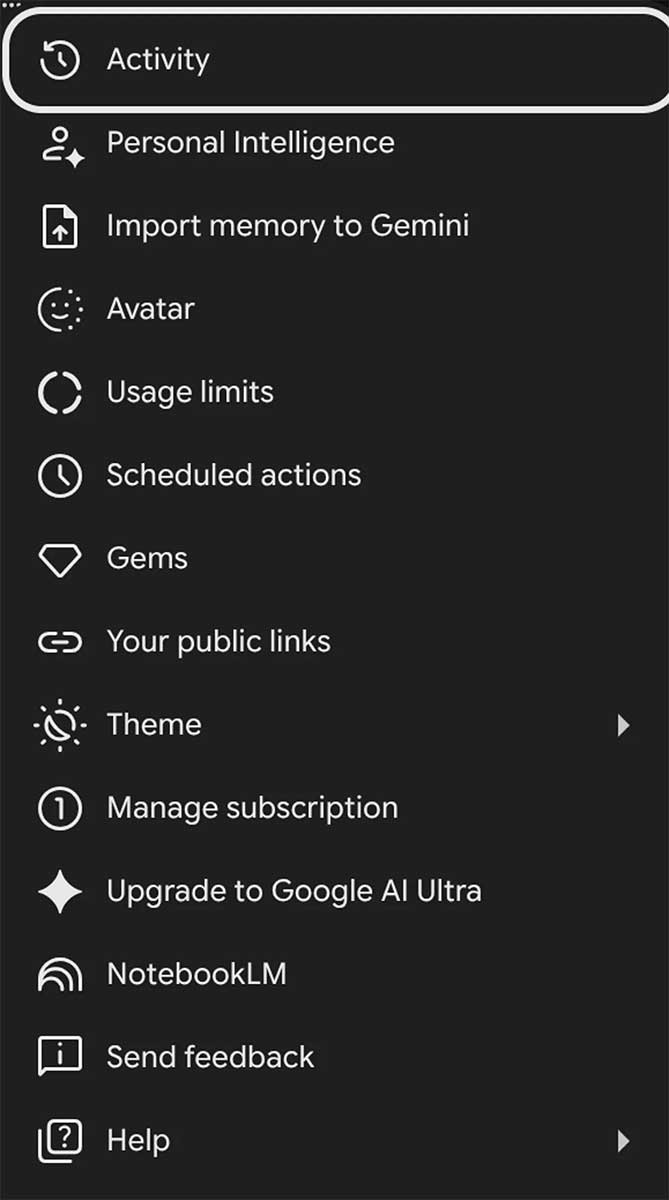
First, ask the previous assistant for a concise summary of the non-sensitive information it has saved about you. Review that summary manually; do not paste it into another service without checking it.
If your Gemini account displays an import or memory option, open Gemini settings and follow the on-screen instructions to add the reviewed summary. Menu names may change, so look for wording related to saved information, memory, or personal context rather than relying on one exact label.
- Generate or write a short summary of the preferences you want to keep.
- Delete private, obsolete, and incorrect details.
- Open Gemini and check its settings for a memory or import feature.
- Paste only the approved information, then confirm the import.
- Start a new conversation and check whether Gemini applies the preferences correctly.
If no import control appears, the feature may not be available for your account. You can still provide essential preferences in the conversation or in any personalization controls Gemini offers, but avoid repeatedly sharing sensitive details.
Import conversation history when supported
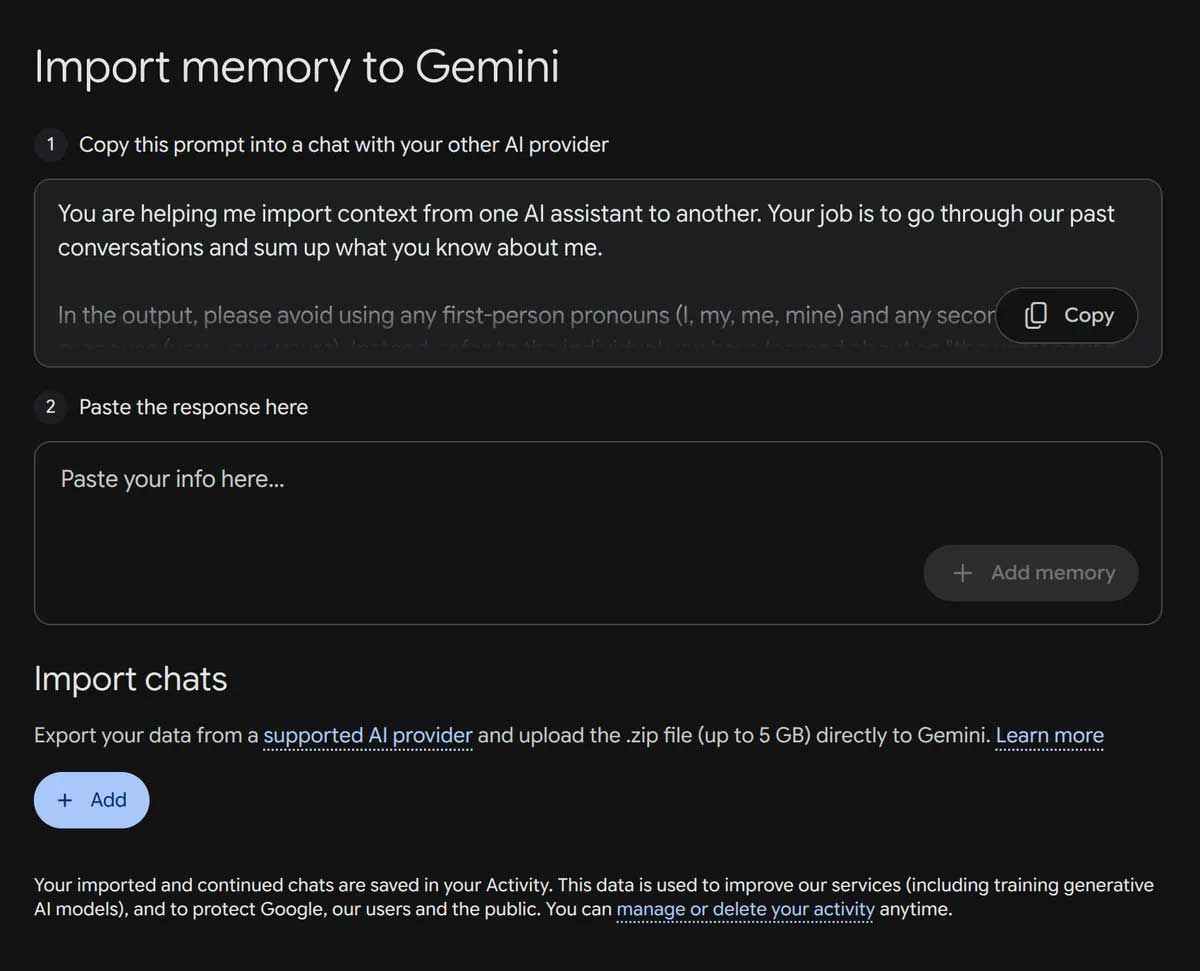
Some Gemini versions may offer file-based imports from supported AI services. If the option is present, use an export created by the original service and keep its folder structure intact. Do not rename files inside the archive unless Gemini's instructions specifically require it.
- Confirm that the source service and file type are listed as supported.
- Check the upload limit displayed in Gemini instead of relying on an older published limit.
- Keep a local copy until the import has completed and you have inspected the results.
- Do not upload an archive if you cannot identify what personal information it contains.
An error does not necessarily mean the archive is damaged. The account may lack the import feature, the file may exceed the current limit, or the export format may not be supported. Recheck Gemini's on-screen requirements and create a fresh export from the source service if needed.
Export Gemini data with Google Takeout
Google Takeout lets you request a downloadable archive of data associated with your Google account. It is the safer choice when you want a backup before deleting conversations, changing accounts, or moving to another assistant.
- Open Google Takeout and sign in to the same Google account you use for Gemini.
- Select Deselect all, then find the Gemini-related entry shown in the product list. The exact product name can change.
- Select the relevant data and continue to the delivery settings.
- Choose the delivery method, archive format, and file-size option you prefer.
- Create the export and wait for Google to notify you when it is ready.
Large exports may be divided into several archives. Download every part, store it securely, and inspect the contents before uploading anything to another platform. A destination service may not accept Google Takeout files directly even if it supports importing data from other assistants.
Which transfer method should you use?
Goal | Best approach |
Carry over a few preferences | Create and review a short memory summary. |
Move complete conversations | Use Gemini's file import only when your account lists the source and format as supported. |
Keep a backup of Gemini activity | Request an archive through Google Takeout. |
Move Gemini data to another assistant | Export first, then check the destination service's supported formats. |
Check the result after transfer
Open several imported conversations and verify their dates, attachments, and formatting. Then ask Gemini about two or three preferences that should have been carried over. Correct mistakes manually and delete any imported information you do not want retained. Keep the original export until you are confident the transfer is complete.
Related Articles
 How to Transfer Whatsapp Chat History from Android to Iphone4 minutes read
 Claude Offers Its AI Memo Feature for Free, Directly Competing with ChatGPT5 minutes read
 Gemini Chat Sharing Guide5 minutes read
 Temporary Chat Guide on Gemini3 minutes read
 Instructions for Exporting Grok AI Chat History4 minutes read
 Instructions to Delete All ChatGPT Chat History on Phone, Computer2 minutes read
Reader Comments 0
Sign in with email or Google to join the discussion.