Table of Contents
Just pull your old iPad out of the drawer, charge it up, and turn it into your personal e-reader. Surprisingly, it can become the perfect reading tablet.
Many people don't want to sell their old tech devices, so most of them end up gathering dust in drawers or being passed around until no one needs them anymore. Nowadays, many people want to restore the habit of reading books. However, modern devices often come pre-installed with all the commonly used applications, making it almost impossible to concentrate on reading for long periods of time. That's when many people start using e-readers.
If all you want is a dedicated e-reader, can your old iPad do the same? Just pull it out of the drawer, charge it, and turn it into a personal e-reader. Surprisingly, it can become the perfect e-reader tablet.
First, clear out all the clutter.
Start with a fresh start!
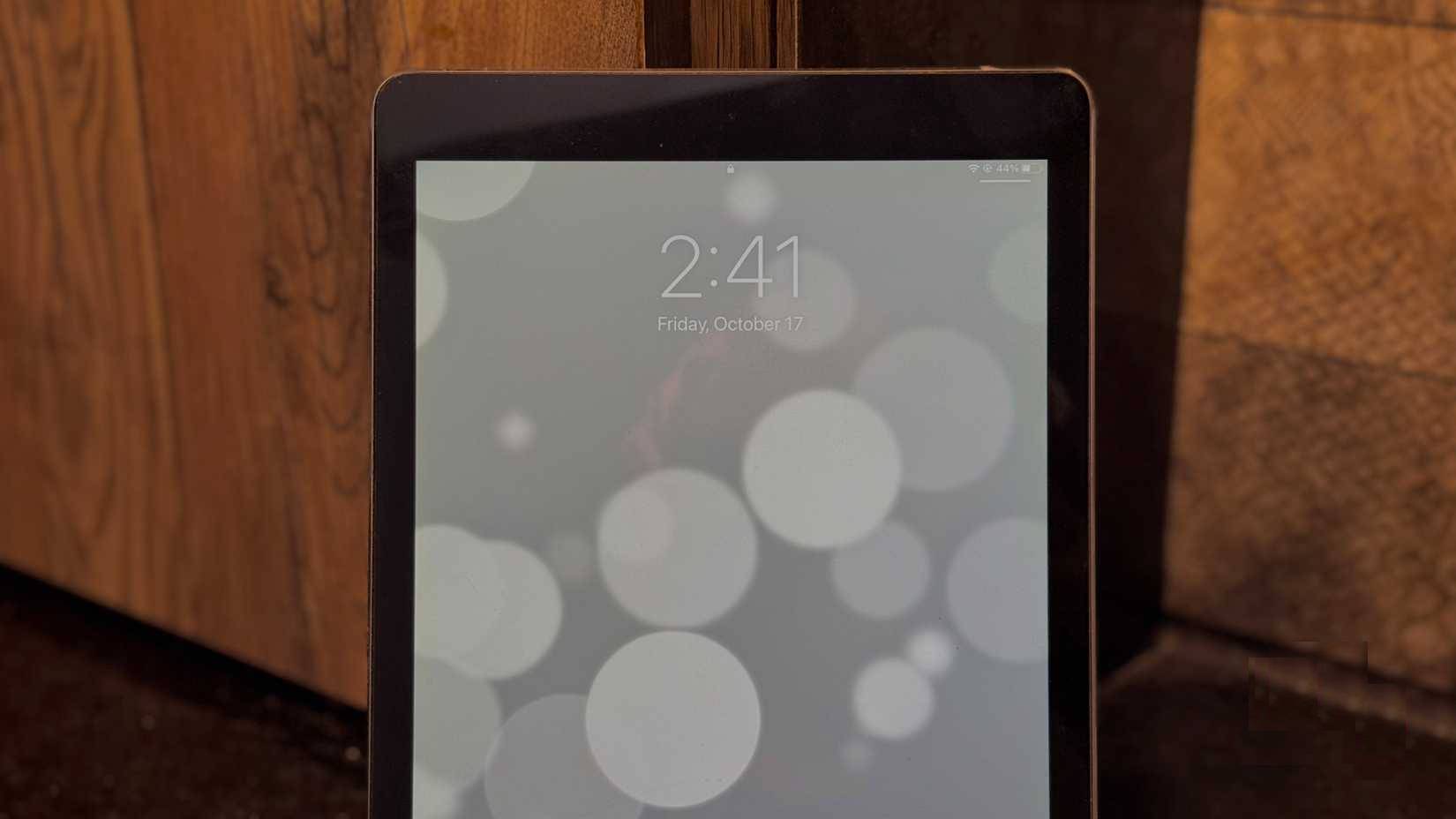
The iPad Air 2 was released in late 2014 and supports eight versions of iOS and iPadOS. The iPad Air 2 in this example has now been updated to iOS 18.5.2. Once fully charged, get to work right away.
As mentioned above, one of the biggest reasons people decide to use an e-reader to read books instead of their current iPad Air 5 is because there are too many distractions. They want a dedicated, distraction-free reading device.
So the first thing to do is free up space and delete any unnecessary apps from your old iPad. Delete social media, games, and anything else that might make you want to stop reading mid-reading. In the end, all that's left are the default Apple apps that can't be uninstalled, along with Apple Books.
Next, make the screen feel like an e-reader.
Make it look (almost) like an e-reader
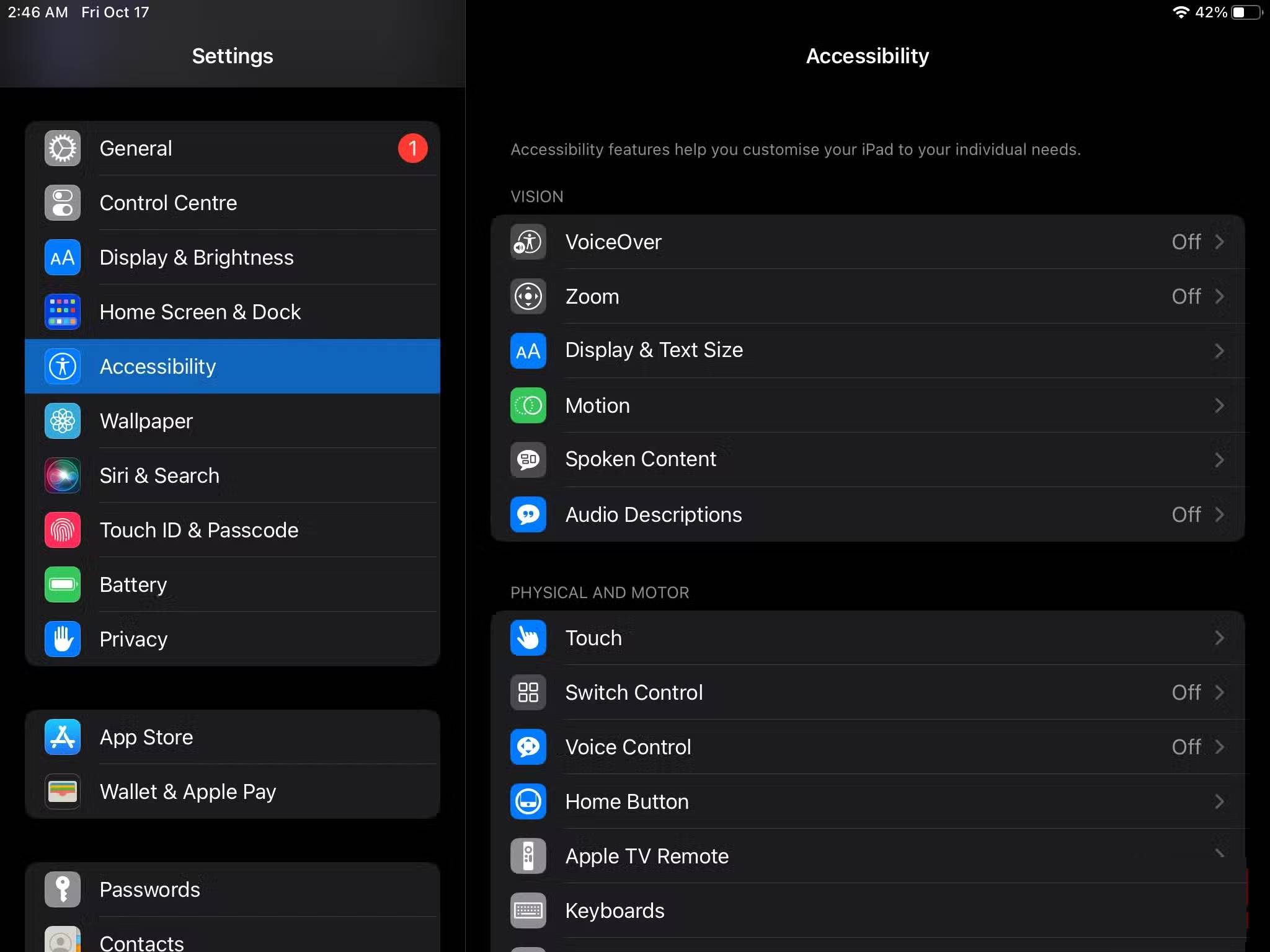
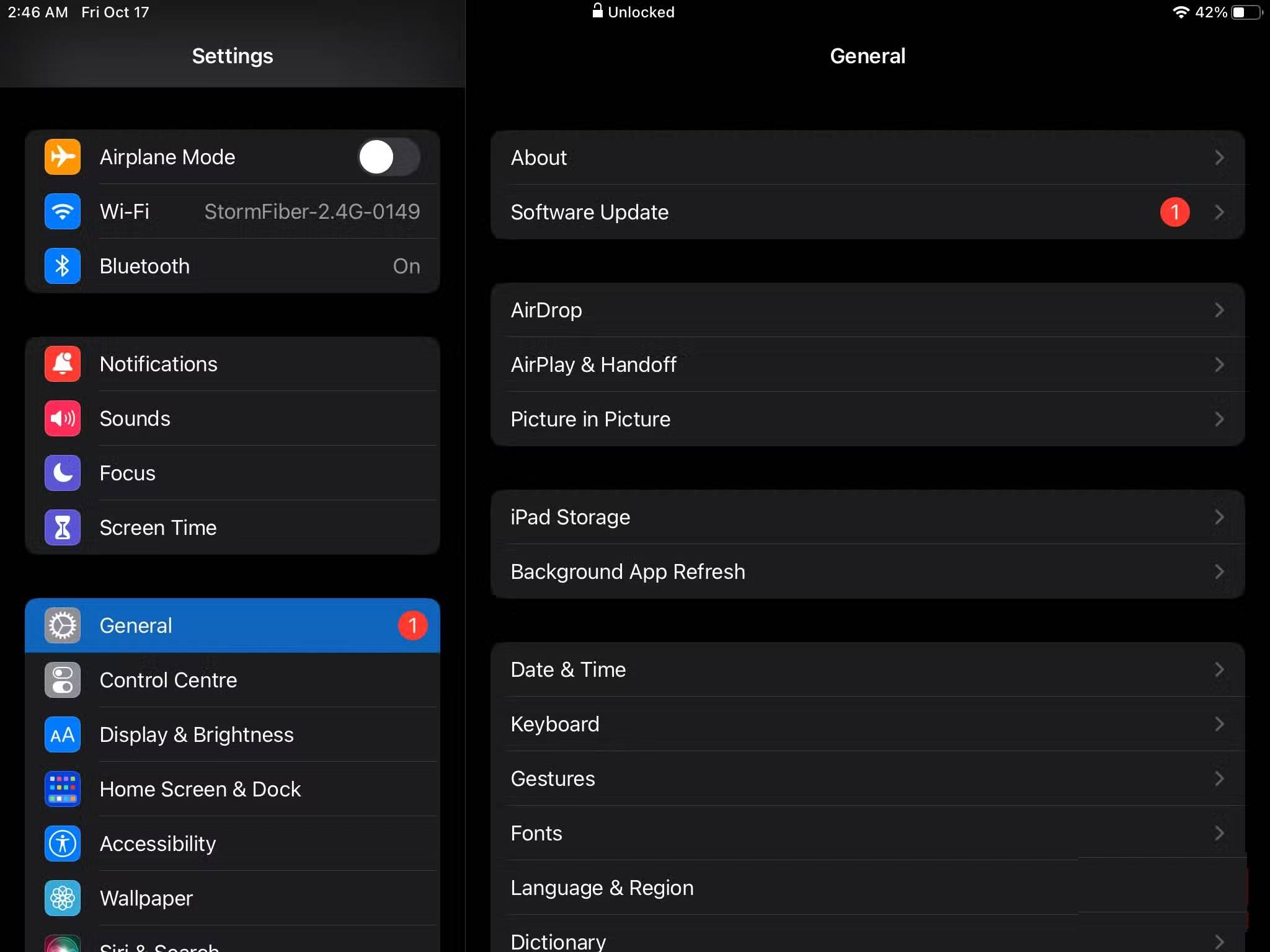
The next step was to make the iPad actually look like an e-reader. While there are plenty of color e-readers out there (the Boox Note Air 4C supports color), people generally want the monochrome reading experience.
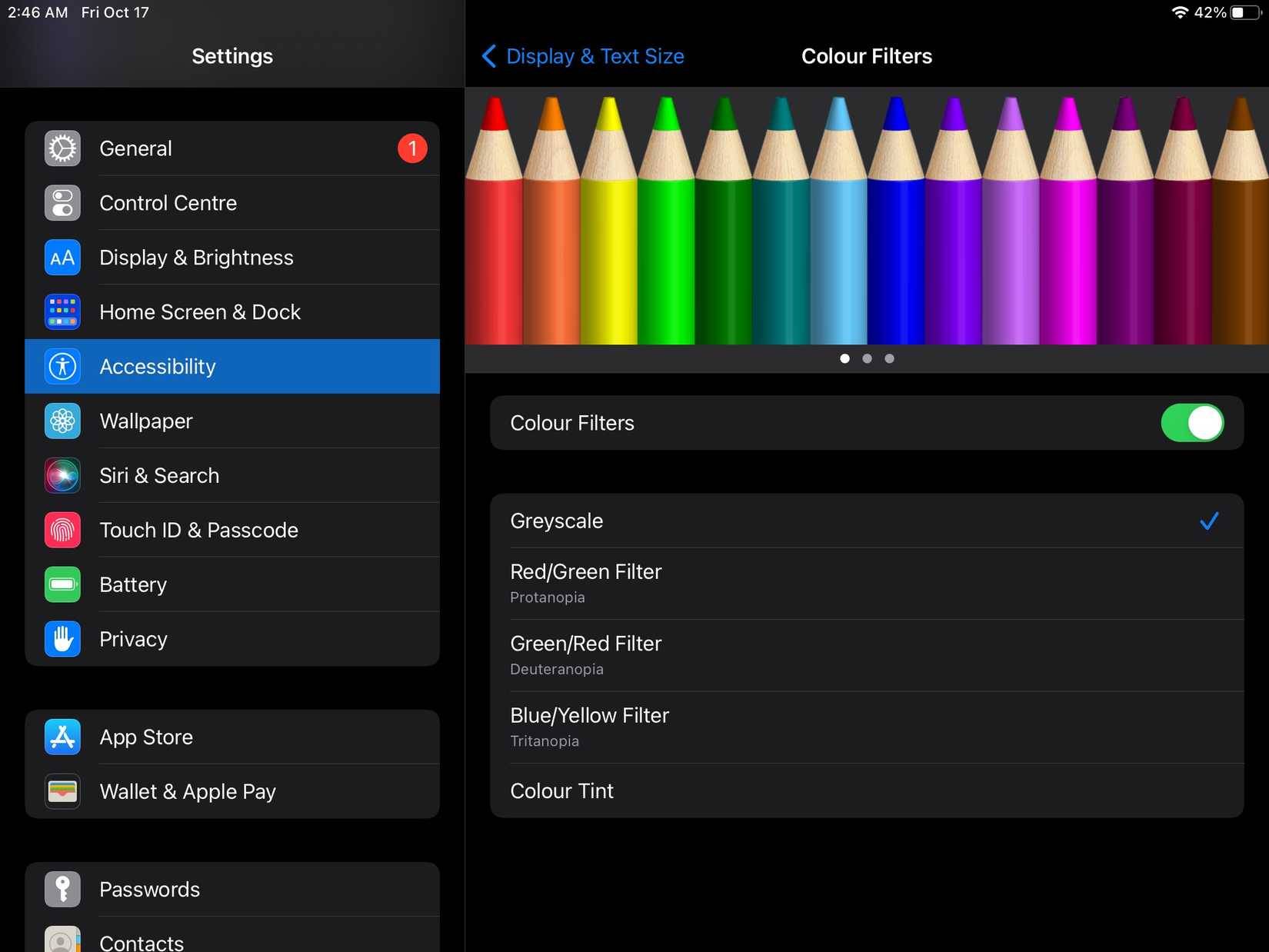
Luckily, there's an option you can enable on your iPad (and other Apple devices) to switch your display to grayscale mode. It's located in Accessibility settings.
You can enable this feature by going into your iPad's Settings App and tapping Accessibility From the sidebar. Then, tap Display & Text Size under the Vision Heading, and select Color Filters . Now, flip the switch next to Color Filters And simply select Grayscale —the iPad will instantly lose all color. While turning on grayscale mode certainly won't bring the e-reader's matte screen to the iPad, it does trick your brain into thinking you're reading a book on it.
Plus, without the bright app icons and colorful distractions, the iPad starts to feel more calming and book-like. While it's definitely not the same as an e-ink screen, the grayscale mode does a great job of creating the minimalist, distraction-free reading environment that people are looking for.
Finally, lock your iPad using Guided Access
Eliminate distractions completely!
Many e-readers, like the Kindle, run a very limited operating system because they're designed solely for reading. While the e-reader in this example runs Android 13 and lets you install any app from the Google Play Store, we want to turn our iPad into something similar—a dedicated, distraction-free e-reader that does just one thing: Let you read in peace.
Even if you remove all the distracting apps as mentioned above, you can still easily swipe up while reading and open Safari to look up information, which kind of defeats the purpose. Of course, you can also install any app from the App Store whenever you want, which makes it easy to fall into a vicious cycle of distractions you're trying to avoid.
So, another accessibility feature called Guided Access Comes in handy. It essentially helps you focus on a single app by locking your device into it. While in Guided Access mode, you can't swipe up to go to the home screen, open other apps, or even pull down the Control Center until you've finished using it.
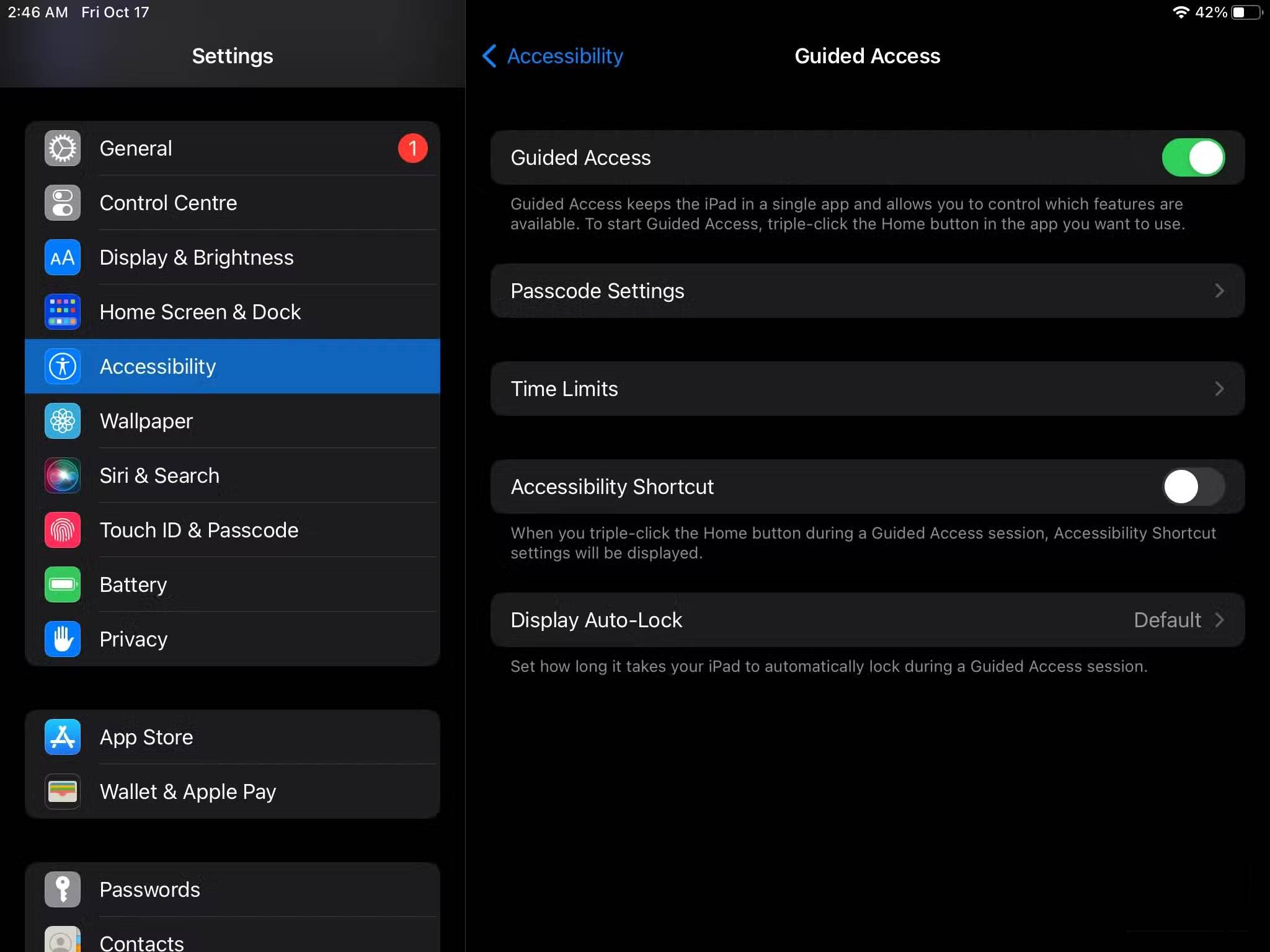
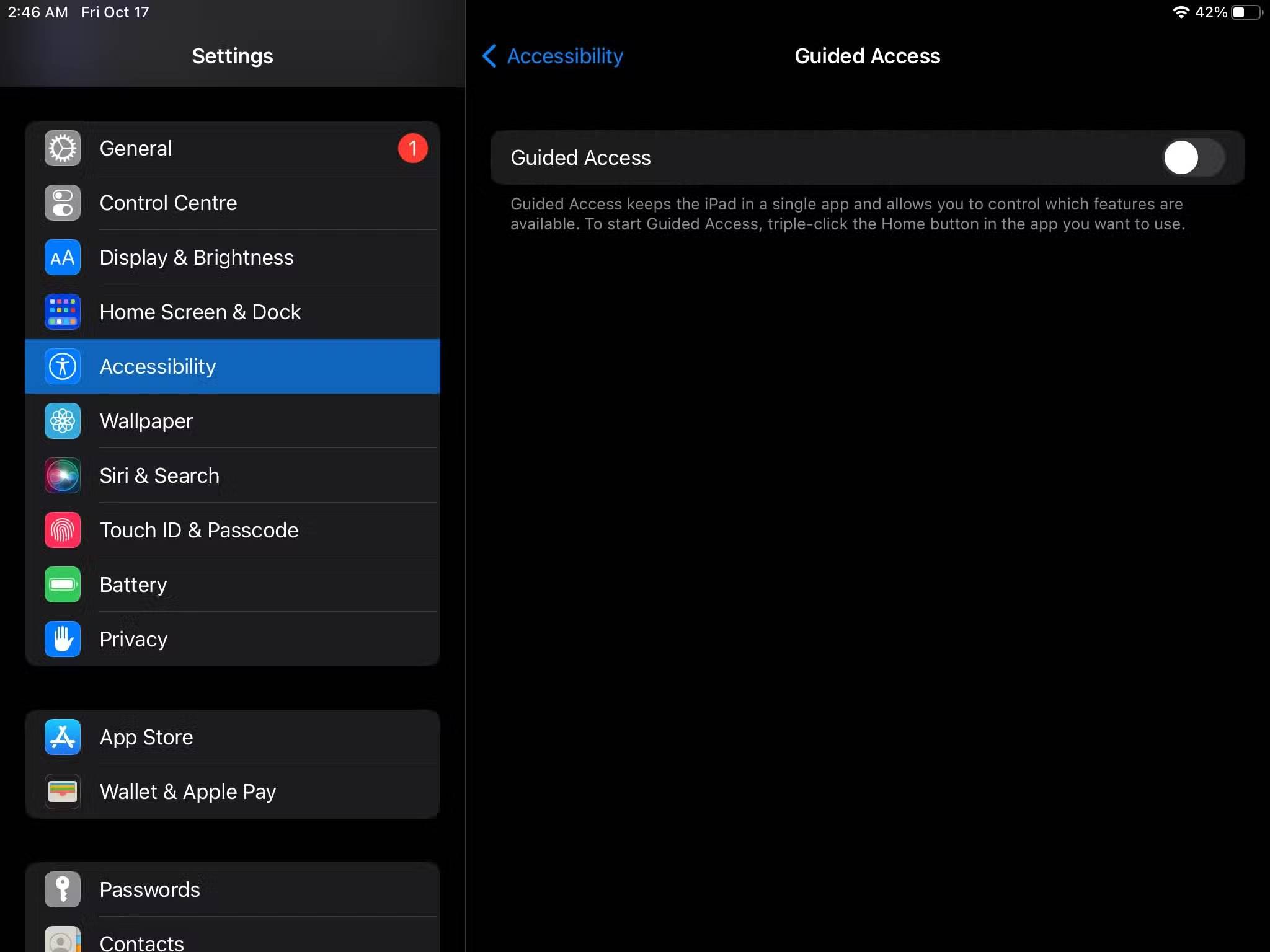
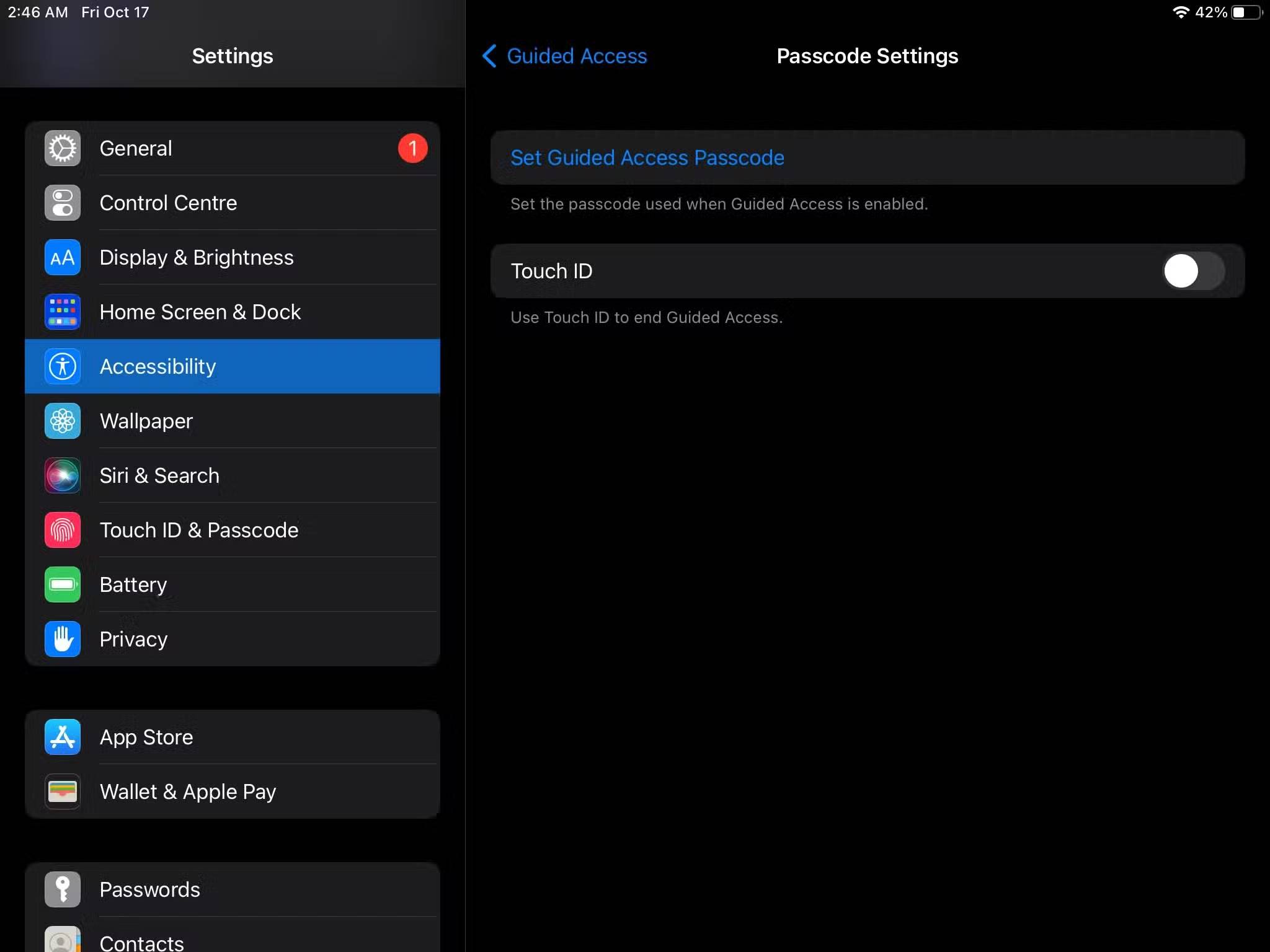
To enable Guided Access, go to Settings > Accessibility > Guided Access And turn on the switch. Then, tap Passcode Settings > Set Guided Access Passcode To create a passcode. You'll need this passcode to end future sessions.
Once set up, all you have to do is triple-click the Home Button on your iPad (or the Power/Side Button on newer models) to activate it. Tap the Start Button in the upper right corner to begin your reading session, then continue reading. When you want to end your reading session, triple-click the button again, enter your passcode, and Guided Access will turn off.
FAQ
How do you turn an old iPad into an e-reader: step-by-step guide?
In practical terms, just pull your old iPad out of the drawer, charge it up, and turn it into your personal e-reader. Surprisingly, it can become the perfect reading tablet.
What should you check before getting started?
Review the requirements, compatible device or software version, and any warnings described in the guide before making changes.
What should you do if the steps do not work?
Repeat the steps in order, confirm that your app or system is up to date, and review the troubleshooting details provided above.
Related Articles
 What to Do When the iPhone or iPad Can't Turn On?6 minutes read
 Disable Automatic Updating of Adobe Reader DC7 minutes read
 How to Turn on Google Chrome's Newspaper Reading Mode on Android5 minutes read
 Top 5 Best PDF Reader Apps on Android7 minutes read
 Link Download Foxit Reader 10.1.1.375768 minutes read
 Why Don't You Need Adobe Reader Anymore?5 minutes read
Reader Comments 0
Sign in with email or Google to join the discussion.