Table of Contents
Explore detailed instructions on how to disconnect your iPad from your iPhone.
How to disconnect iPad from iPhone
Step 1
You access Settings on your iPad, then tap your Apple account username at the top of the screen.

Step 2
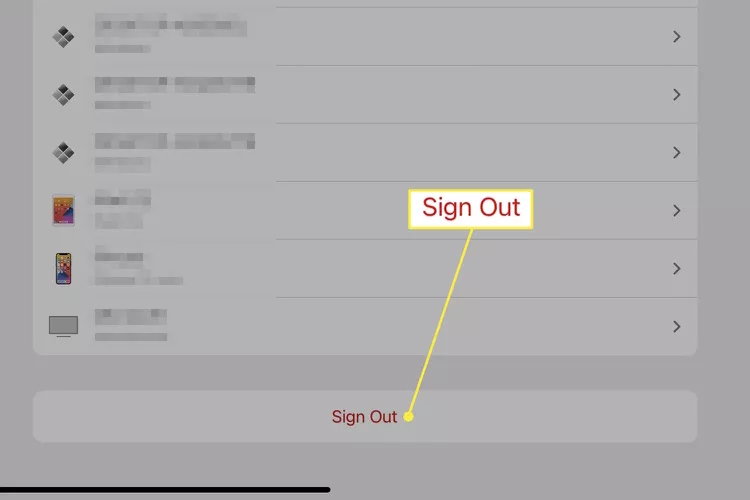
In the next interface, the user scrolls down and taps Sign Out to sign out of their iCloud account on the iPad.
Thus, the iPad has disconnected from the iPhone and other Apple devices.
How to unsync individual apps on iPad
Signing out of iCloud completely disconnects your app, but it's also inconvenient because it logs you out of Apple Pay and prevents access to your purchased Apple subscriptions. In this case, you can disable syncing for individual apps.
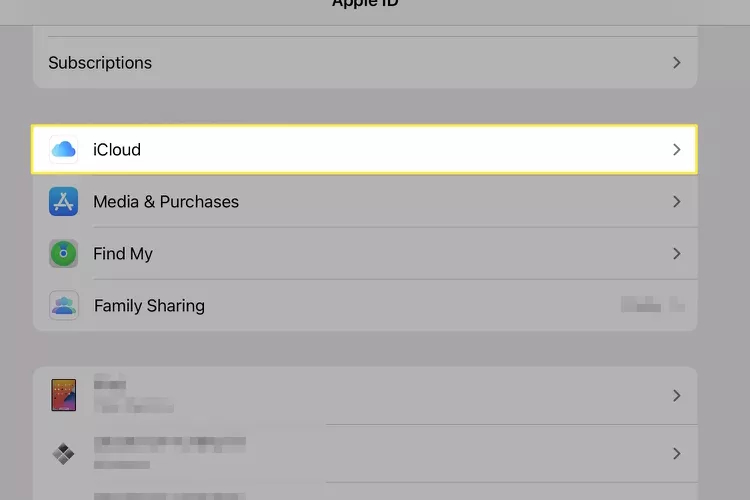
In the Settings interface on your iPad, tap your account name, then tap iCloud to adjust the settings.
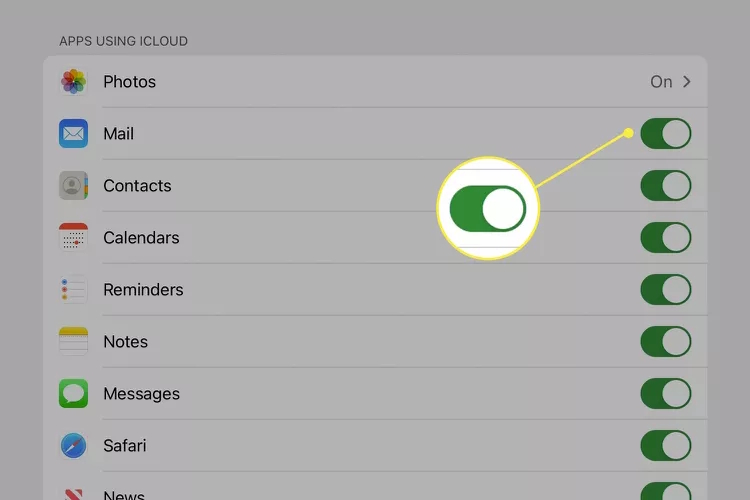
Then you will see all the apps that use iCloud. To turn off syncing for any app on your iPad, simply turn off syncing for that app .
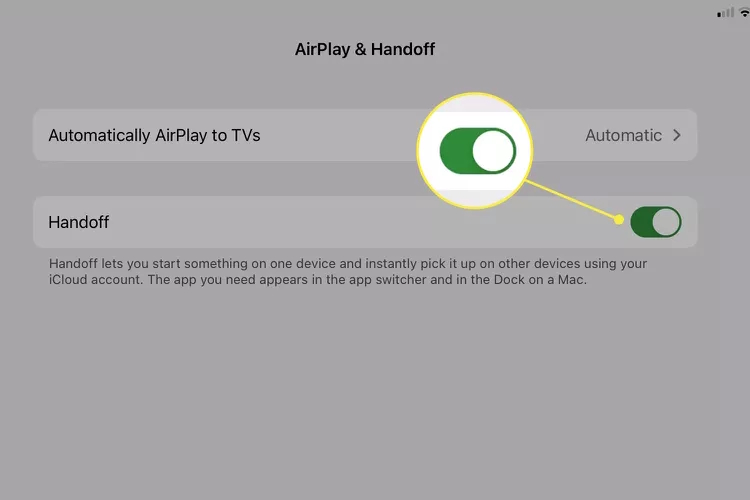
How to prevent iPad and iPhone from syncing using Handoff
Handoff allows you to transfer activity from certain apps between devices. If you don't like using this feature, you can turn it off.
In the Settings interface on your iPad, tap General , then select AirPlay & Handoff .
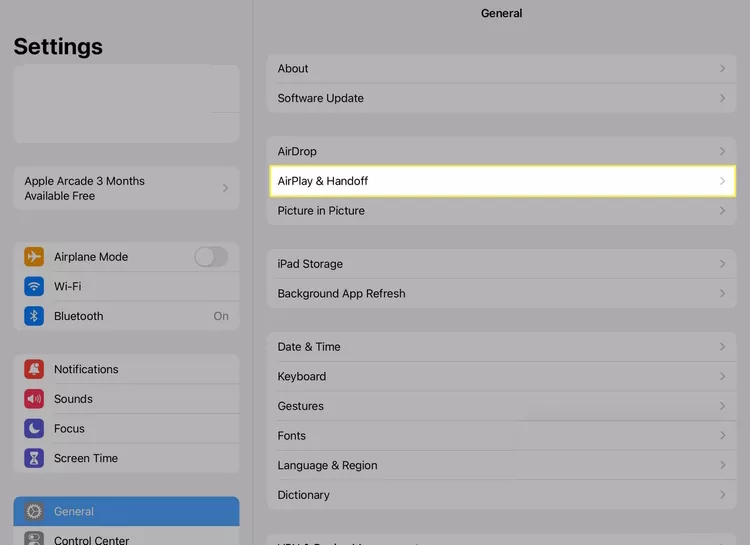
Now you just need to turn off Handoff .
Final Thoughts
Use this guide as a practical checklist for detailed instructions on how to disconnect your ipad from your iphone. Work through the steps in order, verify each result, and adjust the options to match your needs.
FAQ
What do you need before following this Detailed Instructions on How to Disconnect Your iPad from Your iPhone guide?
Review the required tools, accounts, settings, or materials mentioned in the article. Explore detailed instructions on how to disconnect your iPad from your iPhone.
What are the main steps for detailed instructions on how to disconnect your ipad from your iphone?
Follow the sections in order, especially How to disconnect iPad from iPhone, Step 1, Step 2. Complete each step before continuing and verify the result as you go.
What should you do if the process does not work as expected?
Recheck the prerequisites, update the relevant app or service, review the settings, and repeat the step that caused the issue. Use any troubleshooting notes included in the guide.
Related Articles
 How to Manage Email and Mailboxes in the Mail Application on iPhone9 minutes read
 How to Prevent iPhone and iPad from Automatically Connecting to4 minutes read
 How to Fix iPad Errors Are Disabled6 minutes read
 Instructions for Using Cap Lock on iPhone and iPad4 minutes read
 Instructions for Using Facetime on iPhone / iPad5 minutes read
 How to Record iPhone and iPad Screen Videos on the Computer7 minutes read
Reader Comments 0
Sign in with email or Google to join the discussion.