Table of Contents
In the article below, TipsMake will guide you on how to insert a Google Sheets spreadsheet into Google Docs. The steps are similar to inserting a spreadsheet into Google Slides.
Instructions on how to insert Google Sheets into Google Docs
How to insert a Google Sheets spreadsheet into Google Docs
To insert a Google Sheets spreadsheet into Google Docs, follow these steps:
First, create a chart in your Google Sheets spreadsheet. To do this, go to the Google Sheets homepage and open a new spreadsheet or open an existing one. Next, enter the data and save it in the spreadsheet.
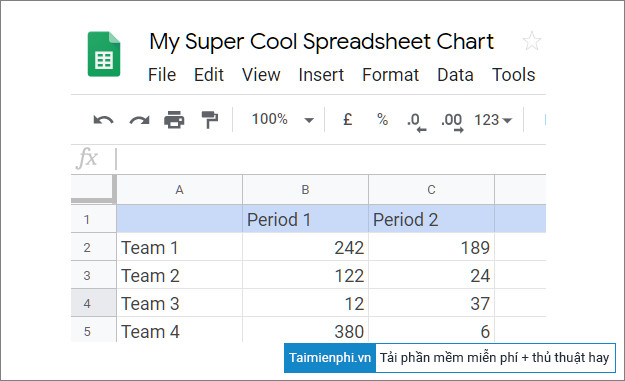
Select all the cells and then click Insert on the menu bar => Chart . Choose any chart and make the desired customizations. After you're finished, close the spreadsheet (Google Sheets). Google will automatically save all the changes you've made.
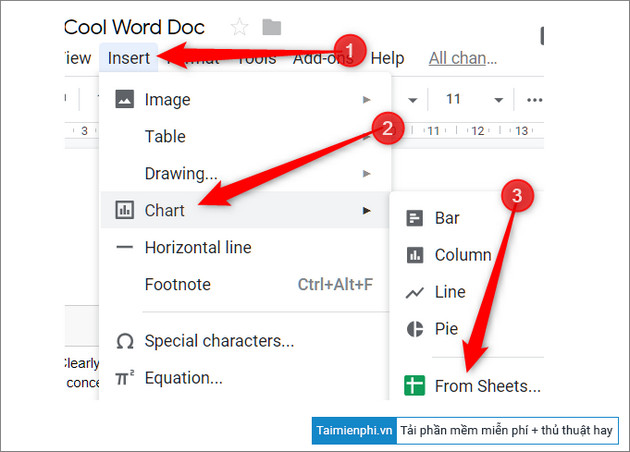
After creating the chart in Google Sheets, open the Google Docs document where you want to insert the spreadsheet or create a new one. Click Insert in the menu bar => Chart => From Sheets .
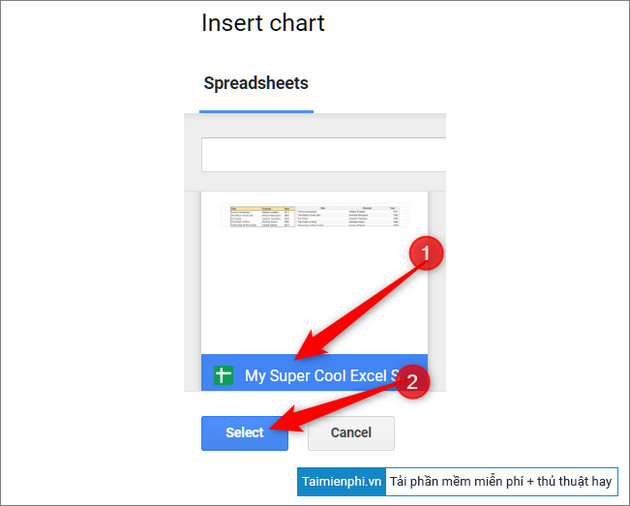
A list of available spreadsheets will then appear on the screen. Choose any spreadsheet you want and click Select .
In the next window, select any chart from the available worksheet and then click Import .
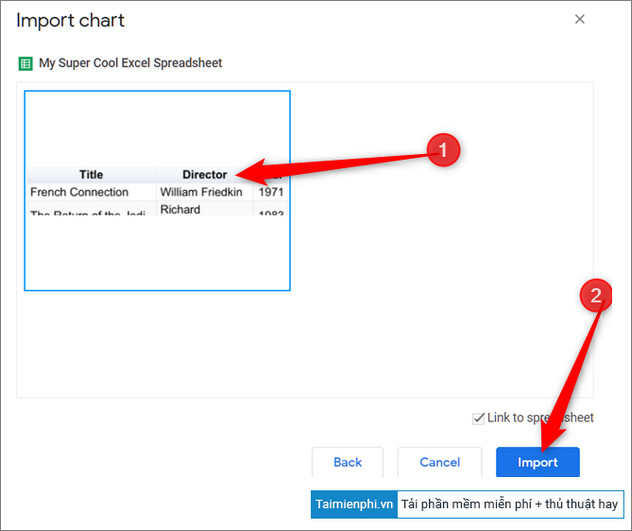
Additionally, here you can find and check the box next to the " Link to Spreadsheet " option to link the chart in your Google Sheets spreadsheet to Google Docs. When you make any changes to the spreadsheet, the chart inserted in Google Docs will also be updated when you click the "Update" button .
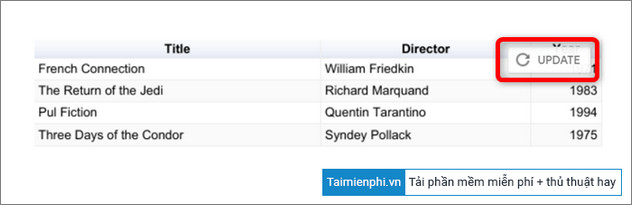
Because the charts are saved as images, when using the Insert feature, some data points may be cut off during the update process.
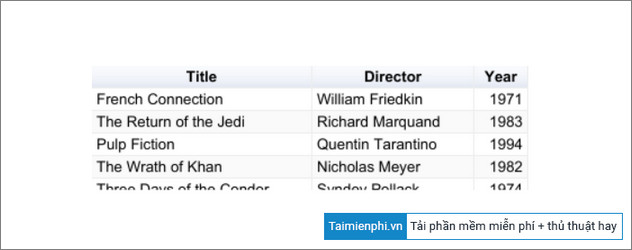
At this point, you have completed the process of inserting a Google Sheets spreadsheet into Google Docs.
Suppose for some reason you don't want to update the chart or link it to your Google Sheets data in your Docs document. Simply click on the chart => then click on the paperclip icon (as shown below) => Unlink to remove the linking feature.
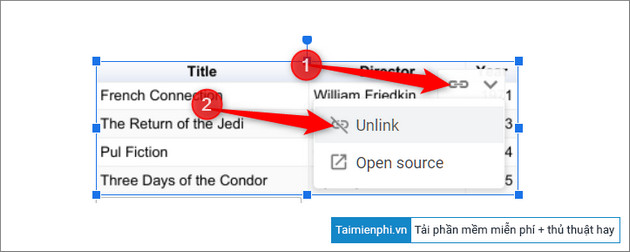
This action disables synchronization of changes made to Google Sheets and avoids the need to re-insert the spreadsheet into Google Docs.
Above, TipsMake has guided you on how to insert a Google Sheets spreadsheet into Google Docs. Additionally, if you don't want other users to edit your spreadsheet formulas and data, you can refer to other articles on TipsMake to learn more about locking formulas in Google Sheets.
Related Articles
 How to Insert Google Sheets Spreadsheets into Google Docs4 minutes read
 How to Insert Google Sheets Charts into Google Docs5 minutes read
 How to Insert Google Sheets Tables into Google Docs6 minutes read
 How to Insert Characters on Google Docs5 minutes read
 How to Insert Checkboxes on Google Sheets: Google Sheets Tricks4 minutes read
 How to Create a Budget Spreadsheet in Google Sheets3 minutes read
Reader Comments 0
Sign in with email or Google to join the discussion.