Table of Contents
Introducing Google Docs and Word Online
The first thing you need to know is that the functionality of online editors like Google Docs and Word Online is far superior to that of the standard Microsoft Word text editor . However, all the main functions work well, and you can perform routine tasks easily, almost just like the desktop version.
Google Docs and Word Online - which is better?
Furthermore, Microsoft and Google have attempted to create user-friendly interactions, incorporating keyboard shortcuts and even context menus. While these online editors aren't perfect, they do offer enough features to assist users in their tasks.
Microsoft Word has many branches; in addition to the online version, Word also has many different offline versions. It supports a wide variety of data formats, primarily using .doc and .docx as the two main formats. You can refer to our article comparing .doc and .docx to better understand these two formats.
In addition, competitive pricing is also a factor. Users don't have to pay the $150 fee for a home Office suite. Business owners and managers may have to pay as little as $5 per month to meet their Office needs, but this is still quite affordable.
Word Online and Google Docs interfaces
Leaving aside the functions, options, and other features that support users in their work, the first criterion that you, or any user, would look for is visual appeal. In this section, we will explore the interfaces of Google Docs and Word Online , and then address the functional limitations of these two online editors.
Comparing Google Docs and Word Online, which one should you use?
First of all, both Google Docs and Word Online have standard control tools; however, on these two platforms, you should use line breaks to control the spacing between paragraphs or add space, etc.
- Word Online:
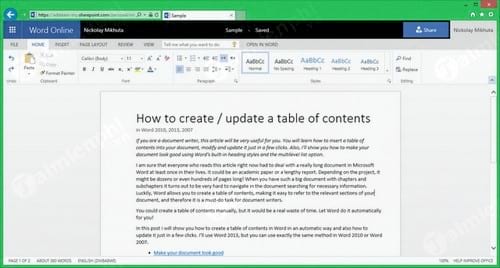
Word Online is striving to become a "twin brother" to the desktop version of Microsoft Word, which is a welcome development. Using Word Online is quite simple; you'll find everything familiar, easy to recognize, and user-friendly. However, many new trends that designers want to incorporate into their new products are not available on Word Online.
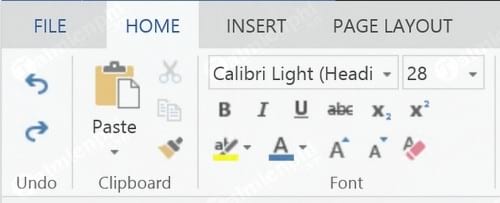
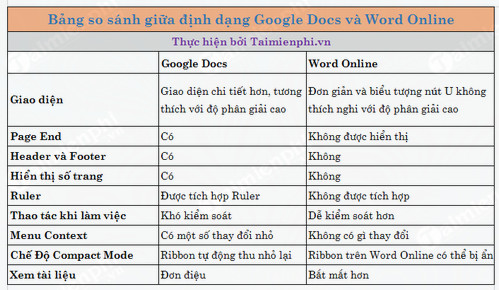
Note the U- shaped button icon ; this is quite unusual because it doesn't 'adapt' to high-resolution screens. Mac users and those using 4K monitors will be disappointed by this. However, this issue doesn't exist on Google Docs.
Notably, the way the Page End is displayed is problematic. Specifically, the Page End is not shown. This makes it very difficult for users to determine what the documents on the page look like, as they cannot see the spacing at the top and bottom corners of the page.
Another, far more serious problem is that users cannot see the header and footer, page numbers, bookmarks, etc., and they have to switch to Read Mode, which causes some inconvenience.
What about the Google Docs interface?
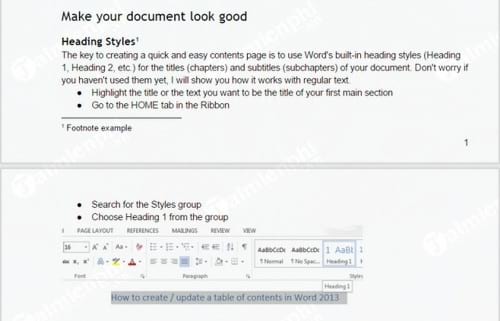
- Google Docs:
On Google Docs , the gradient, the File - Edit - View menu , and everything else use only black and white. Despite its simple interface, the features on Google Docs are anything but simple.
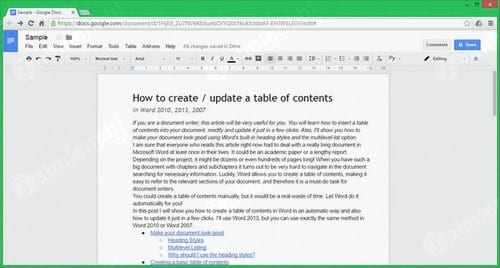
Ruler
A particularly noteworthy feature is the built-in Ruler in Docs . Note that Word does not have a built-in Ruler. Essentially, a Ruler is a tool used to fix issues related to text borders, paragraph indentation, and list indentation. Rulers allow users to perform all these tasks in a flash. In Word, you would have to manually set these values.
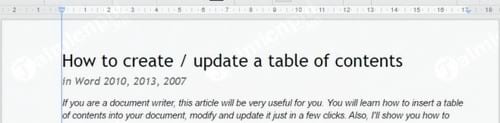
If you're using Word, you can refer to the instructions on how to display the Ruler in your document. Displaying the Ruler will make your document look nicer and more professional, and the layout will no longer be as cluttered as before.
Work procedures
When comparing Google Docs and Word Online in terms of workflow, the Word toolbar is generally simpler and easier to use. The colors, charts, groups, animations, and interactions on the Word Ribbon aren't particularly noteworthy. You can quickly find what you need.
Even inexperienced users can add a bookmark, apply styles to a table, or set up the page layout. For example, when you're working with tables or images, a new section will appear on the Ribbon, and you'll see the table or image immediately.
In Word, a quick glance is enough for users to understand the type of binding, style, and other formatting options applied.
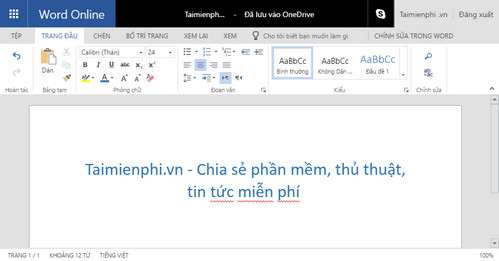
Note : Formatting tools in Word Online
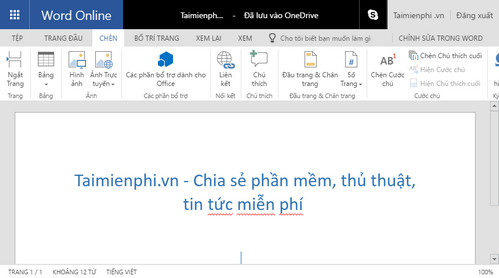
Note : This section refers to inserting tables, images, links, etc., in Word Online.
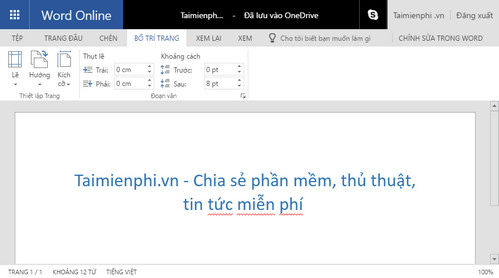
Note : This section edits the Page Layout with functions to customize size and alignment.
With Docs, you sometimes have to read everything before you can find what you need. The interactivity isn't very fast.
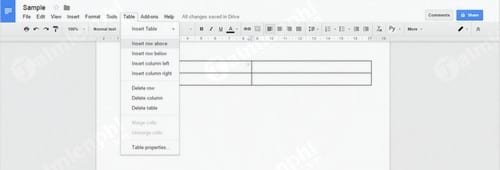
Menu Context
A context menu is a menu that appears on the screen when you right-click. Word has the best context menu. You can access all formatting options, including lists and styles, with just a right-click. This is incredibly useful when you need to format specific parts of a document.
Furthermore, the menu changes depending on the content. If you want to change the formatting, additional options will be hidden, and these formatting options will be available until you finish changing the formatting.
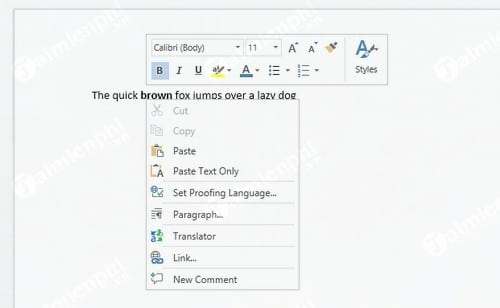
The context menu in Google Docs has undergone some minor changes.
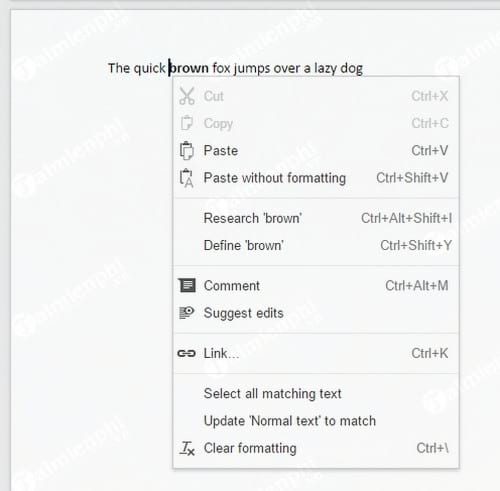
However, this menu still includes some features: " Select all matching text " and " Update 'Normal text' to match ". These options are quite useful for creating and editing documents.
Compact mode
Note: To display the window interface on a laptop or notebook, the window size shown in the screenshots is limited to a maximum resolution of 1366x768 .
The entire Ribbon in Word can be hidden. This saves a lot of space and allows you to have access to any necessary features. Unlike Docs, the Ribbon automatically minimizes. However, your document will display some meaningless messages along with the document title, share button, etc.
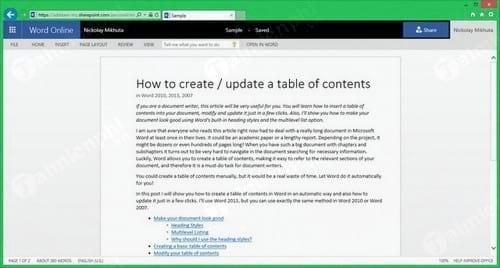
The Compact mode in Docs is quite small. However, selecting certain functions from the menu isn't as easy as in Word. You'll have to open the menu, then move around the screen, use the function, and hide the menu.
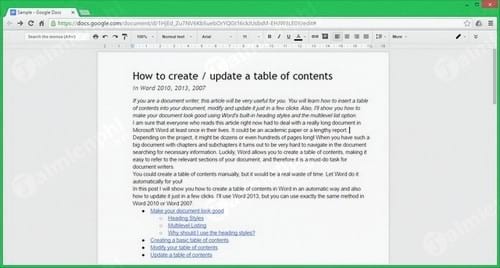
Additionally, Docs has a full-screen mode that hides all control options.
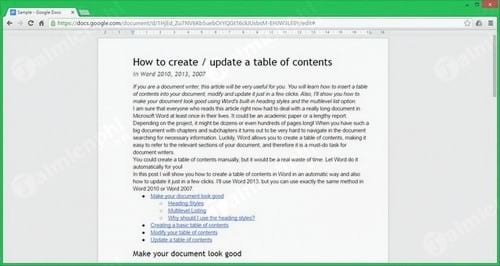
View the document with default settings.
Text editors are designed to make documents look appealing and easy to read. You can achieve this with the help of formatting and paragraph settings.
Of course, editors all have default settings initially so that users don't need to make many time-consuming adjustments.
Below is an example of the default document structure and content:
- Title and subtitle
- 4 paragraphs of text
- Linked structured list
- Heading 1
- Heading 2
- Some text content
- Numbered list
- Images
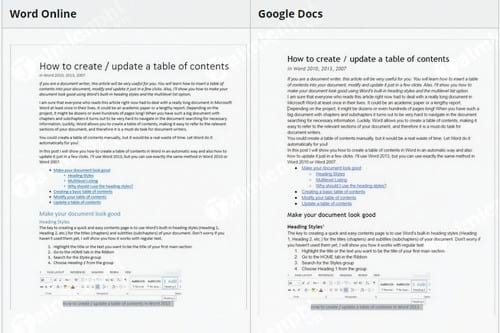
Everything is 'grouped' in Docs. While users can easily improve the Spacing parameter , you should understand the principle behind defining spacing in the document; otherwise, you'll end up with unwanted spaces, such as gaps near headings.
Generally speaking, documents created in Word look more visually appealing, a conclusion perhaps drawn by more experienced users.
Comparison table highlighting the differences between Google Docs and Word Online.
Things to know after comparing Google Docs and Word Online
Both of these editors are quite good and useful. Users may tend to use Word Online more. The design of the toolbars, interactivity, and adaptability to the content under the cursor make it easier for users to perform their work. The built-in styles help users format documents to look more appealing.
This article comparing Google Docs and Word Online, and which one to use, has presented several viewpoints to help you understand these two editing tools. Ultimately, choosing between Google Docs and Word Online is your decision; both editors have their own strengths and limitations. Additionally, to use Google Docs more effectively, you can refer to Google Docs usage tips here.
Related Articles
 How to Convert PDF to Word Right on Google Docs3 minutes read
 Useful Shortcuts for Google Docs8 minutes read
 Instructions for Dividing and Merging Columns on Google Docs4 minutes read
 Useful Tools to Know in Google Docs6 minutes read
 How to Create an Alternative Phrase in Google Docs4 minutes read
 The Quickest and Most Effective Way to Create Borders in Google Docs5 minutes read
Reader Comments 0
Sign in with email or Google to join the discussion.