Table of Contents
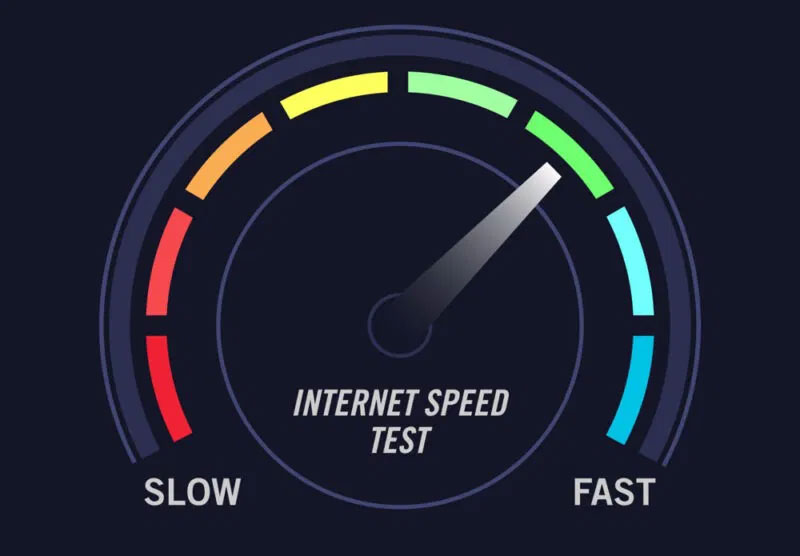
An online speed test measures the connection available to the device you are using. For a useful diagnosis, run more than one test, compare Wi-Fi with Ethernet, and look at latency and upload speed as well as the headline download number.
Before you test
- Pause downloads, cloud backups, streaming, VPNs, and software updates.
- Disconnect or idle other busy devices where possible.
- For the best estimate of the ISP connection, connect one computer to the router with Ethernet.
- For a Wi-Fi check, test in the problem location and then beside the router.
- Repeat the test at least twice and at different times if the result varies.
A browser test can transfer a substantial amount of data, especially on a fast connection. Avoid repeated tests on a limited mobile-data plan.
Reliable browser-based speed tests
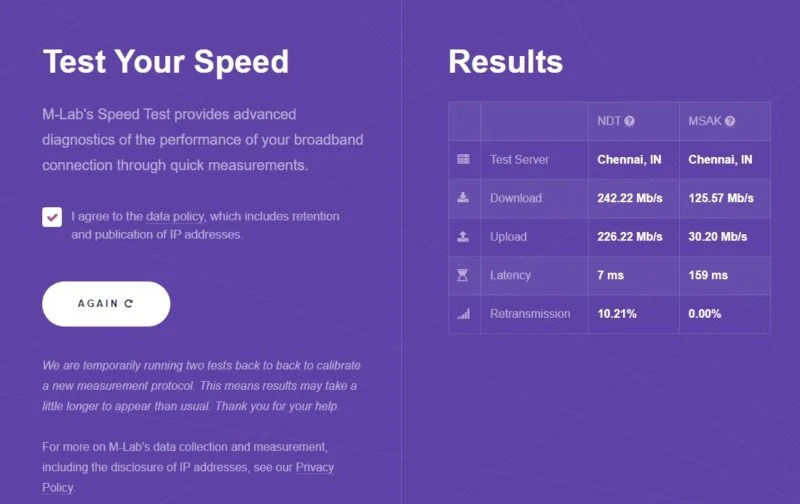
Measurement Lab (M-Lab)
M-Lab Speed Test runs the Network Diagnostic Test and publishes measurement data for internet research. Read its data policy before starting because test records can include the client IP address.
Cloudflare Speed Test
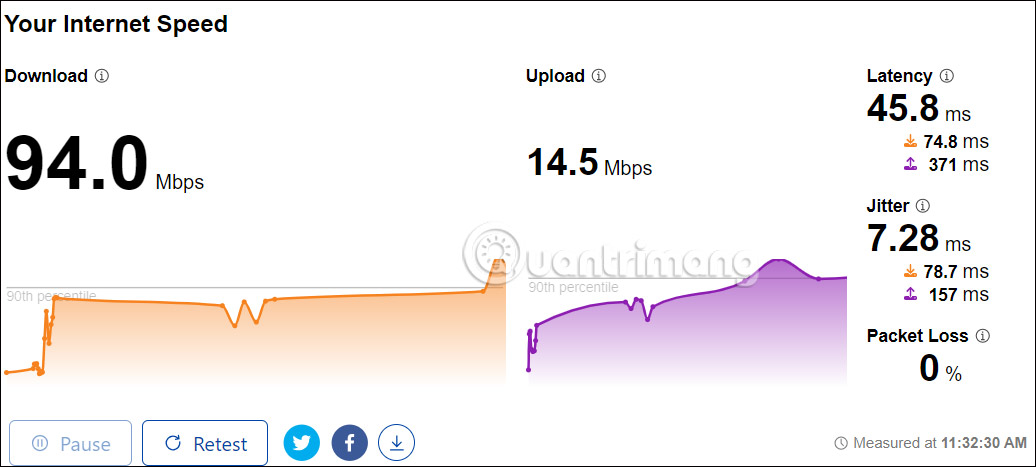
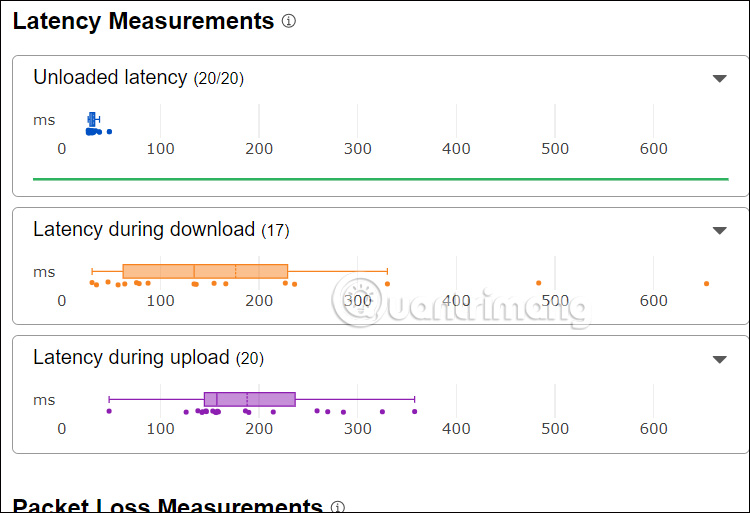
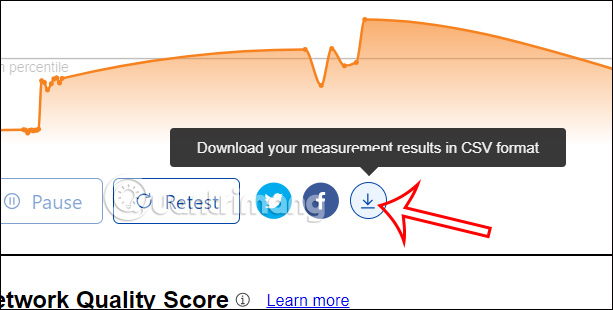
Cloudflare Speed Test reports download and upload throughput, unloaded and loaded latency, jitter, and packet-loss measurements. Its detailed charts are useful when video calls or games feel unstable even though download speed looks adequate.
Ookla Speedtest
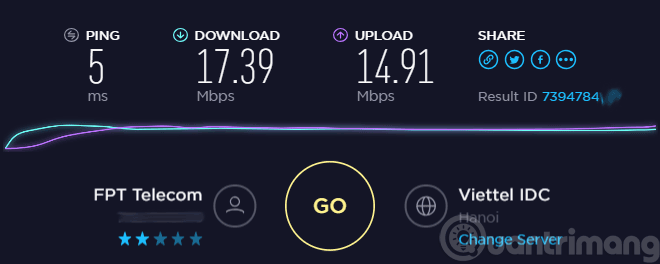
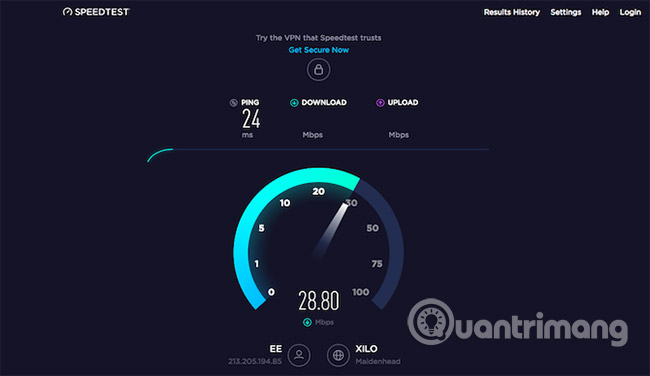
Speedtest by Ookla selects a nearby server automatically and also lets you choose another one. Click Go, wait for the download and upload phases to finish, and record the ping, download, and upload results. A nearby server measures local access performance; a distant server can reveal how route and distance affect latency.

Fast.com
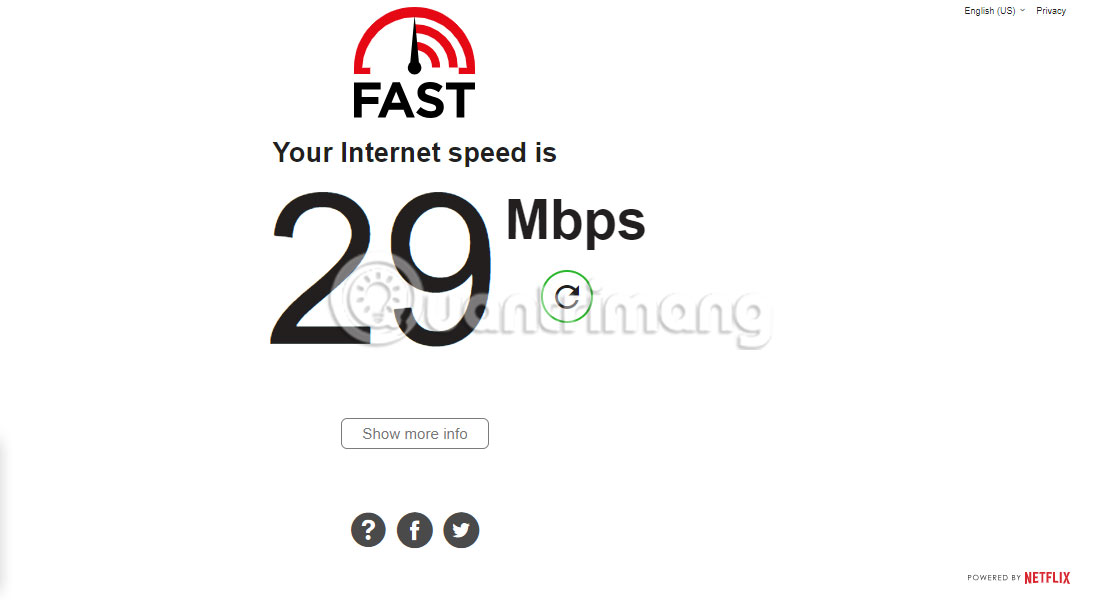
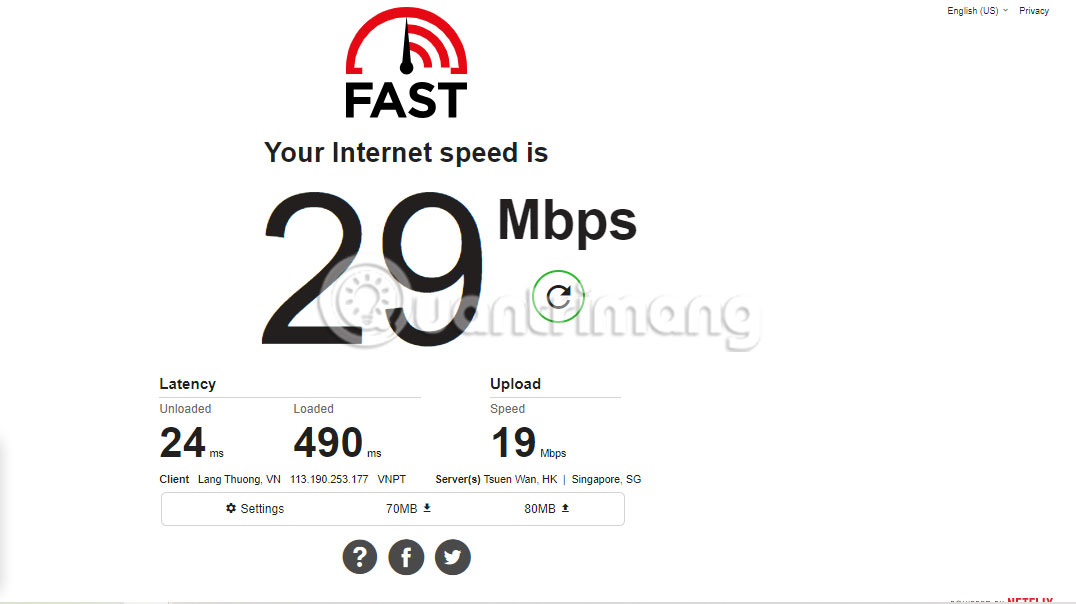
Fast.com, operated by Netflix, begins automatically and emphasizes download performance. Select Show more info to see upload speed and latency. It is a quick streaming-oriented check, but it should not be the only test used for troubleshooting.
About other test sites
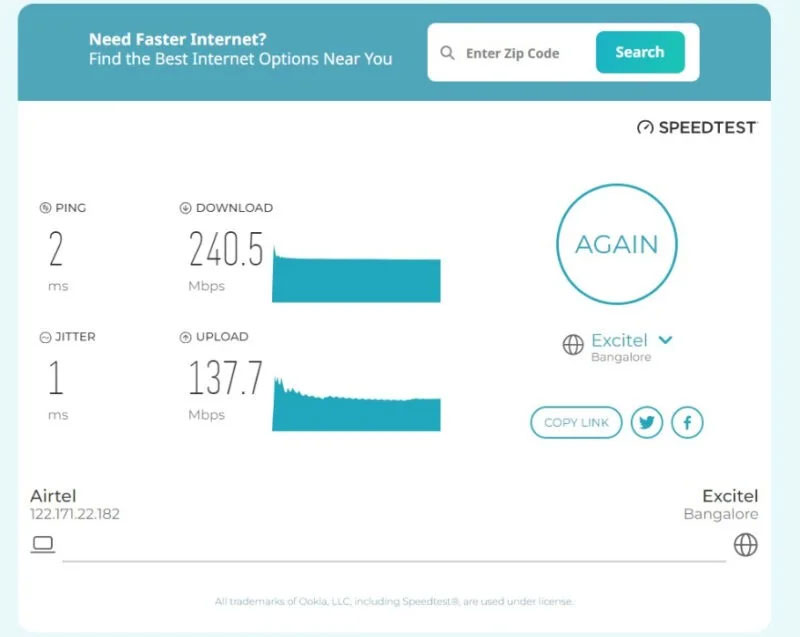
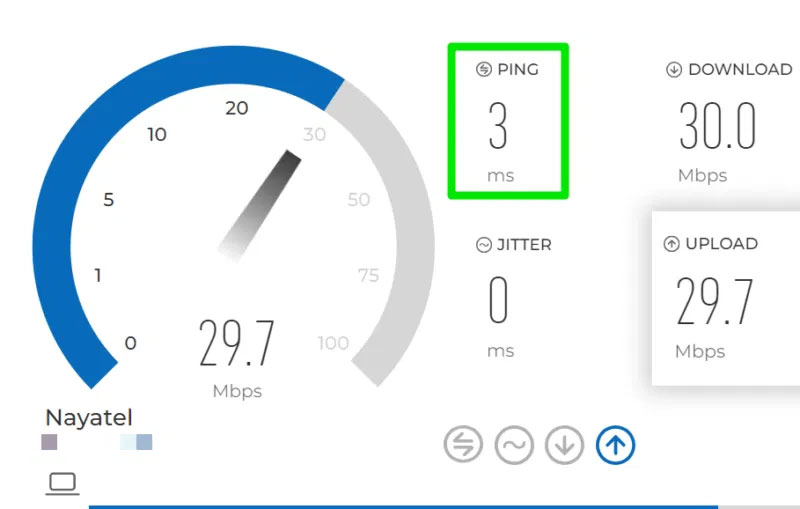
Sites that embed or rebrand another provider’s test can change ownership, method, or privacy terms. The following screenshot is retained for reference, but using a test operator’s official page makes the methodology and privacy policy easier to verify.
Check Wi-Fi signal strength in Windows
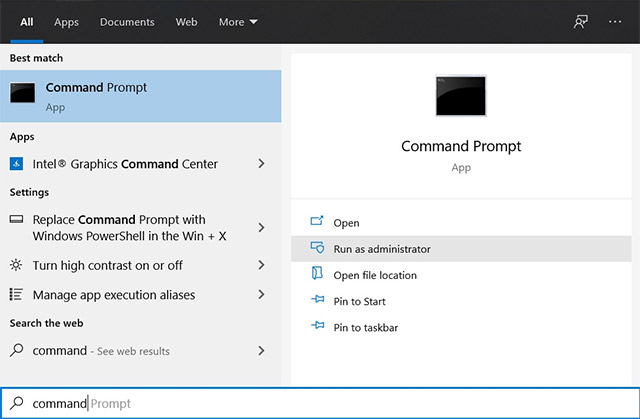
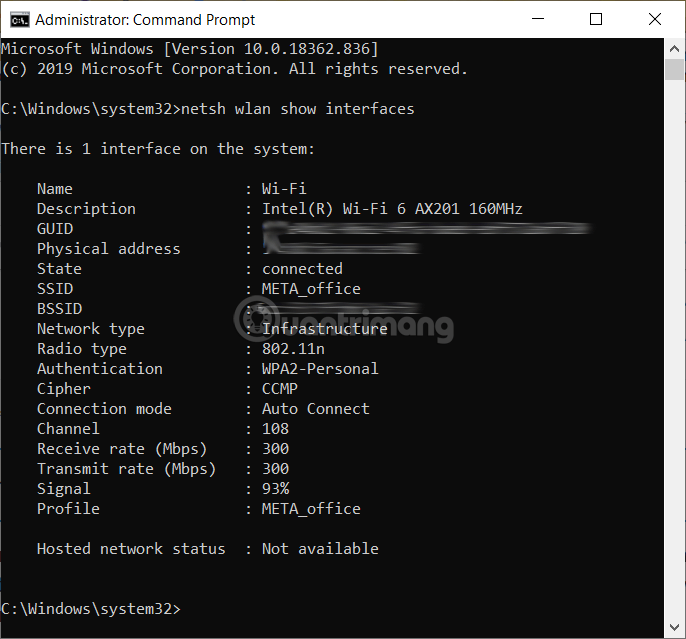
Internet throughput and Wi-Fi signal are related but different. A weak local radio signal can reduce speed even when the ISP line is healthy. In Command Prompt, run:
netsh wlan show interfacesFind the connected interface and its Signal percentage. Administrator rights are normally not required. Test in several locations; the percentage is an adapter-reported estimate, not a direct Mbps measurement.
In PowerShell, this command extracts the Signal line without relying on the broken expression shown in the old article:
netsh wlan show interfaces | Select-String "^s*Signal"
If the signal is much better beside the router, placement, walls, interference, or coverage is likely involved. Use the Wi-Fi troubleshooting assistant or follow the Windows 11 Wi-Fi troubleshooting guide.
How to read the results
| Measurement | What it means | Where it matters |
|---|---|---|
| Download | Rate at which the device receives data, usually in Mbps | Streaming, browsing, large downloads |
| Upload | Rate at which the device sends data | Cloud backup, file sharing, livestreaming, video calls |
| Latency or ping | Round-trip delay, measured in milliseconds | Calls, remote desktops, and online games |
| Jitter | Variation in latency between measurements | Real-time audio and video stability |
| Packet loss | Packets that do not arrive | Dropouts, stutter, retransmissions |
There is no universal “good” result: compare against the service plan, application requirements, connection type, and previous tests. Low latency to a nearby speed-test server does not guarantee low latency to a distant game server. Jitter is not another name for latency; it describes how much delay varies.
Why results change
- Wi-Fi conditions: distance, walls, channel congestion, band, and adapter capability.
- Other traffic: downloads and active devices share available capacity.
- Test server and route: distance, peering, and server load affect the result.
- Equipment: an older router, Ethernet port, cable, or network adapter can be the bottleneck.
- ISP conditions: access technology and local congestion can change performance over time.
- Device load: a busy browser or computer can limit a very fast test.
What to do when speed is lower than expected
- Repeat the test with Ethernet and no VPN.
- Restart the modem or router once if the connection is behaving abnormally.
- Check that the negotiated Ethernet link and Wi-Fi standard are not limiting the device.
- Compare several devices and two reputable test services.
- Record results at different times, including the test server and whether the connection was wired or wireless.
- If wired tests remain far below the plan, give that evidence to the ISP.
Do not assume a single low result proves an ISP fault, and do not use fixed percentages as a guarantee for DSL, cable, fiber, or cellular service. A controlled comparison is more useful than one benchmark.
Related Articles
 Check Network Speed: How to Check Internet Speed with Cmd Command3 minutes read
 Checking Internet Speed, Wi-Fi Fpt, Vnpt Network, Viettel Does8 minutes read
 Measure Your Network Speed with i-SPEED by VNNIC5 minutes read
 Measuring the Speed of Viettel, Vnpt and Fpt Using Speed of Me4 minutes read
 How to Measure Network Speed: Step-by-Step Guide3 minutes read
 How to Measure Network Speed on Laptop, If the Speed Is Slow, What to Do?5 minutes read
Reader Comments 0
Sign in with email or Google to join the discussion.