Table of Contents
To make a Windows 10 laptop last longer away from an outlet, reduce screen and background power use first, then identify any app or device causing abnormal drain. Runtime on one charge and long-term battery health are different goals: settings can improve runtime, while age, heat, and charge cycles determine how much capacity the battery can still hold.

Turn on Battery Saver
Select the battery icon on the taskbar and enable Battery saver, or open Settings > System > Battery. Battery Saver reduces some background activity and notifications and can lower display brightness.
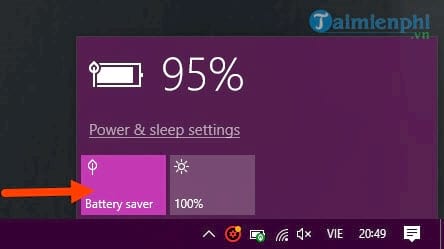
The mode normally matters only while running on battery, so Windows may not allow it when the laptop is plugged in.
Set Battery Saver to start automatically
On the Battery settings page, enable Turn battery saver on automatically if my battery falls below and choose a threshold that leaves enough time for your work. Enable the option to lower screen brightness while Battery Saver is active if it is comfortable to read.
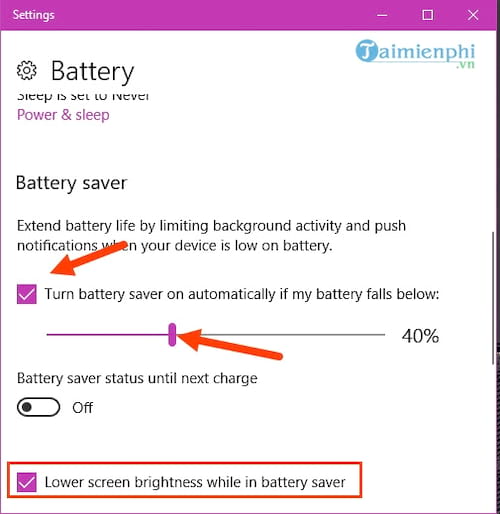
A threshold is a convenience setting, not a requirement to wait until the battery reaches a particular percentage before charging.
Reduce display and idle power
- Lower brightness to the lowest comfortable level. The display often offers a larger saving than minor app tweaks.
- Open Settings > System > Power & sleep and shorten the screen-off and sleep timers for battery use.
- Turn off keyboard backlighting when it is unnecessary.
- If the laptop offers a high refresh rate or HDR mode, use the standard mode when maximum runtime matters.
- Lock or sleep the PC during breaks rather than leaving an active screen.
Find apps using the most battery
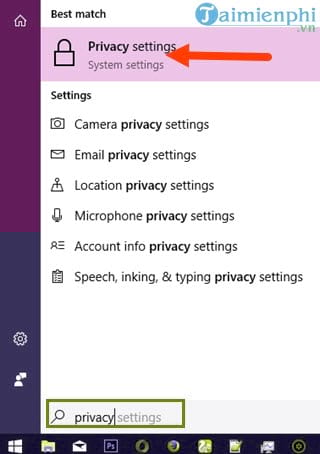
Search Start for Battery settings.
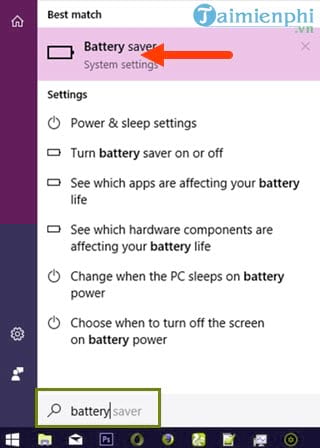
Select See which apps are affecting your battery life or Battery usage by app, depending on the Windows 10 build.
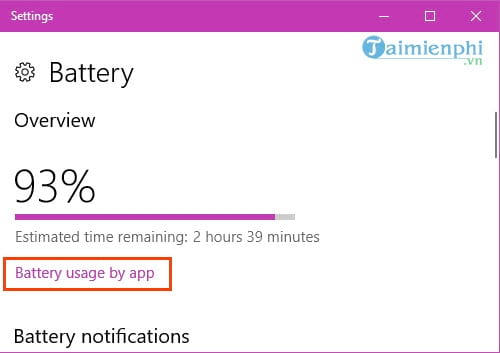
Compare the available time ranges and distinguish an app you actively used from one consuming power unexpectedly in the background. There is no need to drain the battery below 20% to make the statistics valid; a representative period of normal use is more useful.
Limit background activity selectively
Select an app in the battery-usage list and, when Windows offers the control, prevent it from running background tasks.
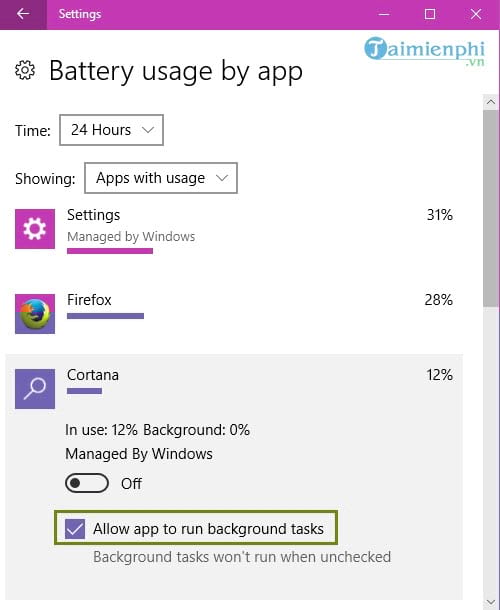
Older builds also place background-app controls under Settings > Privacy.
The old interface could disable every background app.
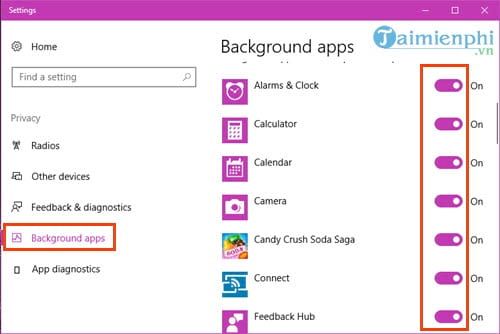
A blanket shutdown is rarely necessary: it can stop mail, messaging, weather, alarms, and other expected updates. Limit only apps that show meaningful drain and do not need timely background work.
Use a more efficient power mode
Select the battery icon and move the power slider toward Better battery or Battery saver. On systems that use Control Panel plans, choose Balanced. Maximum-performance modes can increase CPU power, heat, and fan use; reserve them for workloads that actually need the performance while plugged in.
Reduce radios, peripherals, and network activity
- Turn off Bluetooth when no device is connected and use Airplane mode only when neither Wi-Fi nor cellular access is needed.
- Disconnect USB storage, capture devices, and bus-powered accessories that are not in use.
- Pause large cloud sync, game downloads, and updates until power is available; do not permanently disable security updates.
- Use a strong Wi-Fi signal. A weak connection can require repeated transmissions and more radio activity.
- Close unused browser tabs, especially those playing media or running complex scripts.
Generate a battery-health report
Open Command Prompt or PowerShell and run:
powercfg /batteryreportOpen the HTML path reported by the command. Compare Design Capacity with Full Charge Capacity, review recent usage, and watch the trend over time. One reading is not a diagnosis, and firmware may not expose every field. TipsMake's battery-health tools guide explains the report in more detail.
Protect long-term battery health
- Avoid excessive heat: keep vents clear and do not leave the laptop in a hot car.
- Use the manufacturer's charge-limit feature if the laptop stays plugged in most of the time.
- Use the supplied or a compatible charger with adequate power.
- Replace a swollen battery immediately and stop using the device until it is serviced. Do not puncture or compress it.
If runtime collapses even at idle, compare Task Manager activity and a controlled Battery Saver test. A large, persistent gap between design and full-charge capacity usually points to battery wear; heavy CPU, GPU, screen, or radio use points to workload instead.
Related Articles
 How to Customize Power Plan to Increase Laptop Battery Life10 minutes read
 Extend the Life of Laptop Batteries16 minutes read
 5 Simple Ways to Extend Laptop Battery Life6 minutes read
 8 Tips to Extend Laptop Battery Life: Top Picks and Buying Guide10 minutes read
 Do You Know How to Increase Laptop Battery Life in Windows 10?9 minutes read
 Optimize Laptop Battery Life: Tips and Examples20 minutes read
Reader Comments 0
Sign in with email or Google to join the discussion.