Table of Contents
You can no longer start a consumer cross-app chat between an Instagram account and a Facebook account from Instagram. Meta ended this cross-app communication beginning in December 2023. To message someone now, use Instagram Direct for their Instagram account or Messenger for their Facebook account.
What changed with Instagram and Messenger chats?
Instagram's inbox still supports Instagram direct messages, and Messenger still supports Facebook and Messenger conversations. The change affects conversations that crossed from one account system to the other.
- You cannot search for a Facebook-only account in Instagram and begin a new chat with it.
- A Facebook or Messenger user cannot begin a new chat with an Instagram-only account through the former cross-app feature.
- Older cross-app conversations may remain visible as read-only history, but you cannot continue them through the old connection.
- Linking Facebook and Instagram in Accounts Center does not restore cross-app consumer messaging.
Meta's current explanation is available in its cross-app communication help.
How to message the person now
If you know their Instagram account
- Open Instagram and tap the Messages icon.
- Tap the new-message control or use the inbox search field.
- Enter the person's Instagram username.
- Verify the profile photo, name, and username before selecting the account.
- Send the message. If you are not connected, it may arrive as a message request.
TipsMake's guide to sending voice messages on Instagram explains one of the media options available in Instagram Direct.
If you know only their Facebook profile
Open the Messenger app or the official Messenger website, search for the Facebook profile, and start the conversation there. If the person uses Instagram too, ask them to share the correct Instagram username rather than trying to identify a similar account by guesswork.
If you have an old cross-app chat
Open the chat to review the existing history when it is still available. Use the profile details in the conversation to identify the person, then continue in the appropriate app. Do not assume a similar username belongs to the same individual.
Why older guides still show Facebook accounts inside Instagram
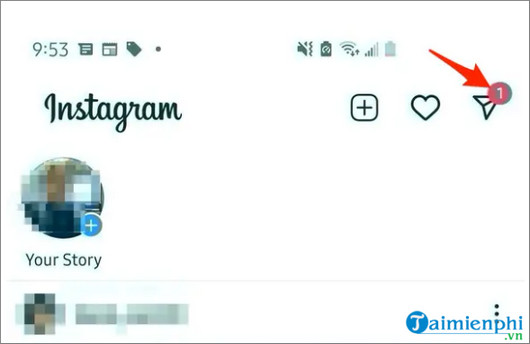
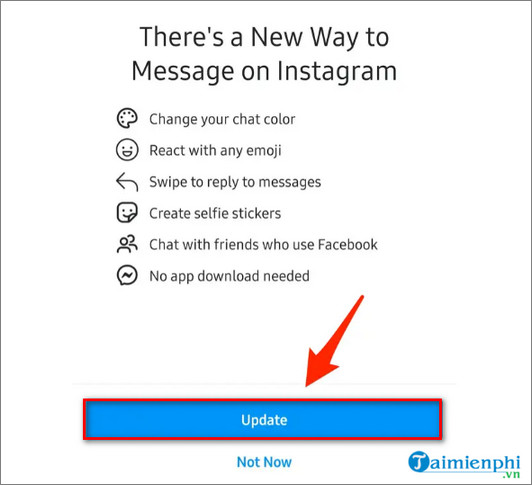
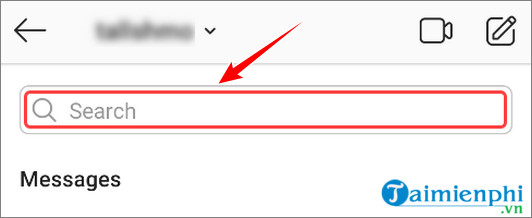
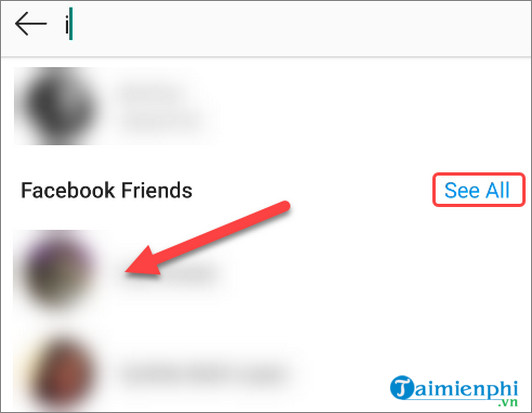
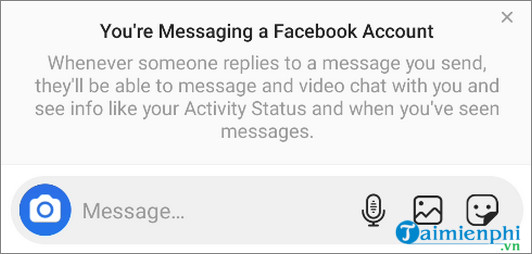
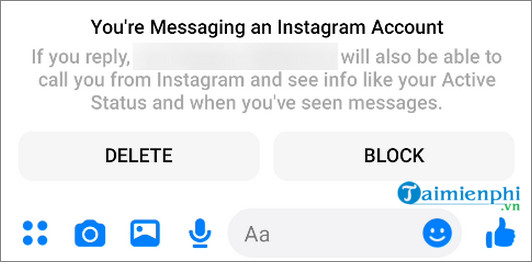
Instagram previously offered an update that merged parts of its Direct interface with Messenger features. Users could search for Facebook accounts, send cross-app messages, and receive requests from the other service. The screenshots below document that retired workflow; they are not instructions that work in the current apps.

Does Accounts Center combine the inboxes?
No. Accounts Center can manage connected experiences such as login, profile information, and sharing between eligible Meta profiles. It does not turn Instagram Direct and Messenger into one consumer inbox or make Facebook-only accounts searchable in Instagram chats.
Businesses that manage a Facebook Page and a professional Instagram account may have inbox tools for handling customer messages through Meta's business products. That management workflow is different from sending a personal Messenger chat to a Facebook account from Instagram.
Fix ordinary Instagram Direct problems
If the recipient has an Instagram account but messages will not send:
- confirm that you selected the correct Instagram username;
- check the internet connection and retry once;
- update Instagram from the official app store;
- restart the app and device;
- review whether the account blocked or restricted the interaction;
- check for an Instagram account-status or messaging restriction; and
- avoid repeatedly sending the same message, which can trigger spam controls.
Protect yourself from impersonation
Moving a conversation from an old cross-app chat to another profile creates an opportunity for impersonation. Verify the new account through information you already trust. Never send a password, login code, recovery link, payment, or sensitive document simply because an account claims to be the same person from an older conversation.
For related messaging and account help, browse TipsMake's social-network guides.
Related Articles
 How to Send Voice Messages on Instagram4 minutes read
 Mark Zuckerberg Explains the Reason for Merging Messenger, WhatsApp and Instagram5 minutes read
 Instagram Adds a Feature to Send Text Messages2 minutes read
 How to Send Messenger Messages to Many People5 minutes read
 How to Stop Receiving Messages from Strangers on Messenger7 minutes read
 How to Send Instagram Messages on Your Computer4 minutes read
Reader Comments 0
Sign in with email or Google to join the discussion.