Table of Contents
You can clear Instagram's recent searches from the Search screen or remove individual accounts, hashtags, audio, and places from the list. On the website, open Search and use Clear all. Clearing this list removes visible recent queries, but it does not stop Instagram from saving future searches or erase every signal used for recommendations.

Remove one recent search on the Instagram app
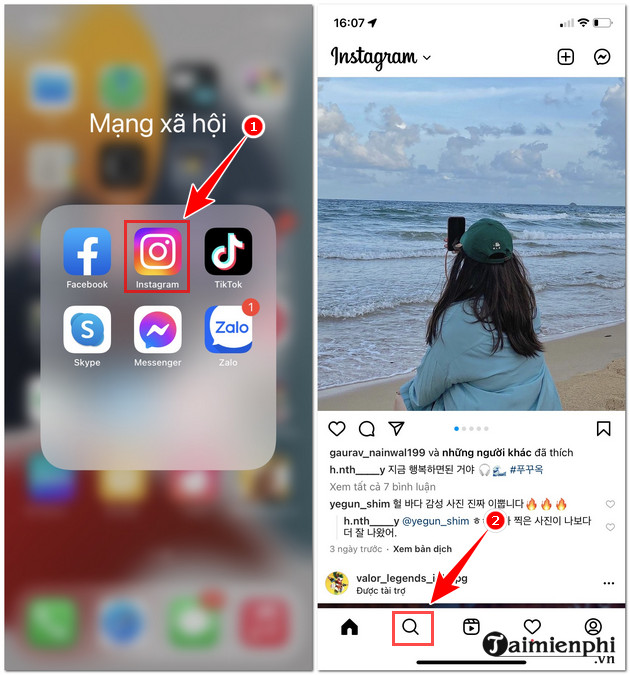
- Open Instagram and tap the Search or Explore icon.
- Tap the search field at the top.
- Find the account, term, hashtag, audio, or place you want to remove.
- Tap the X or remove control beside that item.
This is the better option when you want to keep useful recent searches and remove only one entry.
Clear all recent searches on iPhone or Android
- Open Instagram and select the Search or Explore tab.
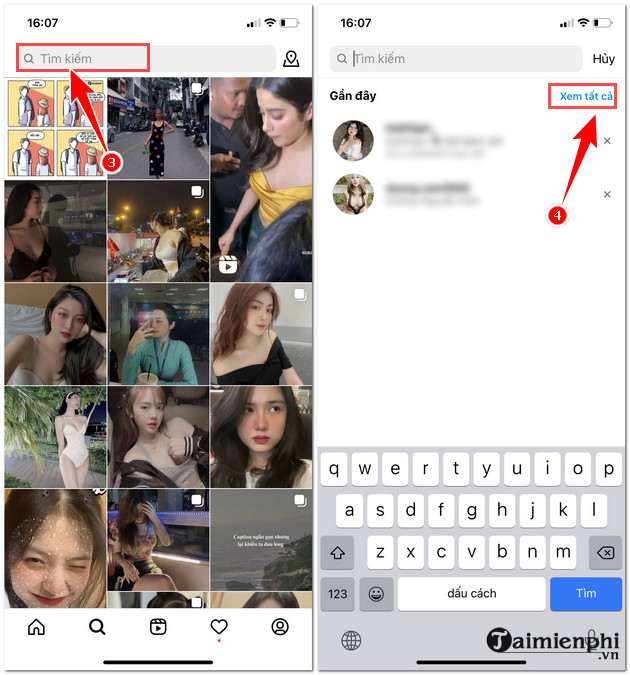
- Tap the search box to display recent items.
- Tap See all or View all.
- Choose Clear all.
- Confirm Clear all when Instagram asks.
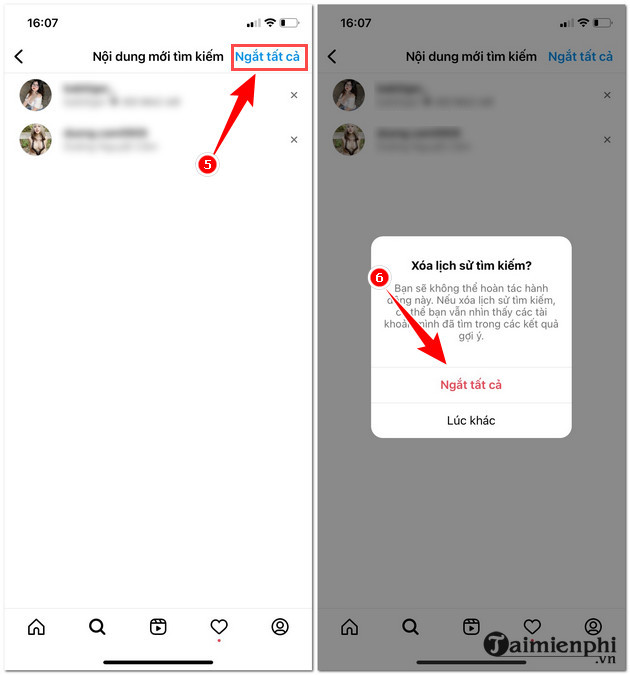
Older or translated interfaces may show incorrect wording such as “Mute all” or “Break all.” The intended control is the one that clears recent searches.
Alternative route through Your activity
If the Search screen does not show See all, open your profile menu and look under Your activity for Recent searches. Select individual entries or use the clear-all control offered by the app.
Menu locations change, so use Instagram's settings search when available rather than relying on an exact older path.
Clear Instagram searches on a computer
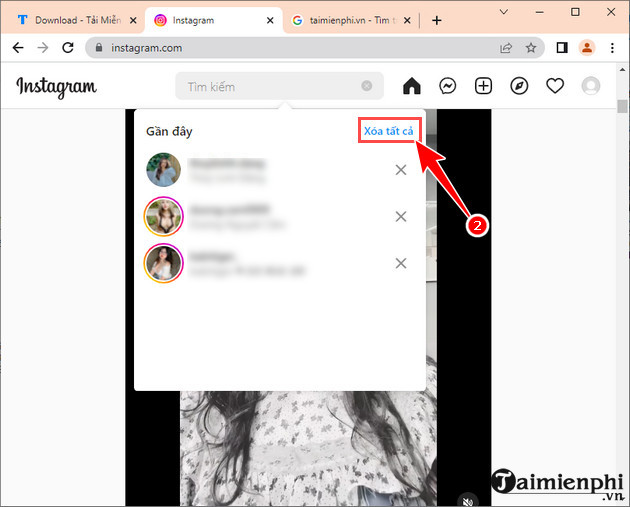
- Open the official Instagram website and sign in.
- Select Search in the navigation menu.
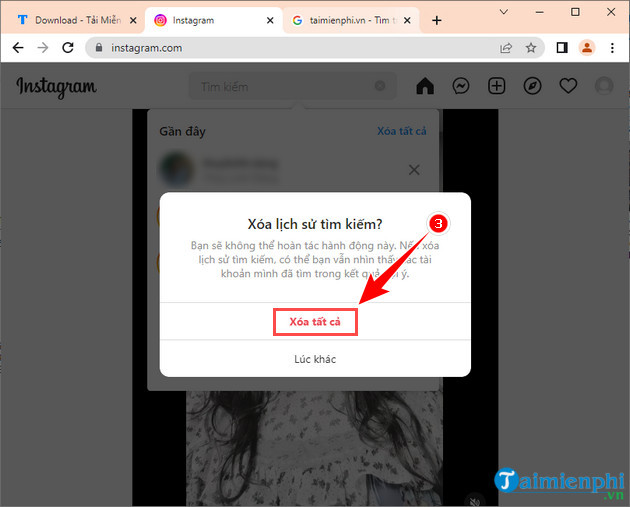
- When the recent-search panel opens, choose Clear all.
- Confirm the removal.


What clearing search history changes
- Recent queries and profiles should disappear from the visible search-history list.
- The action applies to the Instagram account, but synchronization across devices may take a short time.
- New searches will appear again as you continue using Instagram.
- Suggested content may not reset immediately because recommendations can use follows, likes, watch activity, and other signals in addition to searches.
- Clearing Instagram searches does not clear the browser's history, keyboard suggestions, or device search history.
If removed searches return
- Close and reopen Instagram to refresh the list.
- Confirm that you cleared history from the correct Instagram account.
- Update the app through the official app store.
- Remove the item individually if the full clear did not sync.
- On Android, clear the Instagram cache only after simpler steps fail; avoid clearing all app data if you have unsaved drafts.
Privacy limits to understand
Clearing recent searches helps when another person can access your open Instagram account, but it is not a substitute for device and account security. Use a screen lock, sign out of shared devices, review login activity, and enable two-factor authentication.
If you want to review other information associated with the account, see TipsMake's guide to checking Instagram account data. More Instagram settings are available in the social-network guide library.
Related Articles
 Instructions for Deleting Instagram Search History3 minutes read
 How to Delete Search History on CH Play, Hide Searched Content3 minutes read
 Instructions to Delete Search History on Search Bar Windows 113 minutes read
 How to Clear Search History on Microsoft Edge3 minutes read
 How to Clear Safari Search History: Clear Instructions3 minutes read
 How to Delete Search History on Google: Step-by-Step Guide3 minutes read
Reader Comments 0
Sign in with email or Google to join the discussion.