4 easiest, quickest, and simplest ways to schedule your computer to shut down.

Scheduling a computer shutdown allows you to plan the shutdown of your Windows 10, Windows 7/8 computer even when you're not sitting at it. The following methods for scheduling a computer shutdown are quite easy to use on Windows 7/8 and Windows 10.

Scheduling a computer shutdown allows you to plan the shutdown of your Windows 10, Windows 7/8 computer even when you're not sitting in front of it. The methods for scheduling a computer shutdown below are quite easy to use on Windows 7/8, Windows 10 , and can even be applied to Windows XP and older versions.


1. Schedule computer shutdown using CMD commands.

With the following simple CMD command , you can schedule your computer to shut down after a specific period of time. Let's follow the instructions.


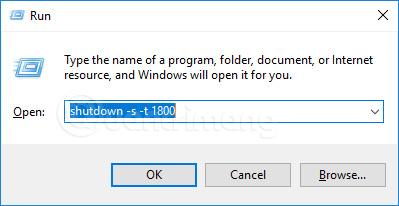
Step 1: Press Windows + R to open Run and enter the following command. On Windows 8/8.1/7, open CMD and enter this command:

shutdown -s -t 1800

In the computer shutdown command above:

  1. shutdown: Turn off the computer
  2. -s: Abbreviation for shutdown
  3. -t: Abbreviation for time
  4. 1800: The number of seconds remaining before the command is executed. You can change 1800 (1800 seconds, equivalent to 30 minutes) to any time interval you want.

Some computer shutdown timer commands already have pre-set times that you can use:

  1. Shut down the computer after 3 minutes: shutdown -s -t 180
  2. Shut down the computer after 5 minutes: shutdown -s -t 300
  3. Shut down the computer after 10 minutes: shutdown -s -t 600
  4. Shut down the computer after 15 minutes: shutdown -s -t 900
  5. Shut down the computer after 30 minutes: shutdown -s -t 1800
  6. Shut down the computer after 1 hour: shutdown -s -t 3600
  7. Shut down the computer after 2 hours: shutdown -s -t 7200
  8. Shut down the computer after 3 hours: shutdown -s -t 10800
  9. Shut down the computer after 4 hours: shutdown -s -t 14400
  10. Shut down the computer after 5 hours: shutdown -s -t 18000

Picture 1 of 4 easiest, quickest, and simplest ways to schedule your computer to shut down.
Enter the command to schedule computer shutdown in the Run window.

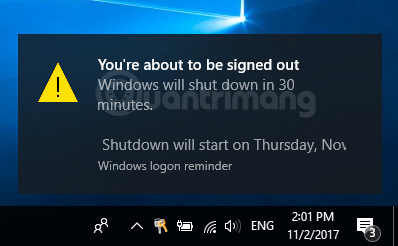
Step 2: After entering the command, you will receive a small notification in the upper right corner of the screen indicating the time the computer will shut down.

Picture 2 of 4 easiest, quickest, and simplest ways to schedule your computer to shut down.
The notification indicates the time the computer will shut down.

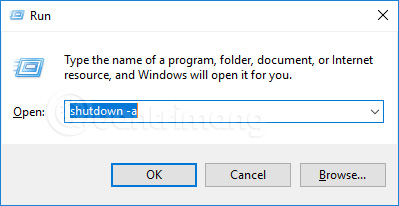
If you need to cancel the scheduled shutdown command you just created, simply press Windows + R and then enter the following command, or enter it into the search bar on Windows 10, Windows 7, or Windows XP:

shutdown -a


Picture 3 of 4 easiest, quickest, and simplest ways to schedule your computer to shut down.
Cancel the computer shutdown timer.

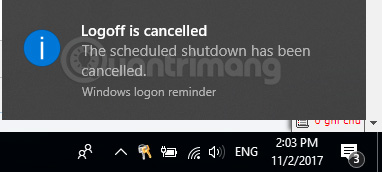
A message will then appear indicating that the scheduled computer shutdown has been canceled, as shown below:

Picture 4 of 4 easiest, quickest, and simplest ways to schedule your computer to shut down.
The notification that the scheduled computer shutdown has been canceled will appear.

2. How to schedule your computer to shut down automatically using a shortcut.

To create a shortcut for Shutdown.exe, follow these steps:

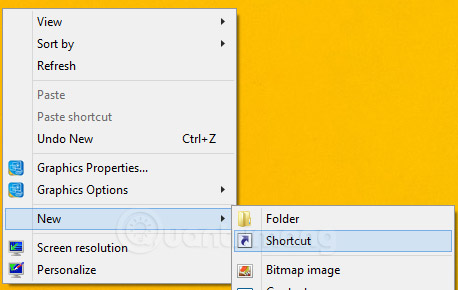
Step 1: Right-click on the desktop > New > Shortcut

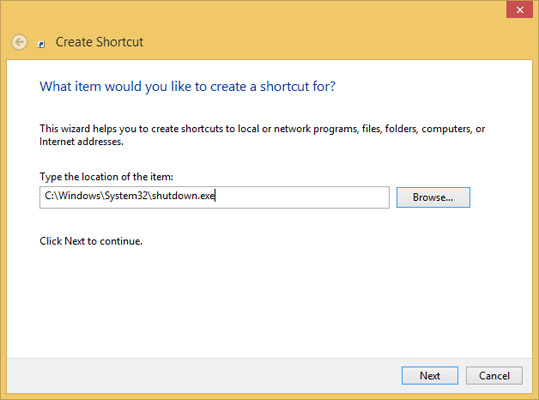
Step 2: Navigate to the Shutdown.exe file, usually located at this path.

C:WindowsSystem32Shutdown.exe > Next

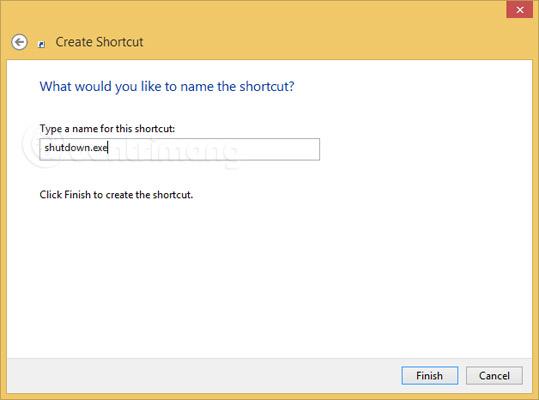
Step 3: Name the shortcut > Finish

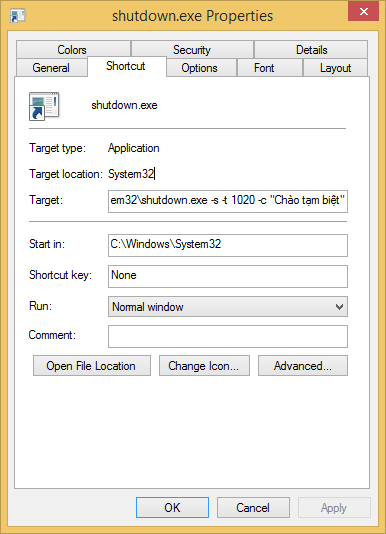
Step 4: Right-click on the newly created shortcut and select Properties.

Step 5: In the Target field , enter the following command to shut down the computer.

  1. -s: Turn off the machine
  2. -l: Log off
  3. -r: Restart the computer

Step 6: Enter -t xx after the above command to schedule the shutdown (xx is the number of seconds to wait for the shutdown).

Step 7: Add -c "text" after the command above to say something when the computer shuts down.

The steps shown in the image will appear as follows:

Picture 5 of 4 easiest, quickest, and simplest ways to schedule your computer to shut down.
Step 1: Select Shortcut from the menu that appears.


Picture 6 of 4 easiest, quickest, and simplest ways to schedule your computer to shut down.
Step 2: Locate the shutdown.exe file.

Picture 7 of 4 easiest, quickest, and simplest ways to schedule your computer to shut down.
Step 3: Click Finish to complete.

Picture 8 of 4 easiest, quickest, and simplest ways to schedule your computer to shut down.
Steps 4-7: Enter the command -s -t 1020 -c "Goodbye"
(automatically shuts down the computer after 1020 seconds and displays "Goodbye")

Picture 9 of 4 easiest, quickest, and simplest ways to schedule your computer to shut down.
System notification when double-clicking a shortcut file to shut down the computer.

3. Schedule a shutdown using Windows Task Scheduler

By combining the newly created Shutdown.exe shortcut with Windows Task Scheduler, you can schedule your computer to shut down at a time, eliminating the worry of forgetting to turn it off at work at the end of the day. This is especially useful for office workers with many computers, as shutting them down the normal way would take a lot of time.

To schedule a computer shutdown, follow these steps: Go to Control Panel , open Scheduled Tasks , then double-click Add Scheduled Task . In the Scheduled Task Wizard dialog box, click Next , then select the Browse button and locate the file: Windowssystem32shutdown.exe . Give it a name you want and select Daily . Choose the time of day you want the computer to shut down. A dialog box will then appear asking for a username and password; you can fill them in or skip this step.

Before clicking the Finish button to end the process, check the box labeled " Open advanced properties for this task when I click Finish ." This allows you to add more options for scheduling the shutdown. In the dialog box that appears, in the Run field , add –s to the command line and the commands -t xx (xx is the number of seconds to wait for shutdown) and -c "your choice" (for example, 'Goodbye' as in this article) (note that the commands –t xx and –c 'your choice' can be omitted).


Before clicking the OK button to close the dialog box, click on the Settings tab and check the box " Only start the task if the computer has been idle for at least: ", then set a time that you find reasonable.

The method for scheduling computer shutdown described above is for computers running Windows XP. To set a shutdown time in Windows Vista, the steps are similar. Instead of opening Scheduled Tasks in the Control Panel, you can select Task Scheduler from the Start menu, type taskschd.msc in the Run box, and then click Create Task… in the right pane.

In the dialog box that appears, enter your desired name in the General tab. In the Triggers tab, create a New trigger . Select On a schedule , and specify the time, then check the Enabled box at the bottom. From the Actions tab, select Start a program , locate the file: C:Windowssystem32Shutdown.exe , and enter the command as you would with Windows XP ( -s to shut down, -r to restart, and -l to log off). Finally, in the Conditions tab, check the box Start the task only if the computer is idle for:, and choose a time that suits you.

If you're using Windows 10, you can find more ways to shut down your computer at: How to schedule a Windows 10 shutdown .

4. Schedule the computer to shut down using specialized software.

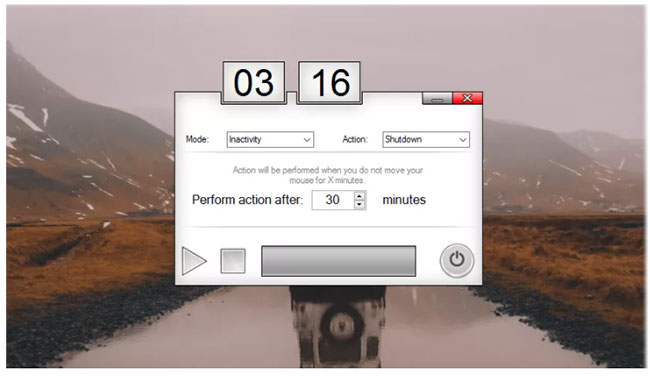
If you don't want to create multiple shutdown timer shortcuts or constantly adjust your existing shortcuts to suit different time intervals – or if you simply want to use a graphical interface – then it's best to install a dedicated program, such as PC Sleep, Sleep Timer, or Windows Shutdown Assistant.

These programs will provide you with additional options, such as the ability to log out, hibernate, set a precise shutdown time, or shut down after a long period of inactivity.

PC Sleep

Even though your computer is still running, you may not want or need to be there when it finishes its work. PC Sleep will help you shut down your computer at a specific time of your choosing, so you can set it up and leave to do other things.

Picture 10 of 4 easiest, quickest, and simplest ways to schedule your computer to shut down.

PC Sleep is a simple tool that allows you to shut down your computer at a specific time or within a specific timeframe. Setting up PC Sleep requires the .NET Framework, but the process is straightforward.

PC Sleep offers features that are friendly to both your eyes and mouse. The compact interface is designed to perform tasks as quickly and efficiently as possible in two basic steps: Choose the action you want to perform and choose when you want it to happen.

PC Sleep is a free sleep timer for your computer. You can leave your computer and PC Sleep will safely perform the selected function for the entered time without you having to do anything. A notable pop-up window will appear when the timer has one minute left.

A similar window will appear if no time is selected; giving you 30 seconds to stop the timer before PC Sleep performs the selected function. This utility is especially good for long downloads where you want your computer to shut down after completion, playing music before bed, or any other reason where you might need PC Sleep to perform its functions while you're away.

In addition to shutting down your computer, you can use PC Sleep to perform other related functions such as restarting or logging out. A pop-up window will appear before the PC shuts down, so you can pause the action if you are still working.

A minor issue with the tool's installation is that it will install the Start menu icon without permission. This is a simple tool designed to perform a simple task. It doesn't offer any other special features, but PC Sleep works well and you don't incur any extra cost to add it to your toolbox.


PC Sleep is a free Windows program. It's quite lightweight and doesn't take up as much space as most other programs. It's widely used in several countries, including Romania and Nigeria.

Sleep Timer

Sleep Timer is specifically designed for people who like to sleep while listening to music. Before going to bed, users must decide how long they want to listen to music before their device goes into hibernation mode or simply turns off.

The main function of Sleep Timer is to provide users with a clock they can adjust to display the number of minutes the music will continue playing. The countdown timer allows users to quickly see how much time is left. The program is compatible with many devices and helps prevent unnecessary battery drain when users fall asleep. The tool works with many different music programs, although those who are unpredictable may find it difficult to set the timer precisely so the music stops at the moment they drift off to sleep.

On the surface, a Sleep Timer seems like the perfect tool for those who enjoy the comfort of listening to music and gradually drifting off to sleep. However, it's almost impossible to predict exactly how long it will take for someone to actually fall asleep each night, and if the settings are incorrect, the music may stop before the user drifts off.

Windows Shutdown Assistant

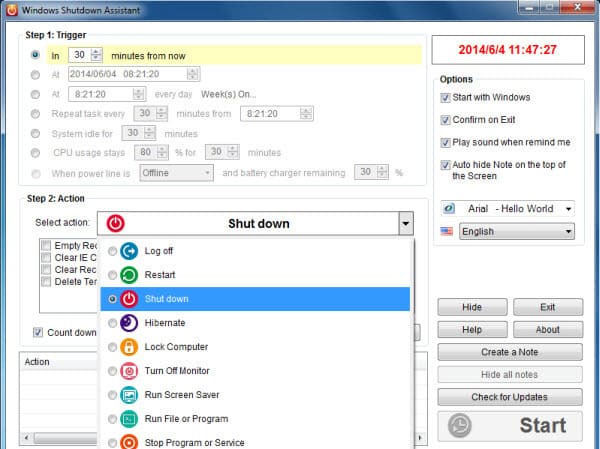
Picture 11 of 4 easiest, quickest, and simplest ways to schedule your computer to shut down.

Windows Shutdown Assistant is software that allows users to automatically shut down their computer at a set time. Additionally, it can shut down the computer in other situations such as system inactivity, excessive CPU usage, or low battery. Depending on your needs, the software also supports automatic logout, restart, and computer locking.

  1. Automatically shut down your computer in various situations.
  2. Lock, restart, hibernate, and log out of your computer at specific times.
  3. Run and stop the program according to a schedule.
  4. Set reminders for future events.
  5. Create notes to record your thoughts and ideas.
  6. Highly compatible with Windows 10, Windows 8, Windows 7, and other Windows operating systems.

Windows Shutdown Assistant allows you to automatically shut down Windows in various modes. You can set the shutdown time. Or, simply configure the settings to allow the computer to shut down when it powers off, overheats, or is inactive for a certain period of time. You only need to follow two steps – set up "Triggers" and "Events," then let the program do the rest for you.

Windows Shutdown Assistant helps you create tasks to automatically open files, URLs, or launch programs. Using this function, you won't forget important events anymore. The software will remind you to work on a document or check a website at a specific time. It's convenient to create several tasks to perform specific actions throughout the day, significantly improving your efficiency. The software works well on all Windows operating systems, including Windows 10, Windows 8, Windows 7, Windows 2008, Vista, or Windows XP. And it's available to manage your computer at any time.

Shutdown Timer Classic

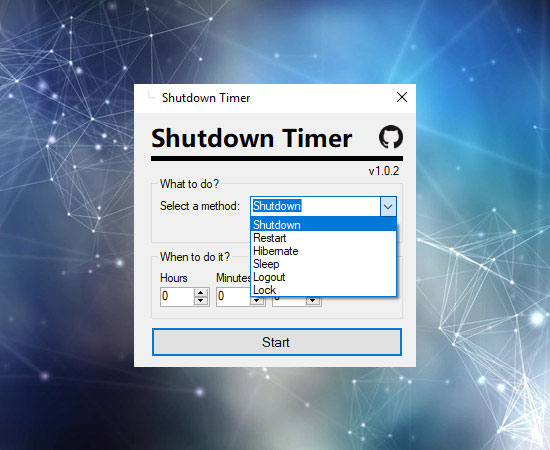
Picture 12 of 4 easiest, quickest, and simplest ways to schedule your computer to shut down.

Have you ever wished for an app that could shut down your PC at a predetermined time? That app is here. Shutdown Timer Classic is a small, useful app available on the Microsoft Store that can essentially perform several shutdown actions, such as shutting down, hibernating, sleeping, restarting, and locking, within a user-defined timeframe.

When you open this small application, you'll be greeted by a small dashboard with a few buttons. Here, you can select the action you want your PC to perform and the amount of time you want to allocate for it to perform that action. You have the option to run a countdown timer in the background so it doesn't interfere with any other activities you're doing in front of your screen.

When it comes to the application aspect, the simple interface is enriched by the well-organized layout of the main control panel. Everything is within easy reach, and the application runs smoothly. Clearly, a lot of attention has been paid to the interface proportions of this application. Everything fits perfectly on the control panel. There's no aesthetic complaint.


Shutdown Timer Classic is a worthwhile application for anyone who habitually lets their computer run automatically and wants to shut it down at a predetermined time. The application delivers on its promises and is hassle-free to use. It doesn't take up much space and doesn't consume computer resources. You won't even notice it's running. Shutdown Timer Classic does its job quietly and quickly.

Refer to the article: How to use Shutdown Timer Classic to automatically shut down your computer for detailed instructions.

Wise Auto Shutdown

With this convenient automatic computer shutdown tool, you can easily schedule your computer to shut down, log out, restart, sleep, hibernate, lock the screen, and power off whenever you want.

Schedule your PC to shut down, restart, log out, or go to sleep.

Wise Auto Shutdown allows you to set your PC to shut down, restart, power off, log out, sleep, hibernate, and lock the screen regularly or just once at a specific time. It makes managing your power much easier and more convenient.

Schedule tasks whenever you want.

With Wise Auto Shutdown, you can schedule tasks to run daily, at a precise time, on a specific day and hour, or after a manually set period of time since the task was scheduled to start. You can enable reminders so you'll be notified 5 minutes before the task executes. If you have unfinished work afterward, you can postpone the task for 10 minutes or up to 4 hours.

Simple and efficient user interface

Wise Auto Shutdown's interface couldn't be simpler. There are no menus, no complicated options or dialog boxes. It's divided into two clear panels. You can easily select the task you want to perform on the left and specify the time you want that task to be completed on the right, then start the task. You can understand how the tool works in seconds.

Run in silent mode

When a task starts, Wise Auto Shutdown will minimize to the system tray and run silently in the background. If you right-click on its icon, a menu will appear allowing you to restart or shut down your computer instantly with just one click.

Low resource consumption & perfect compatibility with all versions of Windows

Wise Auto Shutdown is completely free. It requires a fairly low amount of CPU and system memory. Wise Auto Shutdown has been fully developed and tested to work well on Windows 11, Windows 10, and other Windows operating systems (both 64-bit and 32-bit), from Windows XP onwards. Regardless of what you own – a desktop or laptop.

PowerOff Timer

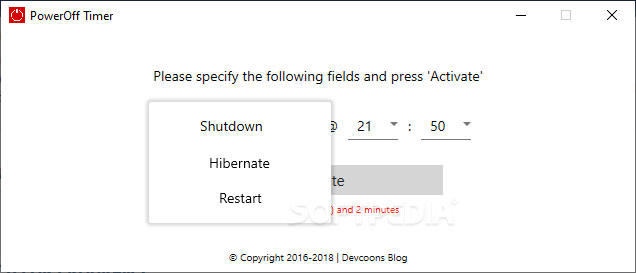
Picture 13 of 4 easiest, quickest, and simplest ways to schedule your computer to shut down.

There are times when you want to finish watching a movie, but manually shutting down your computer before bed can be tedious. Of course, you can always create a scheduled task, but these tend to become complicated and require constant attention. If you're looking for the simplest way to automatically shut down your computer, PowerOff Timer might be the tool for you.

Quick and easy timer setting

PowerOff Timer comes with a simple interface that lets you select the action and the time it will take. Also, after you set the timer, don't forget to click Activate , otherwise the computer will not power off.

Additionally, the tool can be sent to the system tray menu, from where you can quickly check its activation status by hovering your mouse over the icon.

You can restart or put the PC into Sleep mode.

Besides the Shutdown mode, the application also offers two more functions: Hibernate and Restart. All three functions have been tested, and each time the timer reaches zero, a one-minute reminder will appear, after which the computer will shut down, restart, or go into sleep mode. You can use that one-minute window to cancel the process in case you accidentally installed the application or changed your mind.

In short, PowerOff Timer is a simple tool that can help you sleep a little better by automatically shutting down your computer. The overall operation requires little effort as you only need to launch the application, set the timer, and activate it. From there, you can send the application to the system tray menu and enjoy a comfortable evening without having to leave your bed.

PowerOff

Picture 14 of 4 easiest, quickest, and simplest ways to schedule your computer to shut down.

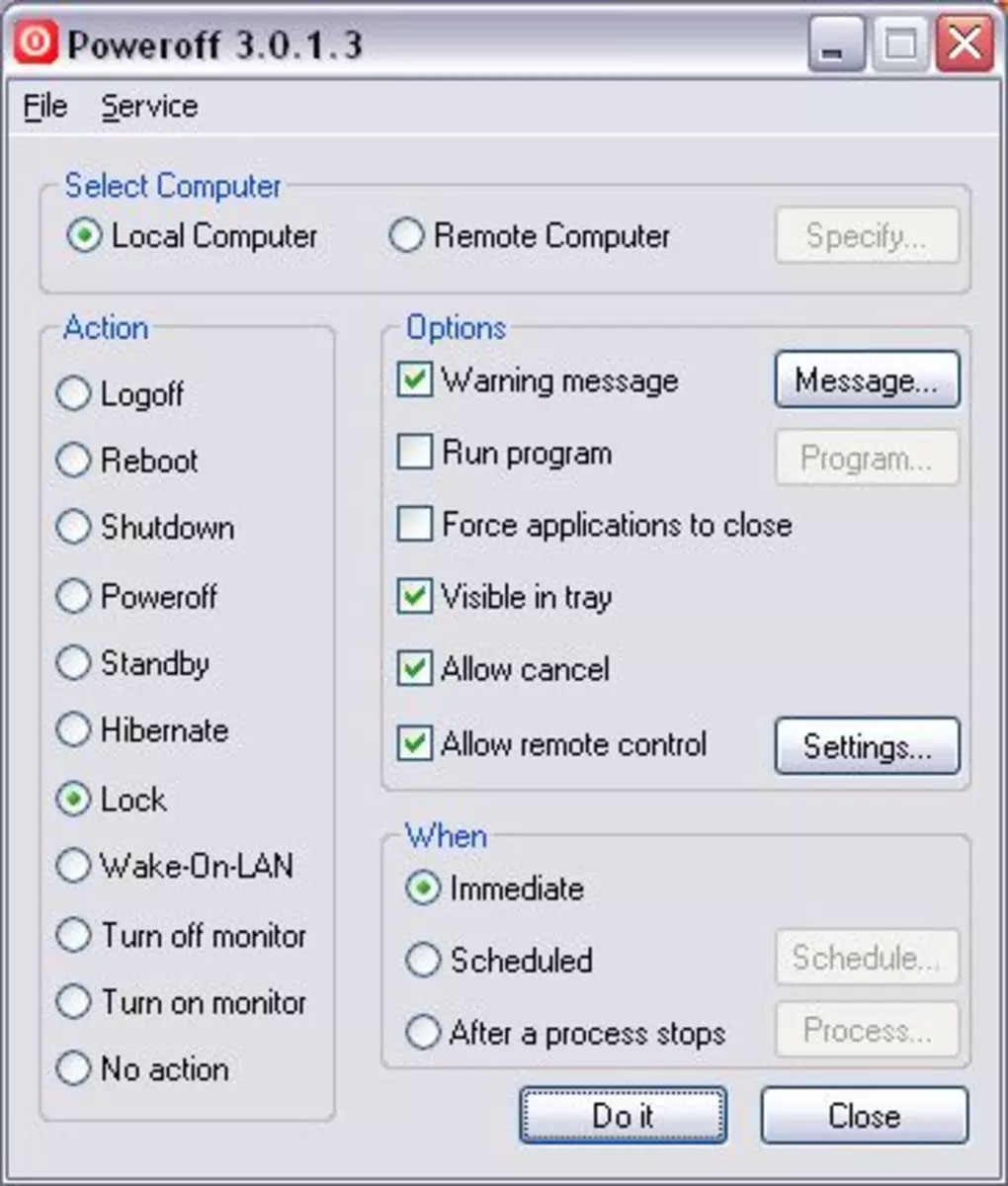
You can shut down your computer simply by pressing the appropriate button on the CPU, but there are many other options. You can find them all in PowerOff, a small tool that lets you automatically power off your computer.

In fact, PowerOff lets you choose between different actions (shut down, log out, hibernate, restart, lock, etc.), schedule them, or even set your PC to shut down after a certain process is complete.

Furthermore, you can use it not only on your PC but also on remote computers. The only feature that PowerOff misses is the ability to shut down a PC based on network usage.

The program displays a warning before performing any action, which is good as it acts as a reminder and also gives you a little time to save the task – or cancel the action yourself. All these settings can also be conveniently saved for later use.

PowerOff is a simple, free, open-source application for shutting down your computer at a specific time. You can choose from preset times or click to add a custom time from 0 to 3 hours. After you select the time, a countdown timer will appear on your screen until it turns off. Closing the application will stop the shutdown timer.

If you find yourself wanting to shut down your computer for any reason but don't want to wait, PowerOff is a simple, free solution.

Advantage

  1. You can choose between several power-off options.
  2. Actions can be taken immediately or scheduled for later.
  3. Display warning messages
  4. Can be used on both your PC and the remote PC.

Disadvantages

  1. Using the internet is not considered a condition for shutting down the computer.

DShutdown

In some cases, better PC power management can be helpful in extending the lifespan of the battery, monitor, or other components. With DShutdown, you'll be provided with just that.

This application is a shutdown management application that can be configured to shut down the computer in certain situations such as lack of activity, no network usage, or other situations where the system would automatically shut down.

Picture 15 of 4 easiest, quickest, and simplest ways to schedule your computer to shut down.

As a free, portable application, the program uses very few system resources while having a minimalist user interface with the core functions of DShutdown.

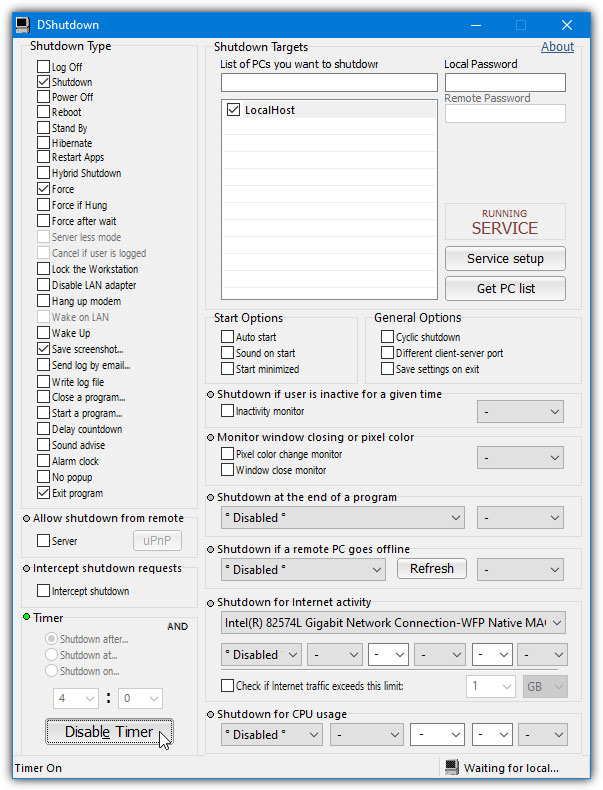
The left side of the user interface lists various actions that can be activated, such as logging out, shutting down, powering off, restarting, waiting, etc. The right side contains network systems that also need to be shut down, with a list of different start and stop options.

An interesting option is choosing which network adapter to monitor usage; when nothing is downloading or uploading and the network is down, you can configure DShutdown to turn off the PC.

Overall, DShutdown is a useful utility with an easy-to-understand interface that contains the program's main features, providing an efficient way to manage system shutdown or simply hibernation, among many other features.

Shutdown8 Portable

Picture 16 of 4 easiest, quickest, and simplest ways to schedule your computer to shut down.

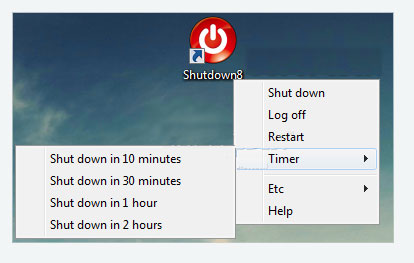
Shutdown8 Portable is a small software utility that allows you to easily and quickly shut down, log out, hibernate, sleep, or restart your PC, according to a user-defined schedule.

Double-clicking the tool's icon brings up a context menu displaying all available options. Selecting the timer option opens a new window, allowing you to control the countdown and the action to be taken at the end. All of this makes Shutdown8 Portable very easy to use, regardless of whether the user is experienced or not.

You should also know that the interface supports multiple languages, such as Danish, Russian, French, English, Hungarian, and Thai. The countdown can be controlled from the mouse scroll wheel or from the two on-screen buttons, a feature that enhances usability.

As the name suggests, this software utility is a portable version of Shutdown8, meaning it doesn't require installation. After downloading, all you have to do is extract the files from the ZIP to any location on your hard drive. You can also copy it to a portable device, such as a USB drive, and thus use Shutdown8 Portable on any computer you have access to. Furthermore, the Windows Registry is not updated with new keys, and new entries will not be added to the Start menu.

In general, Shutdown8 Portable is a very simple and easy-to-use tool. Features such as the fact that it doesn't require installation and you can shut down the power at a specific time make Shutdown8 Portable highly effective and reliable.

Turn Off Timer

Picture 17 of 4 easiest, quickest, and simplest ways to schedule your computer to shut down.

Turn Off Timer is a simple and easy-to-use software application that allows users to set a predetermined time before their computer automatically shuts down. This can not only save battery life and energy consumption but can also be useful when you want more privacy (such as leaving your laptop when in a public environment).

This program can be useful for any computer user, as many programs have long tasks that you don't want to waste time waiting for them to finish before shutting down your computer. Turn Off Timer is a solution that allows you to turn on your computer to run tasks at night, when you're not around, or to shut down your computer at a specific time.

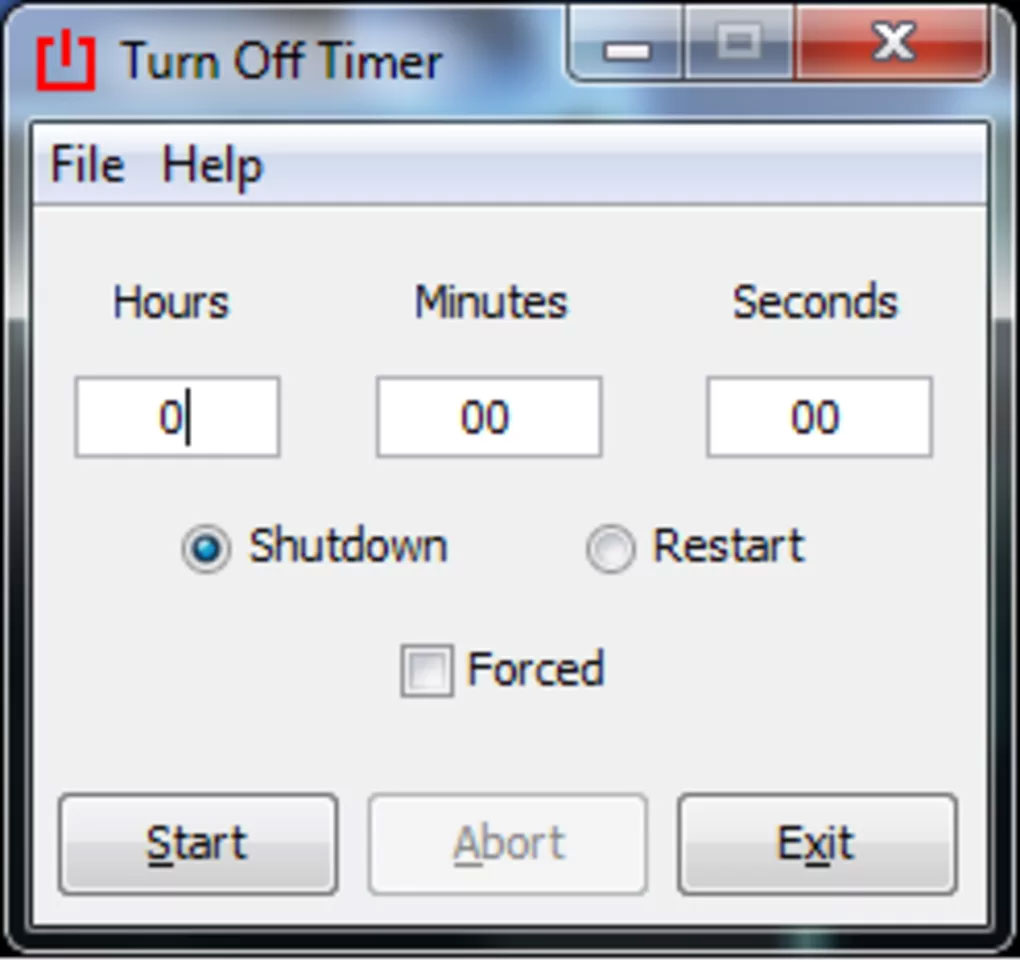
Turn Off Timer allows you to schedule a shutdown by manually setting a timer. The compact interface lets you enter Hours, Minutes , and Seconds , then choose whether you want to Shutdown or Restart. You can also choose whether you want to force a shutdown. Once you've set the time, click Start to begin the shutdown timer. You can also pause and resume the timer if desired.

SLAWDOG Smart Shutdown

Picture 18 of 4 easiest, quickest, and simplest ways to schedule your computer to shut down.

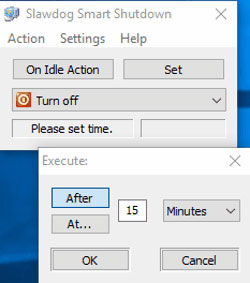
SLAWDOG Smart Shutdown is a free timer-based software that triggers actions. The list of actions includes the option to shut down the computer.

With Smart Shutdown, you can do so many things.

  1. First, it's located in your system tray, and when you left-click on it, a message box appears asking you to shut down your PC (the message text and time are configurable). Therefore, you can shut down your PC faster than going to the Start menu.
  2. Next, you can choose from a list of actions such as shutting down, restarting, logging out, locking the user, hibernating, disconnecting from the internet, etc. After selecting an action, you can set a timer for that action (after a certain period of time, such as 15 minutes, or at a specific time; choose an option if you want to repeat the action daily), so that's another interesting feature.
  3. The third key feature is setting what to do after a specific period of inactivity. That can also be useful! Think of shutting down your PC after 10 minutes and leaving the room, or displaying a notification that says "your tea is ready," etc. The possibilities are endless!

First, you can choose the trigger type and then the action. Select any of the following triggers: One time, Daily, Weekly, Monthly, Every x minutes , etc.

Other actions besides shutting down the computer that can be selected include: Reminder message, Logoff, Restart, Hibernate, Sleep, Lock, Start/Stop program , etc. A task is added to the workspace; this task can be modified or deleted later.

Simple Shutdown Timer

Picture 19 of 4 easiest, quickest, and simplest ways to schedule your computer to shut down.

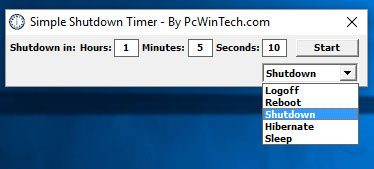
Simple Shutdown Timer is a very small utility that can automatically shut down your computer. There are many situations where we can't shut down our computers manually. For example, when any important process is not yet finished but we have to go somewhere or simply need to go to sleep. Nobody wants to waste time waiting for unused computer time. This small application can help us in such situations.

Simple Shutdown Timer, as the name suggests, allows you to easily schedule a computer shutdown. When users launch the program, they will see nothing but a timer and three options. Add the time to perform the operation in hours, minutes, and seconds, then select the Shutdown option from the drop-down list. Other options in the list are: Logoff, Reboot, Hibernate , and Sleep . Click Start to begin scheduling an automatic computer shutdown.

This program is extremely easy to use. All you have to do is set the time interval and start the countdown by clicking the appropriate button. The countdown can also be paused by clicking the Stop button. The program has its own tray icon which can be used to open the main program window or exit the program. As you can see, Simple Shutdown Timer doesn't have any extra options or features. It's a small program with simple functionality, and don't forget that it's completely free!

Timed Shutdown

Picture 20 of 4 easiest, quickest, and simplest ways to schedule your computer to shut down.

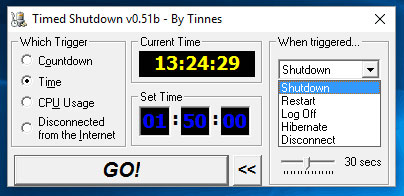
Timed Shutdown is another free software that shuts down your computer at a desired time. It automatically shuts down, hibernates, pauses, restarts, logs out, or locks your computer so it doesn't need to stay on longer than necessary. This helps extend the lifespan of your device and save energy.

This free software allows you to set various triggers based on countdown actions, time, CPU usage, and internet disconnection. The program runs hidden in the system tray, making it easy to monitor and cancel if needed, and uses a final countdown to prevent sudden shutdowns. You can also run the program via the command line, either at the end of a batch file or from a predefined shortcut.

To set a time-based trigger, click Time , then set the time and select the Shutdown option from the When Triggered drop-down menu. You can also choose to restart, log out, hibernate, or disconnect. There are also options to force a shutdown and perform a final countdown. The countdown timer can be set from 0 to 30 seconds.

TimeComX Basic

Picture 21 of 4 easiest, quickest, and simplest ways to schedule your computer to shut down.

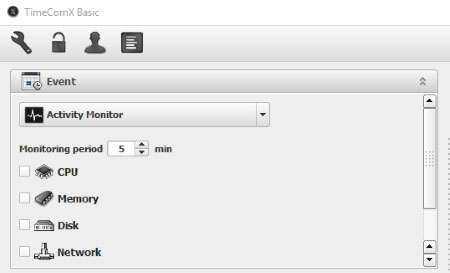
TimeComX Basic allows you to trigger various actions based on time, date, or computer activity. The user interface is divided into two sections: Events and Tasks.

In Event , you can choose the type of trigger to shut down the machine. It can be set using a simple timer, an advanced timer, daytime (set a time or day to trigger), and activity monitoring (checks CPU, memory, disk, and network activity for the set value).

In the Tasks section, select the Shutdown option . Other available options include: Sleep, Hibernate , and Restart. A countdown alert can also be set 30 seconds before shutdown. Click Start to begin the shutdown timer. It can be stopped whenever you want.

This free program improves and expands your control over a range of automated processes and activities in Windows. Optional password protection, automatic screenshot capture, and logging make it a great choice for parents, employers, and others concerned about unauthorized activity or access on their computers.

WinMend Auto Shutdown

WinMend Auto Shutdown is a Windows utility that helps you automatically shut down your computer whenever you want. This program can also activate Sleep or Hibernate mode and log out of your PC at any time.

The application is easy to use even for computer beginners; it sits quietly in your system tray without using much CPU resources and is available in multiple languages.

All you need to do to use this program is select your preferred task type (Shut down, Log off, Sleep, or Hibernate) and choose when the task will be completed. For example, you can configure the application to shut down your PC after 4 hours or a few days from now, at 4 PM. If you are still using your computer when the automatic shutdown time is approaching, the application will remind you with a 30-second countdown before taking any action.

In testing, this utility worked perfectly. Only two things bothered many people: the lack of an option to add multiple tasks (e.g., shut down tonight at 8 PM and go into Sleep mode tomorrow at 6 PM) and the inability to define common hotkeys (e.g., to instantly reveal its main window or shut down your PC).

However, this application is free to use. So, you have nothing to lose if you decide to try it on your Windows PC.

Monitor Power Saver

When working on a computer for long periods, it's advisable to take occasional breaks to prevent a range of health hazards.

However, you might sometimes forget to save energy by turning off the screen or putting your computer to sleep. In this case, you can rely on specialized software, such as Monitor Power Saver, which can help save electricity easily and effectively.

Because it's a portable software program, it doesn't require installation, doesn't modify Windows Registry entries, and doesn't create additional files on your computer.

It comes with a minimalist user interface and highly intuitive functions, thus allowing you to understand and benefit from its features without much effort.

You can rely on this app if you need a tool to automatically turn off the screen in case you forget to do so. It's possible to set the app to turn off the screen when the screensaver starts, but you can also schedule this event to happen after a certain period of time.

You can choose to have the utility run at startup so you don't have to worry about launching it in the first place. The program runs with the last known configuration.

In addition to the above functions, Monitor Power Saver also allows you to schedule shutdowns, hibernation, or standby on specific days and times. Furthermore, you can set it as a single event or create a recurring pattern by selecting multiple days of the week.

After setting your desired date and time, you can choose a suitable action, such as Standby, Hibernate, or Shutdown, select the Start box , and press the OK button. The application will automatically put your system into the corresponding state on the specified date.

In summary, Monitor Power Saver is a reliable tool that allows you to turn off the screen after a certain period of time and also helps schedule shutdowns, hibernation, or standby.

Video tutorial on how to schedule automatic computer shutdown.

« PREV POST
READ NEXT »