Table of Contents
The Google Drive mobile app can scan receipts, letters, forms, and other paper documents and save them to Drive as PDFs. The scanner is available on Android, iPhone, and iPad; Google Drive's web interface on a computer does not provide the capture feature.
Before starting, open Drive with the Google account that should own the file. If the document is confidential, also check the destination folder's sharing settings before you upload it.
Scan a document in Google Drive
- Open the Google Drive app.
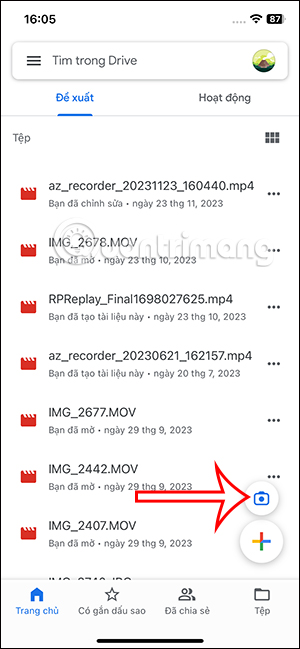
- On Android, tap the Camera button at the bottom right. On iPhone or iPad, tap Add (+) > Scan or use the camera icon.
- Allow camera access if the phone asks.
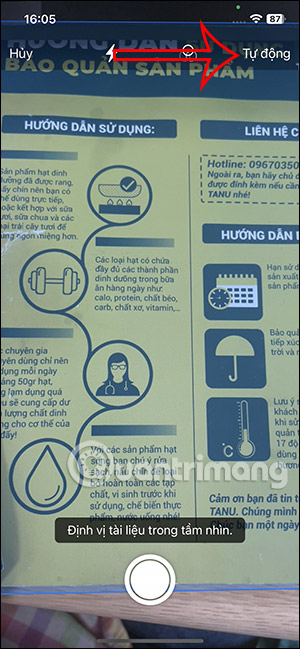
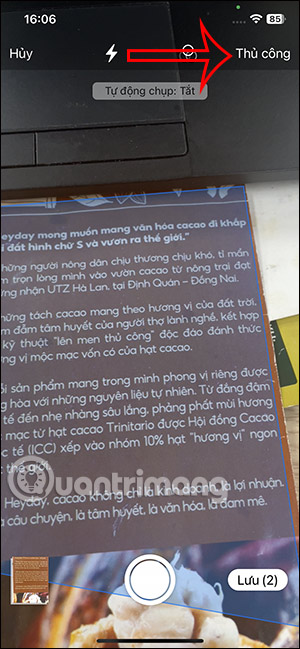
- Place the page on a flat, contrasting surface with even light. Keep the phone parallel to the page so the edges are easier to detect.
- Point the camera at the page. A blue outline shows the proposed crop. Choose Auto capture when the page is steady and clearly outlined, or Manual when you want to control the shutter.
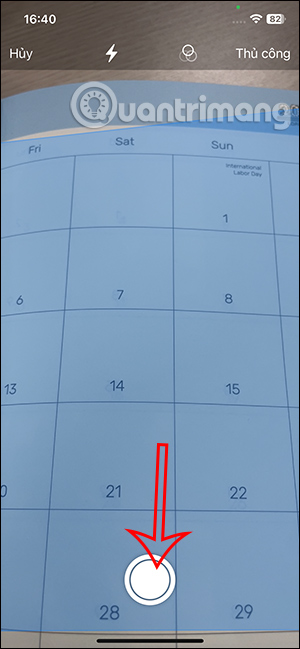
- Capture the page.
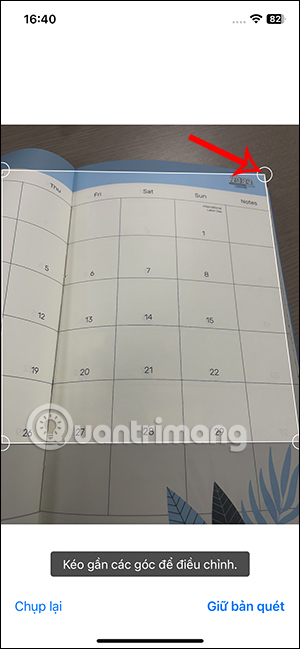
Crop and clean up the scan
Review each page before saving. Depending on the app version, the editing toolbar can include:
- Crop & Rotate: drag the corners to the true page edges, then correct the orientation.
- Filter: adjust color, grayscale, or document contrast.
- Clean: remove small stains, fingers, or other unwanted marks where the tool is available.
- Retake: capture the page again if text is blurred, cut off, or covered by glare.
- Delete: remove the current page from the scan.
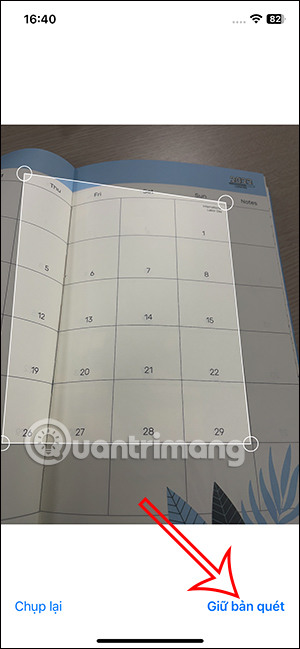
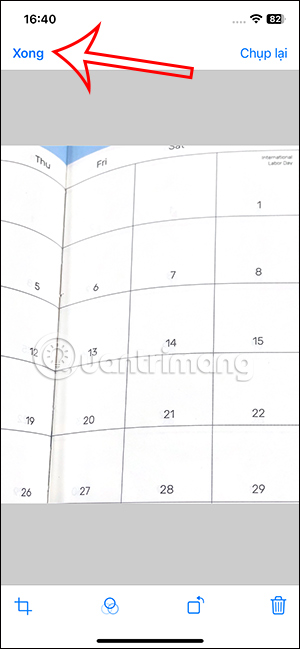
Zoom in on small text, signatures, dates, and page edges. Automated cropping and cleanup can make mistakes, so keep the original paper until you have opened and checked the final file.
Create a multi-page PDF
- After reviewing the first page, tap Add (+) to scan another page.
- Repeat the capture and editing steps for each page.
- Check the order before continuing. If a page is missing or unreadable, retake it rather than saving an incomplete file.
- Tap Done when the document is complete.
On Android versions that offer a multi-page batch scanner, the app may capture several pages in sequence before opening the review screen. The result is still a single document after you confirm the pages.
Name and save the PDF
- Enter a clear filename. A format such as
document-name_YYYY-MM-DD.pdfis easier to search than a generic scan name. - Tap Location and choose the correct Drive folder.
- On Android, select PDF rather than JPG when the document should remain one multi-page file. iPhone and iPad save the document scan as a PDF.
- Tap Save and wait for the upload to finish.
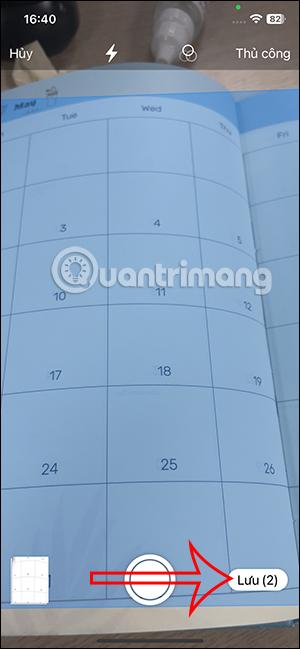
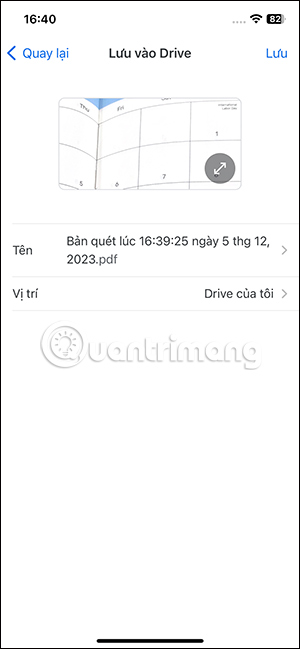
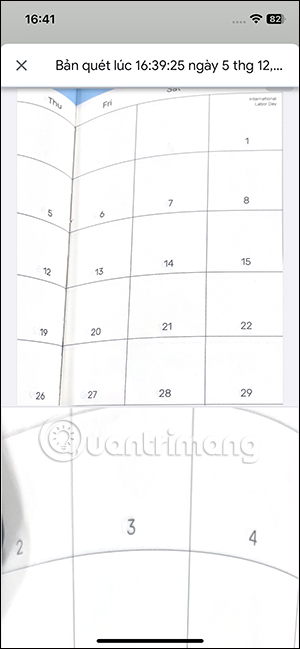
Open the saved file from Drive and check every page. Google describes scanned documents as searchable PDFs, but recognition quality depends on focus, lighting, language, handwriting, and page layout; do not assume every word was recognized correctly.
For the platform-specific controls, see Google's current instructions for Android or iPhone and iPad.
Improve scan quality
- Clean the camera lens before scanning.
- Use bright, diffuse light; avoid a lamp reflection on glossy paper.
- Flatten folds and hold curved pages down outside the crop area.
- Use a background that contrasts with the page edges.
- Move closer instead of using digital zoom, but keep all four corners visible.
- Use Manual capture for small receipts or pages that Auto capture detects incorrectly.
- Retake a page when motion blur makes fine print hard to read.
If the Scan button or upload does not work
- Update the Google Drive app and reopen it.
- Check that Drive has camera permission in the phone's system settings.
- Confirm that you are signed in to the intended Google account.
- Make sure the device has enough free space to process the scan and that the Drive account has storage available.
- If the upload is pending, reconnect to a stable network and keep Drive open until the file appears in the destination folder.
- If Drive's scanner does not meet your editing needs, compare these document scanning apps for Android or mobile PDF converter apps.
Handle sensitive documents carefully
A scan can contain addresses, account numbers, signatures, medical information, or identification details. Save it only to an account and folder you control, review existing folder access, and avoid creating a public link unless disclosure is intentional. If you need to read or annotate the result later, this guide to free PDF readers explains common options.
Related Articles
 Instructions for the Easiest Way to Scan Documents into PDF Files7 minutes read
 Applications Scan Documents to PDF on iOS4 minutes read
 Instructions for Scanning Documents with 3 Simple Steps4 minutes read
 How to Scan Documents in the Files App on iOS4 minutes read
 How to Scan Documents Using Notes App on iOS4 minutes read
 Adobe's New Adobe Scan Application Turns Your Phone into a Document5 minutes read
Reader Comments 0
Sign in with email or Google to join the discussion.