Table of Contents
Microsoft MAI Playground lets you generate an image from a text prompt and make follow-up edits with MAI image models. The site is a limited preview for new and experimental models, so the available model names, controls, usage limits, and sign-in requirements may change.
Use the Playground for drafts and creative exploration, then inspect the output before publishing it. Microsoft notes that image models can produce plausible but inaccurate details and may reflect biases, especially in sensitive identity, legal, medical, financial, or news-related work.
Open MAI Playground and choose an image model
- Go to Microsoft MAI Playground.
- Sign in with a Microsoft account if the site prompts you.
- Select an available MAI image model. The interface may offer more than one variant; read the labels rather than assuming the screenshots match the current lineup.
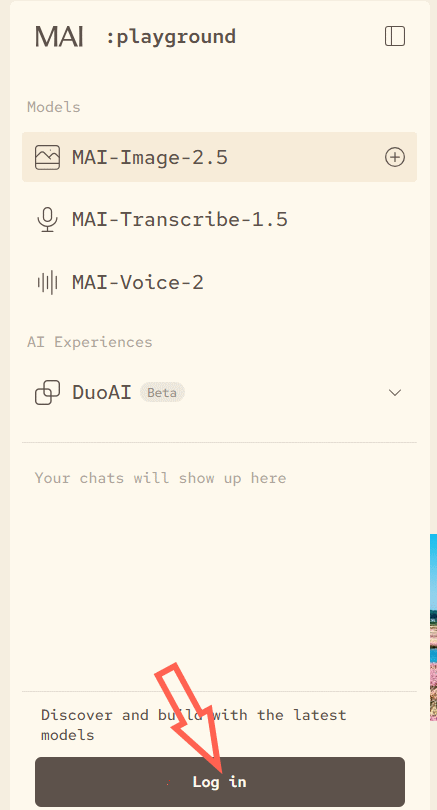
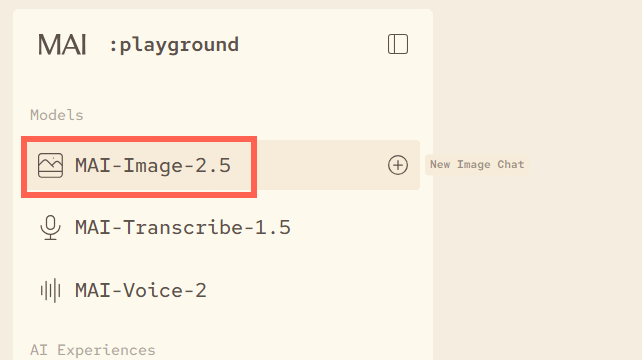
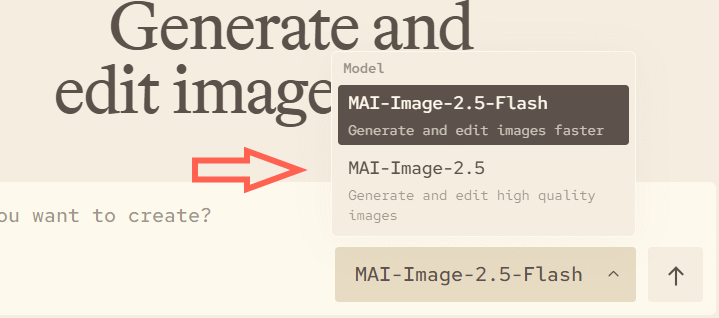
MAI-Image-2.5 supports both text-to-image generation and image-to-image editing. A Flash variant may appear when faster generation is preferred. Microsoft's MAI-Image-2.5 model page lists the currently available capabilities.
Write a prompt that gives the model useful direction
A strong prompt describes the visible result instead of explaining the business goal at length. Include only details that matter to the composition:
- Subject: the person, object, place, or scene to show.
- Action and pose: what the subject is doing and where it faces.
- Composition: close-up, wide shot, overhead view, centered product, or space reserved for a headline.
- Setting: background, time of day, weather, and surrounding objects.
- Visual treatment: photograph, watercolor, paper cutout, 3D render, editorial illustration, or another clearly described medium.
- Light and color: soft window light, hard studio shadows, muted earth tones, or a named palette.
- Constraints: objects to include or omit, exact text to display, and elements that must remain unobstructed.
For example:
Editorial photograph of a small ceramic coffee cup on a walnut desk beside an open notebook, morning window light from the left, warm neutral palette, shallow depth of field, horizontal composition with clean space on the right for a headline, no logos, no hands.
If the image must contain words, put the exact wording in quotation marks and keep it short. Always proofread generated text; even capable image models can misspell, duplicate, or deform characters. The guide to common text-to-image failures covers other details worth checking.
Generate the first image
- Enter the prompt in the text box.
- Select the submit or generation button.
- Wait for the result, then compare it with every important requirement in the prompt.
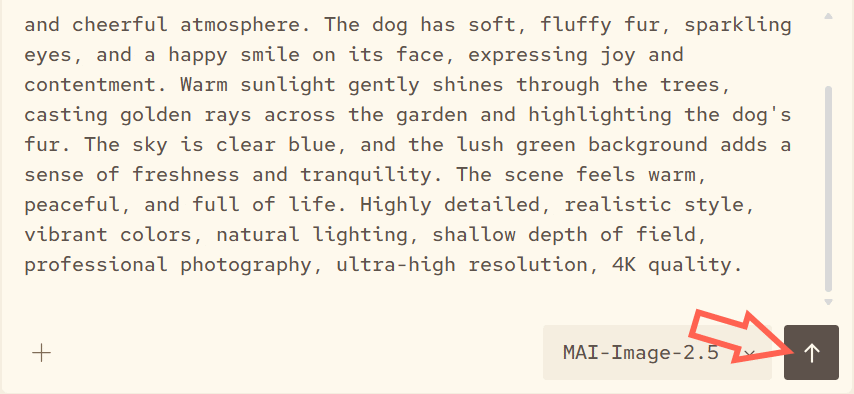
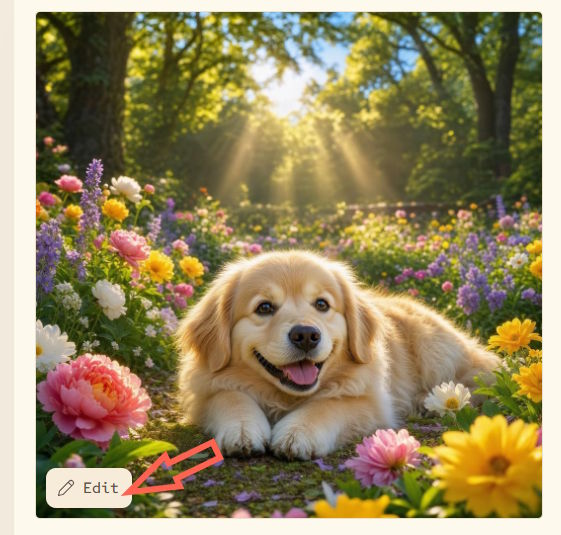
If the overall direction is wrong, revise the original prompt and generate again. If most of the image is correct, use editing so you can ask for a targeted change.
Edit a generated image
- Open the generated result and select Edit.
- Describe one or two specific changes. State what must remain unchanged.
- Select Apply Edit, then inspect the new version.
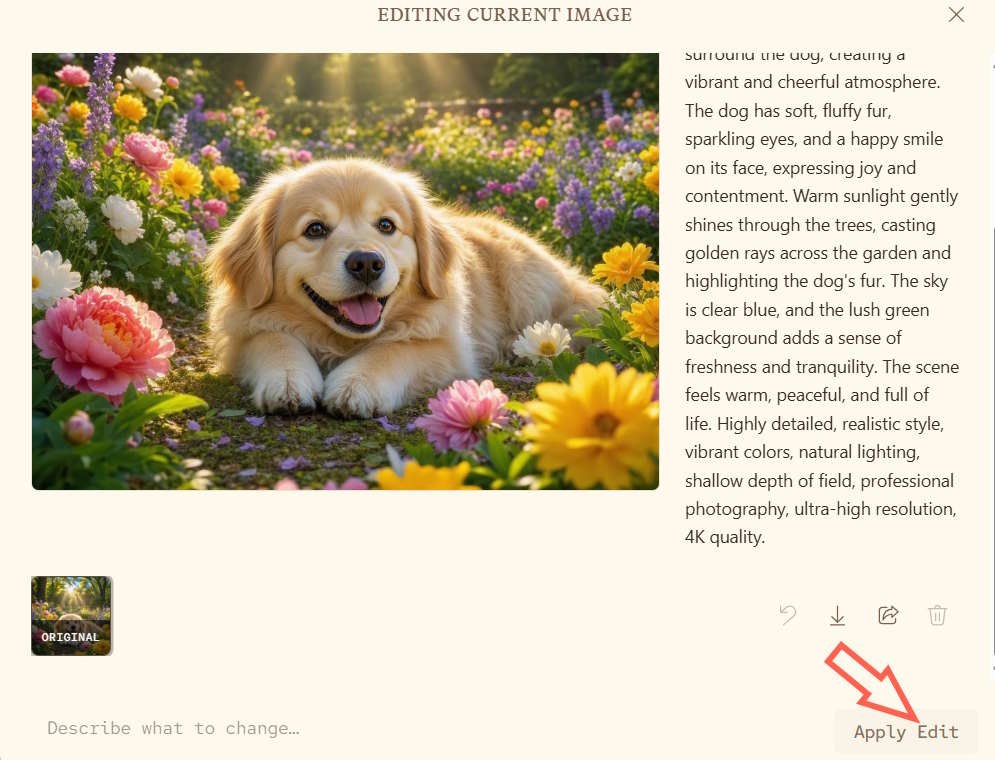
A useful edit request is explicit about the target, change, and preservation:
Replace only the blue mug with a matte dark-green mug. Keep the desk, notebook, camera angle, lighting, shadows, and empty headline space unchanged.
Broad requests such as “make it better” give the model no objective target. For complex revisions, make one controlled change at a time so you can tell which instruction caused an unwanted result.
Download the result
- Open the version you want to keep.
- Select the download icon.
- Save the file with a descriptive name and keep the prompt or project notes if you may need to reproduce the concept.
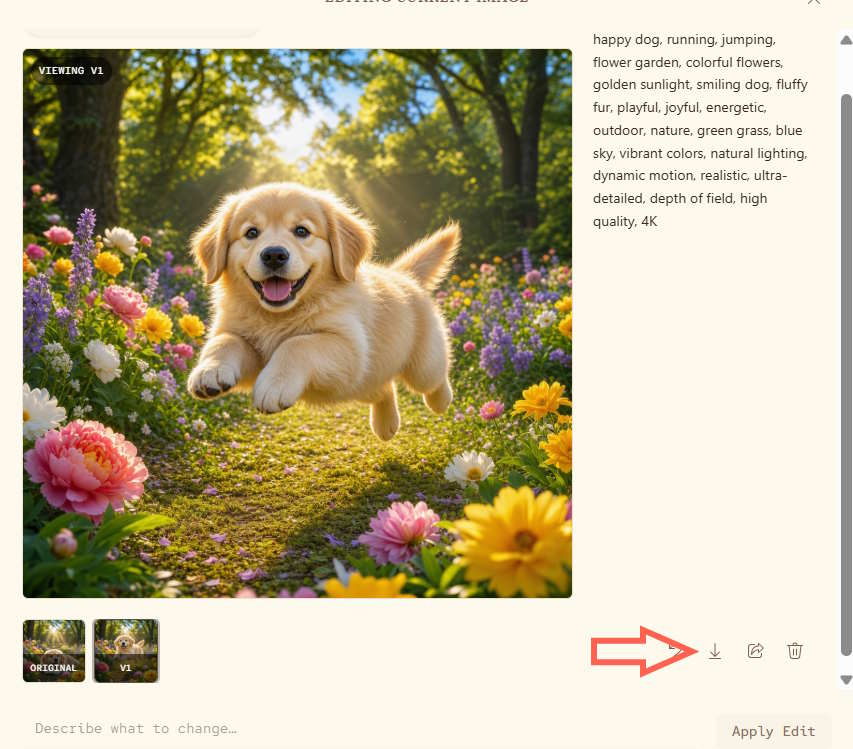
Before using the file in a presentation, ad, article, or product page, check its pixel dimensions, crop, text legibility, and whether the destination requires a particular format or transparency. Playground availability does not by itself establish that a generated image is suitable for every commercial, regulated, or rights-sensitive use.
Review AI-generated images before publishing
- Zoom in on hands, faces, reflections, jewelry, repeated objects, and background signs.
- Verify brand names, labels, maps, uniforms, safety equipment, and technical diagrams against reliable references.
- Do not treat a generated image as evidence of a real event, person, place, or product.
- Avoid uploading confidential photos or personal data unless you have reviewed the service terms and your organization's policy.
- Check whether a recognizable person, logo, copyrighted character, or protected design creates rights or impersonation concerns.
- Keep human review for medical, legal, financial, safety, and news contexts. Microsoft explicitly cautions that model output can be inaccurate or misleading in sensitive workflows in its MAI-Image-2.5 announcement.
If the output does not match the prompt
- The composition is crowded: specify the number of subjects and where each should appear.
- An object keeps changing during edits: name the elements to preserve and make a smaller edit.
- Text is incorrect: shorten the wording, quote it exactly, and regenerate; add final typography in a design tool when accuracy is critical.
- The style is inconsistent: describe the medium, lighting, palette, and camera or illustration treatment in concrete terms.
- The request is blocked: revise content that may conflict with the service's safety rules; do not try to evade safeguards.
- The model is unavailable: remember that MAI Playground is a limited preview. Try again later or compare other AI image creation tools and Midjourney alternatives.
Related Articles
 How to Create AI Images with Apple Intelligence's Image3 minutes read
 Why Is Nex Playground the New Favorite Console Game: Key Reasons Explained7 minutes read
 How to Create GIF Images with Google's Gboard Keyboard on iPhone5 minutes read
 How to Create Images Using Copilot on PC and Phone, Creating Images Using AI4 minutes read
 Instructions for Creating GIF Images on YouTube Do Not Need Software7 minutes read
 How to Create Gif Images from Videos with Workflow on iPhone6 minutes read
Reader Comments 0
Sign in with email or Google to join the discussion.