Table of Contents
Google Drive owners can hide the built-in download, copy, and print options for selected sharing roles. Open the file’s Share settings and change the controls under People who can download, copy, and print. This reduces casual copying but is not digital-rights management: anyone who can view content may still capture it in other ways.
Limit downloading from a Drive file
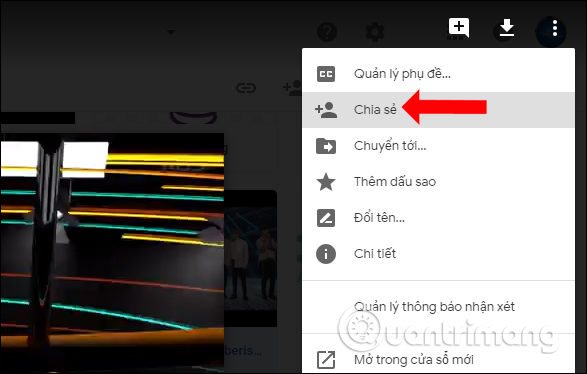
Step 1: In Google Drive, select the file and click Share. You can also right-click the item and choose Share.
Step 2: Review People with access and General access. Prefer Restricted with named recipients when the content is not intended for anyone who obtains a link.
The older interface shown below used an Advanced link. In the current interface, click the Settings gear near the top of the Share dialog.
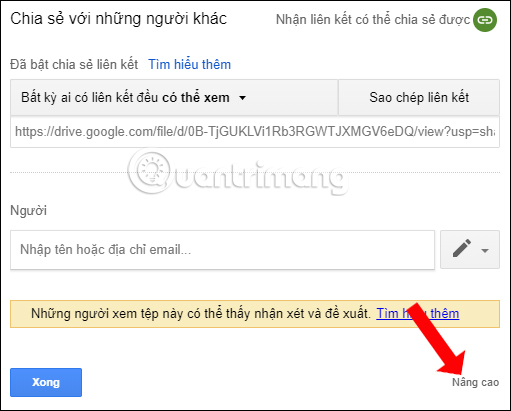
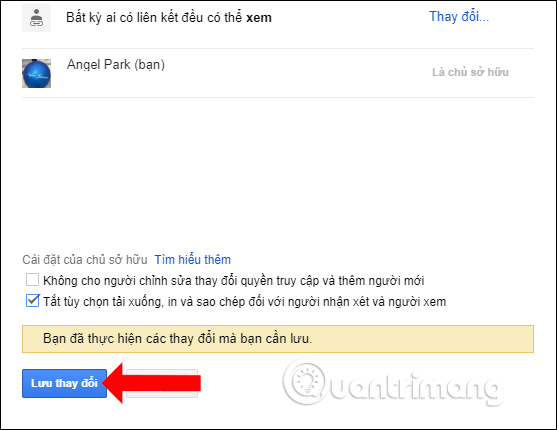
Step 3: Under People who can download, copy, and print, clear the boxes for the roles that should not have those options. On older screens, this appears as Disable options to download, print, and copy for commenters and viewers. Save or close the dialog as required.
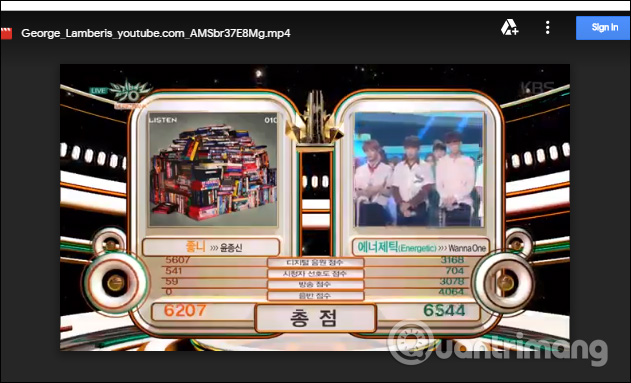
Open the shared link in a private browser window or a separate test account with the same role. The file should remain viewable while the usual download or print command is hidden.
Set the audience and role carefully
Removing download controls does not fix an overly broad audience. In the Share dialog:
- use Restricted and add specific people for confidential material;
- give Viewer access when no editing or comments are required;
- use Commenter only when feedback is needed;
- grant Editor access only to trusted collaborators who must change the content;
- remove expired access instead of leaving old recipients on the file.
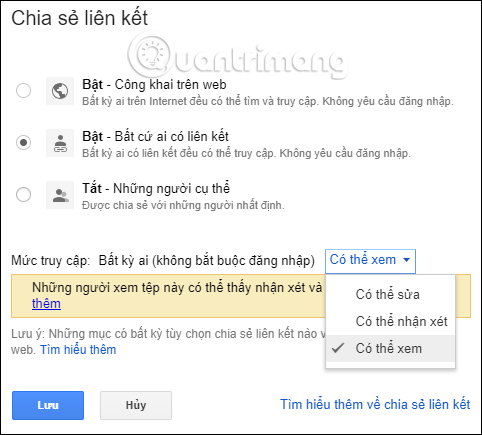
Google’s current Drive sharing controls guide also explains how owners can stop editors from changing permissions or adding people.
What the setting does and does not prevent
| Reduced by the setting | Not fully prevented |
|---|---|
| Drive’s normal download command for restricted roles | Screenshots, screen recording, or photographing the display |
| Normal print command | Manual retyping or transcription |
| Copying through supported Drive controls | Repeating visible information from memory |
| Some offline and Drive for desktop behavior | Access through another permission path or previously obtained copy |
Do not tell recipients that downloading is “impossible.” The setting is an access-control signal and convenience restriction, not a guarantee that visible information cannot leave the screen.
Files, videos, folders, and editors
- Videos and other uploaded files: the same share setting can hide the Drive download command, but a viewer can still record the screen.
- Google Docs, Sheets, and Slides: limiting copy can affect copy-and-paste behavior. Test collaboration needs before restricting editors.
- Folders: permissions may be inherited. Check both the item and its parent folder, plus groups and General access, to understand the full audience.
- Shared drives: managers and organization policies can affect which controls are available. A content owner may not have the same authority as in My Drive.
- Editors: current controls may let an owner limit their download/copy/print or prevent them from changing sharing. Editors still need enough access to do their work.
Use stronger controls for sensitive data
For high-risk documents, combine restricted sharing with expiration where supported, organization-managed accounts, audit logs, data-loss-prevention rules, and a system designed for controlled document distribution. Remove access when the task ends and avoid uploading information that recipients should never be able to view in full.
If someone already downloaded or copied the file before you changed the setting, the new restriction does not delete that copy.
Related Articles
 How to Block Downloading Files and Videos on Google Drive4 minutes read
 How to Download Files on Google Drive When the Download Limit Is3 minutes read
 How to Enable or Disable Automatic Downloading of Multiple Files4 minutes read
 How to Fix Errors Do Not Upload Files to Google Drive7 minutes read
 How to Download PDF Files on Google Drive Is Blocked Download6 minutes read
 Google Chrome Will Block Unsafe Downloads on HTTPS Websites3 minutes read
Reader Comments 0
Sign in with email or Google to join the discussion.