Table of Contents
FILEminimizer Pictures is a Windows utility for compressing individual images or a batch. The screenshots in this guide show an older release, but the workflow is straightforward: install the application from a trusted source, add copies of the images, choose output settings, run Optimize Files and inspect the results.

Before installing the program
- Confirm that the installer comes from the software's current official publisher. Do not rely on an old filename or an unofficial mirror.
- Scan the downloaded file and verify the publisher shown by Windows before allowing changes.
- Check compatibility with your Windows version. The original article did not provide usable system requirements.
- Back up important images and plan to save compressed copies in a separate folder.
If this legacy program is not compatible with your computer, compare other desktop photo-compression tools instead of forcing the installation.
Install FILEminimizer Pictures
1. Start the installer
Open the downloaded setup file. Its name may differ by release, so do not assume that the legacy filename shown in the original instructions is the newest version.
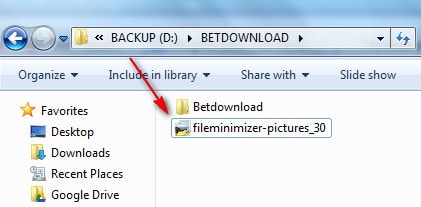
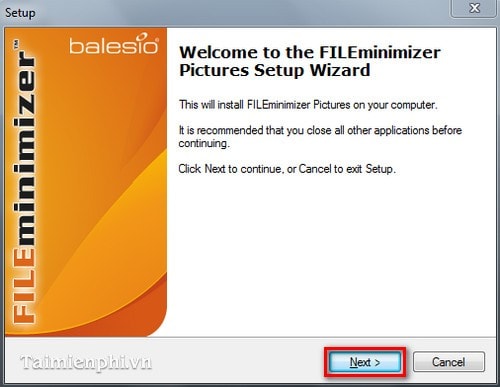
2. Continue from the welcome screen
Review the application name and publisher, then click Next.
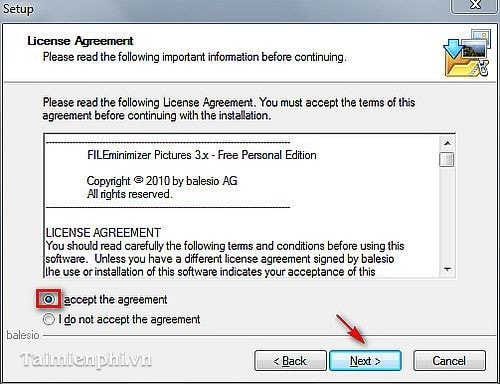
3. Read the license agreement
Read the terms. If you agree, select I accept the agreement and click Next.
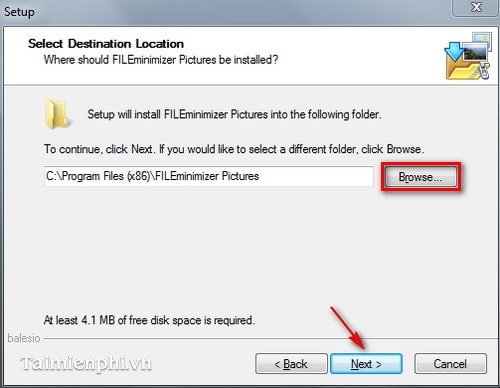
4. Choose the installation folder
Leave the default destination unless you have a reason to change it. Use Browse to select another approved folder, then click Next.
5. Review Start menu and shortcut options
Choose the Start menu folder and other shortcut settings offered by the installer. The exact screens can vary between versions.
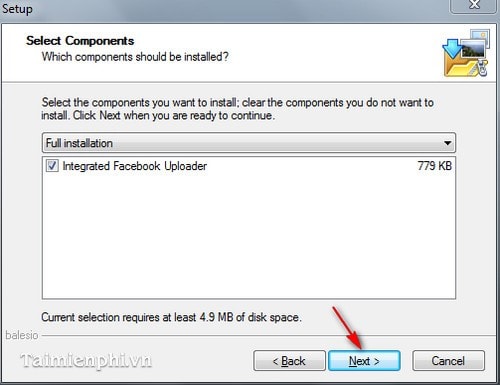
Continue after confirming the selected options.
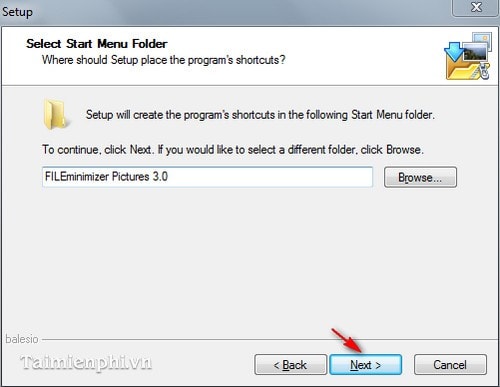
Select Create a desktop icon only if you want a desktop shortcut.
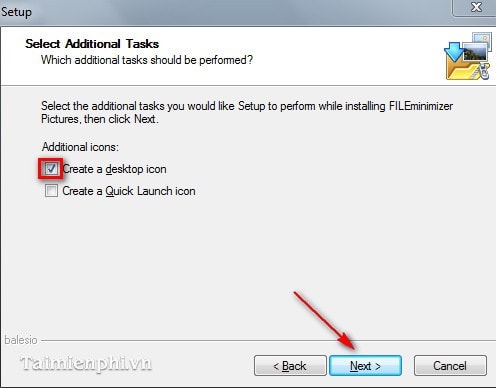
6. Install and finish
Review the summary, click Install and wait for the files to be copied.
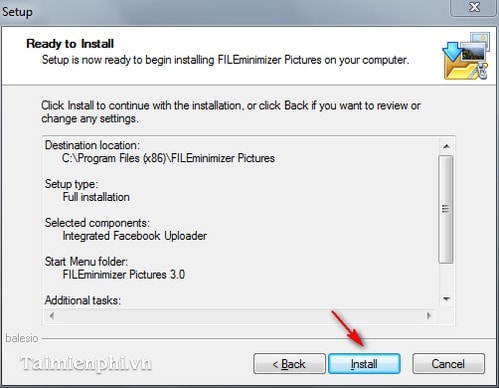
Click Finish when setup completes. Leave any launch option selected only if you want to open the program immediately.
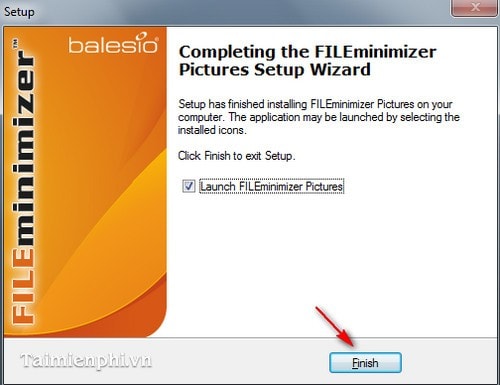
Compress images with FILEminimizer Pictures
The main window contains the file list, compression controls and output options.
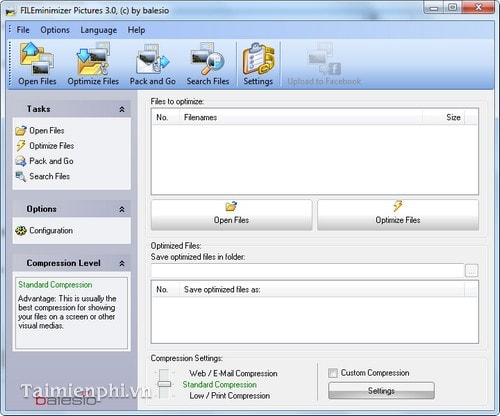
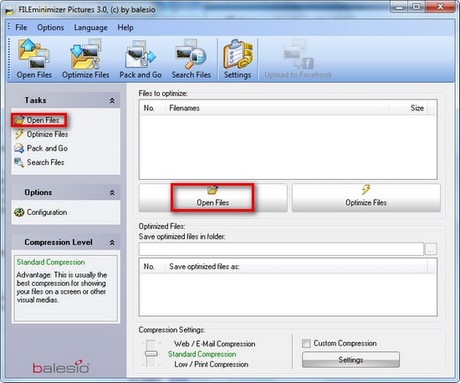
1. Add the source files
Select Open Files in the main window or Tasks panel.
Browse to the image folder, select one or more files and click Open.
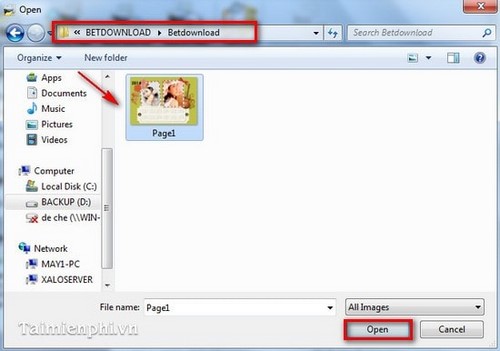
2. Review the list
Use Add to List for more files or Remove from List to exclude an item. Confirm that all selected images should use the same settings.
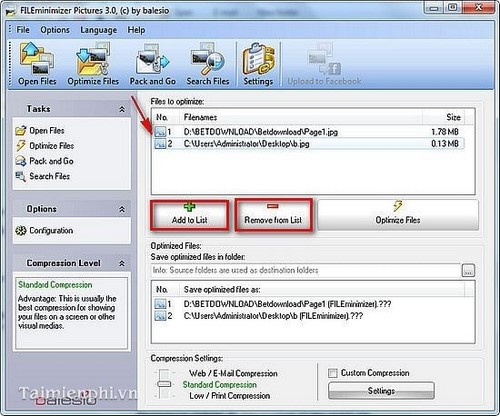
3. Choose an output location and optimize
Select a separate output folder and an appropriate compression preset. Strong compression reduces file size more but may soften details or create visible artifacts. Click Optimize Files when the settings are ready.
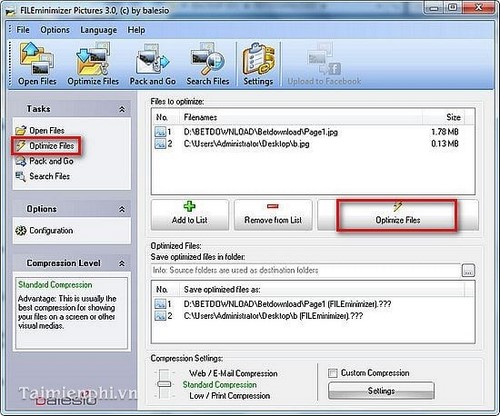
4. Compare the results
Review the original size, new size and reduction percentage shown for each file.
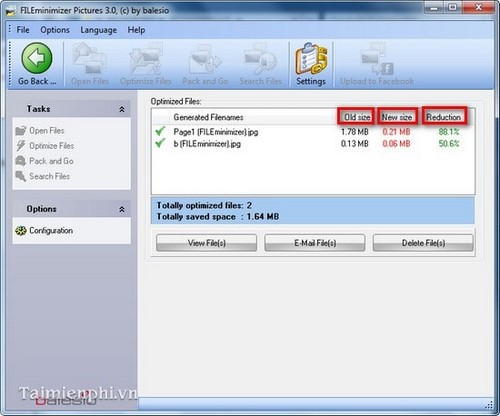
Open the output images at 100% zoom and inspect fine text, faces, gradients and sharp edges. Keep the originals if the images may need more editing. For a broader comparison, see TipsMake's list of free image-compression and size-reduction tools.
Compression does not guarantee identical quality
Lossy compression removes some image data. A compressed photo may look unchanged at normal viewing size while showing artifacts when enlarged. Choose the lowest file size that still meets the actual viewing or upload requirement rather than chasing the largest possible reduction percentage.
Related Articles
 Instructions for Reducing Image Size with Fileminimizer Pictures6 minutes read
 Reduce Image Size Using Fileminimizer Pictures4 minutes read
 Reduce the Size of Word Files with FileMinimizer3 minutes read
 How to Reduce PDF File Size by Software6 minutes read
 How to Reduce the Size of JPG Files in Windows 106 minutes read
 Reduce Image Size Using Radical Image Optimize Tool (RIOT)4 minutes read
Reader Comments 0
Sign in with email or Google to join the discussion.