Table of Contents
WinRAR does more than open RAR and ZIP files. Its useful advanced features include adjustable compression, multivolume archives, password-based encryption, self-extracting archives, recovery records, repair tools and comments. Each option solves a different problem, and several involve important security or recovery tradeoffs.

1. Choose a compression method
In Add to archive, the compression method controls the tradeoff between processing time and archive size.
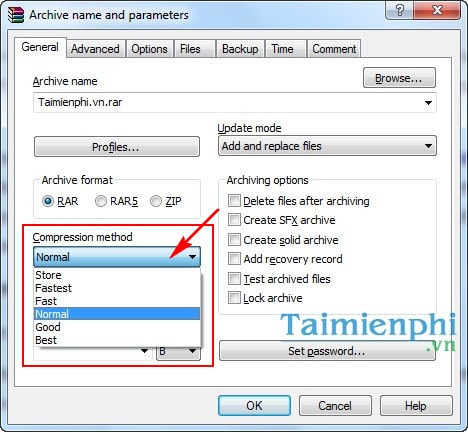
- Store packages files without compressing them. It is fast and useful when the source is already compressed, such as many video, JPEG or ZIP files.
- Fastest, Fast, Normal, Good and Best progressively spend more time looking for a smaller result. Normal is a sensible starting point; Best is not guaranteed to save much space on already-compressed data.
A compression level does not make an archive inherently more or less prone to corruption. Storage problems, incomplete transfers and damaged media are separate risks. If size is the priority, see how to use WinRAR's strongest compression settings, then compare the actual result.
2. Split an archive into volumes
Split to volumes, size creates a numbered set of smaller archive parts. This remains useful for upload limits, removable media or unreliable transfers.
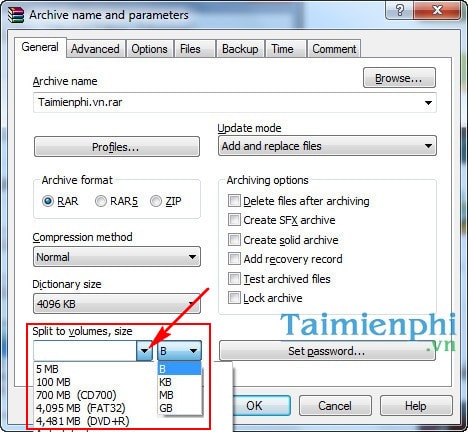
Enter the maximum size for each part or select a preset. The recipient normally needs every part in the same folder and should begin extraction from the first volume. TipsMake has a separate guide to splitting archives with WinRAR.
Be cautious with Delete files after archiving. Verify and back up the completed archive before deleting source data. Test archived files is a useful check, but it is not a substitute for a backup.
3. Encrypt an archive with a password
Set a password when creating the archive and enable file-name encryption when the names themselves are sensitive. Current RAR formats support strong encryption, but protection still depends on a long, unique password.
- Do not send the password in the same message as the archive.
- Store the password securely; WinRAR cannot simply reveal a forgotten strong password.
- Use RAR 5 format when compatible with the recipient's software.
For details about how password protection works, consult WinRAR's official encryption FAQ.
4. Create a self-extracting archive
Create SFX archive adds an executable extraction module, producing an .exe file that can unpack itself on Windows.
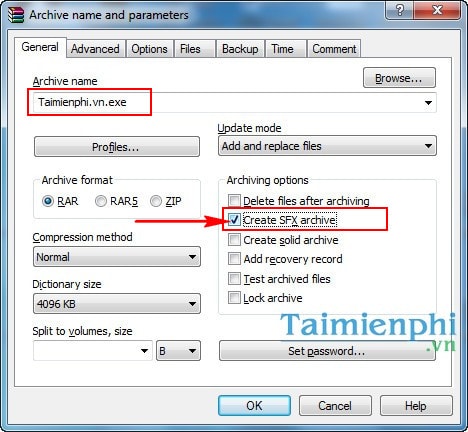
SFX files can be convenient, but executable email attachments are often blocked and recipients should not run an unexpected program. For ordinary sharing, a standard archive plus a trusted extractor is usually easier to verify. Never disguise an executable as a harmless document.
5. Add a recovery record
A recovery record stores extra information that may help reconstruct a damaged RAR archive. Enable Add recovery record while creating the archive.
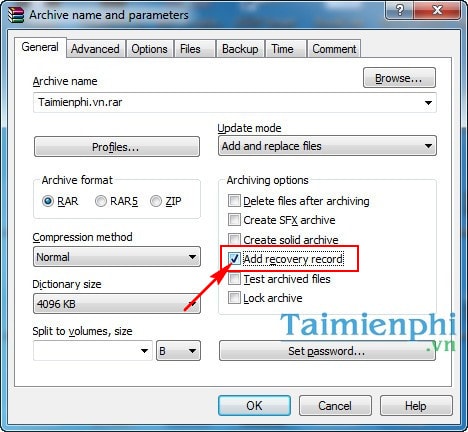
On the Advanced tab, adjust the recovery-record size if needed. More recovery data increases the archive size but can improve the chance of recovering from damage within the record's capacity.
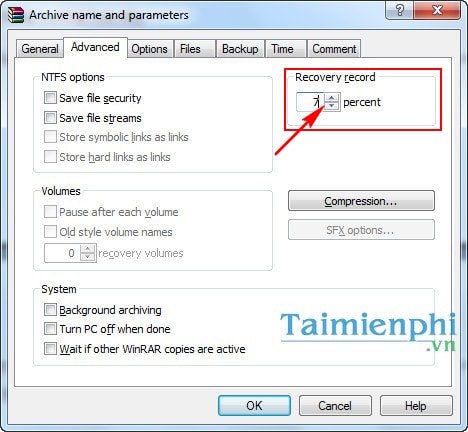
A recovery record improves resilience; it does not replace keeping another copy on separate storage.
6. Attempt to repair a damaged archive
Select a damaged RAR or ZIP archive in WinRAR and choose Tools > Repair archive. Save the rebuilt archive to a new location, then test and extract it without overwriting existing data.
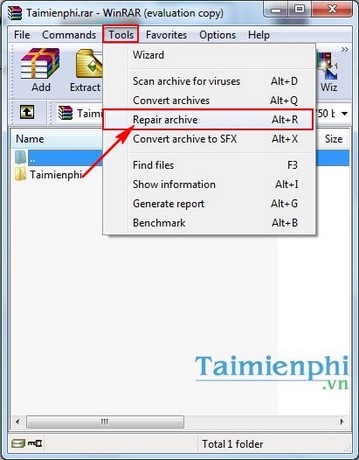
Repair is not guaranteed. Results depend on the archive format, the damaged area and whether suitable recovery information is available. If a download is incomplete, obtaining a fresh copy is often more reliable than repairing it.
7. Add an archive comment
The Comment tab can store notes such as contents, version, source or extraction instructions.
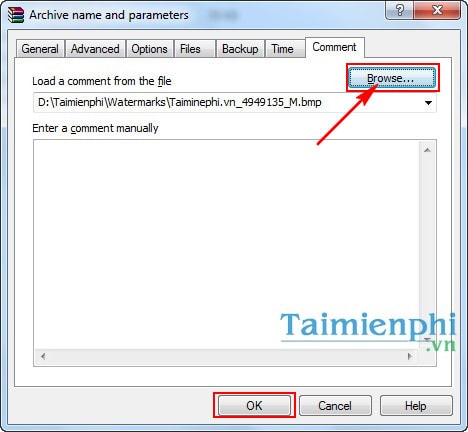
Comments are informational, not a security control: they do not prove ownership and do not prevent someone from copying or modifying data. Use signatures, trusted distribution channels and checksums when authenticity matters.
Which features should you use?
- Use Normal compression for routine archives and compare Best only when extra processing time is acceptable.
- Use split volumes only when a real size limit requires them.
- Encrypt confidential archives and share the password separately.
- Add a recovery record for important RAR archives stored or transferred on less reliable media.
- Keep backups even when recovery and repair features are enabled.
If you only need basic extraction, compare WinRAR with other file compression and decompression tools.
Related Articles
 Great Features of WinRAR That You Don't Know: What to Know8 minutes read
 Link Download Winrar 6.00b1: a Free Compression and5 minutes read
 Why Does Winrar Give You a Free Trial for a Lifetime?7 minutes read
 How to Best Install Winrar3 minutes read
 WinRAR Releases Emergency Patch for Serious Security Vulnerability4 minutes read
 There Was WinRAR Final 5.61, Invite Download and Experience4 minutes read
Reader Comments 0
Sign in with email or Google to join the discussion.