Table of Contents
To repeat a table heading on every page in Word, select the first row of the table and choose Table Layout > Repeat Header Rows. You can also enable Repeat as header row at the top of each page in Table Properties. Word creates the repeated display automatically; do not paste duplicate rows onto each page.
Method 1: Use Repeat Header Rows
Step 1: Select the complete first row of the table. If the heading uses two or more rows, select all of those contiguous rows starting at the very top of the table.
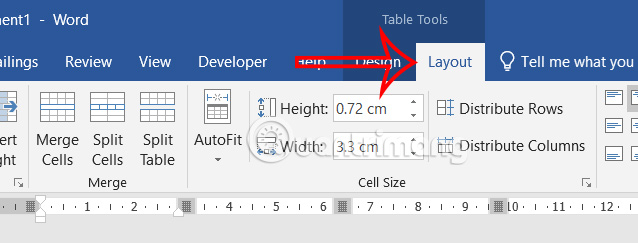
Step 2: Click inside the table so the contextual tabs appear. Open Table Layout—sometimes labeled simply Layout under Table Tools—and choose Repeat Header Rows in the Data group.
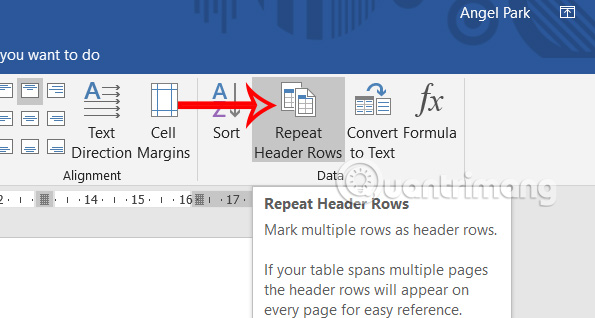
Switch to Print Layout or Print Preview to verify the result. The repeated row is most meaningful when the table actually flows onto a second page.
Method 2: Set the row property
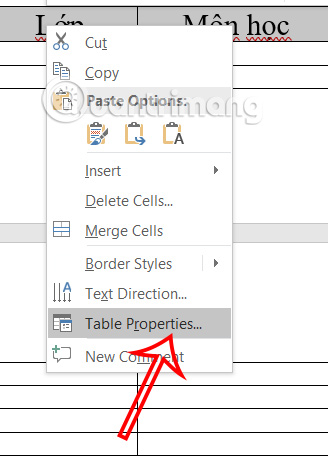
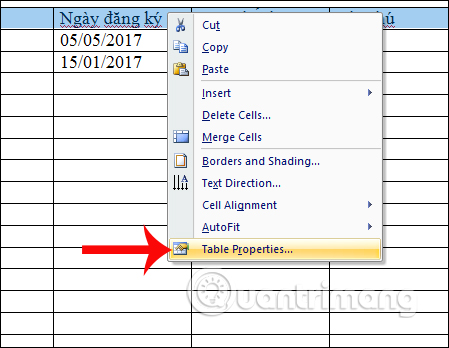
Step 1: Select the top row or rows, right-click, and choose Table Properties.
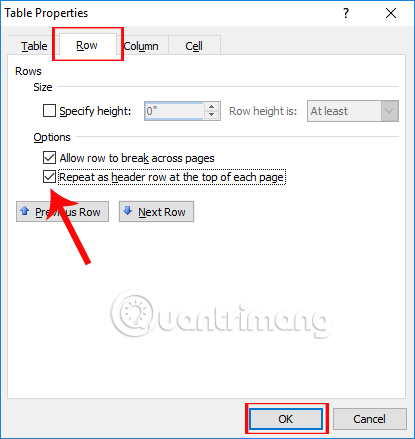
Step 2: Open the Row tab.
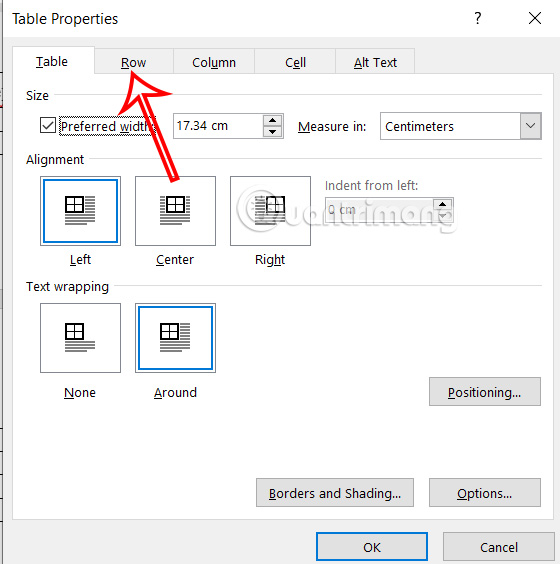
Enable Repeat as header row at the top of each page, then click OK.
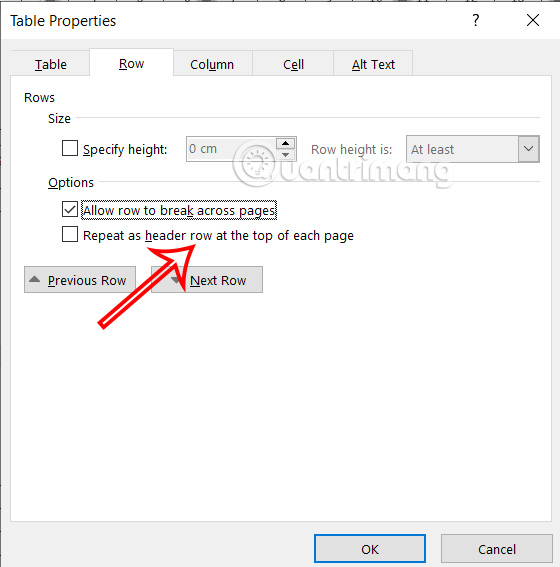
This property and the ribbon command change the same behavior. Use whichever is easier to find in your version of Word.
Turn off a repeating header
Select the original header row at the beginning of the table—not the automatically repeated copy on a later page—then choose Table Layout > Repeat Header Rows again. Alternatively, clear the checkbox on the Row tab of Table Properties.
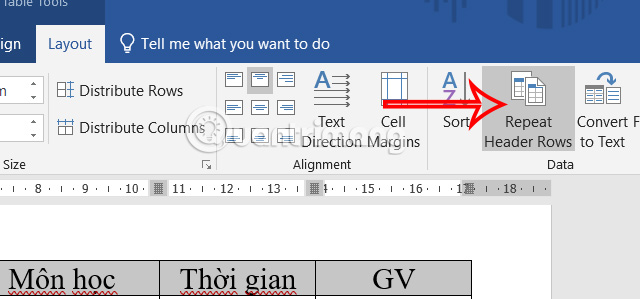
Where the command appears in older Word versions
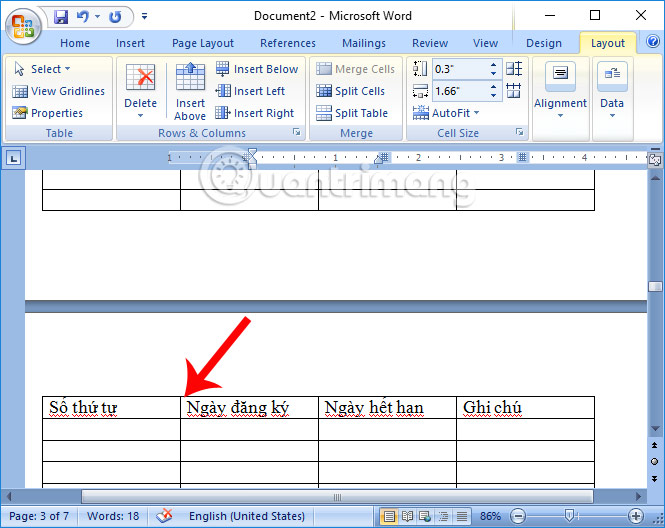
In Word 2007 and 2010, click the table and use Table Tools > Layout. The command is also named Repeat Header Rows.
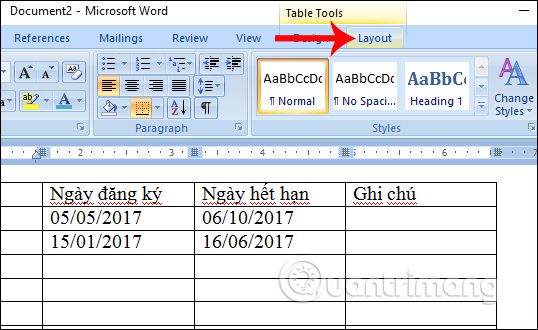
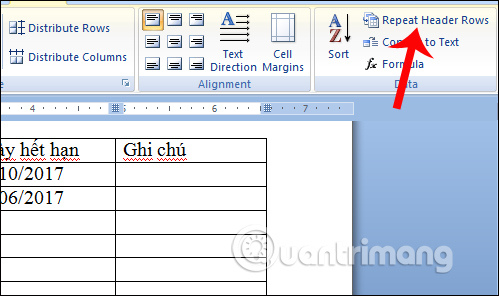
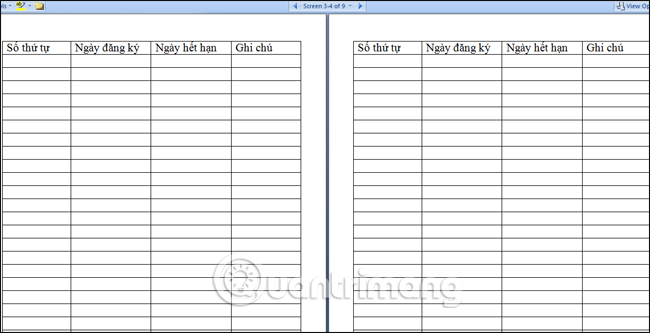
Word 2003 used Table > Heading Rows Repeat. This interface is obsolete, but the screenshot can help when maintaining a document on a legacy system.
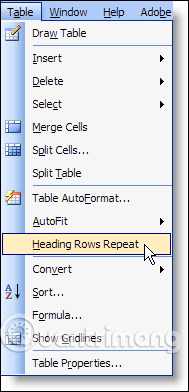
The heading then appears at the top of each page section occupied by the same table.
Older versions also expose the setting through Table Properties. Select the complete top row before opening the dialog.
On the Row tab, enable the repeat option and confirm.
Why the header does not repeat
- The selected row is not at the top: repeating rows must begin with the table’s first row. You cannot repeat only a middle row as the page header.
- The table is actually several tables: a paragraph, page break, or other content between sections can split it. Show formatting marks and remove the separator only if the sections should be one table.
- The row is not fully selected: clicking in one cell may not apply the property to the complete header. Select the entire row or rows.
- You are checking the wrong view: use Print Layout, Print Preview, or an exported PDF. Draft and web-style views do not represent printed page boundaries in the same way.
- A manual page break interrupts the table: let Word paginate the table when possible. Use row settings such as Allow row to break across pages deliberately.
- The table is nested or heavily wrapped: complex layouts can paginate unpredictably. Test in a copy and simplify the structure if the result is unstable.
Editing and accessibility tips
Edit the original header at the top of the table; Word updates its repeated display. Keep header labels concise, avoid empty heading cells, and use Table Design > Header Row for consistent styling. The style option changes appearance, while Repeat Header Rows controls pagination—many documents need both.
Related Articles
 How to Repeat the Title Bar in the Word List Table: Word Tips4 minutes read
 2 Ways to Repeat Title Bars in Word for Tables5 minutes read
 How to Create a Table in Word 20077 minutes read
 How to Lock Header, Footer in Word: Word File Security4 minutes read
 How to Fix Table Errors in Word Overflow: Step-by-Step Guide3 minutes read
 Repeat Titles in Word - Instructions on How to Repeat Titles in Word 20073 minutes read
Reader Comments 0
Sign in with email or Google to join the discussion.