Table of Contents
To create a table in Word 2007, open Insert > Table and choose the grid for a quick table, Insert Table for exact dimensions, Draw Table for an irregular layout, or Quick Tables for a reusable design. After insertion, select the table to display the contextual Table Tools: Design and Layout tabs.
The screenshots below show Word 2007. Newer desktop versions use nearly the same commands, although the contextual tabs may be labeled Table Design and Layout.
Four ways to insert a table
Use the table grid
Place the cursor where the table should appear. Select Insert > Table, then move across the grid until the preview shows the required number of columns and rows. Click to insert it.
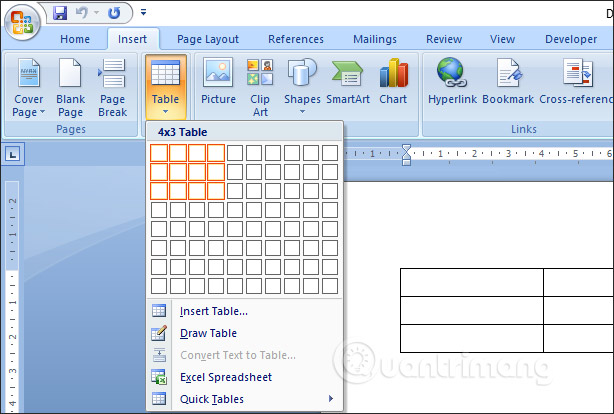
This is the fastest option for a small, regular table. You can add more rows or columns later.
Enter exact dimensions
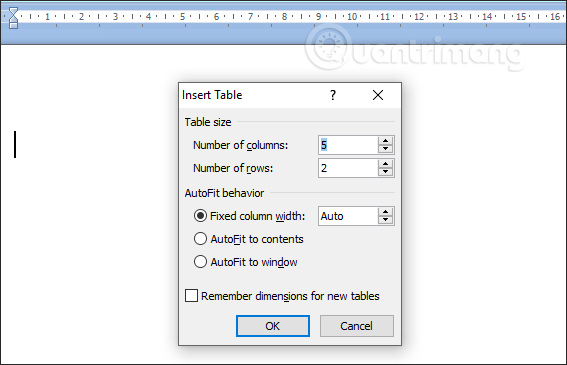
Select Insert > Table > Insert Table. Enter the number of columns and rows. Under AutoFit behavior, choose a fixed width, fit the columns to their contents, or fit the table to the available page width, then select OK.
Draw an irregular table
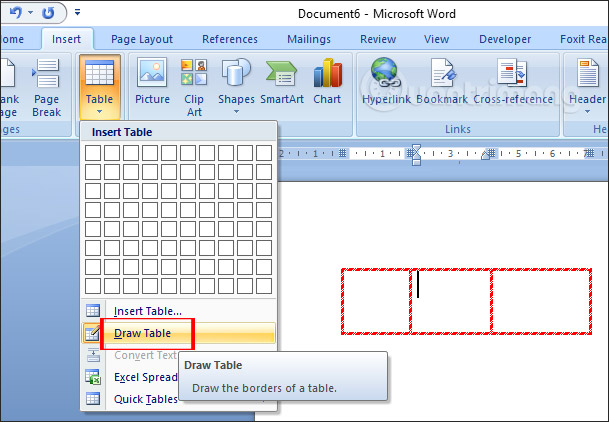
Select Insert > Table > Draw Table. Drag the outside boundary first, then draw internal row and column lines. Use this method only when the layout cannot be built conveniently with a regular grid; complex drawn tables are harder to edit and may be less accessible.
Start from a Quick Table
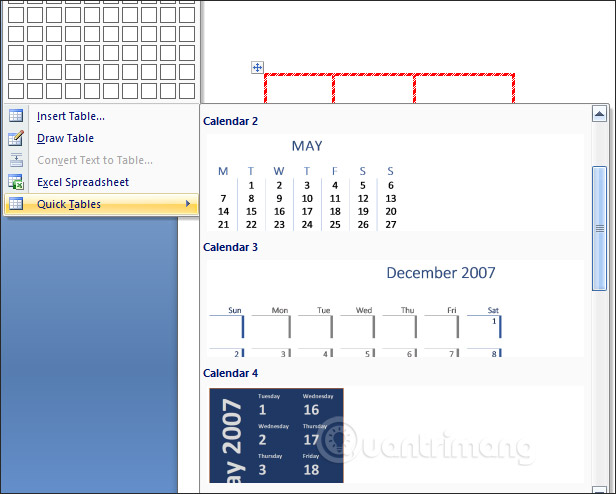
Select Quick Tables to insert a built-in structure such as a calendar or tabular list. Replace all sample content and remove rows or formatting the document does not need.
Add or remove rows and columns
Click in a cell near the insertion point, right-click, and select Insert. Choose a row above or below, or a column to the left or right. You can also use the commands in Table Tools > Layout > Rows & Columns.
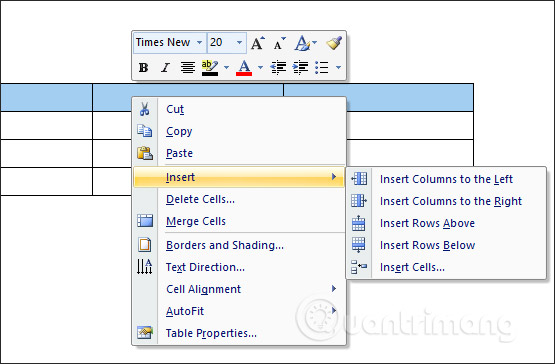
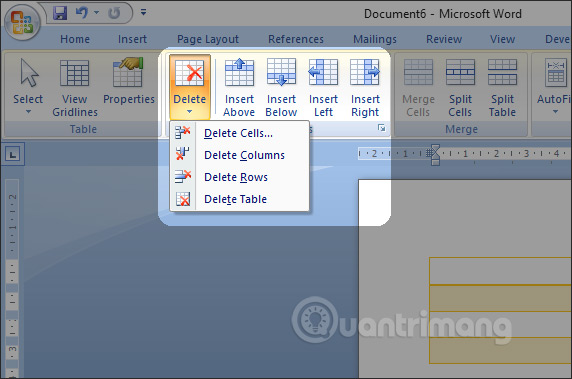
To delete part of the table, select the cells, rows, or columns and use Layout > Delete. Pressing Delete on the keyboard usually clears cell contents; it does not remove the table structure. Pressing Tab in the final cell adds a new row.
Apply a readable table style
Select any cell to display the Design and Layout tabs.
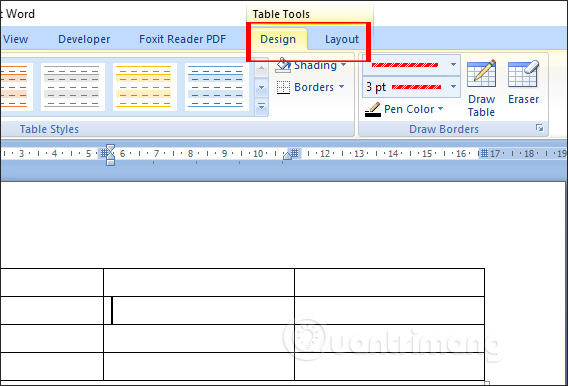
On Design, open the Table Styles gallery and choose a style with sufficient contrast. A style can set borders, shading, and text emphasis consistently.
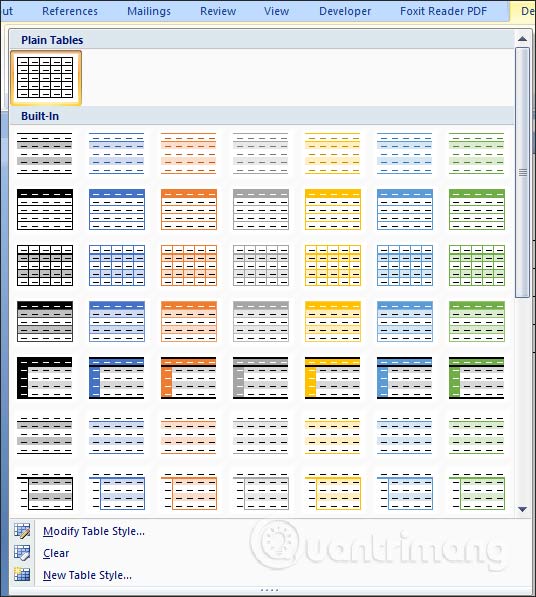
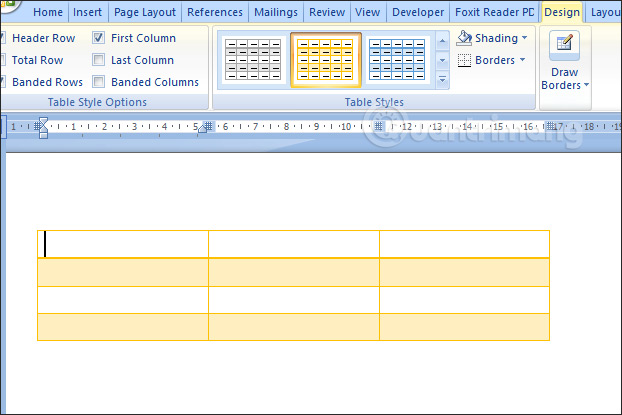
Inspect the result instead of relying only on the gallery preview, especially if the document will be printed in grayscale.
Control which parts receive emphasis
The Table Style Options affect how the selected style is applied:
- Header Row: emphasizes the first row as column headings.
- Total Row: applies the style’s special formatting to the last row; unlike an Excel total row, it does not automatically add calculation choices.
- Banded Rows / Banded Columns: alternates formatting to make lines easier to track.
- First Column / Last Column: emphasizes the outer columns when the style defines such formatting.
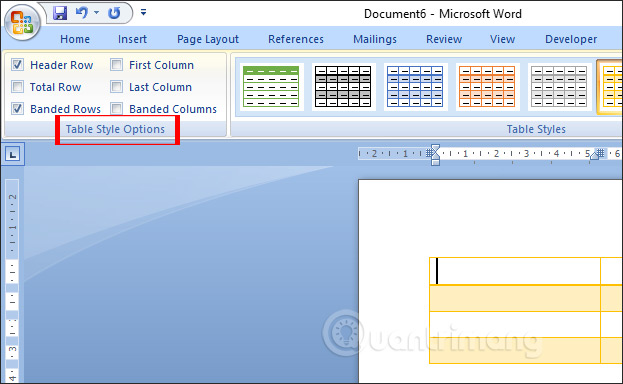
Use a true first row for column labels rather than simulating headings with spaces or line breaks. For a long table, follow these steps to repeat the header row on each page.
Set borders and shading
On Design, use Draw Borders to choose a line style, weight, and color, then apply it only to the required edges. Use Eraser cautiously because removing a cell boundary can change the table structure, not merely hide the printed line.
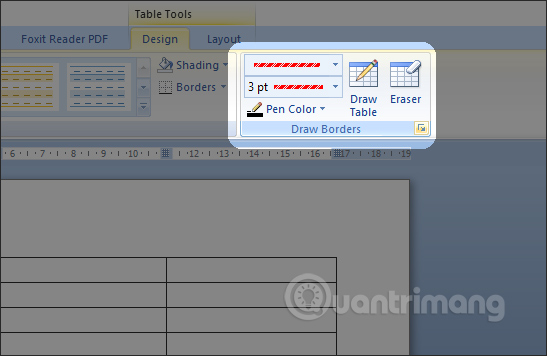
For standard layouts, selecting cells and using the Borders menu is more predictable than drawing individual lines. The updated Word table guide for newer versions includes an example of applying borders.
Resize and reorganize the table
Insert, delete, and distribute
The Layout tab’s Rows & Columns group provides Insert Left, Insert Right, Insert Above, and Insert Below. Select multiple rows or columns first when you want to insert the same number in one operation.
Use Distribute Rows or Distribute Columns to make selected dimensions equal. Use AutoFit to resize by contents or window width.
Merge cells, split cells, or split the table
Select adjacent cells and choose Merge Cells when one heading genuinely spans them.
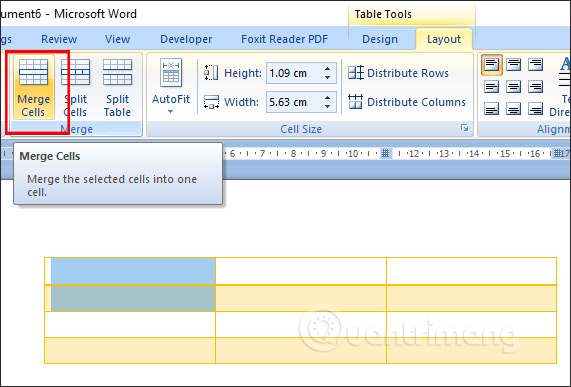
Split Cells divides selected cells into a specified number of rows or columns. Split Table is different: it turns the current table into two tables at the selected row. The article on editing tables in Word shows the split-table workflow.
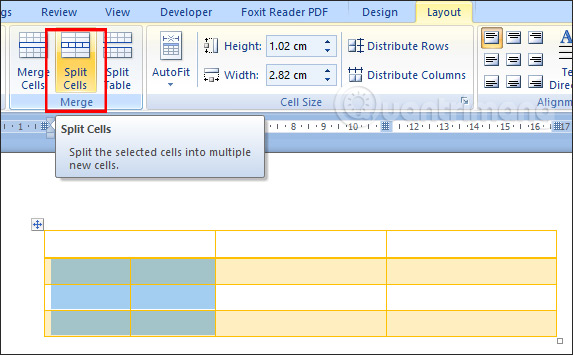
Avoid excessive merged cells in data tables because they make sorting, editing, and screen-reader navigation more difficult.
Set cell dimensions
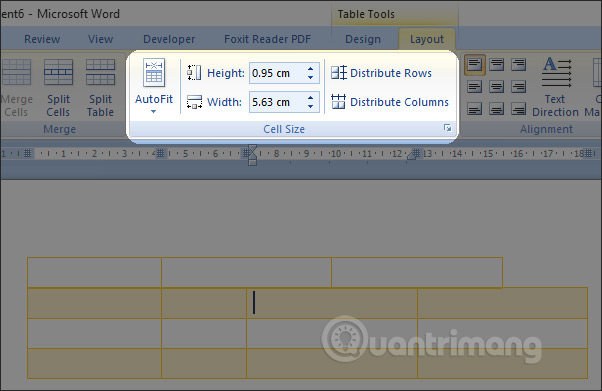
In Cell Size, set an exact height or width when a specification requires it. For most content tables, AutoFit and distributed columns produce a more flexible result. Use Table Properties for precise row, column, table, and cell settings.
Align text and change direction
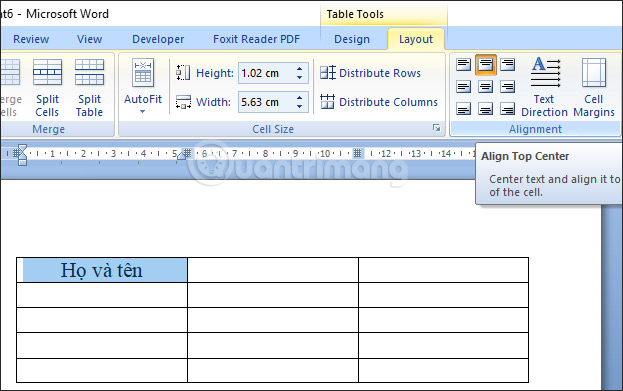
The Alignment group positions text vertically and horizontally inside a cell. It also includes Text Direction and cell-margin controls. Keep headings and data aligned consistently; centered text is not automatically the best choice for every column.
Check a table before sharing
- Give every data column a clear heading.
- Keep units in the heading where possible, rather than repeating them in every cell.
- Verify that the table fits inside the page margins in Print Preview.
- Repeat header rows for tables that cross pages.
- Avoid using blank rows or repeated spaces solely for visual spacing; adjust cell margins and paragraph spacing instead.
- Add a caption through References > Insert Caption when the document refers to the table by number.
Microsoft’s current instructions for repeating table headers on later pages provide an additional check for multi-page tables.
Related Articles
 Create Automatic Table of Contents in Word 20039 minutes read
 How to Adjust the Size of Word Table Cells Equally4 minutes read
 How to Create an Automatic Table of Contents in Word 2019/2016/2010/200712 minutes read
 How to Insert a Table, Create a Table in Word 20165 minutes read
 Word Tables: How to Create a Table Border in Word5 minutes read
 10 Useful Table Formatting Tips in Microsoft Word12 minutes read
Reader Comments 0
Sign in with email or Google to join the discussion.