Table of Contents
Learn how to fix file explorer lag on Windows 11 with clear steps, practical tips, and troubleshooting guidance for a reliable result.
Fortunately, a simple registry edit can prevent File Explorer from wasting time scanning files, resulting in significantly faster folder navigation.
What is the purpose of Windows 11's Automatic Folder Type Discovery feature?
This is a smart feature that helps File Explorer run faster
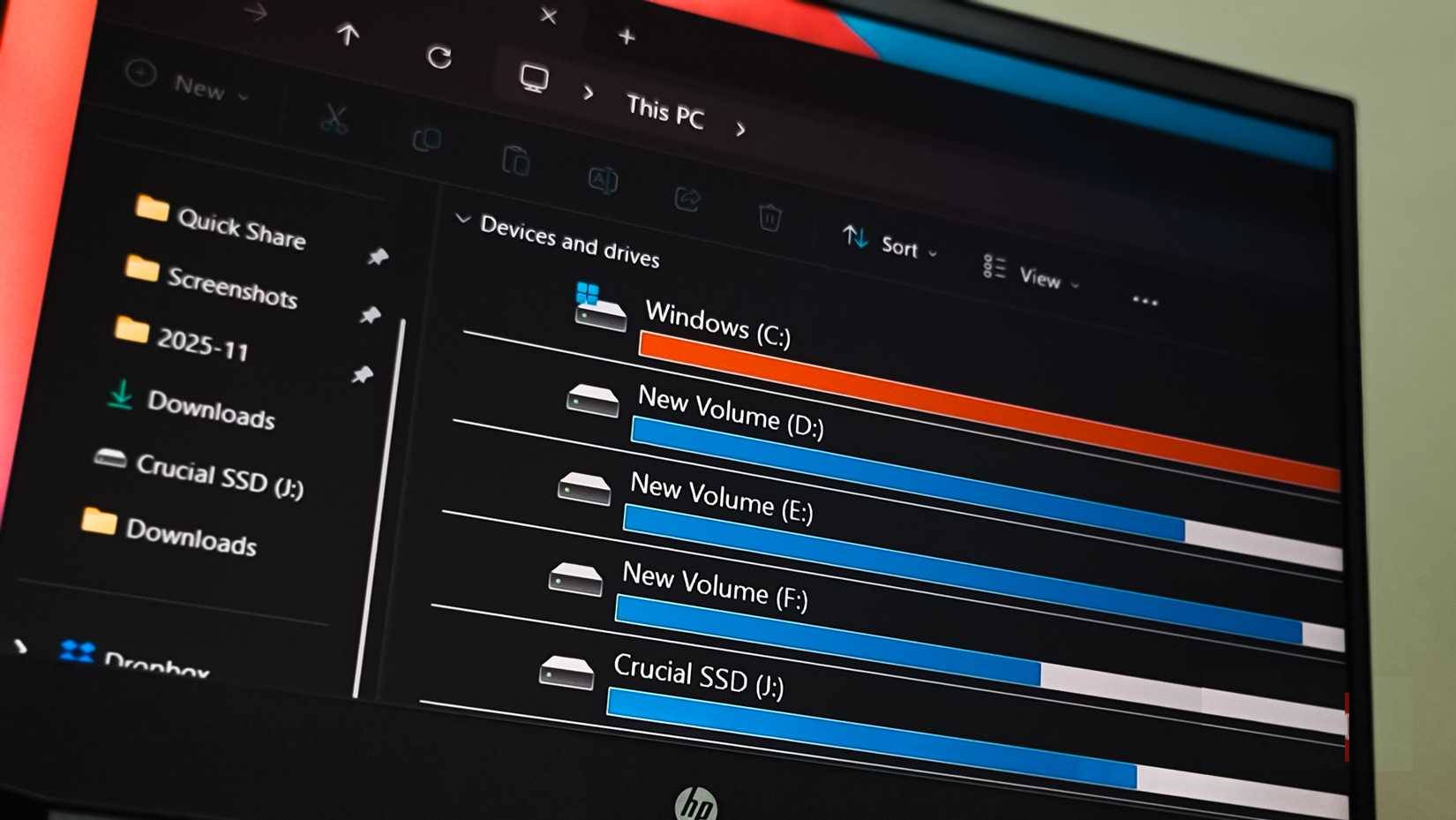
To understand why this workaround is effective, you need to see what Windows is actually doing behind the scenes. When you double-click a folder, Windows 11 doesn't simply read the file names and display them to you. Instead, it pauses to perform a content check. It frantically analyzes the file headers to answer a question you never actually asked: Does that folder contain music, photos, documents, or videos? If it detects an MP3 file, it switches the view to Music mode; if it finds a JPEG file, it switches to Pictures mode to prioritize thumbnails.
While this sounds intuitive, it's actually a performance nightmare. For folders with thousands of items, such as the Downloads folder or a large work project, this "search test" consumes a significant amount of processing time. Worse still, Windows has a habit of forgetting these options, meaning it frequently rescans the same folder multiple times in an endless loop. The delay between opening the folder and the operating system determining how it's displayed leads to frustrating lag.
By applying the trick below, one of the most effective ways to fix slow Windows File Explorer, we are essentially telling Windows to stop guessing and just display the files for us. We are forcing a universal "general" view to load instantly, regardless of its contents.
How to override "NotSpecified"
Turn off Folder Type Discovery and speed up File Explorer
Fixing this problem requires a precise attack on the Windows Registry Editor. Although the Registry often makes people apprehensive, thinking it's only for computer engineers, it's actually just a database of settings. As long as you follow the steps comfortably, it's perfectly safe.
You'll need to start by opening the Run dialog box by pressing Win + R on your keyboard. Type regedit into the box that appears, then press Enter to accept the prompt requesting permission to make changes.
Warning : For safety, before making any changes to the Registry, create a backup. In Registry Editor, click File > Export , select All in Export Range , choose a location, and save the backup file.
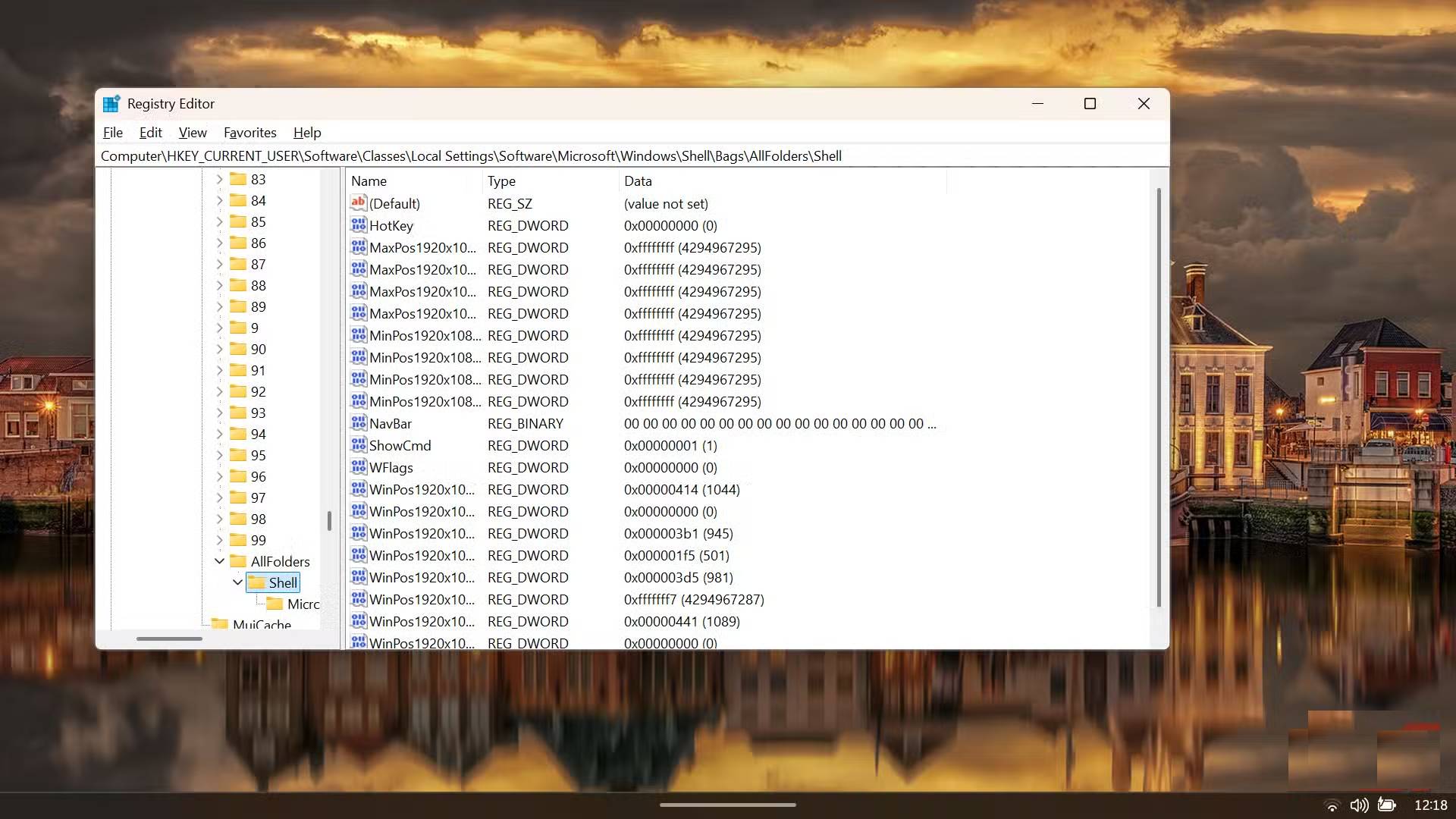
Once the editor is open, navigate to the location that controls how Windows creates its folder views. You can click on the folders on the left, but it's much easier to simply copy the path below and paste it into the address bar at the top of the Registry window.
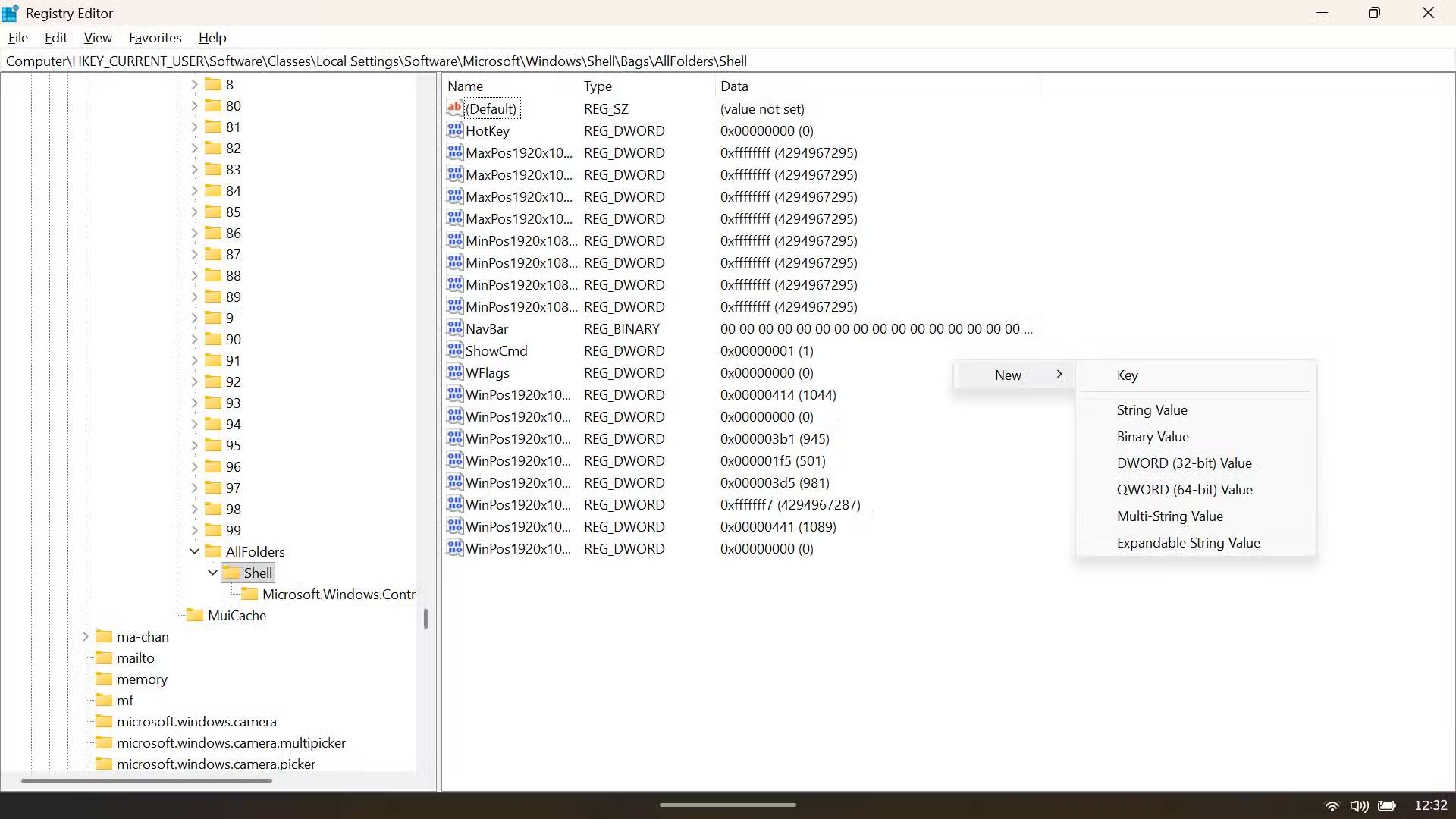
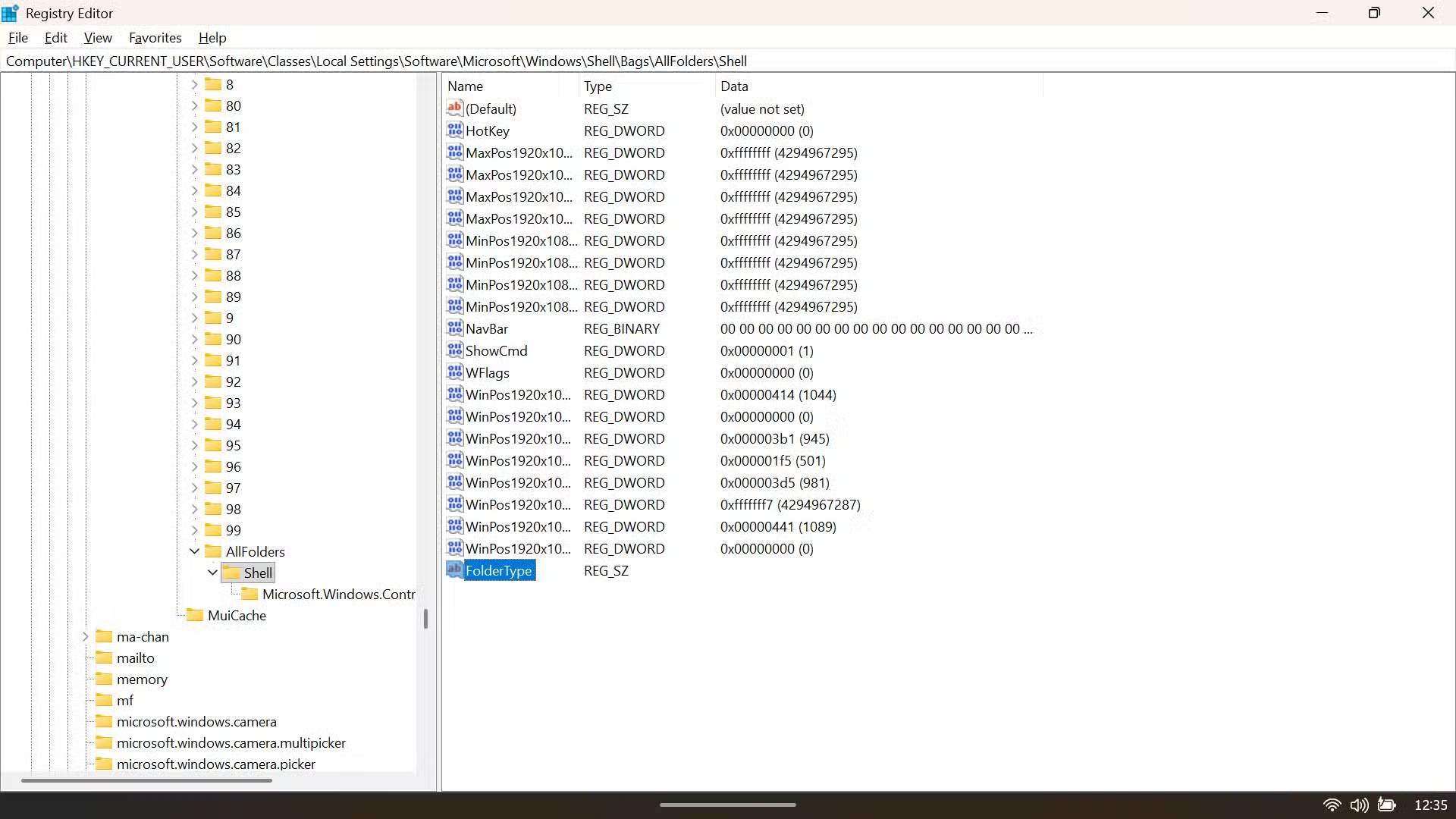
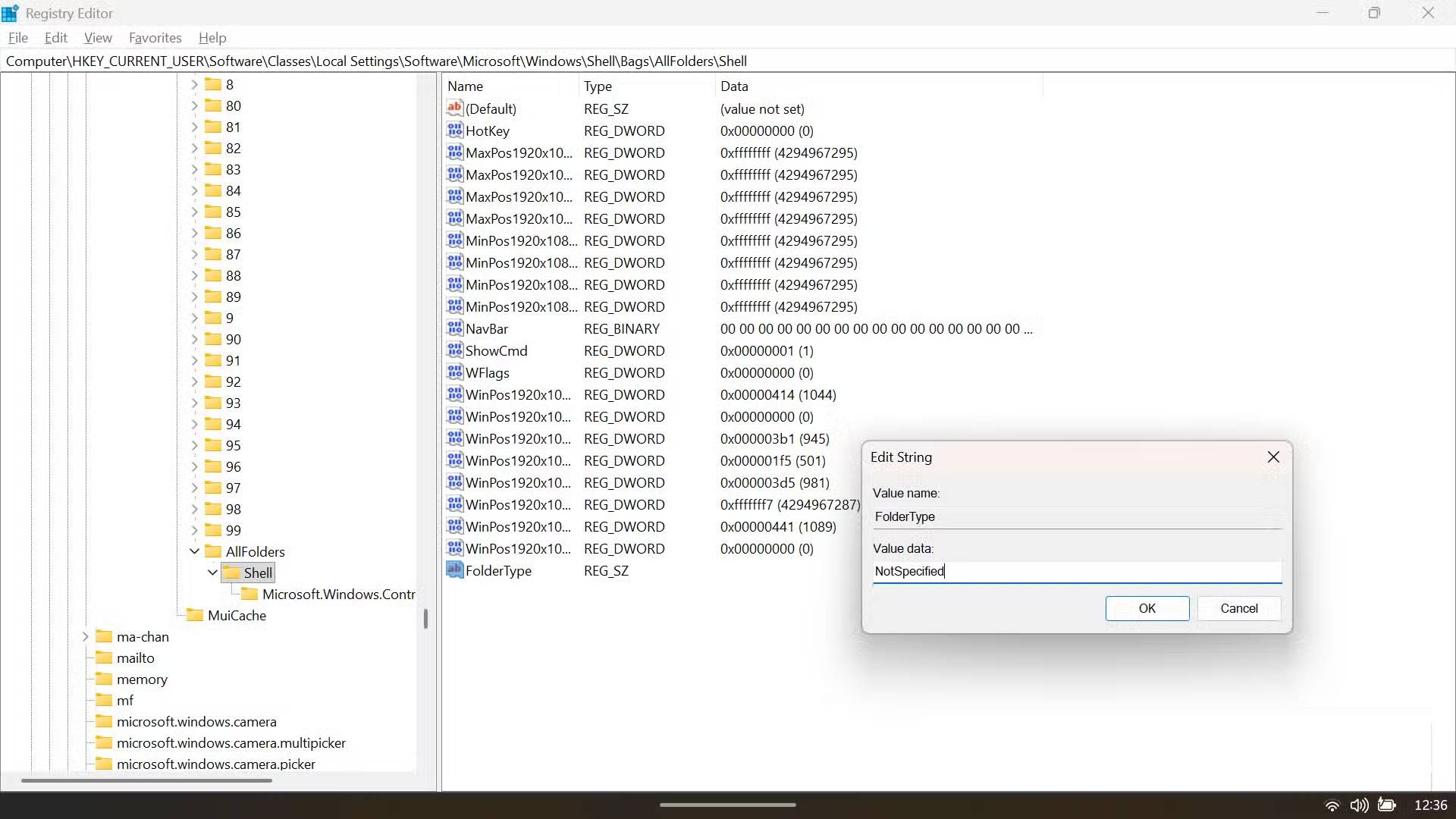
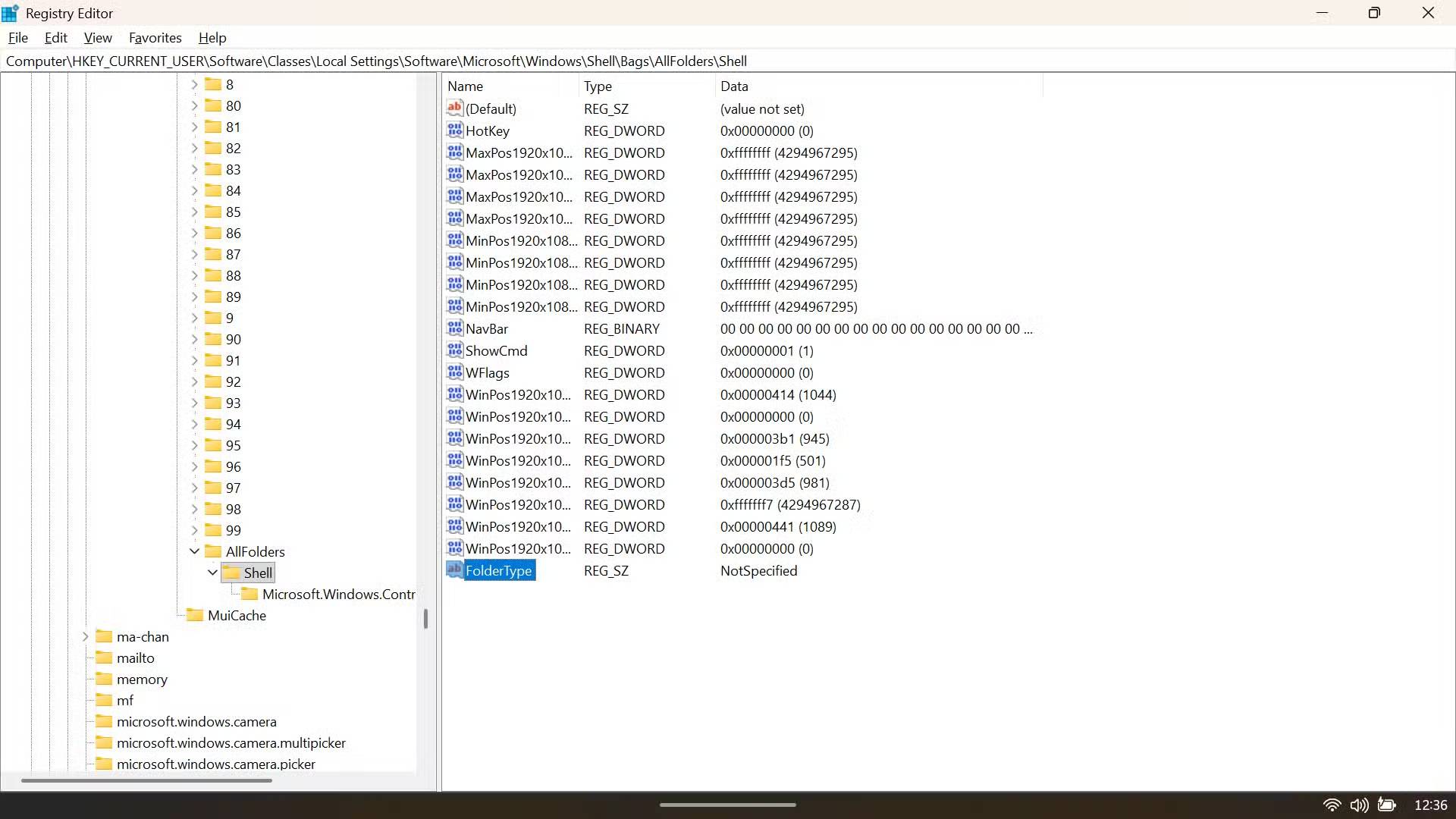
If you paste this path and press Enter , you will be taken to a folder named Shell . Once inside the Shell folder, look at the large white space on the right side of the window. Right-click anywhere in that space, hover over New , and select String Value . You need to name this new value FolderType - remember to capitalize the F and T , and no spaces.
Now that the value exists, you need to assign a command to it. Double-click the FolderType entry you just created. In the box labeled Value data , enter the word NotSpecified. Again, this must be a word with capitalized N and S. Click OK to save. You have created an effective breakpoint for the folder search process.
To see the results, you don't even need to restart your entire computer. You just need to restart the file browser. There are several ways to restart File Explorer without restarting the entire computer; typically, you open Task Manager, find Windows Explorer in the list of running processes, right-click on it, and select Restart . Your taskbar might disappear for a moment, but it will quickly reappear.
There are faster ways to do this
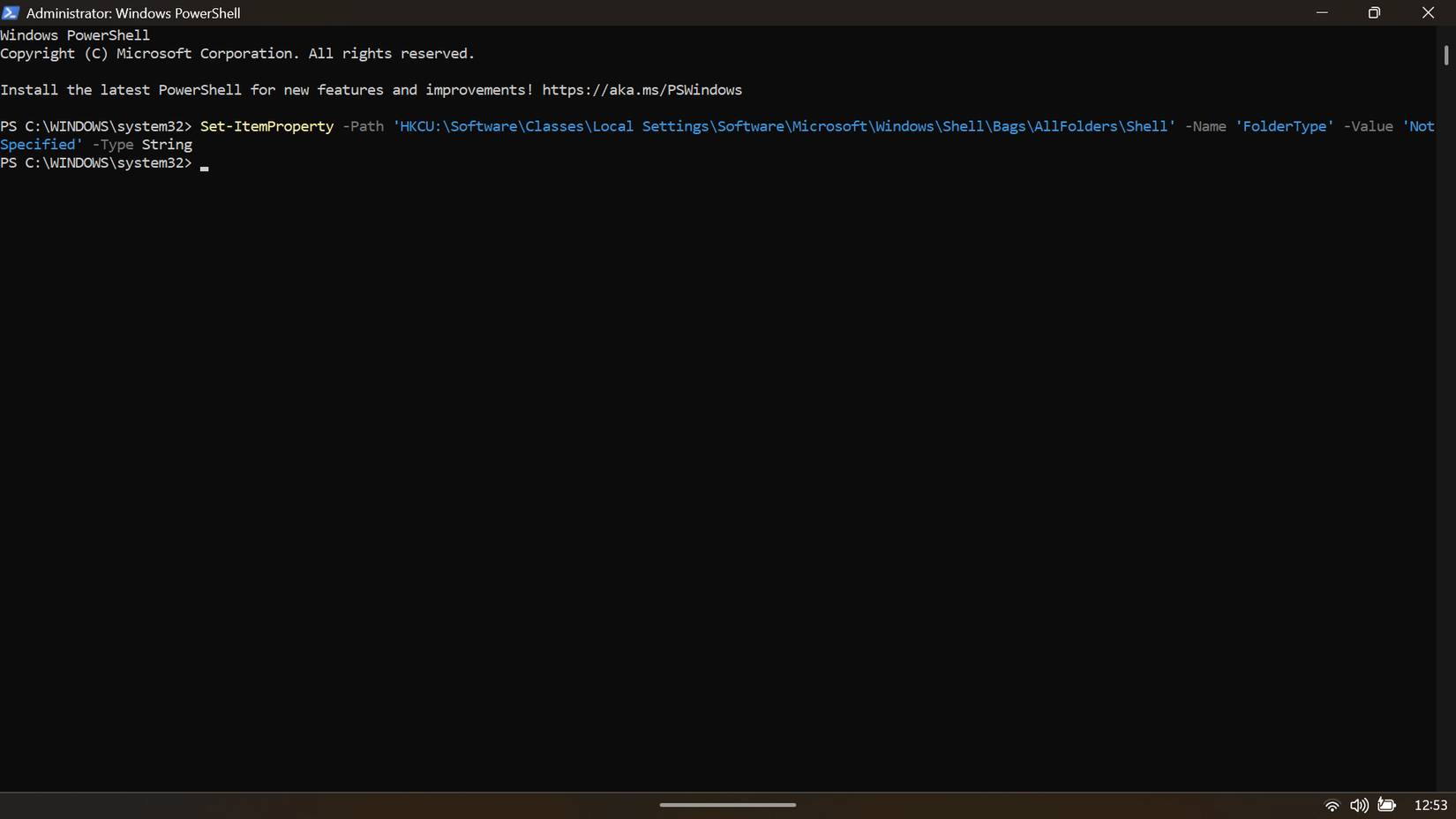
For a quicker approach, open PowerShell with administrator privileges and run this command:
Set-ItemProperty -Path 'HKCU:SoftwareClassesLocal SettingsSoftwareMicrosoftWindowsShellBagsAllFoldersShell' -Name 'FolderType' -Value 'NotSpecified' -Type StringAfter executing the command, open Task Manager ( Ctrl + Shift + Esc ), find Windows Explorer in the Processes section, right-click on it and select Restart to apply the changes without restarting the entire system.
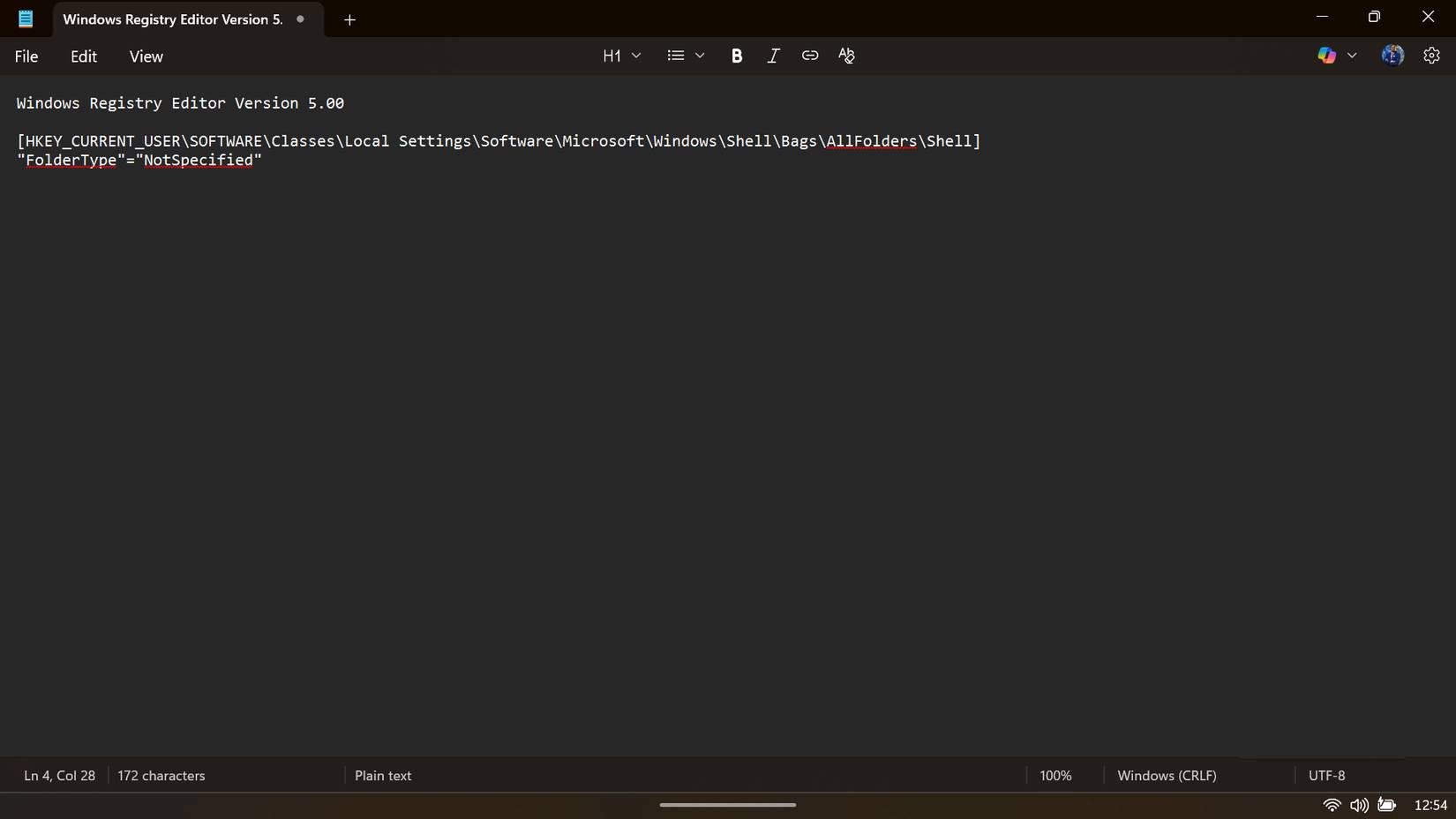
You can also create and use a.reg file by pasting the following code into Notepad:
Windows Registry Editor Version 5.00 [HKEY_CURRENT_USERSOFTWAREClassesLocal SettingsSoftwareMicrosoftWindowsShellBagsAllFoldersShell] "FolderType"="NotSpecified"Save the file with the.reg extension, double-click the file, and confirm the security prompt to merge the changes.
Final Thoughts
Use this guide as a practical checklist for how to fix file explorer lag on windows 11. Work through the steps in order, verify each result, and adjust the options to match your needs.
FAQ
What do you need before following this How to Fix File Explorer Lag on Windows 11 guide?
Review the required tools, accounts, settings, or materials mentioned in the article. Learn how to fix file explorer lag on Windows 11 with clear steps, practical tips, and troubleshooting guidance for a reliable result.
What are the main steps for how to fix file explorer lag on windows 11?
Follow the sections in order, especially What is the purpose of Windows 11's Automatic Folder Type Discovery feature?, This is a smart feature that helps File Explorer run faster, How to override "NotSpecified". Complete each step before continuing and verify the result as you go.
What should you do if the process does not work as expected?
Recheck the prerequisites, update the relevant app or service, review the settings, and repeat the step that caused the issue. Use any troubleshooting notes included in the guide.
Related Articles
 6 Windows File Explorer Add-ons That Make Life Easier7 minutes read
 Files Is a Windows File Explorer Alternative That Meets All User Needs6 minutes read
 7 Notable Changes in File Explorer Windows 117 minutes read
 Fix File Explorer Error Not Working on Windows 105 minutes read
 5 Best Windows File Explorer Extensions to Manage Files on the8 minutes read
 How to Enable Preloading File Explorer Windows 11: Step-by-Step Guide4 minutes read
Reader Comments 0
Sign in with email or Google to join the discussion.