Table of Contents
A converted or downloaded Word document can show wrong characters for three different reasons: a missing font, text stored with the wrong character encoding, or recognition errors introduced while converting a scan or PDF. Identify the cause before replacing text, because a global replacement can damage correct words.
Make a safe copy first
Use File > Save As to create a working copy. Keep the original file unchanged so you can compare text or restart if a repair makes the document worse.
1. Check for a missing or substituted font
If the letters are correct but their appearance is wrong, the document may use a font that is not installed. Select a problem passage and inspect the font name on the Home tab. Word may display a substitute font even while the formatting record names the missing typeface.
- Ask the sender which font the document requires, or inspect an unaffected computer where it displays correctly.
- Install the font only from a trusted source and only when its license permits use.
- Close and reopen Word.
If the document does not require a specific typeface, select the affected content and apply a compatible Unicode font. Pressing Ctrl + A changes the whole document, including headings and other intentional styles, so use it only when a uniform font is appropriate.
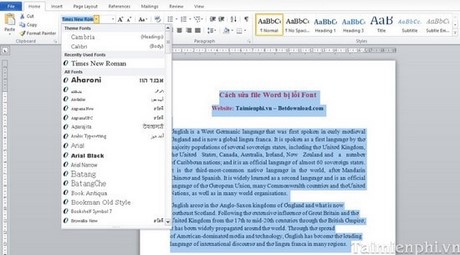
See how to install and manage fonts in Windows before adding an unfamiliar font.
2. Fix an encoding or legacy Vietnamese font problem
Garbled characters that repeat in a consistent pattern may indicate that the text uses a legacy Vietnamese encoding such as TCVN3 or VNI while the wrong font or code table is being applied. Simply choosing Times New Roman will not convert the underlying characters.
Determine the original encoding, then convert the selected text to Unicode with a trusted Vietnamese encoding tool. Review the output line by line and save it as a new document. The guide to converting legacy Vietnamese font codes to Unicode covers that workflow.
3. Correct PDF or OCR conversion errors
If only scattered letters or words are wrong, the converter may have misread the source. This is common with scans, low-resolution pages, unusual fonts, multiple columns, or text placed over images. Compare the Word file with the original PDF and correct the affected words.
Ctrl + H opens Find and Replace, which is useful when the same unmistakable error occurs repeatedly.
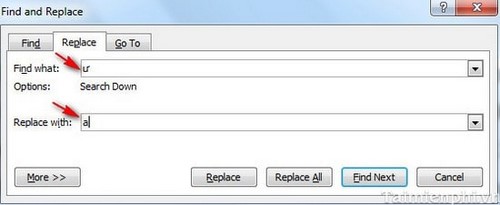
- Enter the complete incorrect word or a distinctive character sequence in Find what.
- Enter the correct text in Replace with.
- Use Find Next and Replace for the first several matches.
- Select Replace All only after confirming that every occurrence should change.
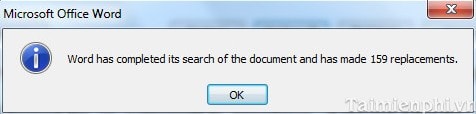
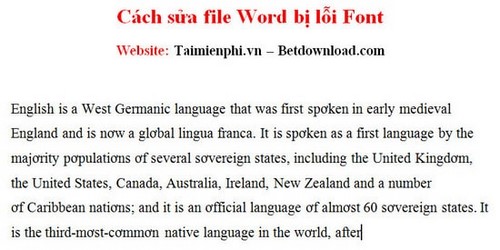
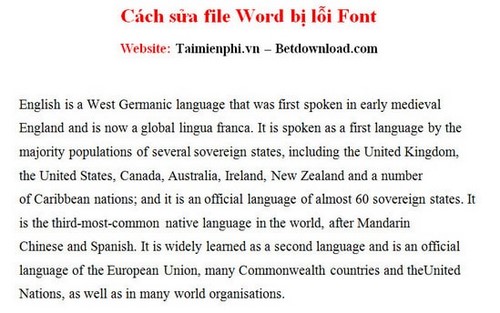
Replacing a single common letter throughout the document can corrupt valid text. The older example shown in the screenshots replaces every occurrence of one character; treat it as an illustration of the dialog, not a generally safe repair strategy.
4. Reconvert the file when errors are widespread
Manual corrections are inefficient when most of the document is wrong. Try converting the original again with a tool that supports OCR and the source language. For a text-based PDF, select an option that preserves flowing text; for a scanned PDF, choose the correct OCR language and verify tables, columns, and footnotes. Review these PDF-to-Word font troubleshooting steps as well.
Final checks
- Run Word's spelling and grammar check, but verify names and technical terms manually.
- Compare headings, page breaks, tables, symbols, and accented characters with the source.
- Use Find to search for any known garbled pattern that remains.
- Save a DOCX copy and reopen it to confirm the text still displays correctly.
Related Articles
 Software to Convert PDF to Word Online, PDF to Doc Online8 minutes read
 How to Fix Font Errors in Word Quickly and Effectively5 minutes read
 How to Fix Font Errors Word, Excel, Transcoding Fonts Super Fast3 minutes read
 How to Handle Opened Word Documents with Font Errors3 minutes read
 How to Fix Font Errors in Word and Excel: Step-by-Step Guide3 minutes read
 Instructions for Setting the Default Font in Microsoft Word4 minutes read
Reader Comments 0
Sign in with email or Google to join the discussion.