Table of Contents
Office 2019 includes Black and Dark Gray interface themes. You can change the theme from any Office application, and the choice normally applies to Word, Excel, PowerPoint, and the other apps in that Office installation.
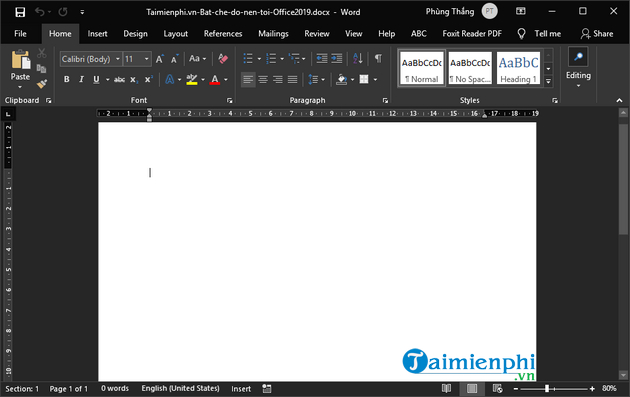
A darker interface can be more comfortable in a dim room, but it is not a medical treatment and it does not guarantee reduced eye strain. In Office 2019, the document page or worksheet may remain light even when menus and toolbars are dark.
Enable a dark Office theme through Options
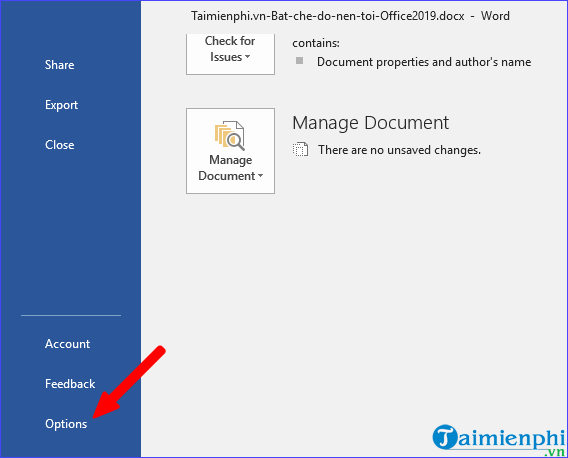
Open Word, Excel, or PowerPoint, then select File > Options.
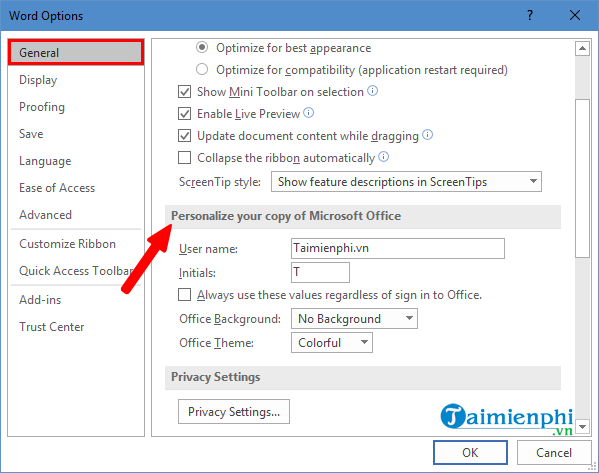
Select General. Under Personalize your copy of Microsoft Office, locate Office Theme.
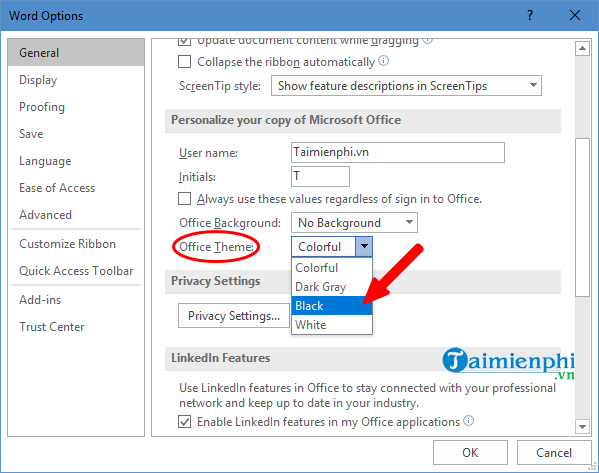
Choose Black for the darkest interface, or Dark Gray for a less pronounced change. Select OK.
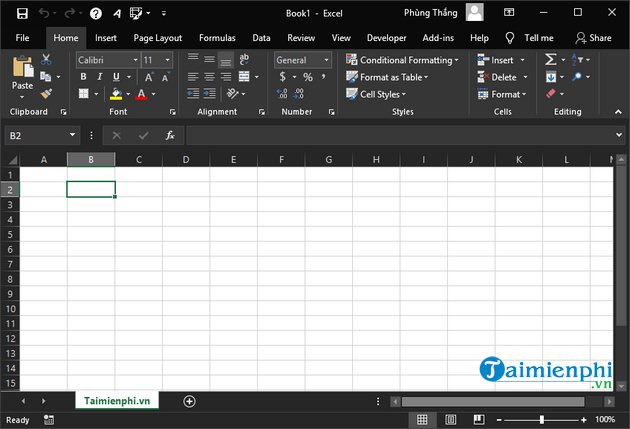
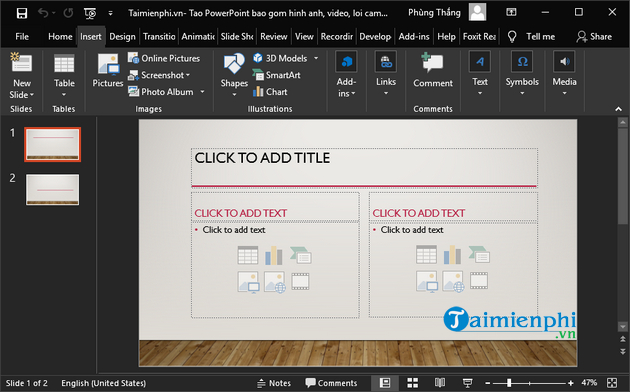
The ribbon, menus, and surrounding interface change immediately.
Because the Office theme is shared, Excel and PowerPoint should use the same selection.
Change the theme from the Account page
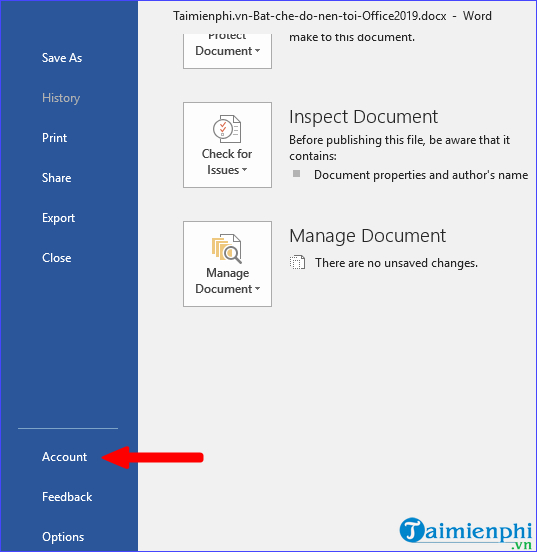
In an Office application, select File > Account.
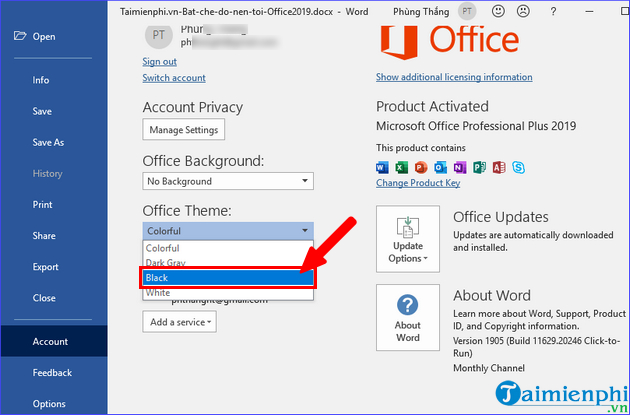
Open the Office Theme list and choose Black or Dark Gray. You do not need to restart the application.
Return to a light theme
Open File > Account or File > Options > General, then set Office Theme to Colorful or White. If Use system setting is shown in a newer Microsoft 365 installation, it can follow the operating system's light or dark appearance; that option may not exist in perpetual Office 2019.
If the theme does not change
- Confirm the Office version. Select File > Account and check Product Information. Available themes vary by edition and update level.
- Update Office. Install approved Office updates, then reopen the applications.
- Check organization policies. A workplace administrator may enforce appearance settings.
- Check accessibility settings. Windows contrast themes and graphics settings can affect how Office colors are displayed.
Make the workspace easier to read
Theme color is only one part of a comfortable setup. Increase zoom instead of forcing smaller text, reduce reflections on the screen, use appropriate room lighting, and take regular breaks. In Word, changing the page color affects the document view and may affect printing, so do not use it as a substitute for an interface theme without checking the result.
For other appearance controls, see how to customize the Office interface. You can also review useful Microsoft Office default settings before standardizing a new installation.
Related Articles
 How to Enable Dark Mode in IDM4 minutes read
 How to Enable Dark Mode in Microsoft Office on Android3 minutes read
 How to Enable Dark Mode for File Explorer, Open Dark Mode4 minutes read
 How to Enable Dark Mode in Ubuntu 20.04 LTS5 minutes read
 How to Enable Dark Mode in Notepad on Windows 10/117 minutes read
 How to Use Mojave's Dark Mode on Mac Right Now?5 minutes read
Reader Comments 0
Sign in with email or Google to join the discussion.