Table of Contents
Barcode software turns an identifier into a scannable symbol and positions it on a label. Before designing anything, decide where the code will be scanned, which symbology is required, and whether the number must be assigned by a standards body or a business partner.
Choose the correct barcode before opening the software
- UPC-A or EAN-13: commonly used for retail point-of-sale items. Do not invent a retail product number; obtain and manage the required GTIN through GS1 or the relevant authorized process.
- Code 128: suitable for many internal inventory and logistics identifiers, subject to the requirements of the receiving system.
- ITF-14 and GS1-128: used in specific packaging and supply-chain workflows.
- QR Code or Data Matrix: two-dimensional symbols that can hold more data, but the exact format and content still need to match the scanning application.
The printed bars do not normally contain a product description or price. They encode an identifier that a scanner uses to retrieve records from a database.
About BarTender licensing
BarTender is commercial label-design and printing software. Its publisher currently offers a time-limited trial, while some printer vendors provide restricted UltraLite editions. Do not describe the full product as permanently free. Download it only from the official BarTender trial page or through an approved printer vendor.
Create a label document in BarTender
The screenshots show an older BarTender interface, so the wording and arrangement may differ in a current release.
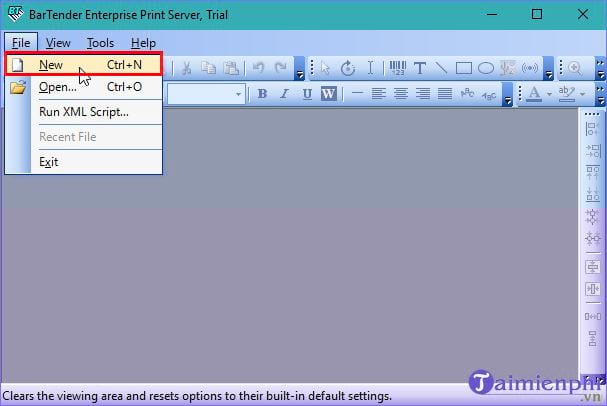
Open BarTender and select File > New, or press Ctrl + N.
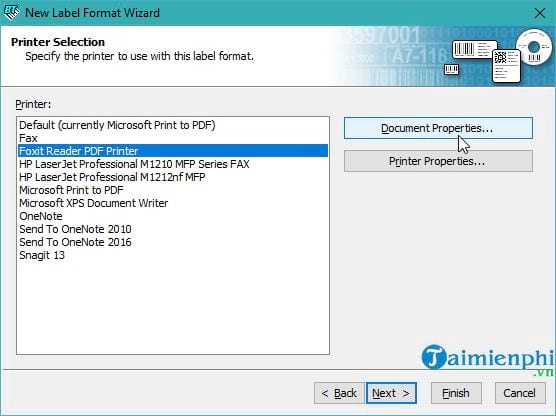
Choose the actual label printer. Install its approved driver first. For a draft PDF, you may choose a PDF printer, but final dimensions and printable areas can differ from a physical label printer.
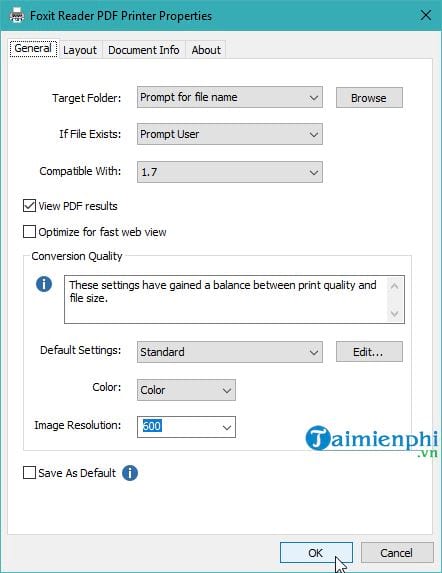
Review Document Properties only when you need printer-specific settings, then continue through the wizard.
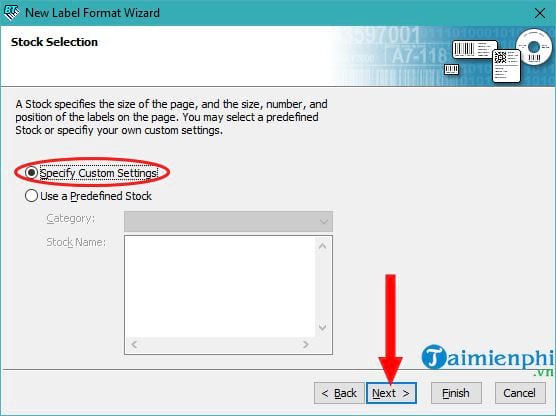
At stock selection, choose a matching label stock or specify custom settings.
Set the physical page size and orientation.
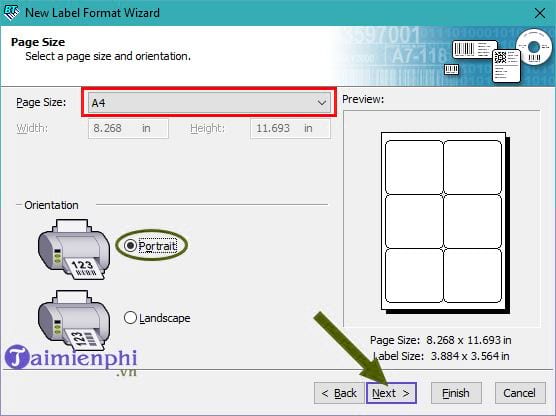
Choose the label shape where the wizard provides that option.
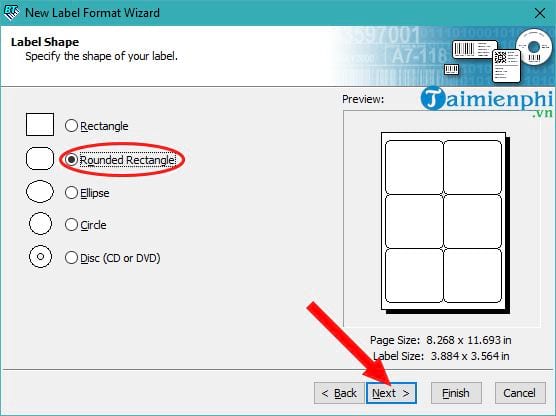
Enter the page margins and spacing using measurements from the label manufacturer.
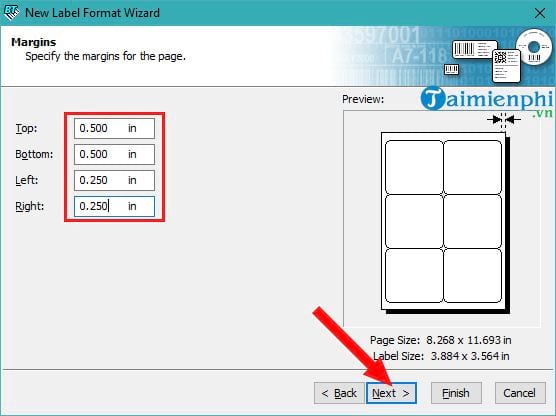
Specify the number of rows and columns on each sheet.
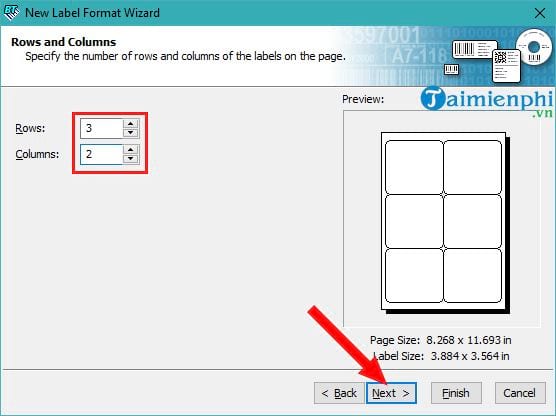
Enter the label width, height, and horizontal or vertical pitch. Pitch is the distance from the start of one label to the start of the next, not just the gap.
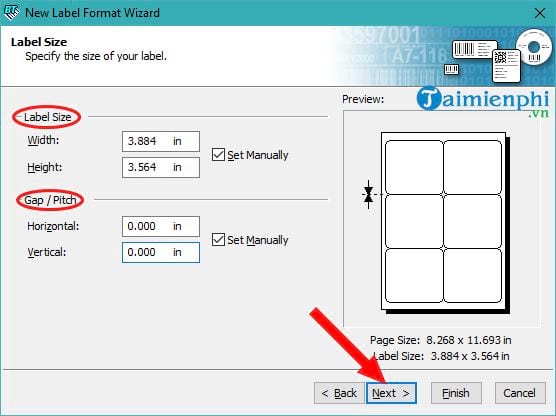
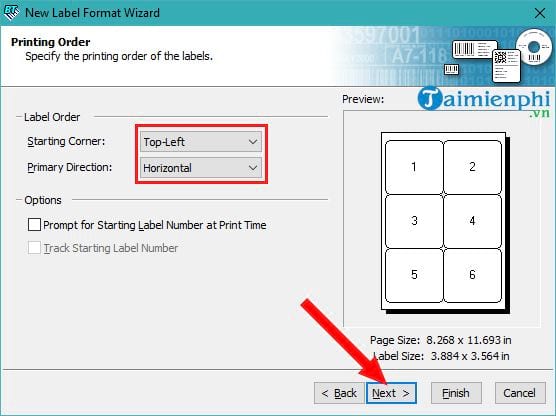
Choose the printing order so records fill the sheet in the intended direction.
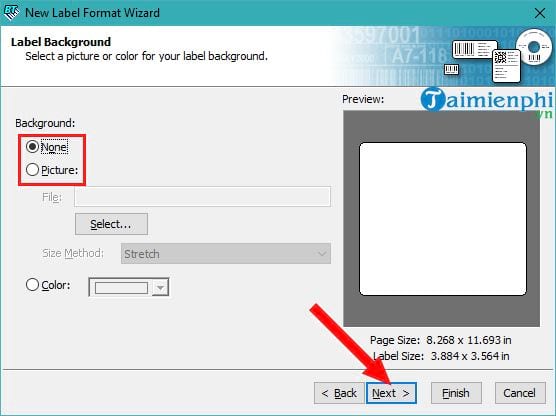
Add a background only if it is part of the label design and will not reduce barcode contrast or quiet zones.
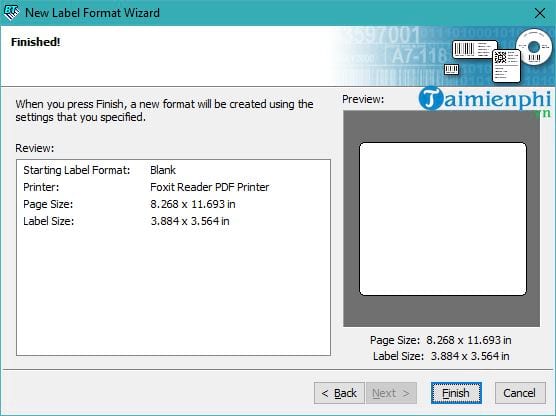
Review the summary and select Finish.
Add and configure the barcode
Select the barcode tool, choose the required symbology, and place the object on the label.
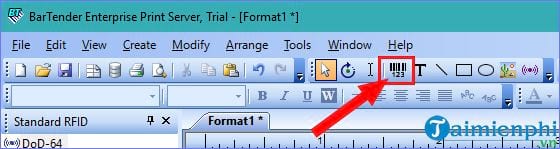
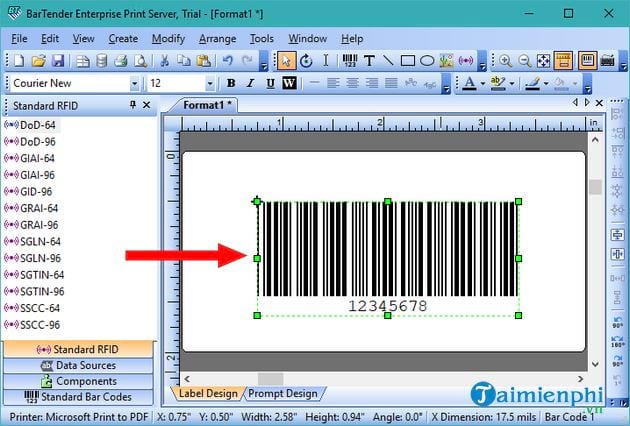
Resize or position the object through its properties. Avoid visually stretching a barcode with ordinary drag handles; enter dimensions that comply with the symbology and printer resolution.
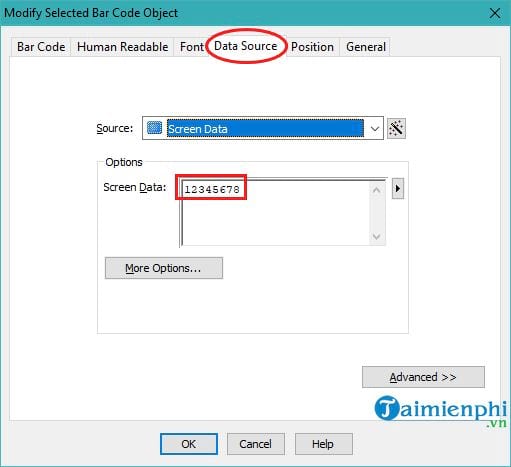
Open the barcode properties and set its data source. A fixed value is suitable for one label; a database, spreadsheet, or serialization source is better for a batch.
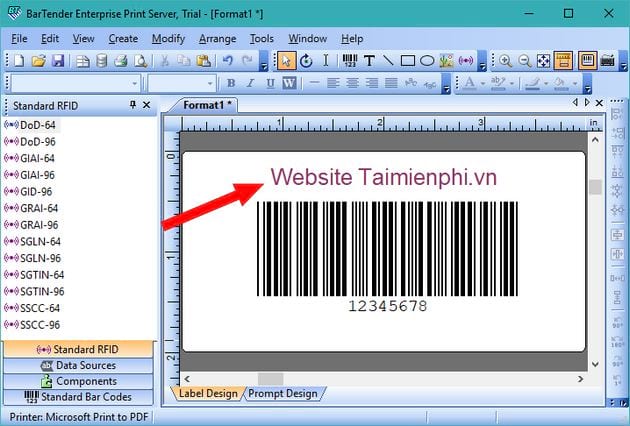
Add readable text only where needed. Keep text, borders, and logos outside the required quiet zones around the symbol.
Print and verify the labels
- Save the BarTender document.
- Select File > Print or press Ctrl + P.
- Confirm the printer, stock, quantity, and record range.
- Print a small test batch before running a full job.
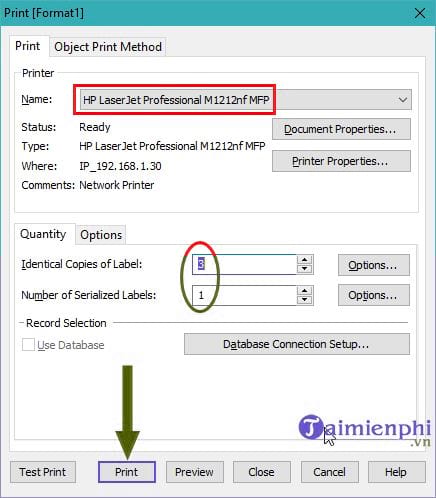
Scan samples with the devices used in the real workflow. Test labels at the beginning, middle, and end of a roll or sheet, and check them on the actual package. A symbol that looks sharp to the eye can still fail because of incorrect dimensions, low contrast, damaged quiet zones, glare, curvature, or printer calibration.
Common mistakes to avoid
- Generating a random UPC or EAN for a retail product.
- Using a symbology the warehouse, retailer, or application does not accept.
- Encoding a price directly when the system expects only a product identifier.
- Printing below the minimum size or too close to an edge.
- Using red bars, patterned backgrounds, or insufficient contrast.
- Failing to verify the check digit and encoded value.
- Printing a full batch before testing the scanner and database lookup.
If your goal is to encode a web address or contact information rather than a retail identifier, first read what a QR code is and how to create one. For a simple computer-based workflow, compare the steps for creating a QR code with QRCode Monkey.
Related Articles
 Guide to Create and Print Barcodes with BarTender Barcode Software5 minutes read
 3 Best Sections to Create Professional Barcodes on Computers4 minutes read
 2 Ways to Create Barcodes in Google Sheets5 minutes read
 ERP, Versatile Management Software for Businesses: A Practical Guide20 minutes read
 TranS - Free Online Learning Software3 minutes read
 Top AI Tools for Businesses7 minutes read
Reader Comments 0
Sign in with email or Google to join the discussion.