Table of Contents
Kiran's Typing Tutor is a free Windows program with guided lessons, practice passages, tests, numeric-keypad exercises, children's activities, games, and progress graphs. Download it from the developer's website, match its language and keyboard settings to your physical keyboard, and begin with accuracy rather than speed.
Download and install Kiran's Typing Tutor
1. Use the official download
Open the official Kiran's Typing Tutor page and choose the current free download. Avoid software mirrors and scan the installer before opening it.
2. Run setup
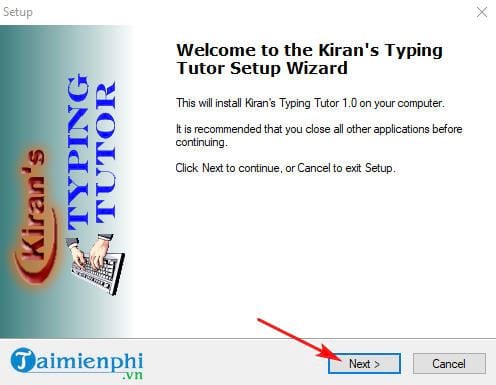
Open the downloaded file, review any Windows security prompt, and click Next on the setup screen.
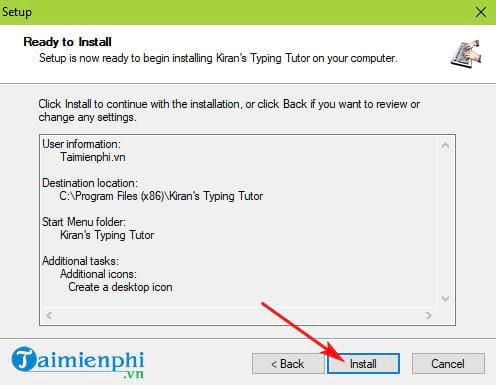
Review the destination and available options, then click Install.
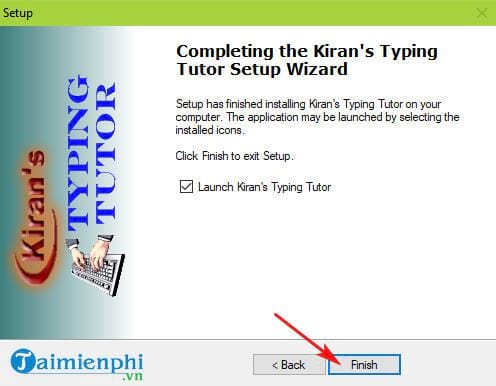
When setup finishes, click Finish to launch the tutor.
Configure the program
Create a local profile name so the program can keep progress separate. A nickname is enough on a shared computer; there is no need to enter unnecessary personal data.
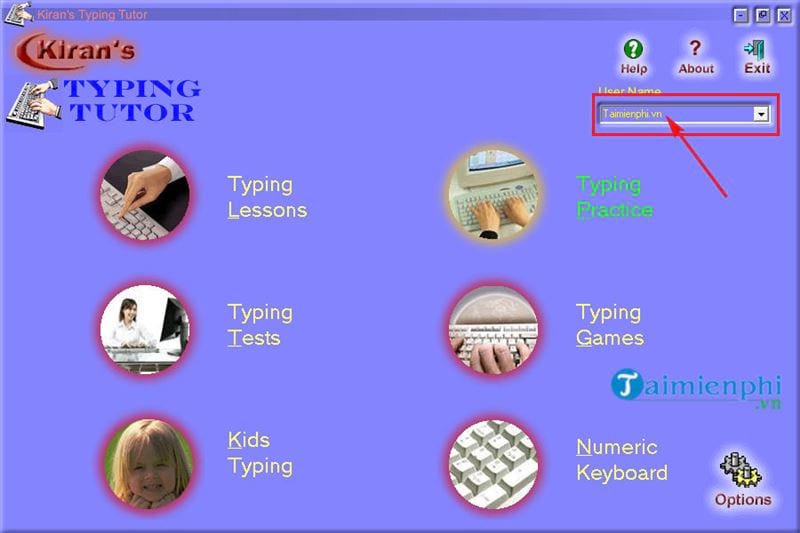
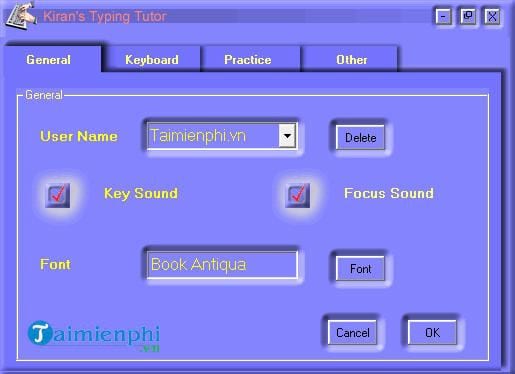
Open Options and verify the keyboard, course, application language, input language, and voice. The keyboard, course, and input language should match. Incorrect settings can make the finger prompts or typed characters appear wrong.
Follow the recommended learning path
1. Typing Lessons
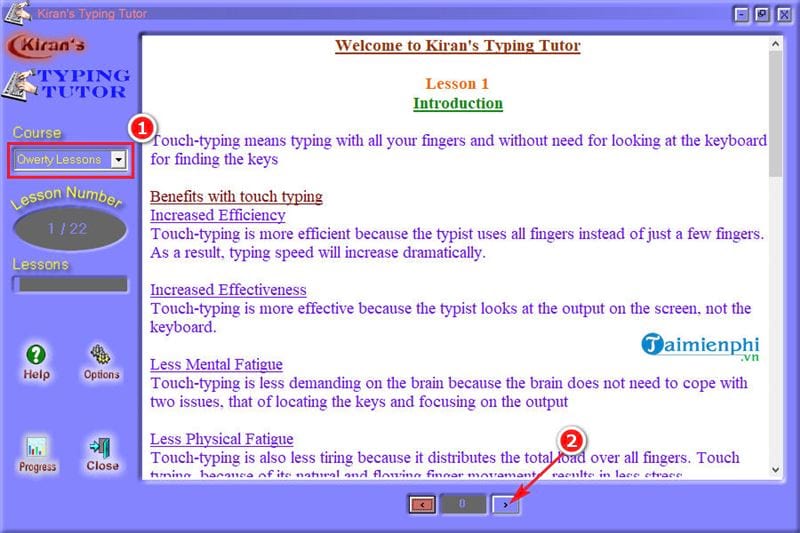
Start in Typing Lessons. Read the explanation for each key group and follow the finger preview. Do not jump directly to an arbitrary later lesson simply because an old screenshot shows it.
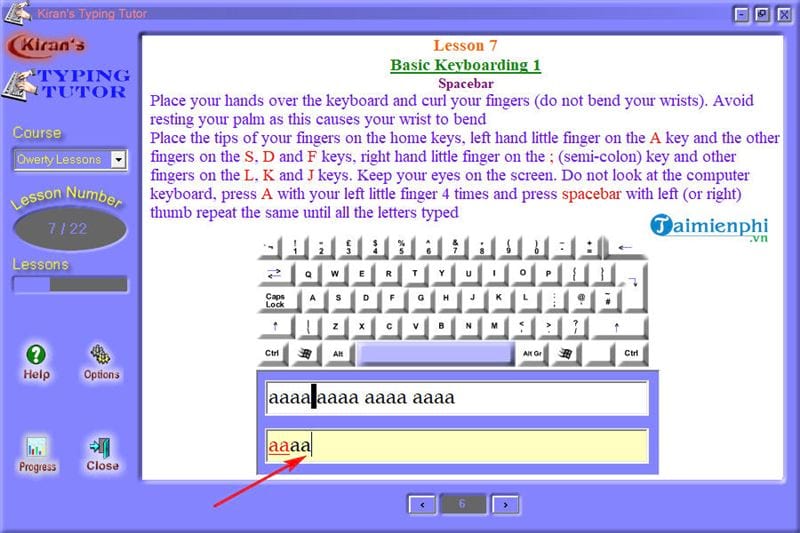
Type the characters using the displayed finger and keep your eyes on the screen. Repeat the current lesson when errors are frequent.
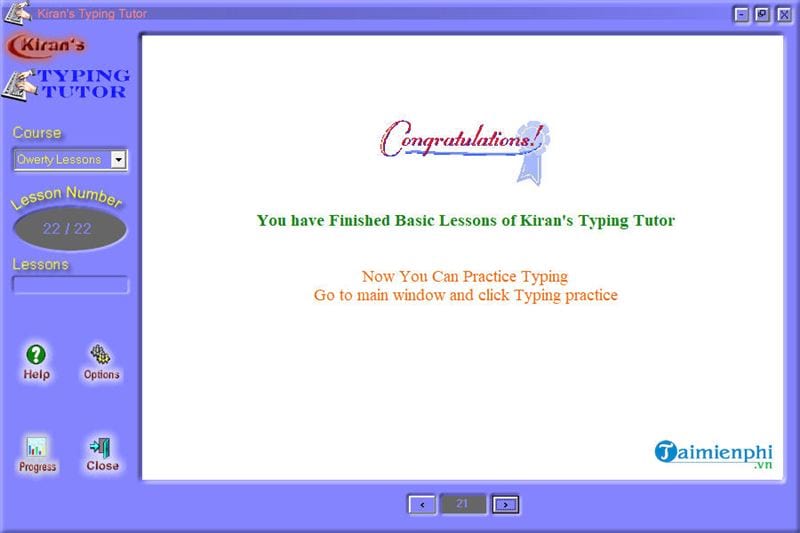
The completion screen summarizes the lesson. Review accuracy before continuing.
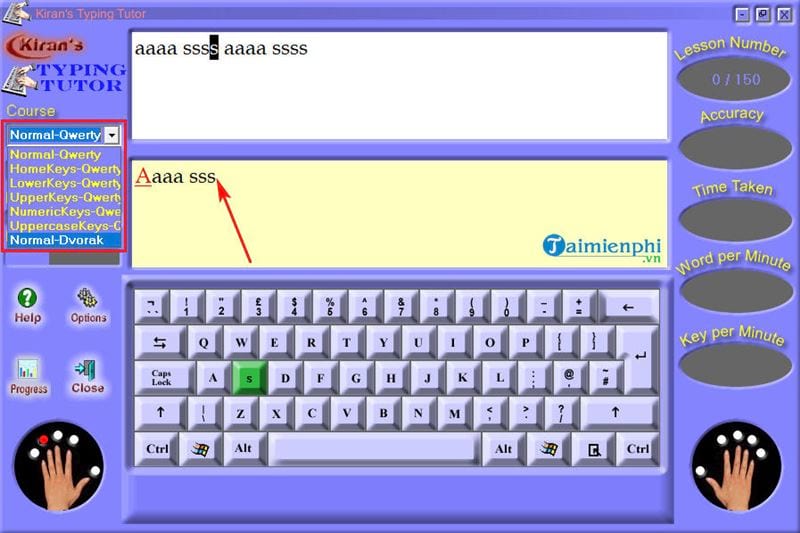
2. Typing Practice
After the basic lessons, use Typing Practice for longer exercises with real-time visual or audio help.
3. Typing Tests
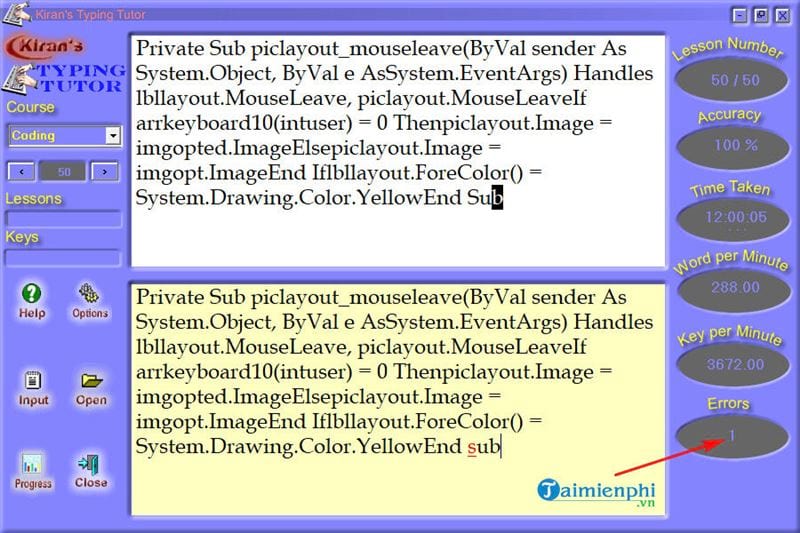
Tests report measurements such as accuracy, time, WPM, KPM, and errors. Choose sentences or paragraphs that match your skill level and use the same duration for repeat comparisons.
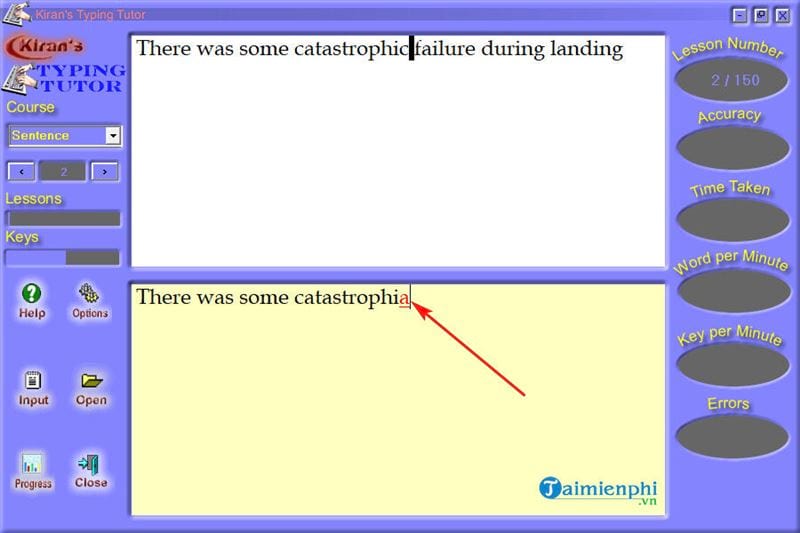
Review the result and identify the characters that produced errors.
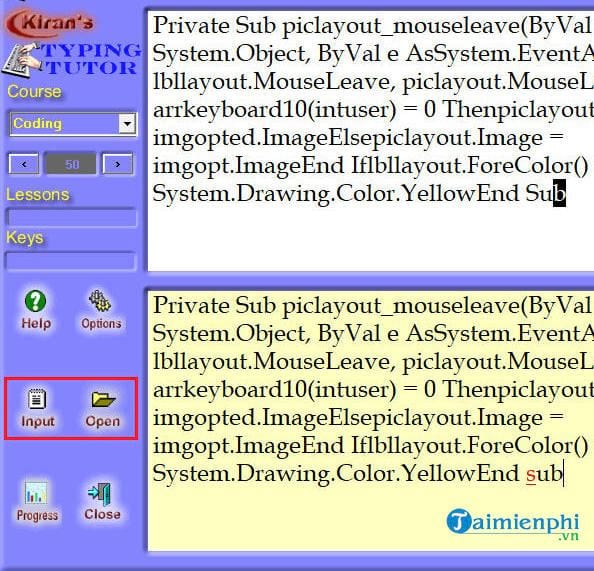
The Input or Open controls let you use custom text. Do not import confidential work documents into a practice application unless your organization permits it.
Additional modules
Kids Typing
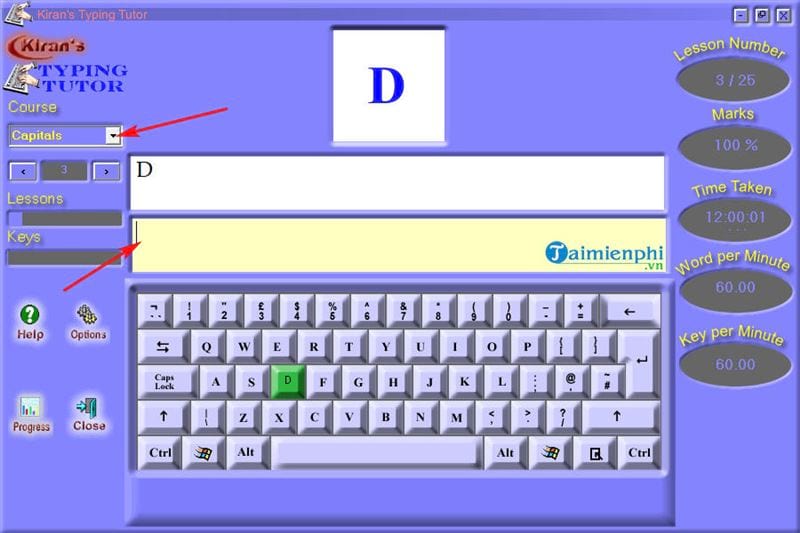
The children's module introduces uppercase and lowercase letters, numbers, colors, and simple words. An adult should choose an age-appropriate course and keep sessions short.
Typing Games
Games add variety by asking you to type letters or words under time pressure. Use them after learning the finger zones so competition does not reinforce poor technique.
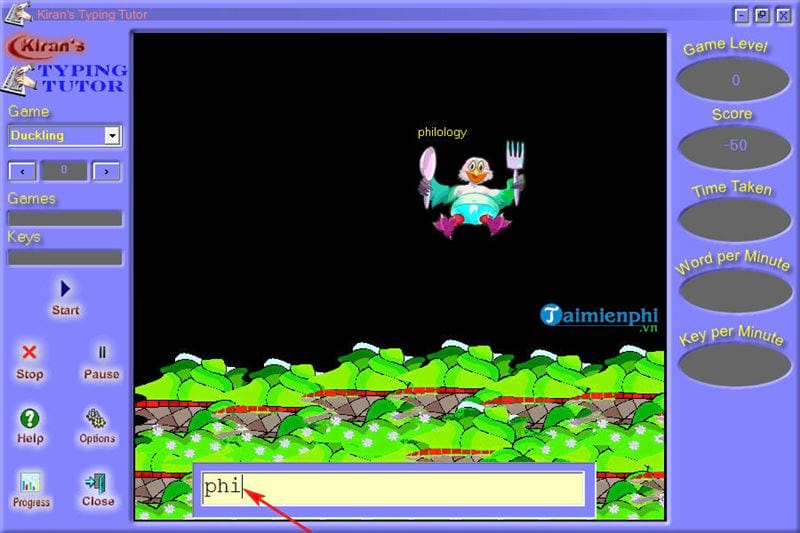
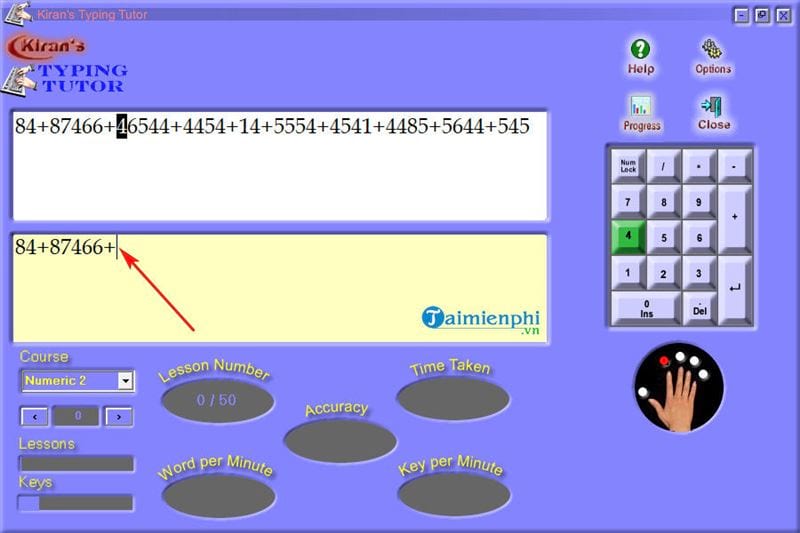
Numeric Keyboard
The numeric module teaches number-pad entry. Make sure Num Lock is on and use a keyboard with a physical numeric keypad for meaningful practice.
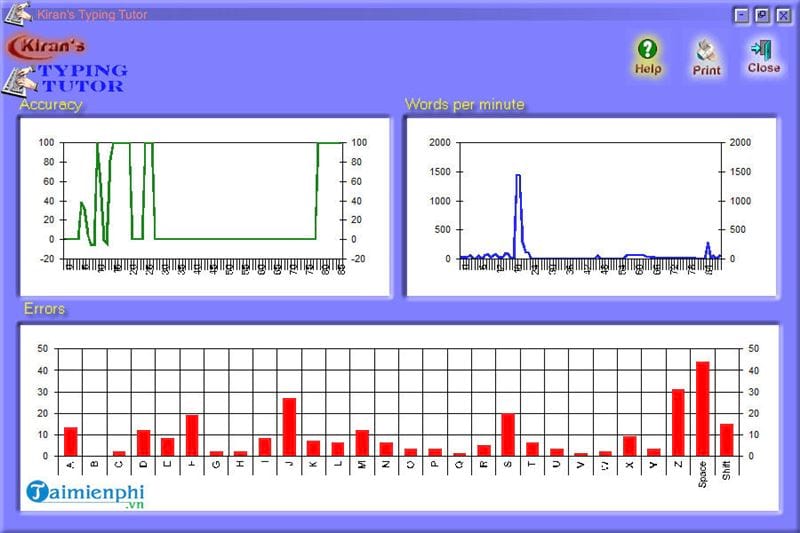
Progress
The progress area charts WPM, accuracy, and errors by letter. Look for recurring weak keys instead of focusing only on the highest speed.
Options and Help
Options control audio, visual guidance, languages, courses, and keyboard settings. Help explains each module and the recommended training order.
Correct home-row technique
Rest the left fingers on A, S, D, F and the right fingers on J, K, L, ;. The raised marks on F and J help the index fingers return without looking down. Use a thumb for the space bar.
- Use the finger assigned to each key.
- Return each finger to its home-row position.
- Keep the keyboard directly in front of you and your shoulders relaxed.
- Stop if you feel pain, numbness, or persistent tingling.
A practical 15-minute session
- 8 minutes: complete one lesson or guided practice.
- 4 minutes: repeat weak characters shown in Progress.
- 3 minutes: take a short test or type a realistic paragraph.
There is no guaranteed schedule for reaching a particular WPM. Improvement depends on starting skill, practice quality, language, and test conditions. Track your own trend over several weeks.
Alternatives and further practice
For another free Windows tutor, use TipsMake's RapidTyping installation guide. You can also compare browser-based typing tutors, learn the home-row method, or measure progress with online typing tests.
Related Articles
 How to Practice 10-Finger Typing Using Rapid Typing Tutor on a Computer5 minutes read
 Tux Typing - Free Typing Practice Tool for Kids: Main Insights6 minutes read
 Rapidtyping - Rapidtyping Download and Installation Guide5 minutes read
 How to Install Rapid Typing Tutor and Practice 10-Finger Typing5 minutes read
 How to Practice 10-Finger Typing Online6 minutes read
 Practice Typing with 10 Fingers, Effective 10-Finger Typing Practice Software5 minutes read
Reader Comments 0
Sign in with email or Google to join the discussion.