Table of Contents
With a few tips in this article, you can pin Edge websites to the Taskbar for instant access without having to open the browser.
By default, Windows only has a few items pinned to the taskbar such as File Explorer, Photos, Edge… But with just a few tips In this guide, you can pin the Edge website to the Taskbar for immediate access without having to open the browser. Below are instructions for pinning the Edge website to the Taskbar.
Pin Edge website shortcuts to Taskbar
Step 1:
On Edge browser, access the website pin link below.
Https://www.microsoft.com/en-us/edge/pin-sites?form=MA13FJStep 2:
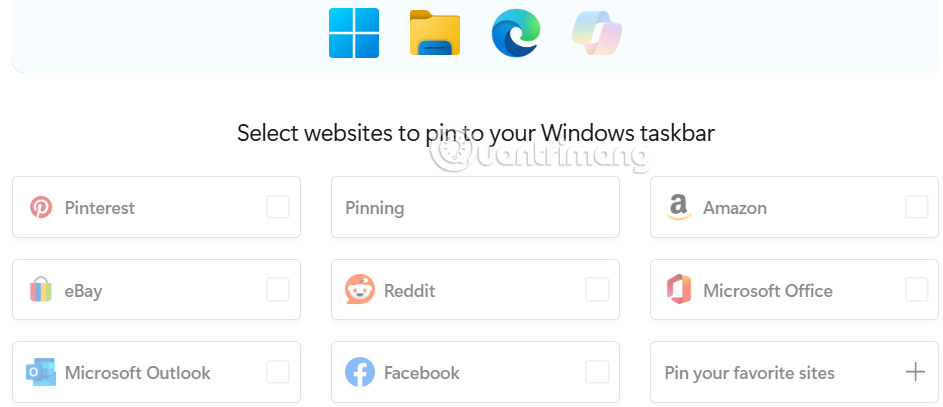
At this time, users will see that there are some websites that support pinning. You Select the application you want to pin to the Taskbar On the browser.
Step 3:
Now a message will appear asking if you want to pin the app, Click Yes To do so.
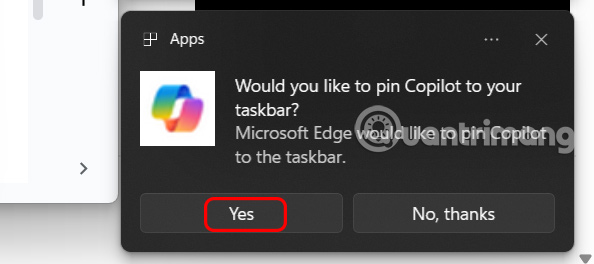
As a result, you will see the pinned application under the Taskbar as shown below for access.

Move website to Taskbar pinned application
Step 1:
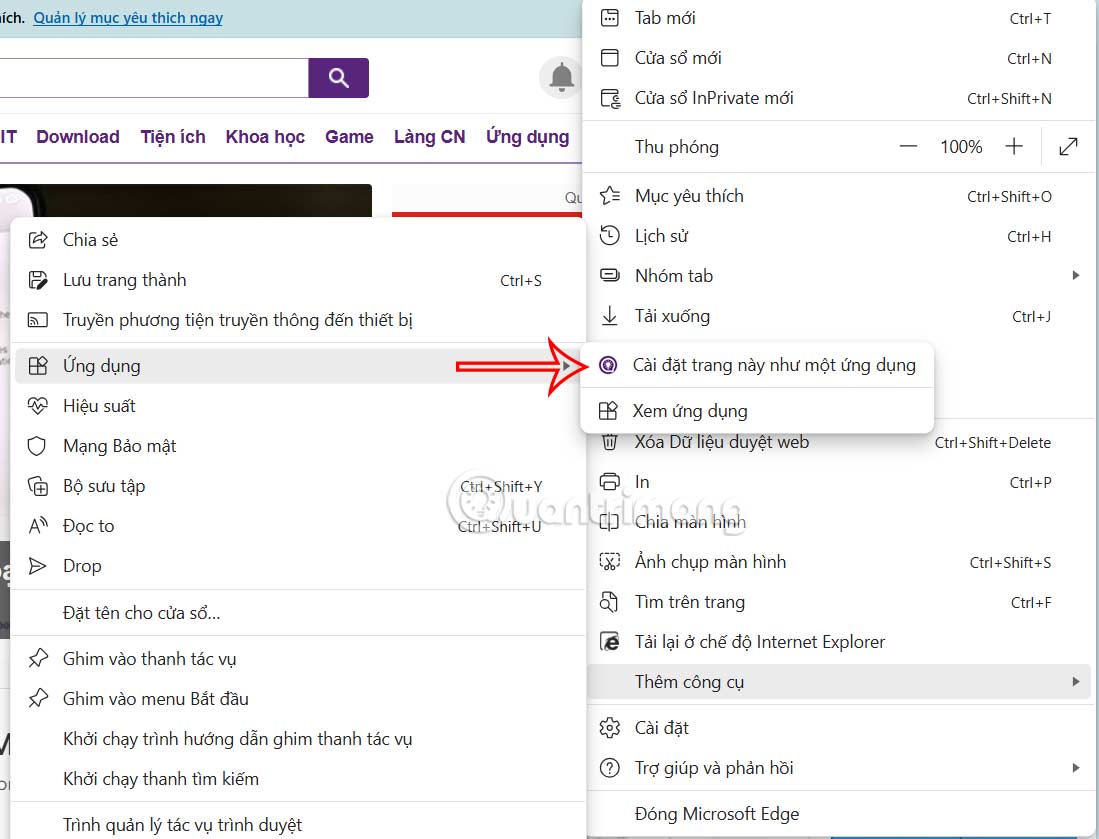
Open Edge browser and go to the website you want to pin to the Taskbar. Then click on The 3 dots icon And Select More tools Below and look at the side menu, Select Apps And Select Install this site as an app .
Step 2:
A pop-up notification appears as shown, Click Install To install the pop-up. You can change the name if you want.

Step 2:
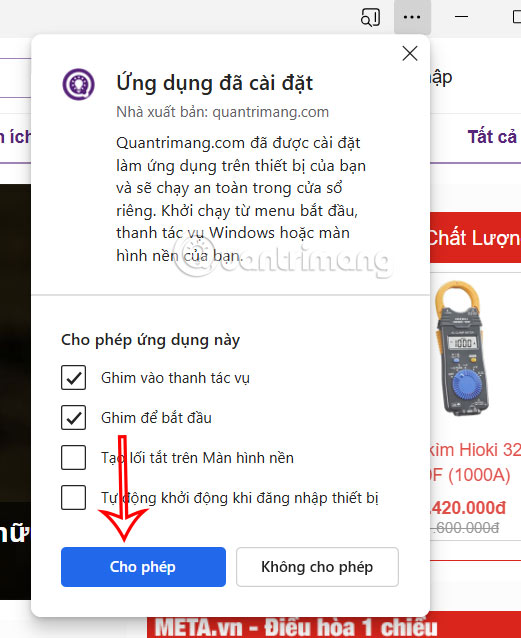
Immediately after that, the application interface displays with custom application permission modes, you Select Pin to taskbar And then Press Allow .
Step 3:
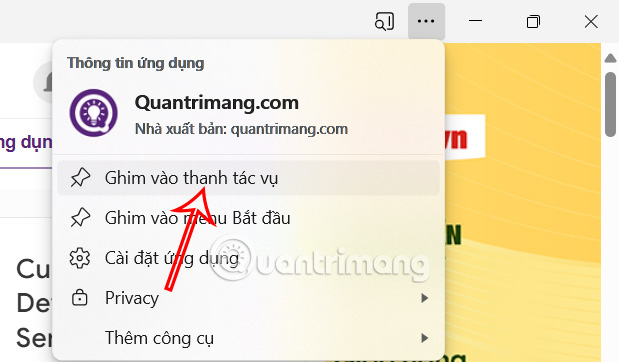
Then you open the application on the browser, then click on The 3 dots icon And select Pin to taskbar .
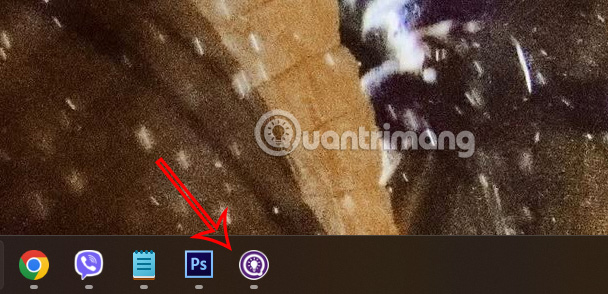
As a result, we see the application on Edge pinned under the Taskbar.
How to unpin Edge websites from Taskbar
Right-click on the website icon in the Taskbar and Select Unpin from this taskbar .

For web apps, open the website and click on the 3 dots icon and select App Settings .
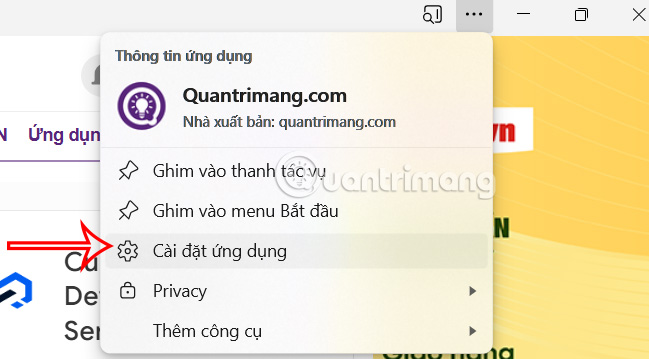
Then you Click Uninstall To remove the website application on Edge browser.

FAQ
How do you pin websites on edge to the taskbar: step-by-step guide?
In practical terms, with a few tips in this article, you can pin Edge websites to the Taskbar for instant access without having to open the browser.
What should you check before getting started?
Review the requirements, compatible device or software version, and any warnings described in the guide before making changes.
What should you do if the steps do not work?
Repeat the steps in order, confirm that your app or system is up to date, and review the troubleshooting details provided above.
Related Articles
 How to Fix Edge or Chrome Hiding Windows Taskbar When Maximized: Complete Guide9 minutes read
 How to Block Websites from Accessing the Camera on Edge3 minutes read
 How to Open Websites Automatically on Microsoft Edge3 minutes read
 How to Pin a Website to the Taskbar5 minutes read
 How to Pin Gmail to Taskbar on Windows PC4 minutes read
 Browser Tips Are Useful on Windows 10 Fall Creators Update4 minutes read
Reader Comments 0
Sign in with email or Google to join the discussion.