Table of Contents
Pinning a frequently used website to the Windows Taskbar gives it a one-click launcher. Microsoft Edge can install almost any site as an app, while Chrome can create a site shortcut. Firefox requires a shortcut whose target includes the website address.
A pinned website is still opened by a browser and follows that browser profile's cookies, extensions, and sign-in state. Pinning does not make an untrusted site safer.
Pin a website with Microsoft Edge
- Open the site in Edge and confirm the address is correct.
- Select Settings and more (the three-dot menu), then open Apps > Install this site as an app.
- Review the name and icon, then select Install.
- In the confirmation window, select Pin to taskbar. If that prompt is no longer open, enter
edge://appsin the address bar, open Details for the site app, and select Pin to taskbar.
Older Edge versions used a direct Pin this page to taskbar command:
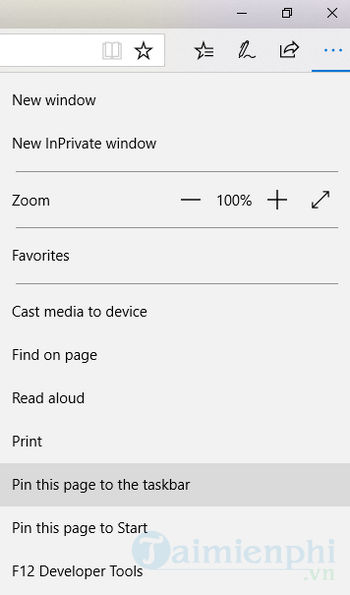
Installing a site as an app opens it in a separate window with minimal browser controls. It does not install the same type of executable as a traditional Windows application.
Pin a website with Google Chrome
- Open the website in Chrome.
- Select the three-dot menu, then Cast, save, and share > Create shortcut.
- Enter a concise name and select Create. If Chrome offers Install page as app for the site, you may use that instead.
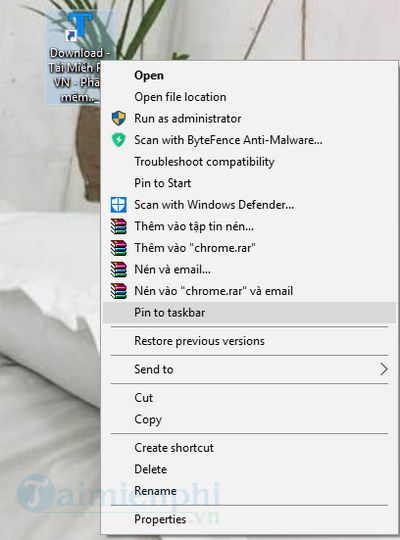
- Right-click the new desktop shortcut and choose Pin to taskbar. On Windows 11, you may need Show more options first.
The menu labels have changed across Chrome versions, but the result is a Windows shortcut that can be pinned:
If Chrome does not show Create shortcut, update the browser, check the Cast, save, and share submenu, or use the manual shortcut method described for Firefox below with the Chrome executable.
Pin a website with Firefox
Firefox can create a desktop internet shortcut by dragging the padlock or site-information icon from the address bar to the desktop. Windows may not allow that .url file to be pinned directly. A Firefox program shortcut is more reliable:
Search for Firefox from Start, right-click the result, and select Open file location. Copy the Firefox shortcut to the desktop.
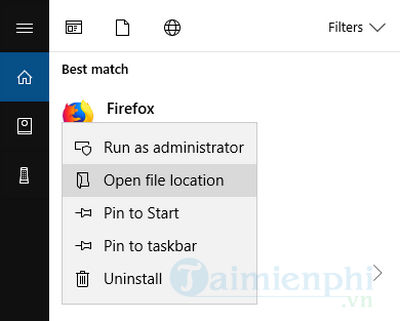
Right-click the copied shortcut and select Properties.
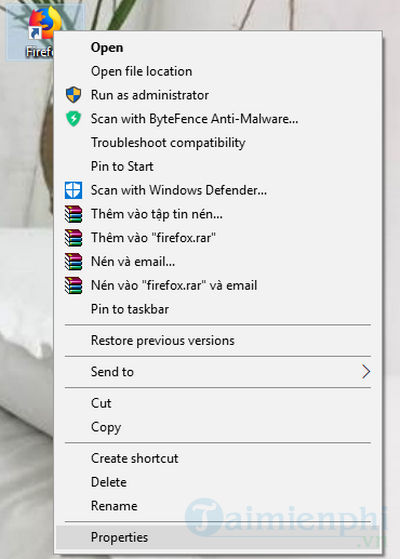
In Target, leave the quoted Firefox executable path intact, add a space,
-url, another space, and the quoted website address. For a standard 64-bit installation, the result may look like this:"C:\Program Files\Mozilla Firefox\firefox.exe" -url "https://tipsmake.com/"Use the path already present in your shortcut rather than copying the example blindly.
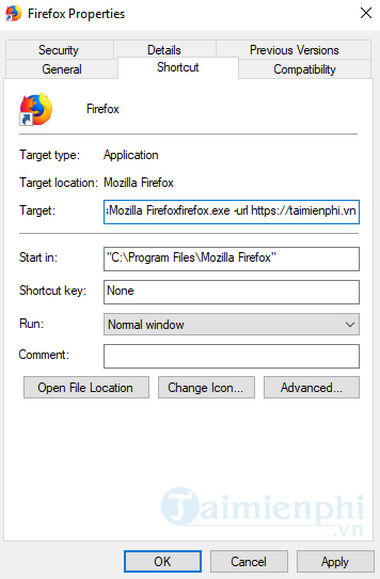
- Select OK, test the shortcut, then right-click it and choose Pin to taskbar.
Internet Explorer is no longer an appropriate method
The Internet Explorer desktop application is retired on supported Windows versions. Do not enable or reinstall it just to create a website shortcut. Use Microsoft Edge; organizations with a legacy site can manage Internet Explorer mode in Edge according to their IT policy.
Rename, remove, or repair a pinned website
- Unpin: Right-click the Taskbar icon and select Unpin from taskbar.
- Remove an Edge site app: Open
edge://apps, select Details, then Uninstall. - Wrong browser profile: Recreate the shortcut from the intended profile.
- Wrong or changed URL: Edit or recreate the shortcut after verifying the current address.
- Generic icon: Open the shortcut's Properties and choose another icon if the browser allows it.
If a bookmark is sufficient, use Ctrl + D instead; bookmarks sync more easily and do not fill the Taskbar. For related Windows shortcuts, see how to add app shortcuts to the desktop, change shortcut icons, or pin a folder to the Taskbar.
Related Articles
 How to Pin Websites on Edge to the Taskbar: Step-by-Step Guide4 minutes read
 Do You Know What Is the Optimal Location of the Windows8 minutes read
 How to Fix Frozen Taskbar Effectively8 minutes read
 Mount the Website on Taskbar with Google Chrome: Battery2 minutes read
 How to Pin the App to the Taskbar to Open It Faster4 minutes read
 How to Customize the Taskbar in Windows: Step-by-Step Guide15 minutes read
Reader Comments 0
Sign in with email or Google to join the discussion.