Table of Contents
Learn how to create a quiz on Google forms with practical instructions, useful tips, and troubleshooting guidance for common issues.
Google Forms allows teachers to create multiple-choice tests and send them to students, then automatically grade them. Students simply access the test link provided by the teacher and complete the test directly on their computers. Currently, many schools use various online tools to create online tests, such as Microsoft Teams or Microsoft Forms. In this guide, we will guide you on how to create a test using Google Forms.
Instructions on Creating a Quiz on Google Forms
Step 1: Access Google Forms at forms.google.com and log in with your Google account.
Step 2: Click the + to create a new form.
Step 3: In the " Questions" section, teachers enter a general title for the test.
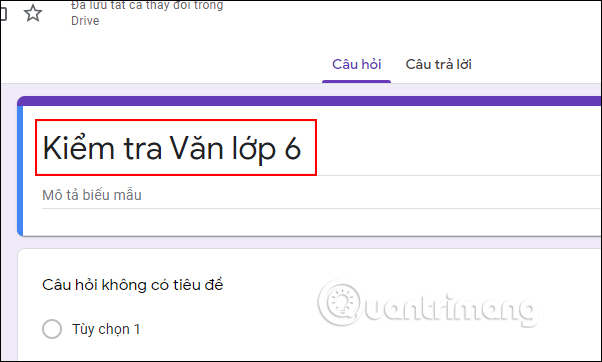
Step 4: Collect student information
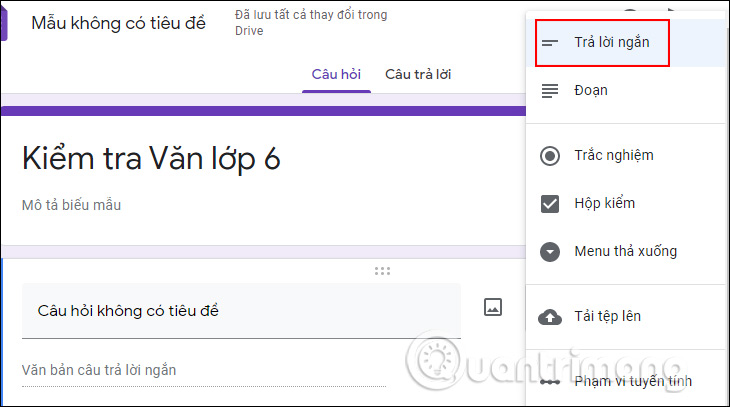
Scroll down and click on Untitled Questions, then look to the side and select Short Answer question type.
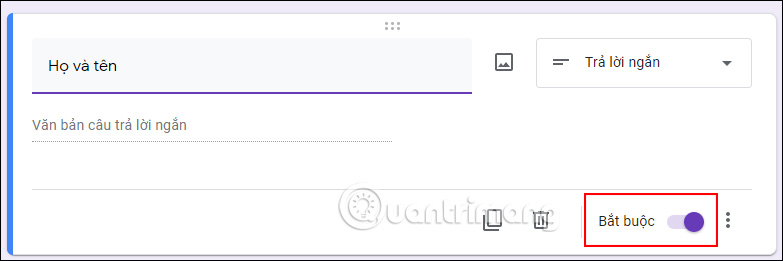
Teachers should enter the full name field so students can fill in their names on the test. Below, the "Required" button should be activated so students must answer in order to submit their test.
Teachers can add other fields to the student information input section, such as student ID number, if needed.
Step 5: Create the quiz
Click the Add Section icon to add a question section, separate from the information section above.
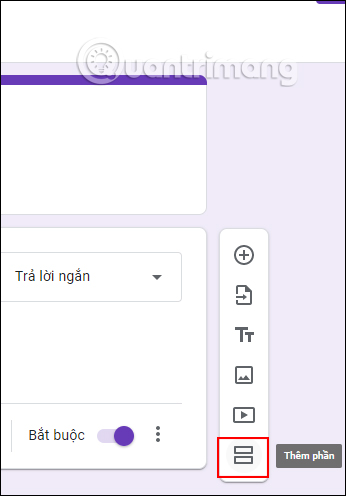
Next, enter a general title for the question section , then click the plus icon in the tools column on the right to add a question.
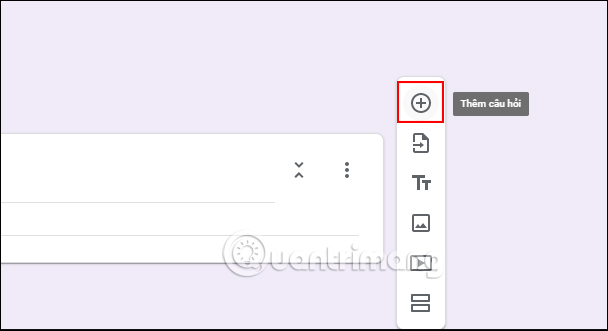
Step 6:
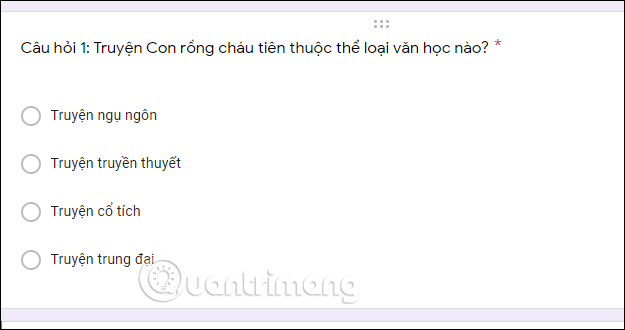
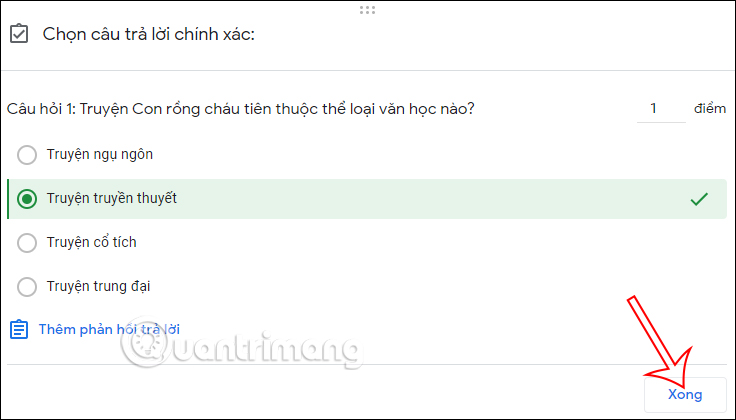
Select the question type as Multiple Choice , then enter the question content and answer options . Teachers can add images to the question if needed. Then, activate the Required option .
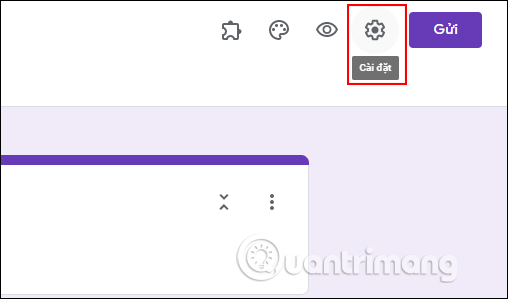
Next, teachers should look at the top of the interface and click on the gear icon .
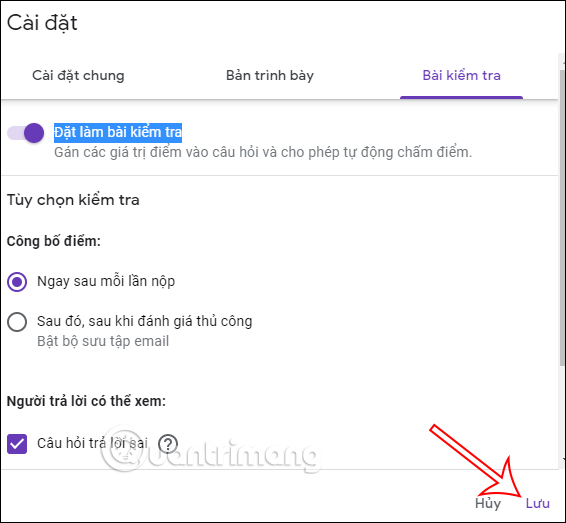
Once the interface is displayed, click on the "Test" option, then activate the "Set as Test" mode, and finally click " Save" .
. Xong
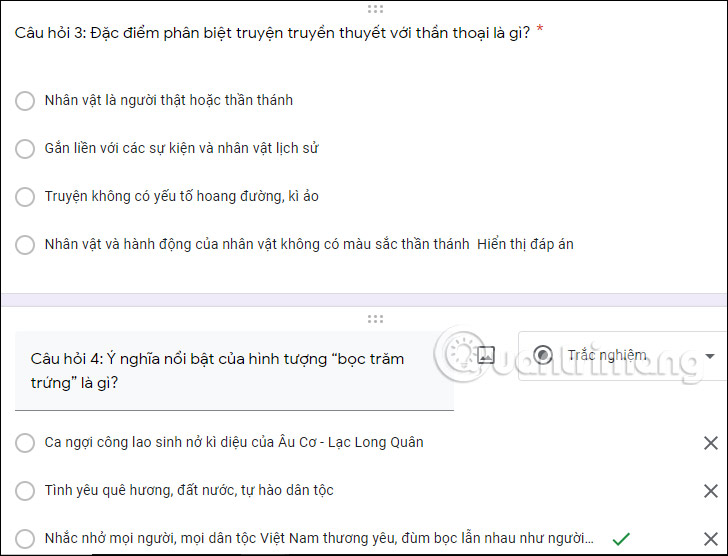
. Trong >
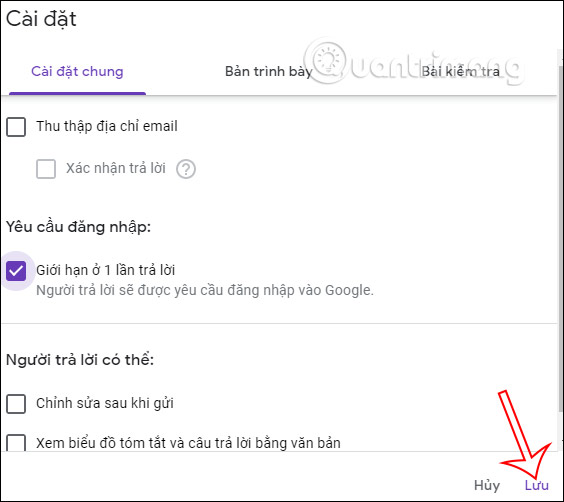
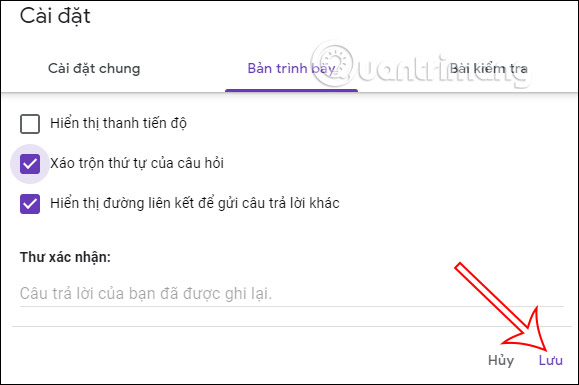
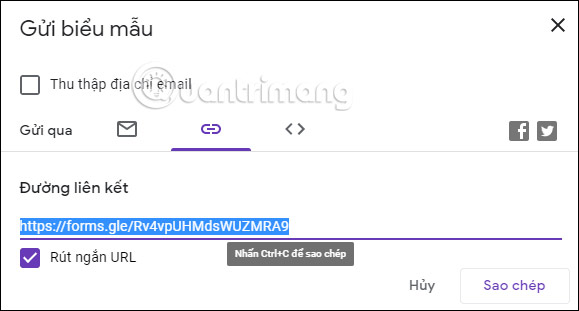
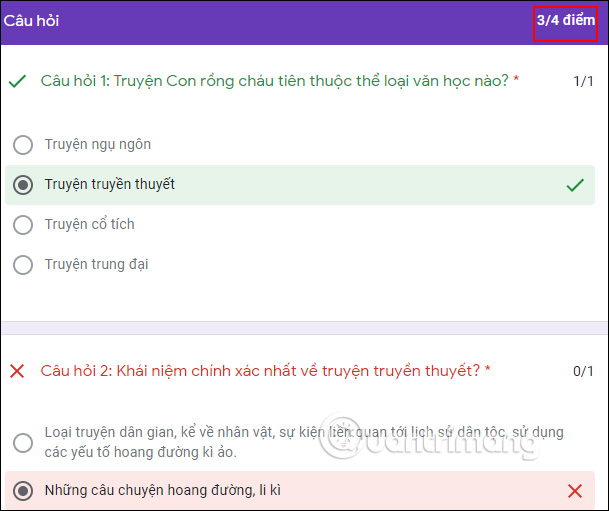
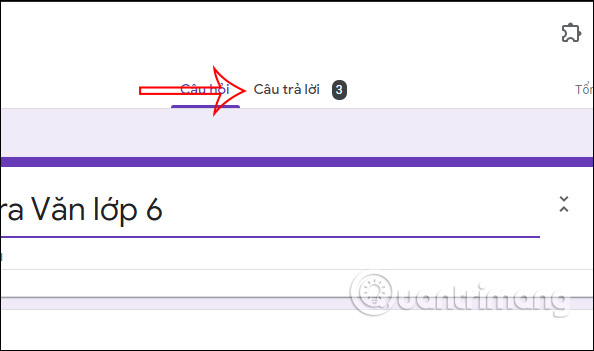
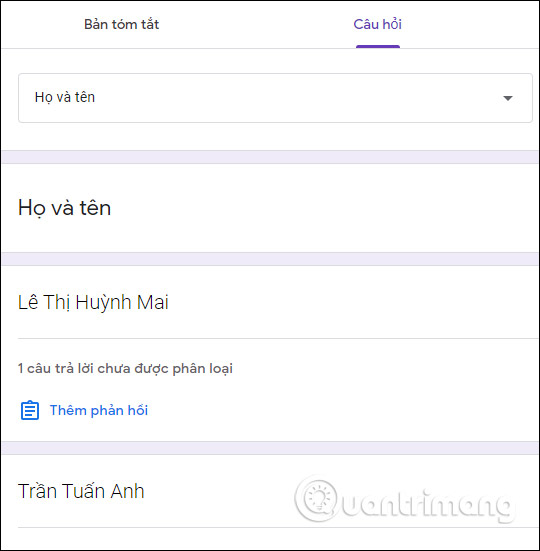
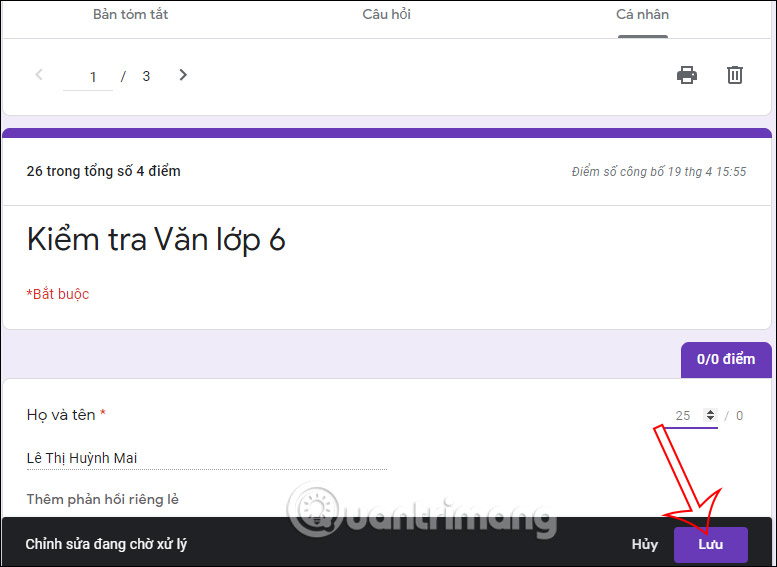
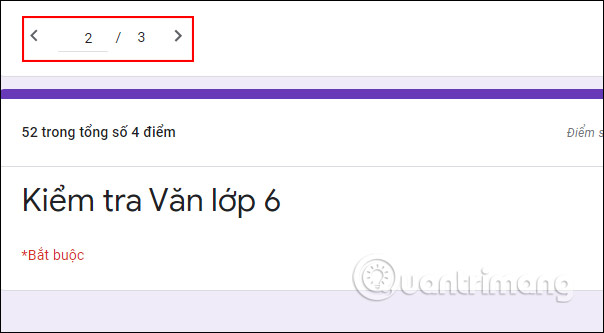
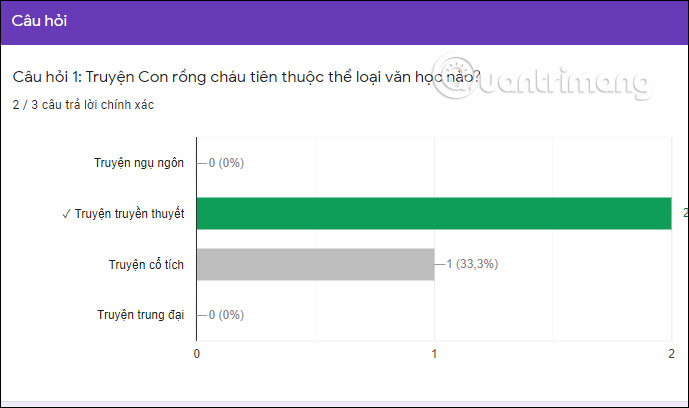
Above is a detailed guide on how to create a quiz on Google Forms. Remember that when creating a quiz using a specific Google account, you must log in with that same Google account to edit and view the answers.
Video Tutorial on Creating Tests on Google Forms
FAQ
What is the best way to create a quiz on google forms?
Learn how to create a quiz on Google forms with practical instructions, useful tips, and troubleshooting guidance for common issues.
What should you prepare before you create a quiz on google forms?
Key takeaway: Learn how to create a quiz on Google forms with practical instructions, useful tips, and troubleshooting guidance for common issues.
What common mistakes should you avoid?
Google Forms allows teachers to create multiple-choice tests and send them to students, then automatically grade them.
Related Articles
 This Is How to Create Multiple-choice Question Slides in Canva5 minutes read
 Instructions on Creating Multiple-choice Questions on Gemini3 minutes read
 Guide to Creating Multiple Choice Questions on Vnedu4 minutes read
 How to Create Exams on Microsoft Forms: Step-by-Step Guide4 minutes read
 How to Quickly Creating Multiple-Choice Questions Using Brisk3 minutes read
 How to Add Branches or Nested Questions in Google Forms4 minutes read
Reader Comments 0
Sign in with email or Google to join the discussion.