Table of Contents
For a desktop monitor, the most reliable way to change brightness is with the monitor's own buttons or joystick. Open its on-screen display (OSD), choose Picture, Brightness, or a similar menu, and adjust the backlight. The Windows brightness slider often controls only a laptop's built-in display.
Use the monitor's physical controls
- Find the buttons or joystick on the lower edge, back, or side of the monitor.
- Open the main menu. If a shortcut button shows a sun icon, it may open Brightness directly.
- Choose Picture, Image, or Brightness/Contrast.
- Adjust Brightness, wait for your eyes to adapt, and save or exit.
Menu names differ by model. If the controls are locked, look for OSD Lock in the manual; the unlock button and hold time are manufacturer-specific.
Brightness and contrast are not the same
- Brightness on most LCD and OLED monitor menus changes panel luminance or backlight output.
- Contrast changes the separation or gain between dark and bright tones. Excessive contrast can remove highlight detail.
- Black level, gamma, and shadow boost change tone reproduction rather than the panel's light output.
For everyday use, choose the monitor's standard or sRGB-like picture mode, disable extreme dynamic-contrast effects, then set the physical brightness for the room. TipsMake's monitor color-calibration guide explains gamma, brightness, contrast, and color balance.
Control a compatible monitor from Windows with DDC/CI
Some monitors accept brightness commands through Display Data Channel/Command Interface (DDC/CI). Enable DDC/CI in the monitor's OSD if the option exists, then use trusted monitor-control software.
This can be convenient for multiple monitors or keyboard shortcuts, but compatibility depends on the monitor, cable, adapter, dock, and graphics path. A software dimmer that merely places a dark overlay on the image is not the same as reducing the monitor's backlight.
TipsMake compares several options in its guide to multi-monitor brightness software for Windows. Review each program's current publisher, permissions, and support before installing it.
Why the Windows brightness slider may be missing
Open Settings > System > Display. If the selected display offers a Brightness slider, you can use it. Many conventional HDMI and DisplayPort monitors do not expose their physical brightness to Windows, so no slider appears. That behavior alone does not mean a driver is missing.
For a laptop panel, Windows brightness controls are normal; see TipsMake's Windows laptop brightness guide. For an external desktop monitor, use the OSD or supported DDC/CI control.
Do not confuse GPU color brightness with monitor brightness
NVIDIA, AMD, and Intel graphics tools may include a digital Brightness control. It changes the video signal or color curve and may lift black levels, crush highlights, or reduce color accuracy. It does not necessarily reduce the monitor's light output or energy use.
Legacy NVIDIA Control Panel
Older versions place the control under Display > Adjust desktop color settings.
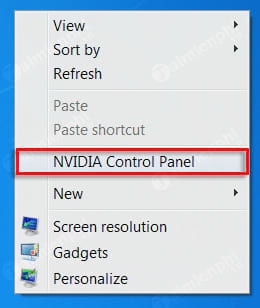
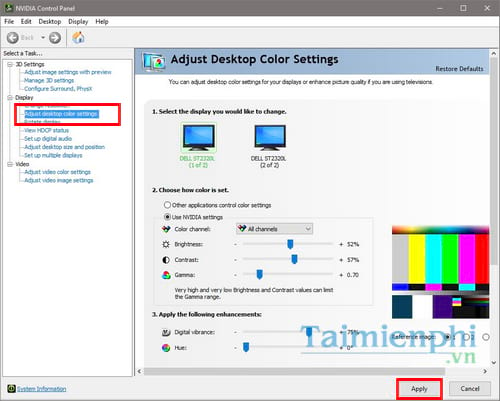
Use this only to correct a signal-level problem or as part of a deliberate calibration workflow. Leave it at the default for normal backlight adjustment.
Legacy ATI Catalyst Control Center
The original article's ATI interface is obsolete but may remain on legacy hardware.
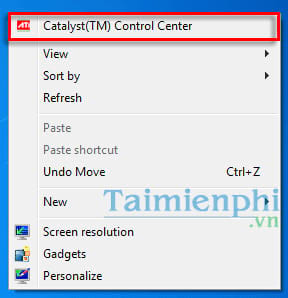
Current AMD software uses different menus. As with NVIDIA, a driver-side color slider does not replace the monitor's Brightness control.
Choose a comfortable level for the room
There is no single correct percentage because monitors have different maximum output and rooms have different lighting. Use these visual checks:
- A white page should look like a lit surface, not a glaring lamp.
- Dark text should remain easy to read without squinting.
- Lower brightness in a dim room and increase it when surrounding light is strong.
- Reduce reflections by repositioning the monitor or room lights before making the screen excessively bright.
- Keep the top of the display near or slightly below eye level and take regular viewing breaks.
Brightness that feels uncomfortable may contribute to temporary eye strain, but avoid unsupported claims that one setting directly and permanently damages eyesight. Persistent pain, severe headache, visual changes, or light sensitivity warrants advice from a qualified eye-care professional.
HDR, local dimming, and automatic modes
HDR mode may change how the monitor interprets its brightness controls. Windows also provides an SDR content brightness setting when HDR is enabled on supported displays. Local dimming, ambient-light sensors, power-saving modes, and dynamic contrast can make brightness vary automatically.
If brightness will not stay constant, temporarily disable these automatic features one at a time. For color-critical work, use the monitor mode and calibration workflow recommended for the application rather than judging only by perceived brightness.
If the brightness control is unavailable
| Symptom | What to check |
|---|---|
| Brightness is greyed out in the OSD | HDR, a locked picture preset, dynamic contrast, or an OSD lock |
| DDC/CI software cannot find the monitor | Enable DDC/CI; connect directly; test another cable or port; remove a dock or adapter |
| Windows slider changes only the laptop panel | Select the external display, then use its OSD if no separate slider exists |
| The screen becomes dim by itself | Eco mode, ambient sensor, dynamic contrast, content-adaptive controls, or power saving |
| Only part of the screen is dim | Panel, local-dimming, backlight, or hardware fault rather than a normal brightness setting |
Reset the monitor's picture settings if you cannot identify a conflicting option, but note any custom color profile first. If the panel flickers, shuts off, smells hot, or shows uneven dark areas regardless of source, disconnect it and arrange hardware service.
Related Articles
 Fixing the Issue of Not Being Able to Increase or Decrease PC Screen Brightness4 minutes read
 Increase or Decrease Laptop Screen Brightness Win 11/10/8/7: Step-by-Step Guide10 minutes read
 Quickly Adjust the Screen Brightness on Your MSI Laptop5 minutes read
 Manual Manual and Automatic Computer Screen Brightness Adjustment9 minutes read
 How to Adjust the Screen Brightness on Windows 10 Laptop5 minutes read
 Adjusting the Screen Brightness on an HP Laptop4 minutes read
Reader Comments 0
Sign in with email or Google to join the discussion.