Table of Contents
This guide organizes the entries in "6 Best Multi-Monitor Brightness Control Software for Windows" and explains what each option, idea, or example offers. It also highlights practical details that matter when comparing the choices.
While you can use the physical buttons on your monitor to adjust the brightness, this is a tedious task. Instead, third-party brightness control apps can help you adjust the screen brightness on Windows. Here are the best brightness control tools for Windows 10 and 11 systems. These apps can easily adjust the brightness of your primary and secondary displays.
1. Twinkle Tray Brightness Slider

Twinkle Tray is probably the most well thought out brightness control app available on Windows. It works great, looks great, and supports DDC/CI for external displays.
At a basic level, the app lets you adjust screen brightness for multiple displays. You can enable Link Level to enable uniform brightness control for all displays. You can also turn off the display when you move away from your setup.
Open the Advanced display control panel to change the brightness refresh rate and normalize brightness for uniform brightness across the screen. On a DDC/CI compatible display, you can toggle Contrast, Volume, and even Power State to turn the display on and off.
It also supports hotkeys and shortcuts. You can enable Idle detection to reduce screen brightness after a certain amount of idle time. Interestingly, the app is free to use and has no ads or in-app purchases.
2. Monitor
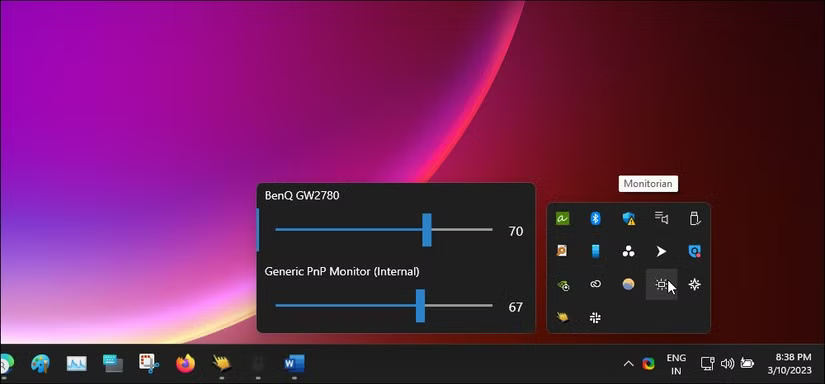
Monitorian was a favorite for a long time until Twinkle Tray came along. Like Twinkle Tray, it is not a dimmer but a desktop brightness control tool to adjust the screen brightness on Windows.
Using Monitorian is easy. Download and install the app, it will detect all the monitors connected to your PC. The app allows you to change the brightness of all the monitors at once or individually. For synchronized control, adjust the sliders for all the monitors and press the Unison icon to lock the sliders.
However, some advanced features require a fee. It includes support for more than 4 monitors and command line access, customizable hotkeys and shortcuts to adjust brightness for different monitors with different adjustment ranges.
The free version will be fine for most people. However, if you need to use the premium version, you will need to become a subscriber.
3. Dimmer
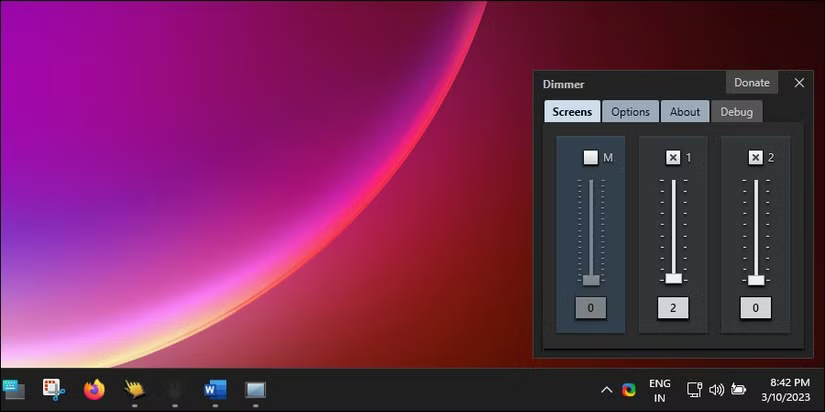
Dimmer is a handy little brightness control app for Windows PCs. It's portable, but you can configure it to run automatically after a user logs in.
Using Dimmer is a snap to install. The app detects all the monitors connected to your computer and assigns brightness sliders to them. Similar to Monitorian, you can adjust the brightness of your monitors individually or simultaneously. You can also enable or disable the brightness slider for each monitor.
The Options tab allows you to configure the app to display screen identity, borders, and startup settings. However, the app does not have hotkeys or shortcut support to control the blur level.
4. CareUEyes
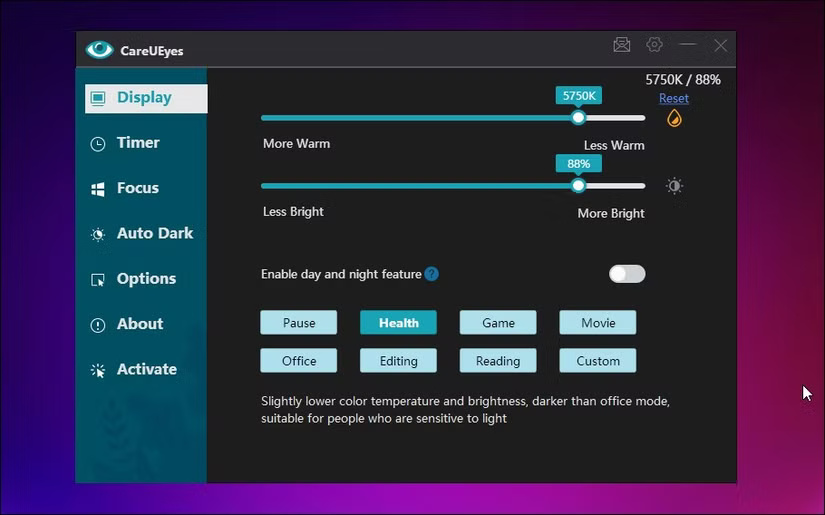
CareUEyes is probably the strangest of all the brightness control apps available for Windows. It is a brightness control and blue light filtering utility with some useful features to improve your productivity.
CareUEyes has main sliders to adjust blue light and brightness. It works on both the main display and the external display at the same time. You can also let the app decide what works best for you using predefined brightness presets.
Then there is the productivity aspect of the app. It has a Pomodoro technique mode with a timer. It allows you to configure your work sessions and breaks. The Focus tab has Focus Read and Focus Blur. It allows you to increase your focus, blurring distracting background apps and helping you focus on foreground windows.
If you go to the Options tab, you can find more options. For example, you can configure the Timer feature to lock Windows at the end of a break, play music during break, and automatically restart the timer. You can also assign hotkeys to adjust brightness, color temperature, reading mode, and more.
CareUEyes is a premium display control utility that comes with a free trial. It has a modern user interface and some handy features that no other brightness control app offers.
5. Iris
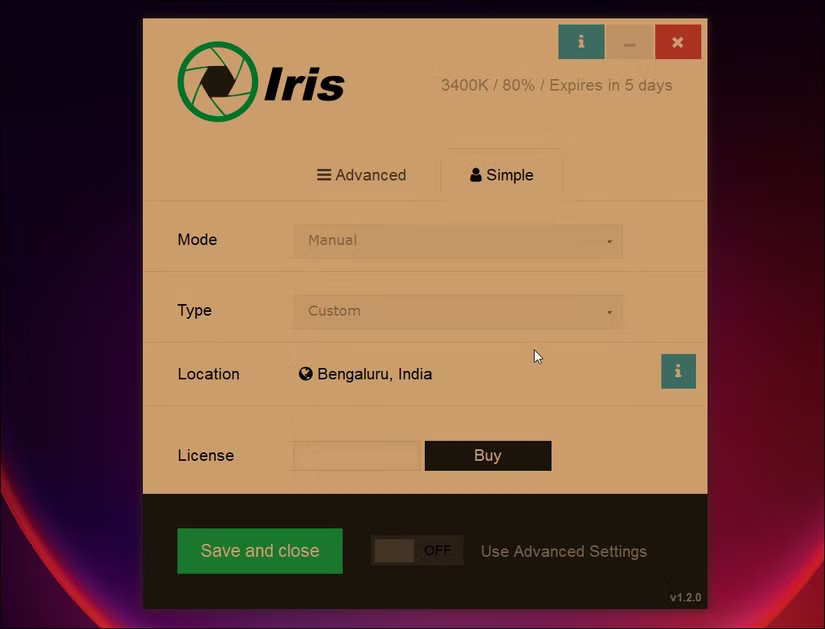
Iris is a cross-platform blue light filter and screen dimming tool. It is a paid app and offers a lot of customization features to configure screen brightness based on sleep habits and location. However, the app does not add any brightness sliders to the taskbar or system tray. You can only control brightness from the app interface.
The Simple tab includes brightness mode options and location settings. The Advanced tab is where you can tweak brightness and blue light settings. This tab includes brightness, saturation, transitions, screen effects, fonts, system, and keyboard shortcuts.
Iris is more than just a screen dimming tool, which is reflected in its price. You can subscribe monthly or buy a lifetime license for $14.99. However, the app may conflict with similar apps like Flu.x, so keep that in mind before making a purchase.
6. Windows10 BrightnessSlider
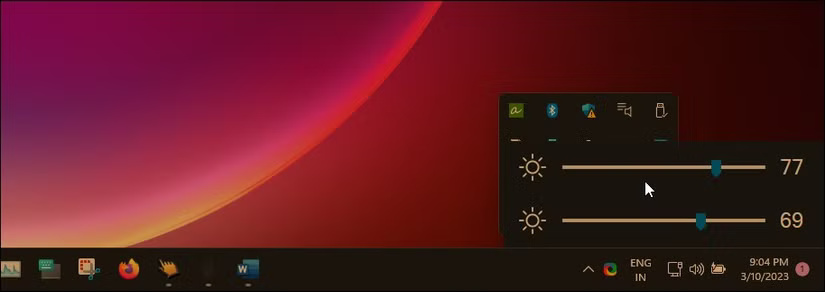
If all you need is a brightness control app without any customization features, Windows 10 BrightnessSlider is a good choice. It is a lightweight, portable utility that lets you control brightness for multiple monitors.
This utility will sit in the system tray after launching. select the application icon to adjust the brightness of the screen. While this application works, it does not have a uniform brightness adjustment feature.
There are also other brightness control apps, like DimScreen. A basic screen dimming tool that lets you adjust brightness from 0% to 90%.
Third-party brightness control apps are necessary when you have multiple monitors set up. Windows only supports the primary monitor by default, so third-party utilities are needed. These apps let you control the brightness on all your monitors individually or simultaneously. They also include some handy features for fine-tuning your display brightness.
FAQ
What should you know about 1. Twinkle Tray Brightness Slider?
Twinkle Tray is probably the most well thought out brightness control app available on Windows. It works great, looks great, and supports DDC/CI for external displays.
What should you know about 2. Monitor?
Monitorian was a favorite for a long time until Twinkle Tray came along. Like Twinkle Tray, it is not a dimmer but a desktop brightness control tool to adjust the screen brightness on Windows.
What should you know about 3. Dimmer?
Dimmer is a handy little brightness control app for Windows PCs. It's portable, but you can configure it to run automatically after a user logs in.
What should you know about 4. CareUEyes?
CareUEyes is probably the strangest of all the brightness control apps available for Windows. It is a brightness control and blue light filtering utility with some useful features to improve your productivity.
Related Articles
 How to Control the Brightness of Your Computer with Windows 75 minutes read
 Top 8 Simple PC Brightness Adjustment Software: Guide7 minutes read
 What Is Nit Screen Brightness?4 minutes read
 How to Control LED Brightness on Raspberry Pi Using PWM: Complete Guide11 minutes read
 These Software Change the Brightness, Contrast the Most Effective4 minutes read
 Top 5 Best Screen Brightness Control Apps on Android8 minutes read
Reader Comments 0
Sign in with email or Google to join the discussion.