Table of Contents
Windows does not include a universal shortcut that locks only a laptop keyboard. For cleaning, the safest option is to shut down and unplug the laptop. For a short interruption, lock the whole Windows session with Windows + L. If you need to keep using an external keyboard while the built-in one is disabled, Device Manager or carefully chosen key-control software may help, but both have limitations.
Choose a method based on the reason
| Goal | Recommended action |
|---|---|
| Clean the keys | Shut down, unplug power, and clean the keyboard while the computer is off. |
| Stop a child or pet from changing work | Save your work and press Windows + L to lock the entire session. |
| Watch media without accidental input | Use the player's full-screen or child controls; Windows has no standard keyboard-only lock. |
| Use an external keyboard because the built-in one is faulty | Connect and test the external keyboard first, then use Device Manager if a temporary disable option is available. |
| Disable one problem key | Use a reputable key-remapping or key-blocking utility and keep a recovery method ready. |

“Keyboard lock” can mean protecting a session, disabling hardware, or blocking selected keys.
Shortcuts that do—and do not—lock the keyboard
Windows + L locks the Windows account and requires the normal sign-in method to return. It does not disable the physical keyboard, but keystrokes cannot edit open documents while the lock screen is active.
Windows + Space changes the input language or keyboard layout. Shift + Esc has no Windows-wide keyboard-lock function. Some laptop manufacturers assign a keyboard or touchpad toggle to an Fn key, but this is model-specific; check the keyboard icon and the manufacturer's manual before using it.
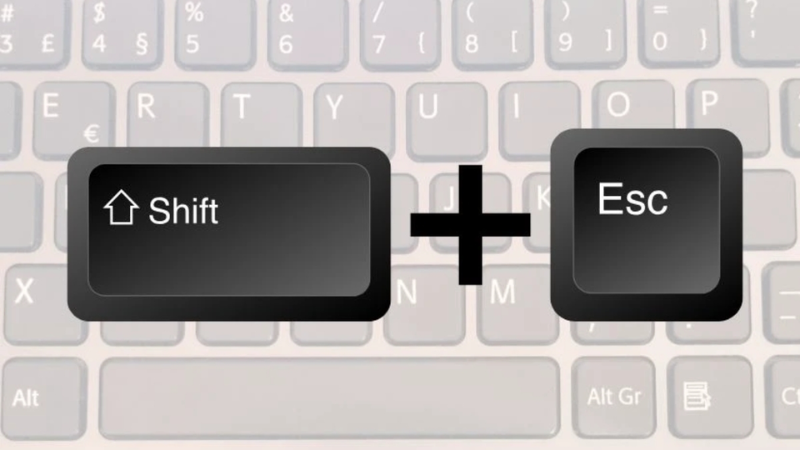
Shift + Esc is not a standard Windows keyboard-lock shortcut.
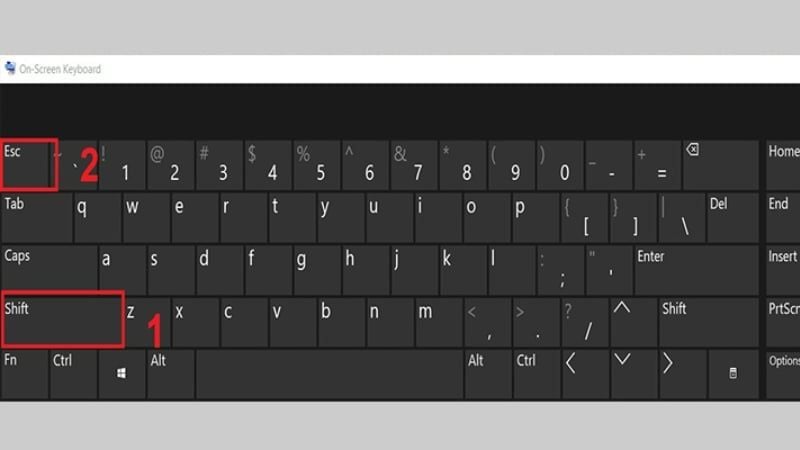
Do not assume that repeating an undocumented shortcut will restore input.
Safest method for cleaning a laptop keyboard
- Save your work and shut down Windows.
- Disconnect the charger and all accessories. Remove the battery only if the model is designed for user removal.
- Use a soft brush, microfiber cloth, or brief controlled bursts of compressed air. Do not spray liquid directly onto the keys.
- Let any approved cleaning solution evaporate completely before reconnecting power.
Turning the laptop off avoids accidental commands and is safer than installing a utility solely for cleaning. The same principle applies to internal cleaning: see the precautions in this guide to cleaning a laptop fan.
Temporarily disable the built-in keyboard in Device Manager
Use this only when a working external keyboard and mouse are already connected. The exact menu depends on the laptop driver and Windows version.
- Right-click Start and open Device Manager.
- Expand Keyboards. A laptop may list more than one HID or keyboard device, so disconnect the external keyboard briefly if you need to identify which entry disappears.
- Right-click the built-in keyboard entry. Choose Disable device only if that command is present.
- Test the external keyboard before closing Device Manager.
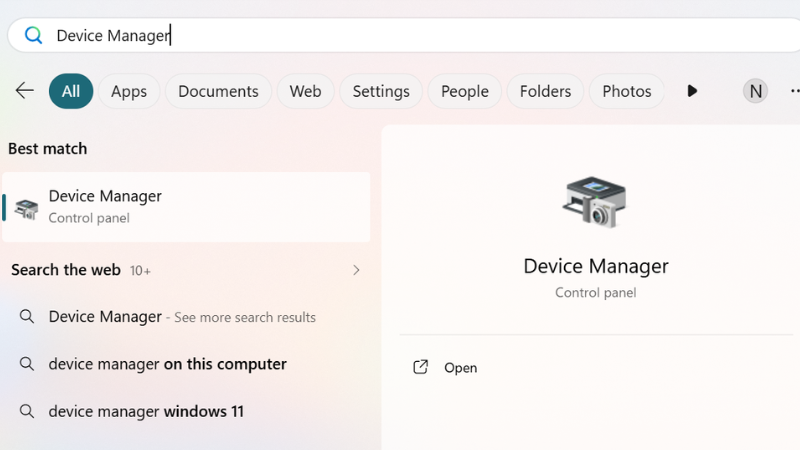
Expand Keyboards and identify the built-in device carefully.
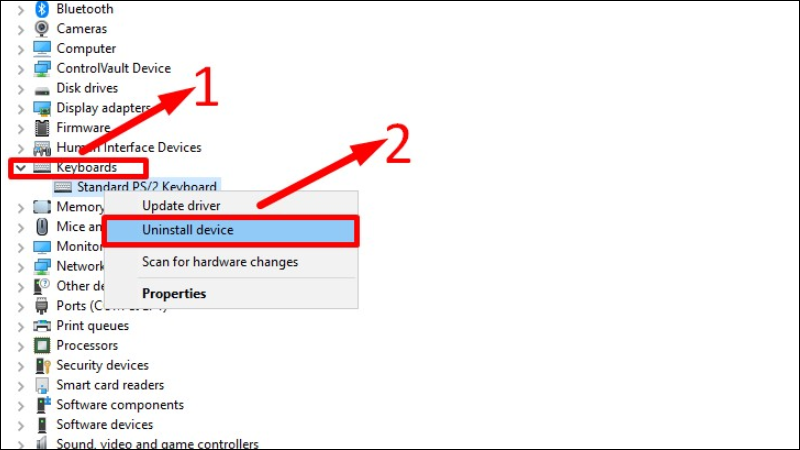
Uninstall device is not a reliable permanent lock because Windows may reinstall the driver.
If only Uninstall device appears, Windows will usually redetect the keyboard after a restart or hardware scan. That makes the method temporary and inconsistent across laptops. Do not install an intentionally incompatible driver or alter device-installation policy merely to keep a keyboard disabled; those changes can affect recovery and updates.
Use third-party keyboard-lock software cautiously
A dedicated utility can be useful when you need a reversible keyboard-and-mouse lock or want to disable selected keys. Before installing one:
- Download it only from the developer or a trusted software repository.
- Check that the current release supports your Windows version.
- Scan the installer with Windows Security and review what runs at startup.
- Learn the documented unlock combination before activating the lock.
- Keep a mouse, touch screen, or external keyboard available in case the utility fails.
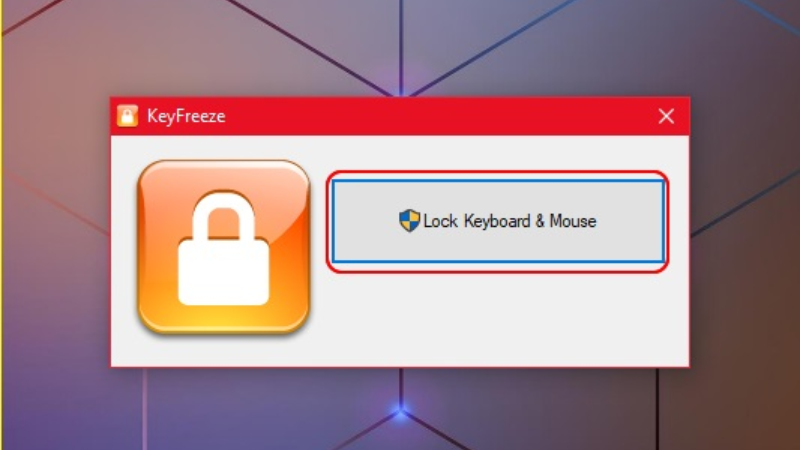
A keyboard-and-mouse locker can also block the controls needed to unlock it.
Legacy utilities such as KeyFreeze may appear in older tutorials, but download links, maintenance status, and compatibility can change. Do not install a copy from an unknown mirror simply because its interface matches an old screenshot.

Verify the source and current compatibility of any key-blocking utility.
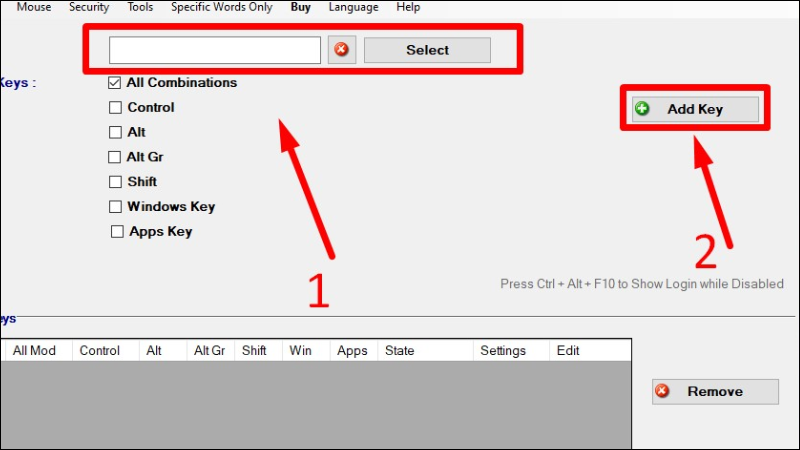
Granular tools can target a specific key instead of disabling the entire keyboard.
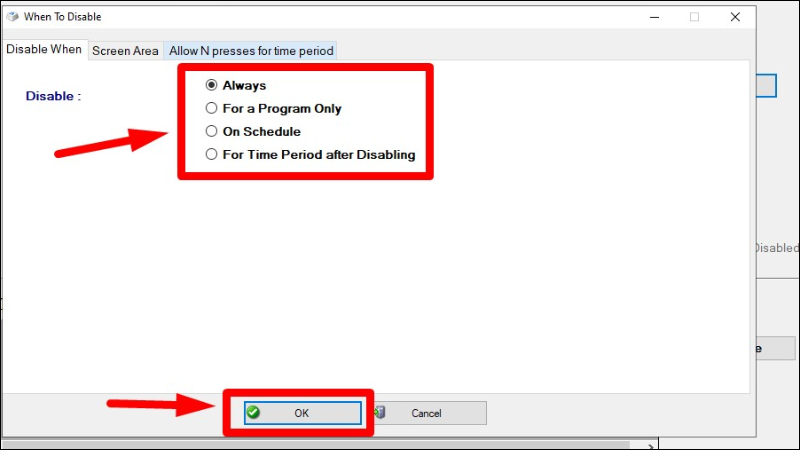
Review whether a rule applies always, in one program, or on a schedule before enabling it.
How to restore keyboard input
- If you used a utility, use its documented unlock command or exit it from its tray icon.
- If Device Manager shows the keyboard as disabled, right-click it and choose Enable device.
- If the keyboard was uninstalled, restart Windows or choose Action > Scan for hardware changes in Device Manager.
- If neither the built-in nor external keyboard works, use the on-screen keyboard from Settings > Accessibility > Keyboard or the accessibility button on the sign-in screen.
- Restart and test the keyboard before changing more settings.
The Ease of Access options shown in older guides change how keystrokes are interpreted; they do not provide a general keyboard lock.
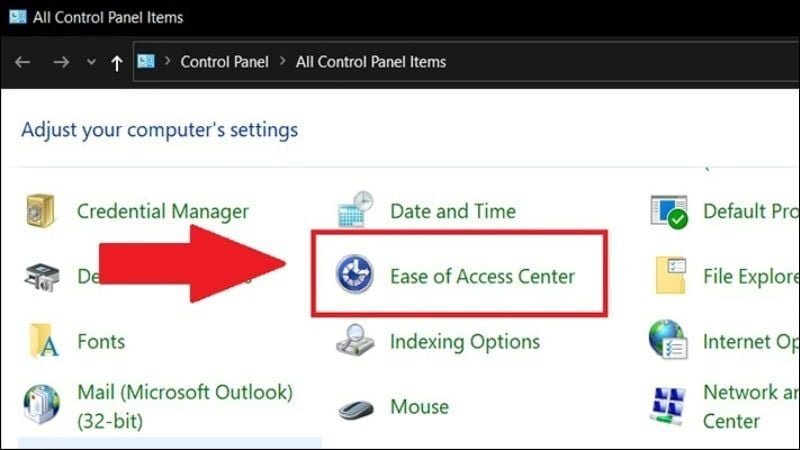
Open Accessibility settings only when features such as Filter Keys are affecting input.
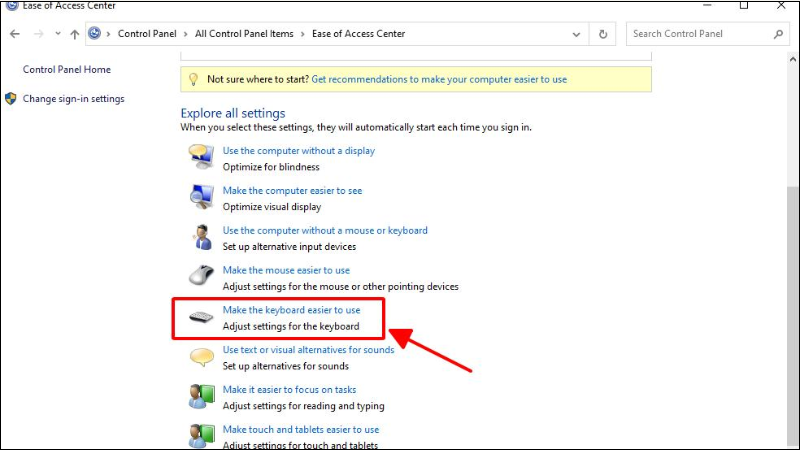
“Make the keyboard easier to use” contains accessibility options, not a master unlock control.
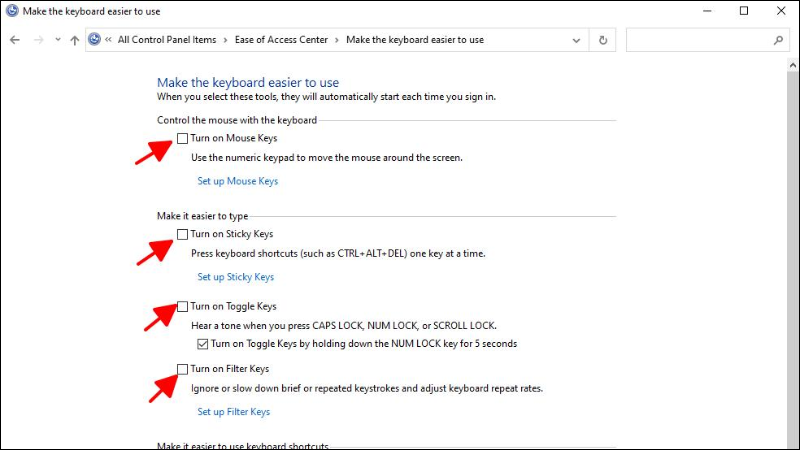
Do not turn off every accessibility feature unless you know which one caused the problem.
If the keyboard is malfunctioning rather than intentionally locked
Repeated characters, dead keys, or unexpected shortcuts can result from debris, a damaged ribbon cable, accessibility settings, layout selection, or a driver problem. Work through the checks in this keyboard reset guide and use a keyboard test tool to identify which keys register. A physically stuck key should be repaired rather than hidden with software if it can keep sending input.
Bottom line
Power the laptop off for cleaning, use Windows + L to protect an unattended session, and reserve hardware disabling or third-party utilities for cases where you have another working input method. Ignore generic “lock” shortcuts unless the laptop manufacturer documents them for your exact model.
Related Articles
 3 Easy Ways to Lock Your Acer Laptop Keyboard at Home9 minutes read
 How to Lock the Laptop Keyboard, How to Disable the Laptop Keyboard3 minutes read
 How to Cleaning Laptop Keyboard Without Turning Off the Computer (Safe && Effective)8 minutes read
 8 Simplest Ways to Lock Windows 10 Computer Screen: Recommended Choices9 minutes read
 How to Lock the Laptop Keyboard to Use the Removable USB Keyboard4 minutes read
 4 Simple and Quick Ways to Turn Off the Laptop Keyboard: Best Options Compared8 minutes read
Reader Comments 0
Sign in with email or Google to join the discussion.