Table of Contents
Using keyboard shortcuts to increase and decrease volume allows for quick operation without needing a mouse. This method is very convenient when using laptops and PCs for various purposes. The following content will explain the key combinations for increasing and decreasing volume, how to effectively adjust your computer's volume, and how to troubleshoot common issues.
Volume shortcuts in Windows
On Windows, keyboard shortcuts for adjusting the volume are readily available on laptops and PC keyboards, making it more convenient for users to manage their computer usage.
Using the default keyboard shortcut
Most modern laptops now have function keys integrated into the first row of keys.
- Increase the volume : Press the Fn key + the key with the plus sign speaker icon.
- To decrease the volume : Use the key combination Fn + the speaker key with a minus sign.
- Mute : Press the Fn key + the key with the crossed-out speaker icon.
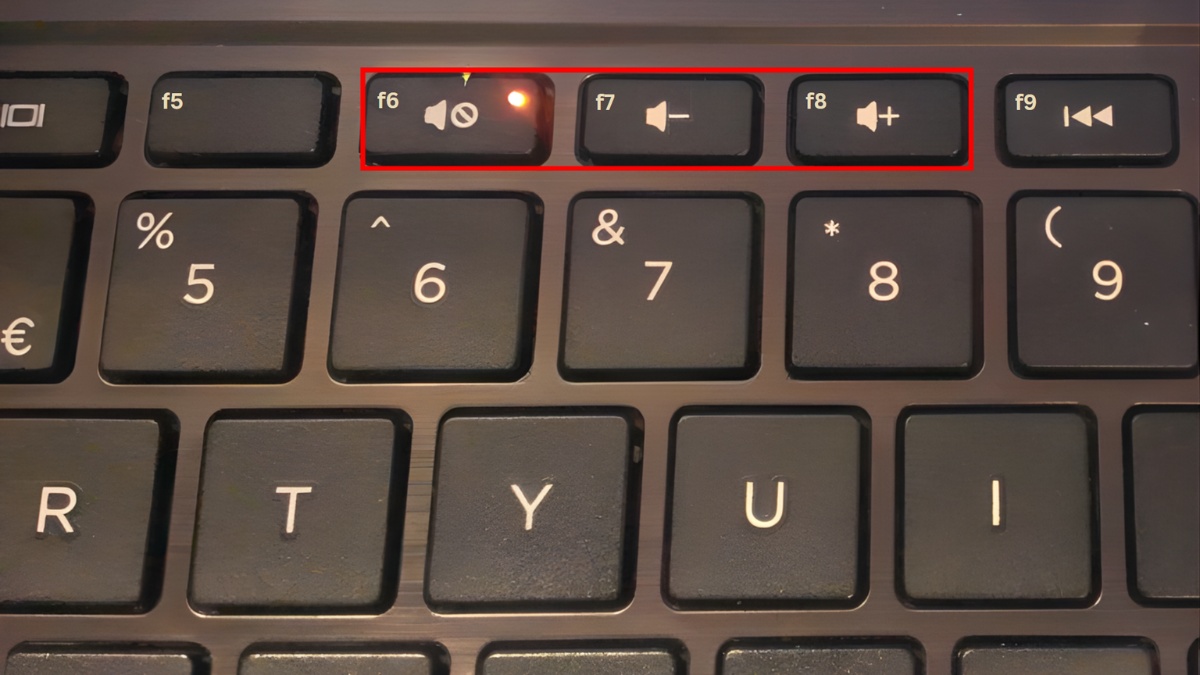
Note: Some computers allow you to press the F key directly without holding down the Fn key, depending on the Fn Lock settings in the BIOS or the manufacturer's software.
Using an external keyboard
With a separate keyboard, the volume up and down shortcut keys are often designed separately for faster user operation when using a desktop PC. These keys may be displayed as Volume +/Volume - or integrated into a convenient volume control dial.
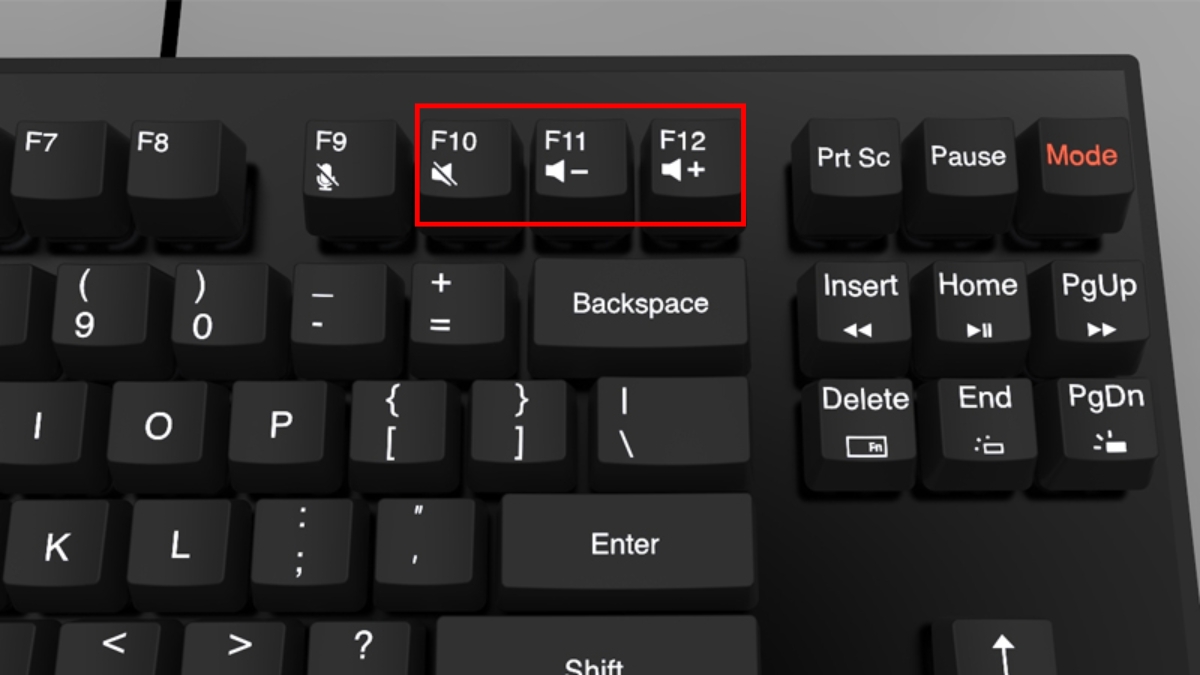 Volume up/down buttons on the external keyboard
Adjusting the volume using your PC keyboard allows you to instantly control the sound without opening system settings. This method is suitable for office workers, gamers, or anyone who frequently works with computers.
Create keyboard shortcuts using AutoHotkey software
If your keyboard doesn't support it, you can create a volume up/down shortcut on your computer using AutoHotkey. This software allows you to assign custom key combinations as follows:
1. Download the AutoHotkey software:
- Open your browser and go to the ' AutoHotkey' website → click the ' Download' button on the homepage.
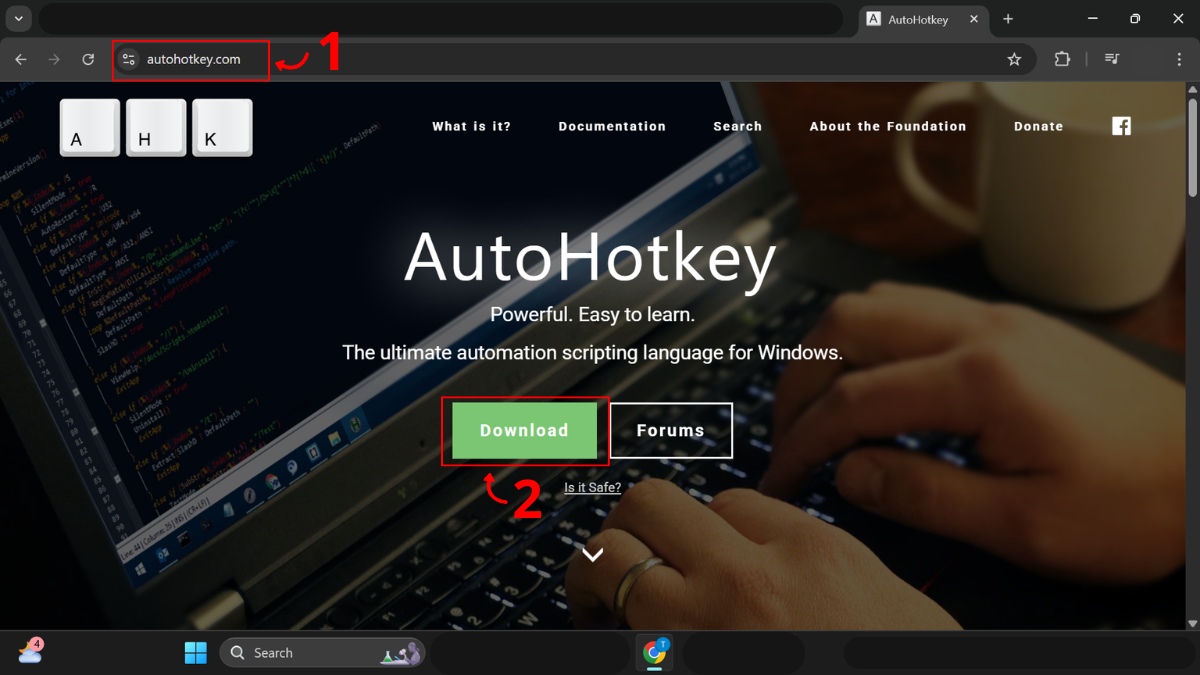 AutoHotkey software interface
- Select ' Download v1.1' to download the appropriate version.
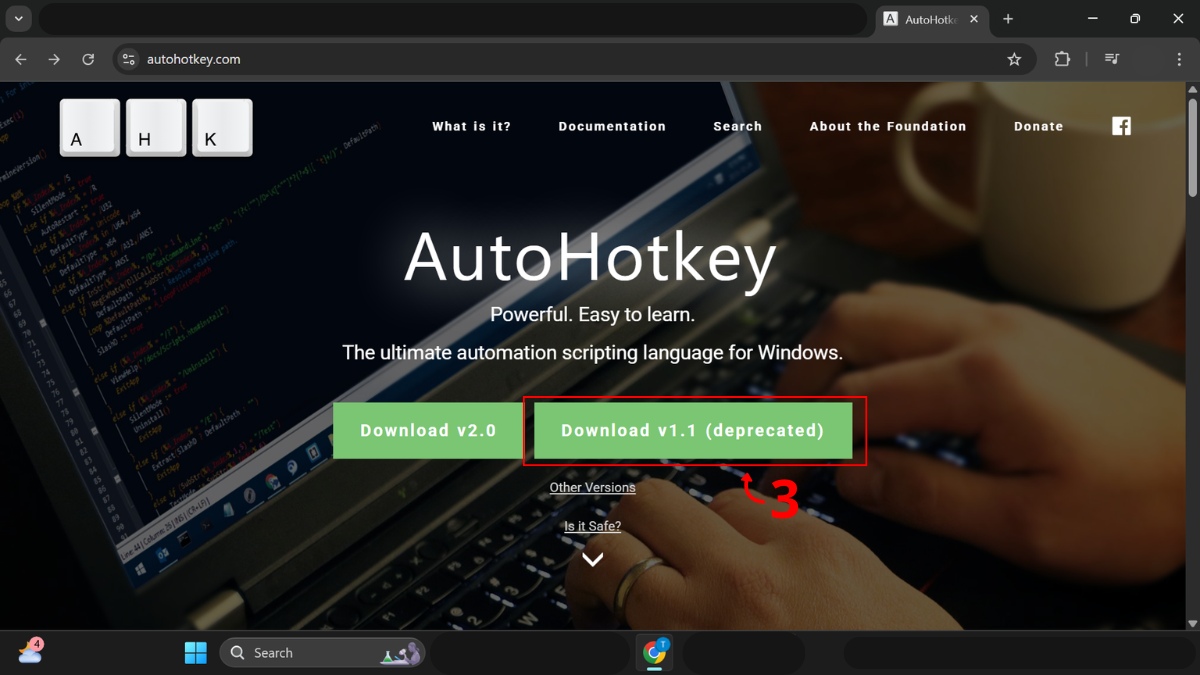 Start downloading the AutoHotkey software.
2. Install the AutoHotkey software:
- Right-click on the downloaded file → When the AutoHotkey Setup window appears, select 'Express Installation' .
- After the installation is complete, press 'Exit' .
3. Create the AutoHotkey Script file:
- On the Desktop, right-click and select 'New' → select 'AutoHotkey Script' .
4. Edit the AutoHotkey Script file:
- Right-click on the created folder, then select 'Edit Script' .
- Enter the code shown in the image into the file.
- Click 'File' → select 'Save ' to save the content.
5. Run and activate AutoHotkey:
- Double-click the Amluong file to run it. If you see the message 'An older instance of this script is already running', select 'Yes' .
- Click the arrow icon on the taskbar, then the blue "H" icon → AutoHotkey has been successfully activated.
Note: The steps may vary depending on the version of software you are using.
Unresponsive volume buttons and inconsistent speaker volume are signs that your laptop is deteriorating, easily leading to lag and overheating. Don't let a faulty device interrupt your work. Upgrade to a new, stable-performance laptop today.
Volume shortcuts on a Mac
With MacBooks, Apple has placed the volume up and down keys together on the function key row. This design makes adjusting the sound more intuitive and easier to use.
Use the F10-F12 function keys
MacBooks support direct volume adjustment using the F10–F12 function keys on the keyboard. Users simply press the correct key to quickly increase, decrease, or mute the volume without having to open system settings.
- F12: Increase the volume
- F11: Turn the volume down
- F10 : Mute.
If the F10–F12 keys are not working, press and hold the Fn key in combination with the corresponding key. If Fn Lock is enabled, simply press F10, F11, or F12 directly to use them.
Adjust the volume control key combination
For more precise sound adjustment, you can use the Option + Shift + F11/F12 key combination when using the volume up/down shortcuts on your MacBook. This allows the volume to change in small increments instead of increasing or decreasing at the default level.
When activated, the volume bar on the screen will be divided into quarter-step increments, equivalent to approximately 64 small adjustment levels. This allows users to control the sound in more detail and better suit their needs.
Shortcut keys for increasing and decreasing volume in some popular apps
Besides computer systems, volume buttons are also integrated directly into many video and music playback applications. These buttons allow users to adjust the sound while watching content without having to go outside the main interface.
Here are some common volume control key combinations used in various apps:
YouTube:
- Press the up arrow to increase the volume.
- Press the down arrow to decrease the volume.
Brad:
- Press the up arrow to increase the volume.
- Press the down arrow to decrease the volume.
VLC Media Player:
- Hold down Ctrl and then click the up arrow to increase the volume.
- Press Ctrl and the down arrow key to lower the volume.
Windows Media Player:
- Increase the volume: Press F10.
- Decrease volume: Press F9.
How to fix a non-working volume shortcut key
When the volume up and down shortcuts aren't working on your Windows computer, you can try the following methods to fix it:
- Restart your device: Turning the device off and on again can resolve temporary system errors or software conflicts.
- Check the Fn key combination: Press Fn along with the key with the speaker icon, such as F1, F2, F3, or F7, F8, depending on the computer manufacturer.
- Restart the audio service: Use Windows + R to open the Run dialog box, type services.msc. Select Windows Audio and Windows Audio Endpoint Builder, then click Restart.
- Update your keyboard driver: Open Device Manager, go to Keyboards, right-click on the driver and select Update driver.
The volume up/down shortcut keys are a simple yet highly effective solution when using laptops and computers. With just a few keyboard clicks, you can quickly control the sound, saving time and minimizing interruptions while working or playing. Using them correctly will make operation more convenient and easily resolve common volume issues.
Related Articles
 How to Adjust iPhone Volume Via Shortcut Keys3 minutes read
 10 Priceless Shortcuts for Computer Users6 minutes read
 Summary of Convenient Facebook Shortcuts for Windows and Mac2 minutes read
 Shortcut Gta V, Gta V Joystick on the Computer5 minutes read
 52 Computer Keyboard Shortcuts for Super Fast Computer5 minutes read
 How to Change Volume on Mac: Practical Guide4 minutes read
Reader Comments 0
Sign in with email or Google to join the discussion.