Table of Contents
On most Windows laptops, use the keys marked with small and large sun icons to dim or brighten the built-in screen. Depending on the keyboard, press the key by itself or hold Fn. You can also press Windows + A and move the Brightness slider in Quick Settings.
Use the laptop brightness keys
- Look along the function-key row or arrow keys for sun icons.
- Press the dimmer or brighter key. If nothing happens, hold Fn and press it again.
- If the function row controls F1–F12 instead, toggle Fn Lock when the keyboard supports it, or change the hotkey behavior in the manufacturer's utility or firmware settings.
The key positions vary by model—even within the same brand—so follow the printed icons rather than a generic F-key list.
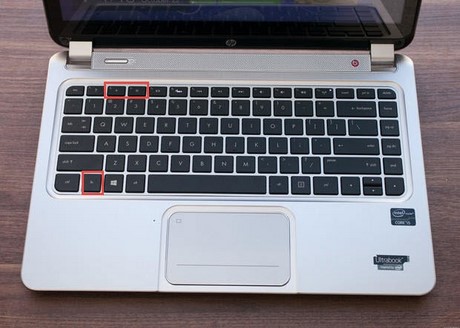
TipsMake's laptop Fn-key guide explains the common symbols. If the keys do not work but the Windows slider does, install the model-specific hotkey or system-interface component from the laptop manufacturer's support page.
Use Quick Settings in Windows 11
- Press Windows + A, or select the network, volume, or battery area on the taskbar.
- Drag the Brightness slider left to dim the screen or right to brighten it.
The slider normally affects the built-in laptop panel. An external monitor usually needs its physical controls or supported DDC/CI software.
Use Display settings
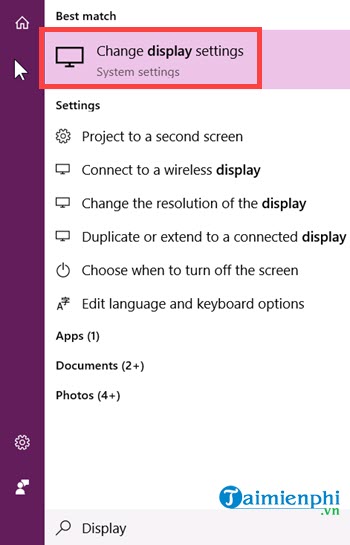
- Open Start > Settings > System > Display.
- If several displays appear, select the built-in screen.
- Expand Brightness when necessary and move the slider.
- Review automatic brightness and content-adaptive options if the level changes on its own.
Windows 10 uses the same general Display page, although the layout differs by version. The following screenshots show an older Windows 10 interface.
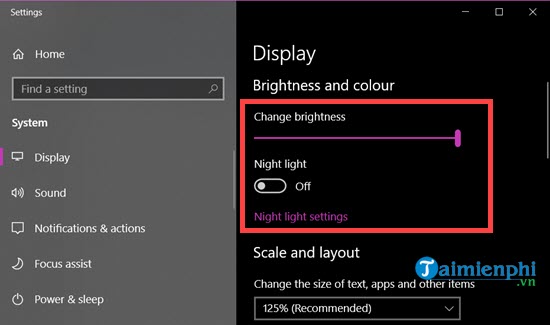
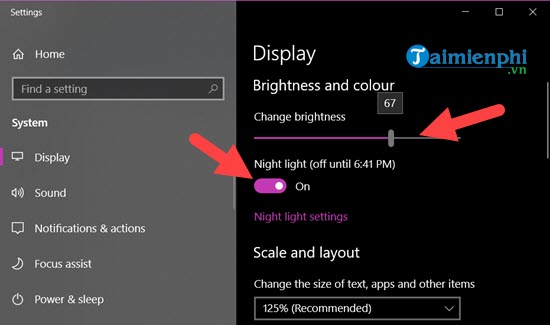
Night Light changes color, not backlight brightness
Night Light makes the display warmer by reducing blue-toned output. It can make evening viewing more comfortable, but it does not replace the hardware Brightness slider and does not repair brightness keys.
Open Settings > System > Display > Night light to set its strength and schedule. A sunset-to-sunrise schedule needs location services; otherwise, choose fixed times. There is no universal default time because sunset depends on location and date.
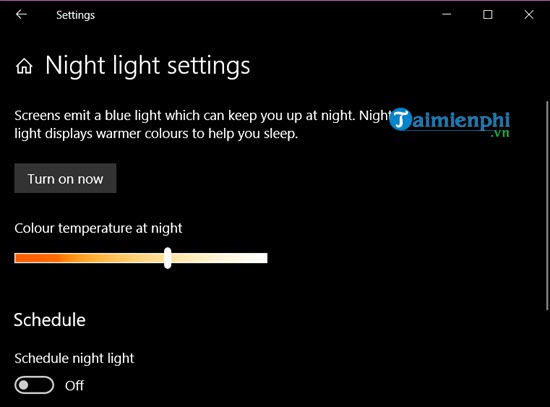
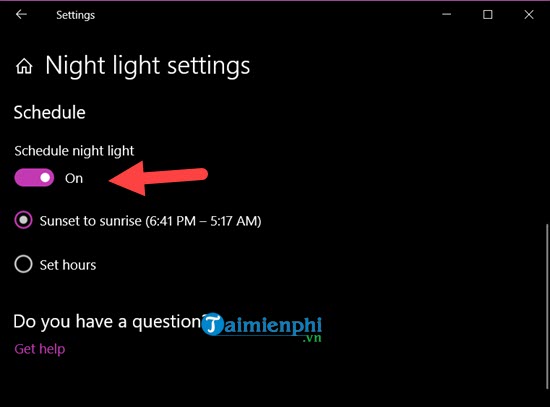
Turn Night Light off temporarily when color accuracy matters, such as photo editing, color grading, or monitor calibration.
Open Windows Mobility Center
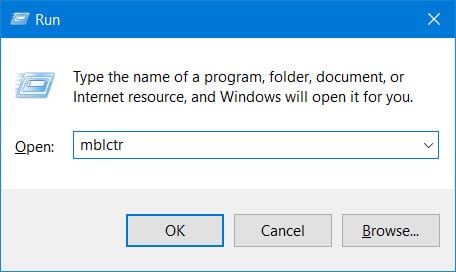
Press Windows + R, type mblctr, and press Enter. Move the Display brightness slider if it is available.
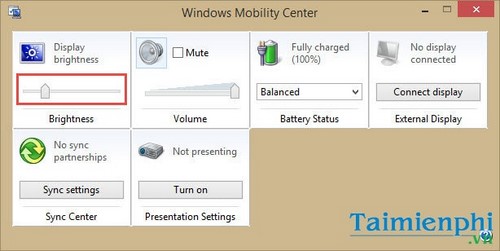
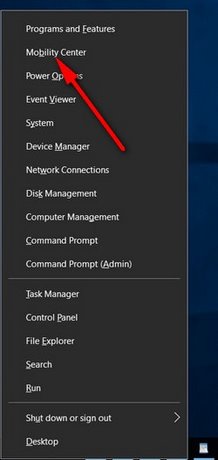
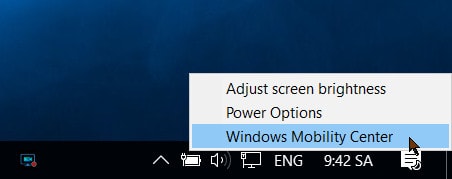
Some older Windows versions offered Mobility Center from the Windows + X menu or the battery icon. Those routes may not exist on current Windows 11 builds.
Set separate battery and plugged-in levels on older Windows versions
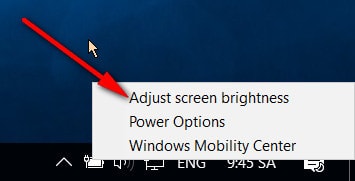
Older Windows 7 and early Windows 10 power plans could store different brightness levels for battery and AC power. Right-clicking the battery icon opened a brightness or power-plan route.
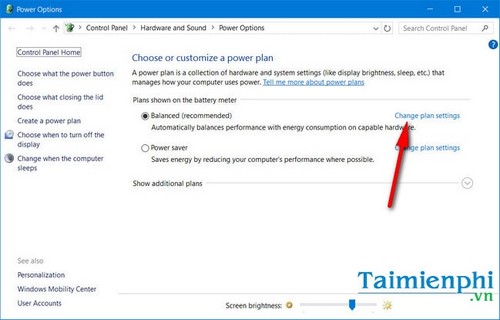
Selecting Change plan settings exposed On battery and Plugged in sliders.
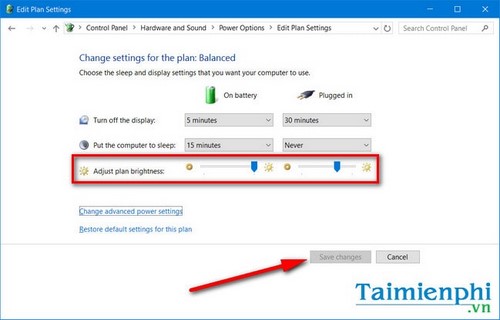
Current Windows 11 systems typically use the Display slider plus Settings > System > Power & battery. Energy Saver and manufacturer utilities may still lower brightness on battery.
Legacy Windows 10 Action Center
Windows 10's Action Center originally used a brightness tile that cycled through preset levels; later builds added a slider.
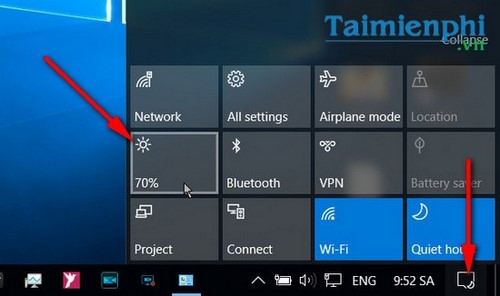
In Windows 11, use Quick Settings with Windows + A.
F.lux and other color-temperature tools
F.lux can change screen color temperature by time of day. It may also provide software dimming in some configurations, but it does not replace a working laptop backlight control.
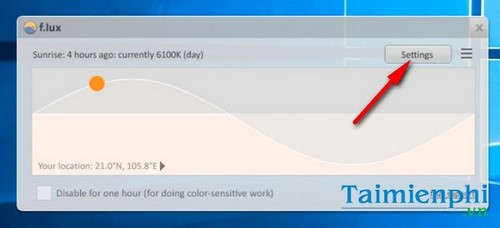
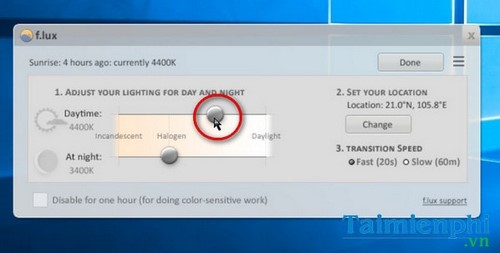
Use one color-temperature tool at a time to avoid conflicting schedules. For an external desktop monitor, read TipsMake's guide to multi-monitor brightness software and check whether the display supports DDC/CI.
If the brightness slider or keys do not work
| Symptom | Best next check |
|---|---|
| The Windows slider works but the keys do not | Fn mode, Fn Lock, and the laptop maker's hotkey/system-interface package |
| The slider is missing | Select the built-in panel; verify the integrated GPU and Generic PnP Monitor in Device Manager |
| The slider moves but the panel does not change | Restart, reset the graphics driver with Windows + Ctrl + Shift + B, and install supported graphics drivers |
| Brightness changes by itself | Automatic brightness, content-adaptive brightness, Energy Saver, HDR, Intel/AMD power saving, and OEM utilities |
| Only the external monitor stays bright | Use its OSD or supported DDC/CI control |
Install drivers and utilities only for the exact laptop model from Windows Update, the manufacturer, or the graphics vendor when appropriate. Avoid generic driver-updater programs and model-agnostic registry edits. TipsMake's complete Windows laptop brightness guide covers additional troubleshooting.
Choose brightness for the environment
There is no universally correct percentage. A white page should be comfortably readable without looking like a glaring light source. Reduce reflections and room-light imbalance, keep a comfortable viewing distance, and take regular breaks. Persistent eye pain, headaches, or visual changes should be discussed with a qualified eye-care professional rather than treated only by changing a slider.
Related Articles
 Adjust Screen Brightness on Acer Laptop4 minutes read
 Adjusting Screen Brightness on an Asus Laptop4 minutes read
 Adjusting the Screen Brightness on an HP Laptop4 minutes read
 Adjust Screen Brightness of Windows 7 on PC, Laptop7 minutes read
 How to Adjust the Screen Brightness on Windows 10 Laptop5 minutes read
 Tutorial 4 Ways to Adjust the Screen Brightness of Windows 105 minutes read
Reader Comments 0
Sign in with email or Google to join the discussion.