Table of Contents
In Windows 11, open Settings > Accessibility > Text size, move the slider until the preview is comfortable, and select Apply. This enlarges text across many parts of Windows without lowering the screen resolution. Windows 10 has a similar control under Settings > Ease of Access > Display.
Choose the right enlargement control
| What you want to enlarge | Best control |
|---|---|
| Mainly text across Windows | Accessibility > Text size |
| Text, icons, apps, and interface elements | Settings > System > Display > Scale |
| One web page or document | App zoom, usually Ctrl + Plus |
| A temporary area of the screen | Windows Magnifier |
Keep Display resolution at the value marked Recommended. Lowering an LCD panel below its native resolution can make text and images look blurry.
Make text bigger in Windows 11
- Press Windows + I to open Settings.
- Select Accessibility, then Text size.
- Drag the slider while watching the preview.
- Select Apply and wait for Windows to update the interface.
If some app controls are still too small, open Settings > System > Display and choose a larger recommended Scale value. Scaling enlarges much more than text, so test one recommended step at a time.
Make text bigger in Windows 10
- Open Settings > Ease of Access > Display.
- Under Make text bigger, move the slider.
- Select Apply.
Older Windows 10 builds may not include the separate text slider. In that case, right-click the desktop, open Display settings, and change Scale and layout to a recommended percentage.
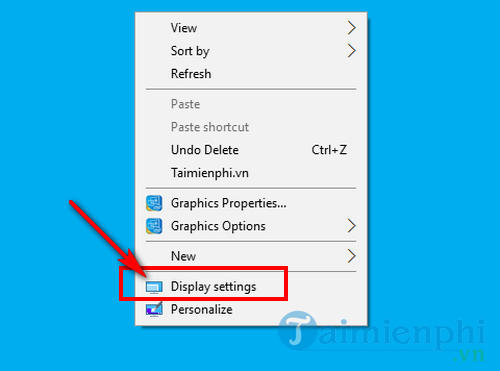
The next four screenshots show a legacy Windows 10 route through Advanced display settings. Current builds no longer use this exact sequence, but the images are retained for computers still running that interface.
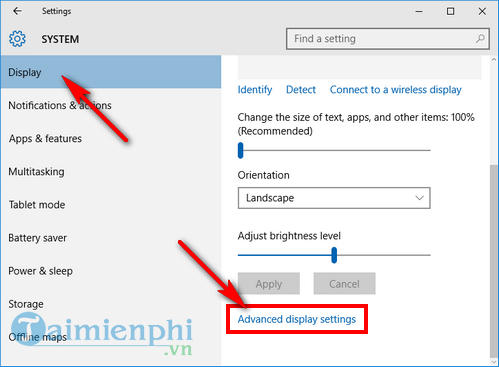
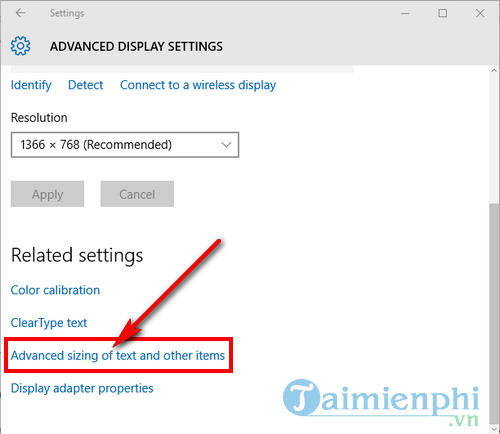
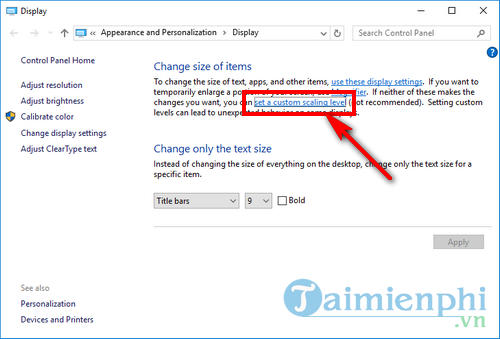
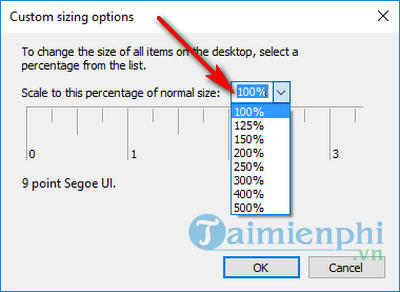
Prefer a recommended preset before custom scaling. Very high custom values can push controls off-screen or make an older app render poorly. If an app becomes blurry, return to the previous scale, sign out, and sign in again.
Make text and interface elements bigger in Windows 7
Windows 7 is no longer supported for ordinary consumer use, but these steps remain useful on a legacy offline or specially managed system:
- Right-click the desktop and select Screen resolution.
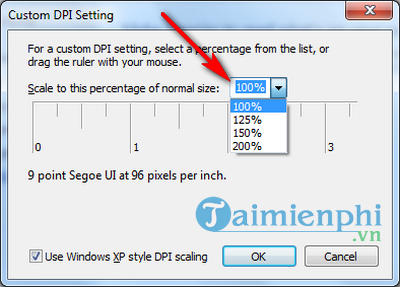
- Select Make text and other items larger or smaller.
- Choose Medium – 125% or Larger – 150%, when available.
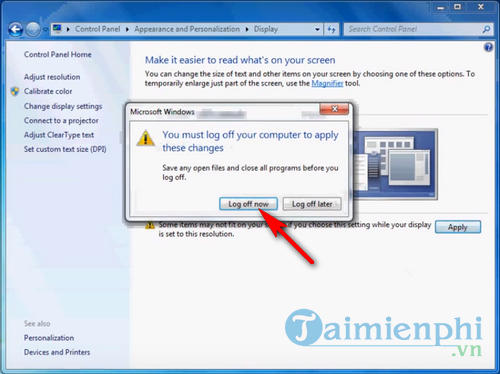
- Select Apply, then sign out and back in when prompted.
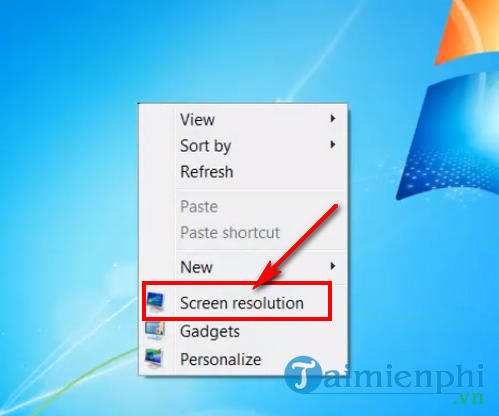
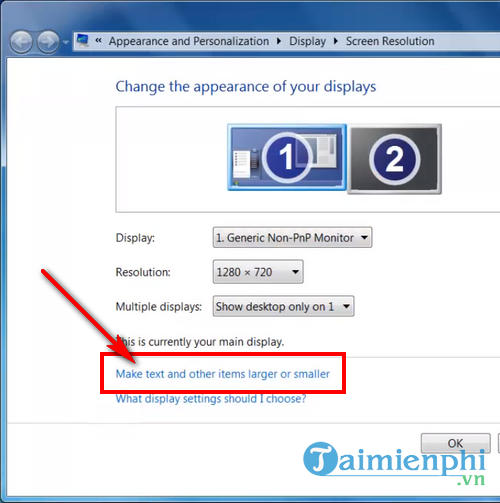
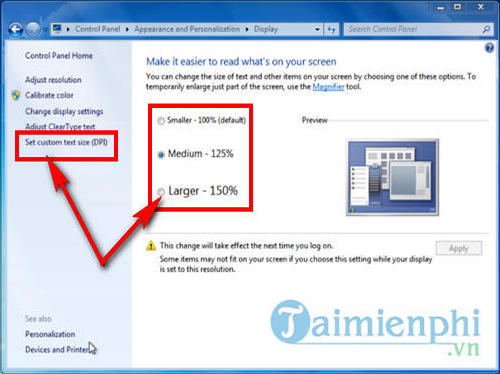
The custom DPI dialog accepts a percentage, but a preset is less likely to cause layout problems.
Windows 7 usually requires signing out for the new size to appear consistently.
Zoom one app instead of changing Windows
For a web page, email, PDF, or document, app zoom may be the better choice:
- Ctrl + Plus (+) zooms in.
- Ctrl + Minus (-) zooms out.
- Ctrl + 0 usually restores the default zoom.
- Ctrl + mouse wheel changes zoom in many apps.
Some programs use different shortcuts, so check the View or Zoom menu. TipsMake's broader guide to changing font size on a computer covers app-specific examples.
Use Magnifier for temporary enlargement
Press Windows + Plus (+) to start Magnifier. Press the shortcut again to increase magnification, Windows + Minus (-) to reduce it, or Windows + Esc to close it.
Magnifier can enlarge the full screen, a movable lens, or a docked area. It is useful for small dialogs or images that do not respond to text-size settings. TipsMake's screen zoom and Magnifier guide explains these views.
If text remains hard to read
- Search Windows for Adjust ClearType text and complete the tuning wizard.
- Confirm the display is using its recommended resolution; see how to check screen resolution.
- Increase contrast or use a supported contrast theme under Accessibility.
- For a single blurry app, update the app and test it at the recommended Windows scale.
- If text is distorted before Windows loads or one area is always blurred, test the display for a hardware fault.
Text size and scaling are personal accessibility choices; there is no universally correct percentage. Use the smallest comfortable value that keeps important controls visible, and change one setting at a time so it is easy to undo.
Related Articles
 How to Minimize and Enlarge the Computer Screen on Windows5 minutes read
 How to Zoom in or Out on a Computer Screen: Step-by-Step Guide6 minutes read
 How to Enlarge Computer Screen With Simple Keyboard6 minutes read
 How to Increase the Font Size for Web Pages on Android6 minutes read
 Zoom in, Zoom Out the Computer Screen with Magnifier on Windows 76 minutes read
 How to Zoom in and Out of Images and Text on the Web2 minutes read
Reader Comments 0
Sign in with email or Google to join the discussion.