Table of Contents
The quickest way to adjust an MSI laptop's built-in display is to press its brightness hotkeys. The exact keys vary by model: many older MSI laptops use Fn + Up Arrow and Fn + Down Arrow, while others place sun icons on the function-key row. You can also use the brightness slider in Windows Quick Settings or Settings > System > Display.
Method 1: Use the MSI keyboard shortcut
- Look for two keys marked with small and large sun icons. Check both the arrow keys and the F1–F12 row.
- Hold Fn and press the dimmer or brighter key. On models configured for hotkey-first behavior, the brightness key may work without Fn.
- If the key does the opposite of what you expect, check whether the Fn and Windows keys have been swapped in MSI Center or the firmware settings.
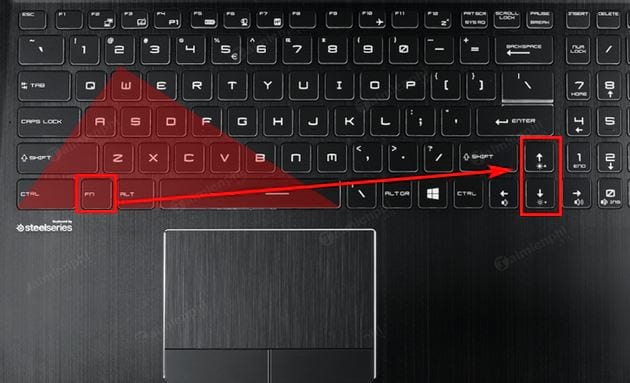
The image shows the Fn + arrow layout used by some models, but it is not universal. Use the icons printed on your keyboard or the manual for the exact MSI model. The guide to laptop Fn keys explains how hotkey layouts differ across manufacturers.
Method 2: Use Windows Quick Settings
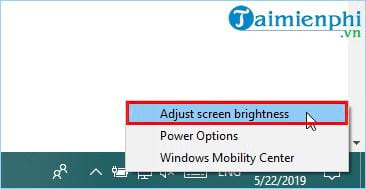
On Windows 11, press Windows + A or select the network, volume, or battery area on the taskbar. Drag the brightness slider left to dim the built-in display or right to brighten it.
Windows 10 also provides a brightness control in Action Center, although its appearance differs from Windows 11. The older battery and Power Options screens shown below apply mainly to earlier Windows versions.
Method 3: Change brightness in Display settings
- Open Start > Settings > System > Display.
- Select the MSI laptop's built-in display if more than one screen is shown.
- Expand Brightness if needed and move the slider.
- On supported models, choose whether Windows may adjust brightness for ambient light or displayed content.
This is the preferred settings route in current Windows versions. Older systems may expose per-power-plan brightness controls under Control Panel > Power Options > Change plan settings:
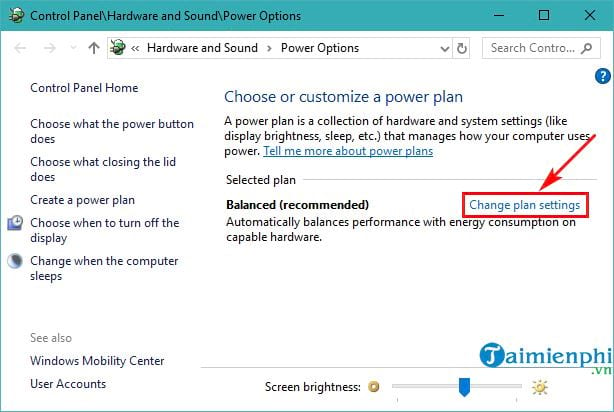
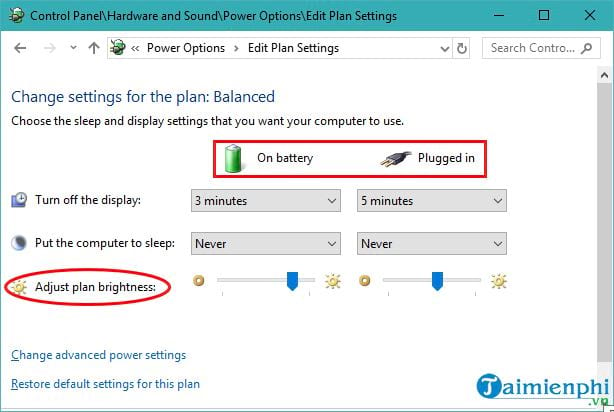
Separate values for On battery and Plugged in can explain why an older MSI laptop changes brightness when the charger is connected. Current Windows versions may instead lower brightness through Energy Saver settings.
Method 4: Use Windows Mobility Center
Press Windows + R, enter mblctr, and press Enter. If Windows Mobility Center is available, move the Display brightness slider.
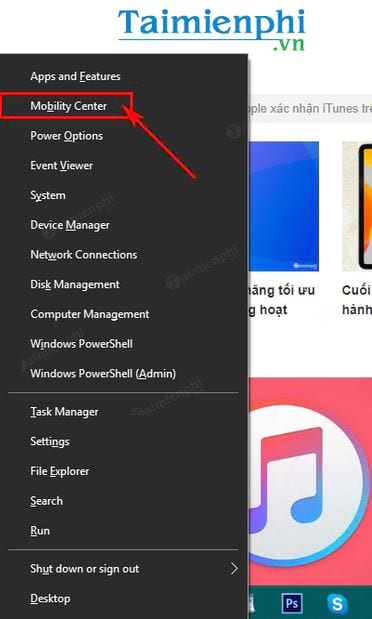
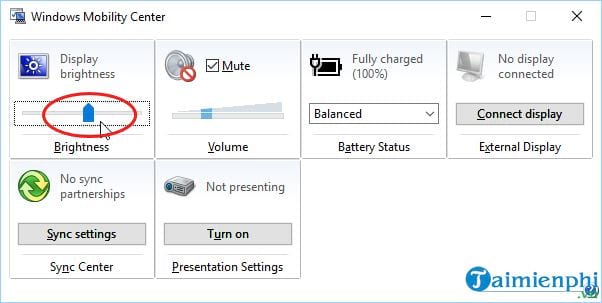
On some Windows versions, Windows + X may provide a Mobility Center shortcut; on others it does not. Opening mblctr directly is more consistent. TipsMake also has a broader Windows laptop brightness guide.
If the brightness slider or hotkeys do not work
| Problem | Recommended check |
|---|---|
| The hotkey shows an on-screen icon but brightness does not change | Restart Windows, then install the current graphics driver and MSI system-control software listed for the exact model on MSI's support site. |
| The hotkeys do nothing | Try Fn with the printed brightness key, check the Fn/Windows key swap setting, and verify that MSI's required hotkey utility is installed. |
| The Windows brightness slider is missing | Confirm that you selected the built-in display. In Device Manager, check for errors under Display adapters and Monitors, then use drivers supplied for the MSI model or GPU. |
| The slider moves but the display stays unchanged | Restart the graphics driver with Windows + Ctrl + Shift + B, then reboot. If the issue started after a driver update, use the vendor's supported driver package. |
| Only an external monitor is affected | Use the monitor's physical controls. Windows generally controls the laptop panel directly; external monitor brightness may require DDC/CI support and compatible software. |
| Brightness changes by itself | Open Display settings and review automatic brightness, content-adaptive brightness, HDR, Energy Saver, and any MSI display profile. |
Do not download generic “driver updater” utilities to solve a missing slider. Identify the MSI model from its label or Windows System Information and use MSI's model-specific support page. If the display also flickers, has uneven illumination, or remains dark before Windows loads, use TipsMake's laptop screen testing checklist; the issue may be hardware rather than a setting.
Brightness, HDR, and external displays
The normal brightness slider controls the backlight of the built-in panel. When HDR is enabled, Windows also provides an SDR/HDR content brightness balance, which changes how content looks rather than simply setting the panel backlight. For a multi-monitor setup, select the correct display before changing HDR or color options. TipsMake's overview of multi-monitor brightness controls explains the extra compatibility requirements for external screens.
Related Articles
 Adjust Screen Brightness of Windows 7 on PC, Laptop7 minutes read
 Adjusting Screen Brightness on an Asus Laptop4 minutes read
 Adjust Screen Brightness on Acer Laptop4 minutes read
 How to Adjust the Screen Brightness on Windows 10 Laptop5 minutes read
 How to Fix the Problem of Not Being Able to Adjust Laptop Screen Brightness6 minutes read
 How to Adjust the Screen Brightness of Android Phones6 minutes read
Reader Comments 0
Sign in with email or Google to join the discussion.