Table of Contents
If a Windows laptop's brightness keys and slider do not work, first press Windows + Ctrl + Shift + B to reset the graphics driver, then restart the PC. If the control is missing or still unresponsive, check whether you are adjusting the built-in display, install Windows updates, and repair the model-specific graphics, monitor, and hotkey drivers.
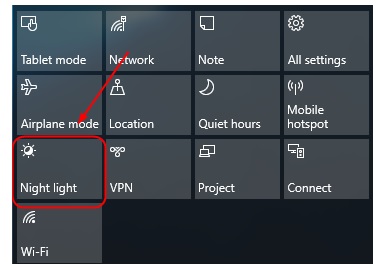
Before changing drivers
Confirm which problem you have:
- The slider is missing: Windows may not recognize the built-in panel correctly, or you may have selected an external monitor.
- The slider moves but nothing changes: The graphics driver, monitor device, GPU mode, or vendor display utility may be stuck.
- Only the keyboard keys fail: The laptop's Fn setting or hotkey/system-control utility is the more likely cause.
- Brightness changes by itself: Automatic brightness, content-adaptive brightness, Energy Saver, HDR, or a manufacturer power profile may be active.
Desktop PCs usually do not show a Windows brightness slider for an external monitor. Use the monitor's physical menu unless it and your software support DDC/CI. A missing slider in that situation is normal, not a driver fault.
1. Try the normal Windows controls
- Press Windows + A and look for the brightness slider in Quick Settings.
- Open Settings > System > Display. Select the built-in screen if multiple displays are shown, expand Brightness, and move the slider.
- Try the laptop's sun-icon keys with and without Fn.
- Disconnect docks and external monitors, then test the laptop panel again.
See TipsMake's Windows laptop brightness guide for the controls used by current and older Windows versions.
2. Reset the graphics stack and power state
- Save your work.
- Press Windows + Ctrl + Shift + B. The screen may blink and Windows may play a sound.
- Restart the computer rather than only closing and reopening the lid.
- Shut down once, disconnect unnecessary accessories, wait briefly, and power on again.
After restarting, test brightness on both battery power and the charger. If the behavior differs, review Settings > System > Power & battery, Energy Saver, and the laptop manufacturer's performance profile.
3. Install Windows and optional driver updates
Open Settings > Windows Update, install applicable updates, and restart. Check Advanced options > Optional updates for hardware drivers, but do not install every optional driver without checking that it belongs to your device.
For a laptop, the manufacturer's support page for the exact model is usually the safest source for chipset, integrated-graphics, system-control, and hotkey components. A machine with both integrated and discrete graphics may need both GPU drivers. Do not use generic “driver updater” utilities.
4. Update or reinstall the display driver
Open Device Manager by right-clicking Start. TipsMake's Device Manager guide explains the available driver actions.
- Expand Display adapters.
- Right-click the integrated graphics adapter and select Update driver.
- Choose Search automatically for drivers, then also check Windows Update and the PC manufacturer's support page.
- If a supported installer is available from the laptop or GPU maker, use its instructions and restart.
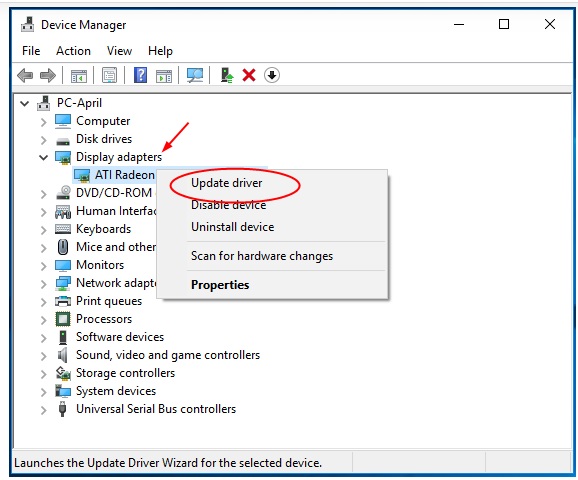
If the correct driver appears installed but seems damaged, download the replacement package first. Then open the adapter's properties, note its name and driver version, uninstall the device, and restart or run the supported installer. Do not select an unknown device or delete a driver package unless you already have a safe recovery path.
5. Roll back a driver if the problem started after an update
- In Device Manager, right-click the affected display adapter and select Properties.
- Open the Driver tab.
- Select Roll Back Driver if the button is available, explain the reason, and restart.
If the button is unavailable, Windows does not have a previous package ready to restore. Obtain the supported earlier version from the PC or GPU manufacturer rather than downloading it from an unofficial archive.
6. Check the monitor device and laptop hotkey software
In Device Manager, expand Monitors. If the built-in display is disabled, enable it. If it has an error icon, install updates and restart; if necessary, uninstall that monitor device and let Windows detect it again after rebooting.
If Windows' slider works but the keys do not, repair the manufacturer's system-control, keyboard-hotkey, or function-key component for the exact model. Also check Function Lock: the brightness key may require Fn, or Fn + Esc may switch modes on some laptops.
7. Treat Microsoft Basic Display Adapter as a diagnostic fallback
The original instructions recommended manually replacing the GPU driver with Microsoft Basic Display Adapter. That generic driver can help determine whether a vendor driver is causing the fault, but it is not an ideal permanent fix: hardware acceleration, resolution, refresh-rate, HDR, and power-management features may be limited.
If a support technician directs you to test it, the older Windows dialog follows this path:
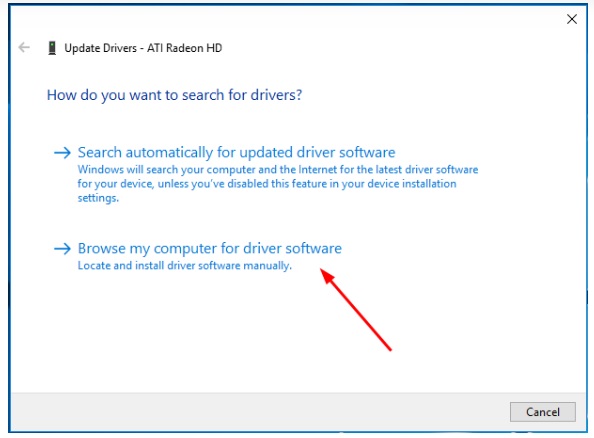
- In Device Manager, right-click the graphics adapter and choose Update driver.
- Select Browse my computer for drivers.
Select Let me pick from a list of available drivers on my computer.
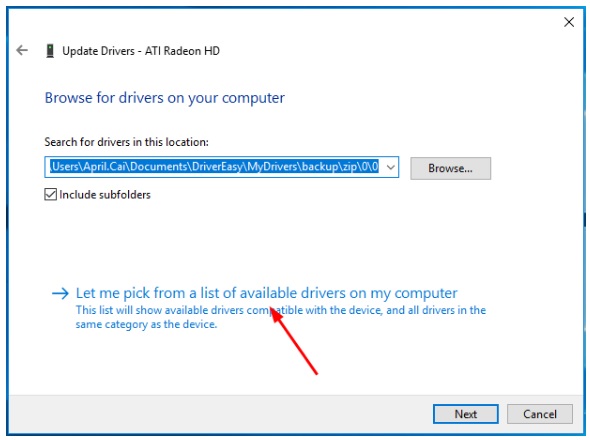
Choose Microsoft Basic Display Adapter only for a controlled diagnostic test, then restart.
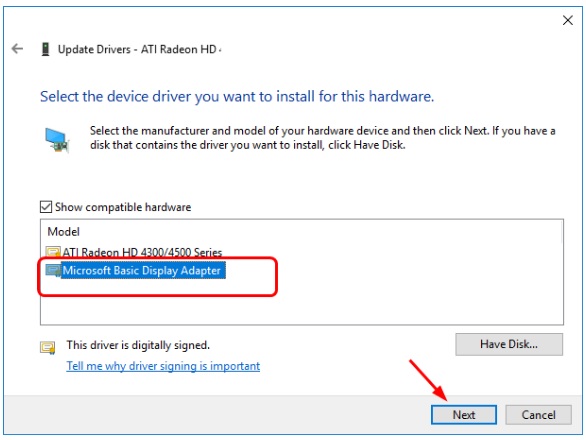
If brightness begins working, install the correct OEM or GPU driver next; do not leave the computer on the basic driver merely because the slider returned. If the screen becomes unusable, start Windows in Safe Mode and restore the previous supported driver.
8. Check adaptive brightness, HDR, and GPU modes
- Under Settings > System > Display > Brightness, review brightness based on ambient light or content.
- Temporarily disable HDR to see whether the issue affects only HDR output.
- In the manufacturer's utility, switch from an unusual discrete-only or power-saving display mode to its standard/hybrid mode, then restart.
- Reset custom color, dimming, or battery profiles one at a time.
Record the original settings so you can restore them. Avoid changing firmware or BIOS options unless the PC manufacturer's instructions for your model specifically require it.
When it may be a hardware problem
If brightness cannot be changed before Windows loads, the panel remains dim with a flashlight-visible image, the screen flickers when the lid moves, or only part of the backlight works, the display cable, panel, backlight circuitry, or motherboard may need service. Run the manufacturer's built-in diagnostics and use TipsMake's laptop screen testing checklist. Back up important files before repair.
Recommended troubleshooting order
- Confirm built-in versus external display.
- Try Quick Settings, Display settings, and Fn keys.
- Reset the graphics driver and restart.
- Install Windows and model-specific updates.
- Update, reinstall, or roll back the correct display driver.
- Repair the monitor and hotkey components.
- Test the basic adapter only as a temporary diagnostic.
- Investigate hardware if the fault exists outside Windows or survives a clean supported driver setup.
Related Articles
 How to Increase or Decrease the Brightness of Your Desktop Computer Screen4 minutes read
 Increase or Decrease Laptop Screen Brightness Win 11/10/8/7: Step-by-Step Guide10 minutes read
 Quickly Adjust the Screen Brightness on Your MSI Laptop5 minutes read
 Manual Manual and Automatic Computer Screen Brightness Adjustment9 minutes read
 How to Adjust the Screen Brightness on Windows 10 Laptop5 minutes read
 Adjusting the Screen Brightness on an HP Laptop4 minutes read
Reader Comments 0
Sign in with email or Google to join the discussion.