Table of Contents
To adjust an HP laptop's built-in display, press the two keys marked with small and large sun icons. HP calls these action keys. Depending on the model and Action Keys Mode, press the key alone or hold Fn with it. Windows also provides a brightness slider in Quick Settings and under Settings > System > Display.

Use the HP brightness keys
Look at the F1–F12 row for the display-brightness icons. Their location varies. The HP 6535s keyboard shown below uses F7 and F8, but many other HP models use different keys.
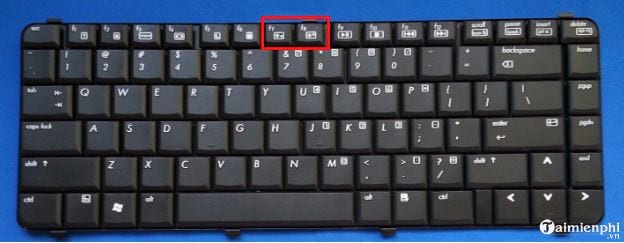
- Press the smaller sun to dim the built-in panel.
- Press the larger sun to brighten it.
- If the key triggers an ordinary F-key command, hold Fn while pressing it.
- If Fn is normally required but you want action-key behavior, check the model's Action Keys Mode setting. Some HP notebooks change it with Fn + Left Shift; others use the BIOS/UEFI setup.
Use the printed icons and the exact model's manual. Do not confuse the display-brightness key with the keyboard-backlight or HP Sure View privacy-screen control. TipsMake's laptop Fn-key guide explains common symbols.
Use Windows Quick Settings
Press Windows + A or select the network, volume, or battery area of the taskbar. Drag the brightness slider left to dim the built-in screen or right to brighten it. This is the fastest software method in Windows 11.
Adjust brightness in Display settings
- Open Start > Settings > System > Display.
- If more than one display is shown, select the HP laptop's built-in panel.
- Expand Brightness if needed and move the slider.
- On supported models, choose whether brightness may change according to ambient light or displayed content.
Current Windows versions use Quick Settings and Display settings. The Power Options screenshots below belong to older Windows releases and are retained for legacy machines.
Use Windows Mobility Center
Press Windows + R, type mblctr, and press Enter. If Mobility Center is available, move the Display brightness slider.
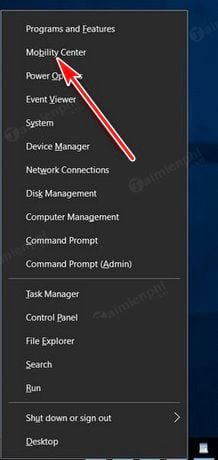
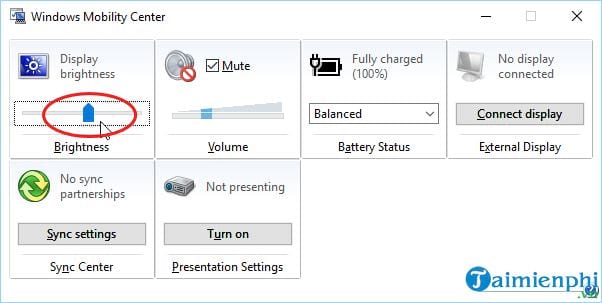
Some older Windows versions show Mobility Center after Windows + X; current menus vary. If it is unavailable, use the standard Display settings. TipsMake's Windows brightness guide covers additional versions.
Set separate brightness levels on older Windows versions
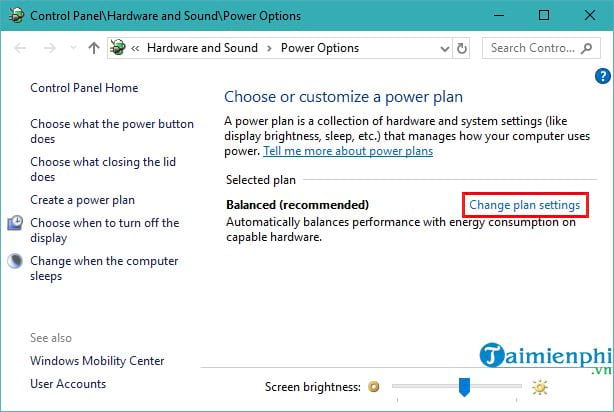
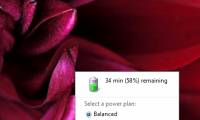
Legacy Control Panel power plans may provide separate sliders for battery and AC power. Open the battery menu or Control Panel > Power Options.
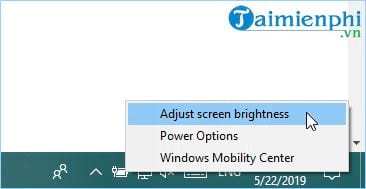
Select Change plan settings for the active plan.
Set the On battery and Plugged in brightness levels, then save the changes.
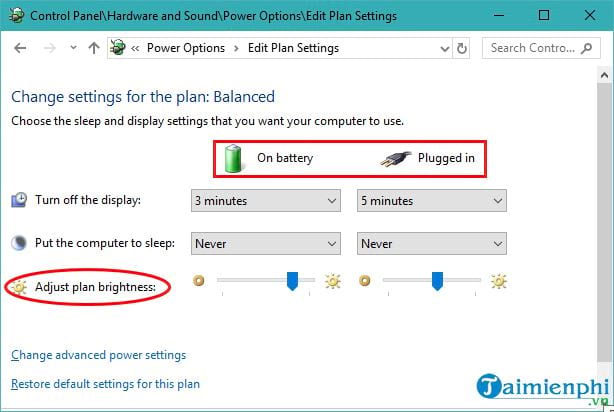
On Windows 11, review Settings > System > Power & battery instead. Energy Saver can lower brightness, and some HP utilities can apply different profiles when the charger is connected.
If HP brightness controls do not work
| Symptom | What to check |
|---|---|
| Windows slider works but the HP keys do not | Try the key with and without Fn. Install Windows updates and the current HP system-event or hotkey component listed for the exact model. |
| Neither the slider nor keys change brightness | Press Windows + Ctrl + Shift + B to reset the graphics driver, then restart. Install the HP-supported chipset and graphics drivers. |
| The brightness slider is missing | Confirm that you selected the built-in display. In Device Manager, inspect Display adapters and Monitors for a disabled device or error. |
| Brightness changes automatically | Under Display > Brightness, review automatic and content-adaptive options. Check Energy Saver, HDR, HP power profiles, and any ambient-light sensor. |
| The display gets unusually dim when Sure View is enabled | Turn off the privacy-screen feature or adjust it using the model-specific controls; Sure View and ordinary backlight brightness are separate. |
| An external monitor does not respond | Use the monitor's physical controls. Windows normally controls the laptop panel directly but may not expose brightness for an external display. |
Download drivers only from HP, Windows Update, or the GPU vendor when appropriate. Identify the complete product number before installing a package, and avoid generic driver-updater software.
Third-party brightness apps are usually unnecessary
F.lux and Windows Night Light change color temperature; they are not substitutes for a working hardware backlight control. External-monitor utilities may control compatible screens through DDC/CI, but they cannot repair a missing laptop-panel driver. Fix the Windows or HP control path first.
When the problem may be hardware
If the panel stays dim before Windows loads, flickers when the lid moves, shows dark areas, or works only at certain angles, the display cable, panel, backlight, or board may need service. Disconnect docks and external screens, run HP's built-in hardware diagnostics, and follow TipsMake's laptop screen testing checklist. Back up important files before repair.
Related Articles
 Adjusting Screen Brightness on an Asus Laptop4 minutes read
 Adjust Screen Brightness on Acer Laptop4 minutes read
 Adjusting the Screen Brightness on a MacBook Laptop4 minutes read
 How to Turn on and Off the Self-adjusting Feature of Screen Brightness on3 minutes read
 How to Adjust Screen Brightness in Windows 11: Step-by-Step Guide4 minutes read
 How to Adjust the Brightness of the Laptop Computer Screen3 minutes read
Reader Comments 0
Sign in with email or Google to join the discussion.