Table of Contents
A slow Windows 10 startup is usually caused by startup apps, a driver or service timeout, a nearly full or unhealthy drive, or an aging mechanical hard disk. Disabling the firewall, Microsoft Defender, or System Restore is not a safe optimization and rarely addresses the actual delay.
Measure where startup is slow
- Before the Windows logo: disconnect nonessential USB devices and check firmware or hardware.
- Between the logo and sign-in: investigate storage health, drivers, updates, and services.
- After sign-in: focus on startup apps, scheduled tasks, cloud sync, and the user profile.
Time each phase before and after a change. That prevents a cosmetic setting from receiving credit for a temporary improvement.
1. Disable only nonessential startup apps
Press Ctrl + Shift + Esc to open Task Manager. If needed, select More details.
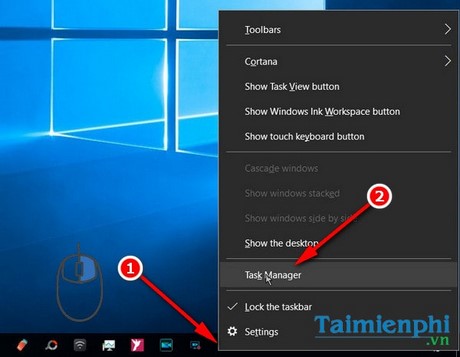
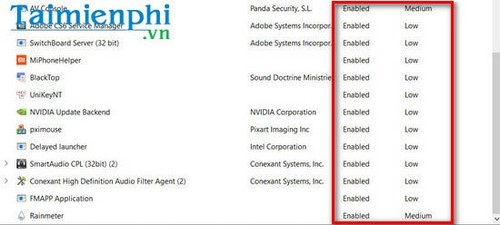
Open Startup or Startup apps and sort by Startup impact.
Right-click an app you do not need immediately after sign-in and select Disable.
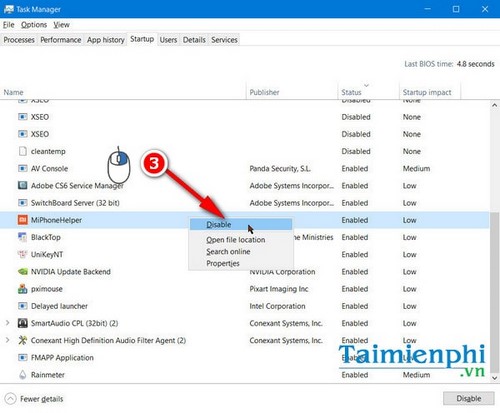
Keep security tools, accessibility software, encryption utilities, and required hardware controls enabled. Disabling an entry does not uninstall it; re-enable it if a necessary feature stops working.
2. Keep Windows Firewall enabled
The old Control Panel pages below show where firewall status was changed, but turning the firewall off is not a startup-speed fix.
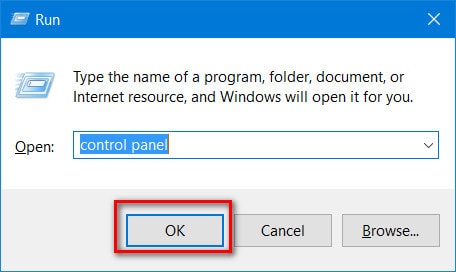
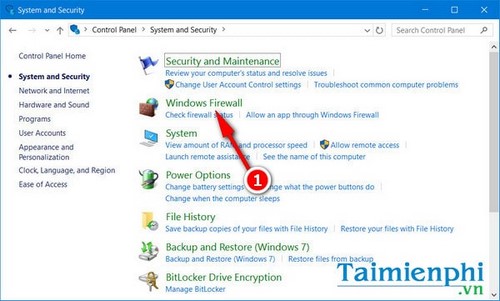
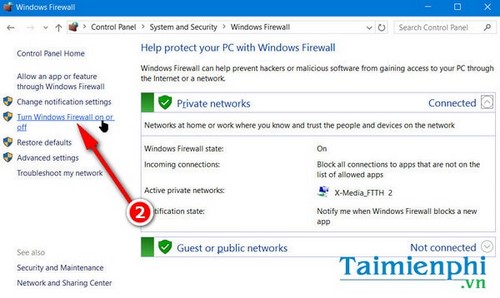
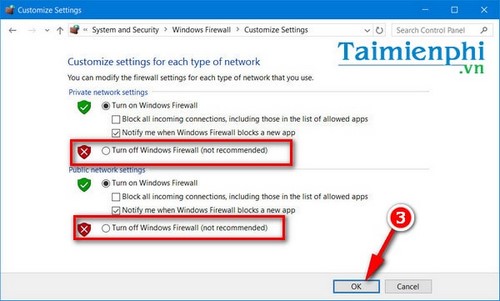
Leave the firewall on for both private and public profiles. If a trusted program is blocked, use Allow an app or feature through Windows Defender Firewall and permit only the required app and network profile. For a suspected firewall fault, restore its defaults after recording custom rules instead of operating without protection.
3. Keep Microsoft Defender real-time protection on
Older Windows 10 versions placed Defender under Settings > Update & Security.
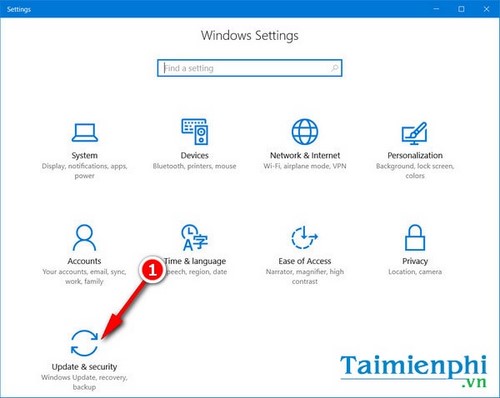
The real-time protection switch shown below should normally remain enabled.
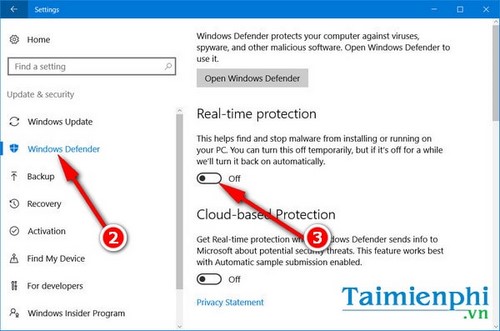
Security scans can briefly use CPU or disk, but permanently disabling protection creates a much larger risk. If a scan consistently overlaps work, let it complete, update Defender, and investigate repeated scan errors or a specific oversized trusted file. Do not add broad folder exclusions as a performance shortcut.
4. Preserve System Restore and manage its disk use
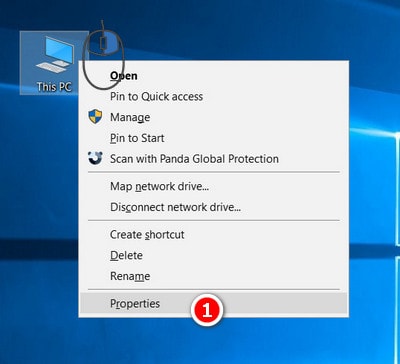
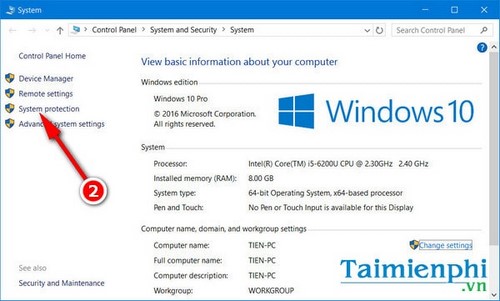
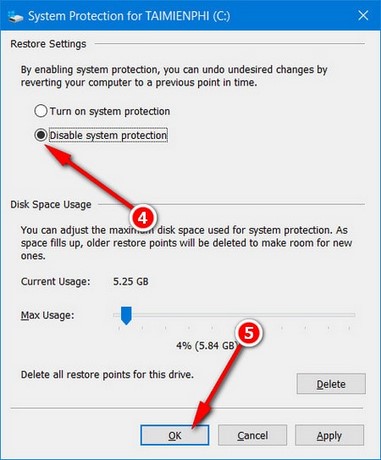
System Restore can provide a recovery point after a bad driver or system change. It does not normally run throughout every startup. Search for Create a restore point or open System protection from the System page.
Select the Windows drive and choose Configure.
The original advice selected Disable system protection; that removes future restore-point coverage and is not recommended merely to save boot time.
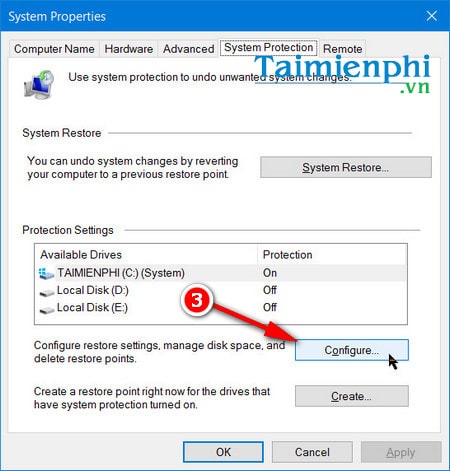
Keep protection on and reduce Max Usage if restore points consume too much storage. Verify that Protection is On afterward.
5. Test Fast Startup rather than assuming it helps
Open Control Panel > Power Options > Choose what the power buttons do > Change settings that are currently unavailable. If Turn on fast startup is available, enable it and compare a full shutdown-to-desktop time.
Fast Startup affects shutdown followed by power-on, not Restart. Disable it again if the PC hangs during shutdown, dual-boots another operating system, or shows driver and device problems after cold starts.
6. Isolate a service or scheduled task
If startup remains slow, perform a clean boot to test third-party services without randomly disabling Windows components. Re-enable items in groups until the delay returns. Also review Task Scheduler and uninstall abandoned update agents or vendor utilities through normal app settings.
7. Check storage and Windows health
- Keep adequate free space using Settings > System > Storage.
- Check the drive's health before running repairs if it clicks, disappears, or reports warnings.
- Install supported Windows and manufacturer driver updates.
- From an elevated Command Prompt, run
DISM /Online /Cleanup-Image /RestoreHealthfollowed bysfc /scannowwhen corruption is suspected. - Scan for malware with Windows Security.
8. Upgrade a mechanical system drive when it is the bottleneck
Replacing a healthy but slow hard disk with a compatible SSD can reduce boot and application load times far more than minor visual tweaks. Confirm the interface and physical size, back up the system, and choose between cloning and a clean installation.
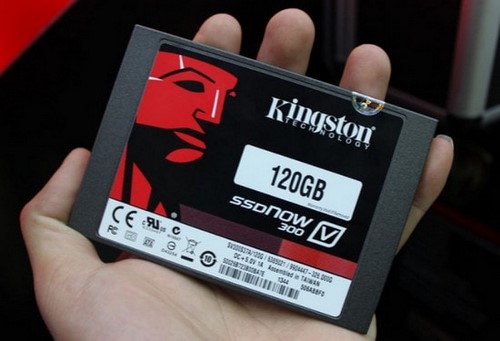
Buy from a reputable seller and verify the device using the real-versus-fake SSD checklist. Add RAM instead when Task Manager shows sustained memory pressure and paging during normal use.
If the boot is still unusually slow
Review Event Viewer > Applications and Services Logs > Microsoft > Windows > Diagnostics-Performance > Operational if that log is present. Consistent storage errors, firmware delays, or a device that vanishes require hardware-focused troubleshooting. The broader slow-computer guide helps distinguish boot problems from general performance issues.
Related Articles
 How to Optimize Windows Startup7 minutes read
 Prefetch: How to Make Windows Xp Startup Faster4 minutes read
 How to Disable Fast Startup on Windows3 minutes read
 How to Disable Startup Delay in Windows 103 minutes read
 How to Make Your PC Start Up Faster3 minutes read
 Boost Windows 10 Startup Speed by Enabling Fast Startup3 minutes read
Reader Comments 0
Sign in with email or Google to join the discussion.