Table of Contents
You can find many reasons for the Windows 11 search not showing up, such as Windows Search Indexer not running properly, Windows Search service having problems.
Windows 11 search not showing error will affect your ability to find software, applications or files on your computer. There are many reasons for Windows 11 search not showing up, such as Windows Search Indexer not running properly, Windows Search service has problems,. Below are some ways to fix Windows 11 search not showing up error.
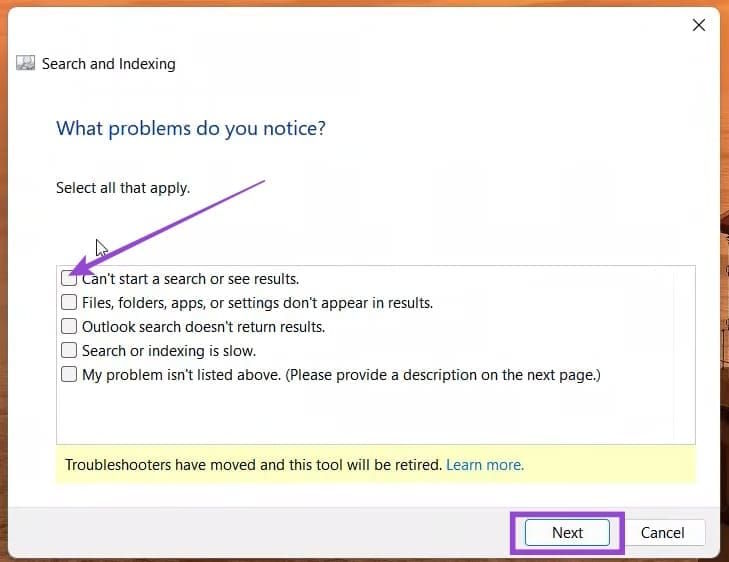
Using the Search Indexing Troubleshooter
Perhaps the most common cause of a blank search bar is a problem with the SearchIndexex process.
You Open the Run dialog box And Type the keyword msdt.exe -ep WindowsHelp id SearchDiagnostic To access. You will be directed to the troubleshooter, Select the specific problem with search And then click Next to proceed with the fix.
Restart Windows Explorer
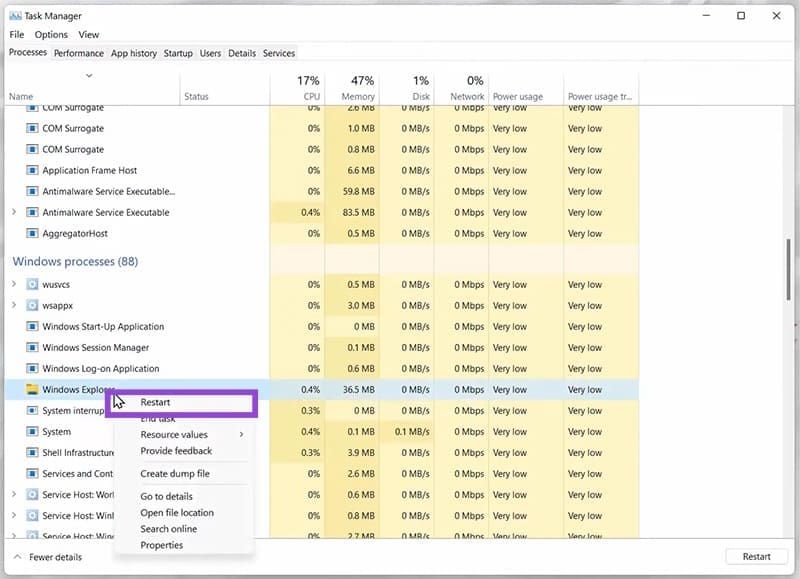
Open Task Manager Then click On the Processes tab And look down, Right-click on Windows Explorer and select Restart To restart.
Restart Windows Search Service
Step 1:
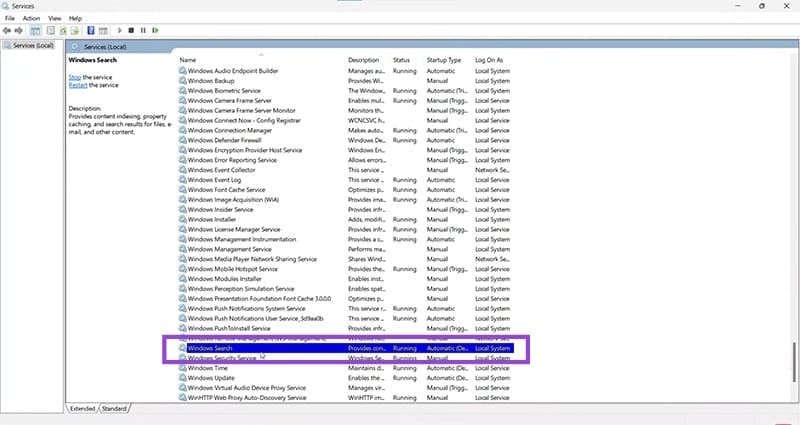
You open the Run dialog box and Type services.msc Into the box to access. Then in the new interface, Right-click on the Windows Search service And Select Restart To restart the search service on the computer.
Step 2:
Next, Open Control Panel and select Indexing Options In the displayed interface.
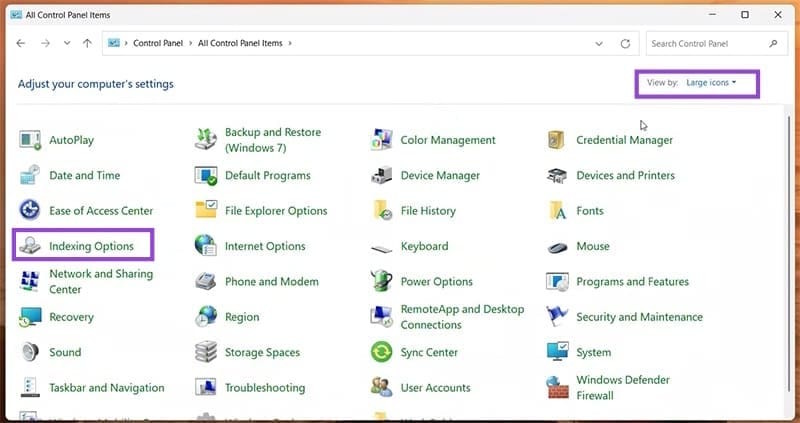
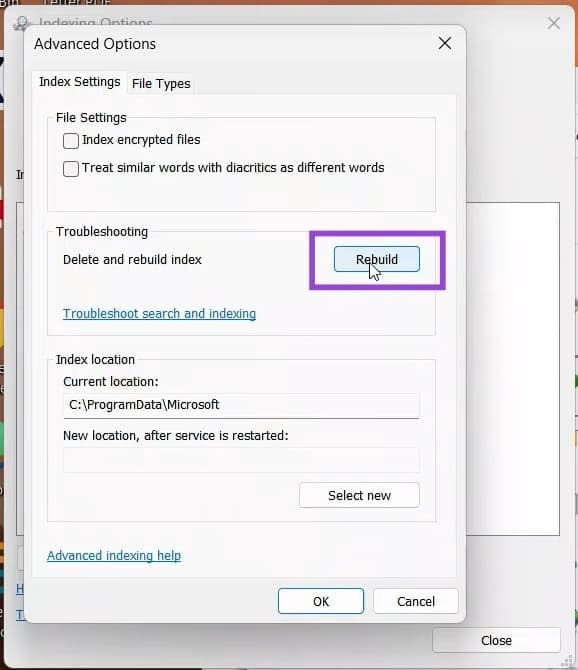
Show new interface Click Advanced To see advanced settings.
Step 3:
Next, Click the Rebuild button To rebuild Search Indexer. Finally, restart your computer.
FAQ
How do you fix Windows 11 search not showing up: step-by-step guide?
In practical terms, there are many reasons for the Windows 11 search not showing up, such as Windows Search Indexer not running properly, Windows Search service having problems.
What should you check before getting started?
Review the requirements, compatible device or software version, and any warnings described in the guide before making changes.
What should you do if the steps do not work?
Repeat the steps in order, confirm that your app or system is up to date, and review the troubleshooting details provided above.
Related Articles
 Steps to Fix the Error Showing the Search Results Table on3 minutes read
 File Search: 10 Free Search Tools for Windows 109 minutes read
 How to Bring the Windows 8 Search Bar to Windows 104 minutes read
 Advanced Search in Windows 7 Is Similar to Windows XP7 minutes read
 Addresses an Issue Where Windows 10 Search Encounters Errors4 minutes read
 How to Fix an Unreadable, Inactive Search Windows 10 Error5 minutes read
Reader Comments 0
Sign in with email or Google to join the discussion.