Table of Contents
If letter keys such as U, I, O, J, K, L, or M type numbers, the laptop's embedded numeric keypad is probably active. Press Num Lock to turn it off. On a compact keyboard, use the key combination printed by the manufacturer—often Fn + Num Lock or Fn plus a function key marked NumLk.

Why letter keys can act like a number pad
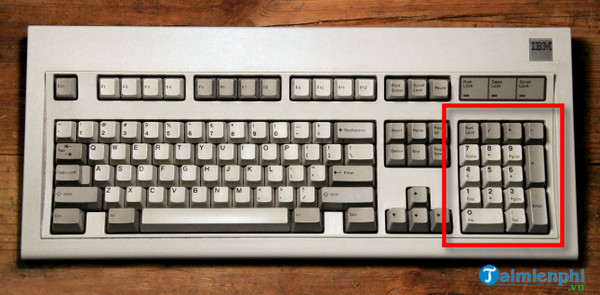
Compact laptops may not have room for a separate numeric keypad. Instead, a group of letter keys doubles as a keypad when Num Lock is on. The alternative numbers or symbols are often printed in a different color on the keycaps.
This can produce mappings similar to these, depending on the model:
| Letter key | Embedded keypad result |
|---|---|
| U, I, O | 4, 5, 6 |
| J, K, L | 1, 2, 3 |
| M | 0 |
| Other nearby keys | Operators or keypad functions |
The exact layout is shown on the keyboard itself.
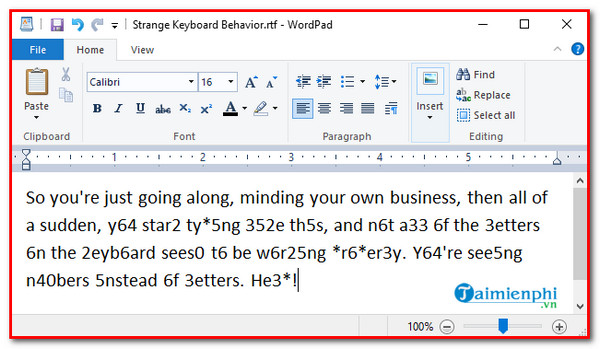
On this Acer example, the embedded keypad occupies a block of keys on the right side of the letter area.
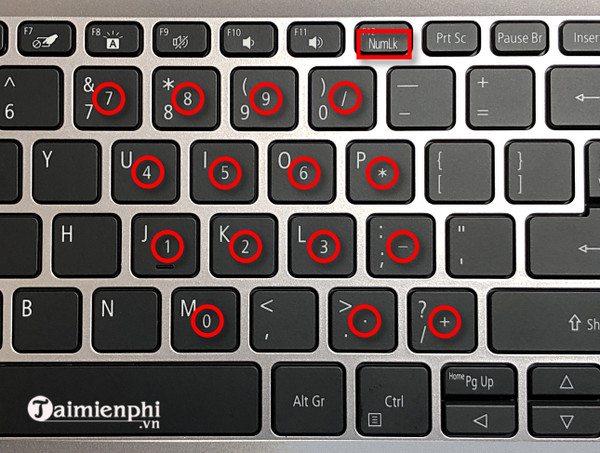
Turn off Num Lock from the physical keyboard
- Look for Num Lock, NumLk, NmLk, a keypad icon, or a small lock with a number.
- Press that key once and test the affected letters in Notepad.
- If it is a secondary function, hold Fn and press the marked key.
- If the keyboard has an indicator light, confirm that it changes state.
On the Acer keyboard shown below, the Num Lock marking shares a function key. Other models can place it elsewhere, so do not assume F12 is universal.
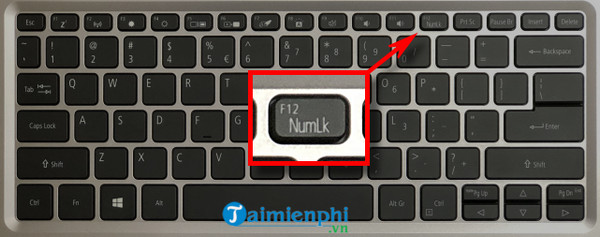
If the function row behaves differently than expected, try the marked key with and without Fn. TipsMake's guide to laptop Fn keys explains Fn Lock and common manufacturer layouts.
Use the Windows On-Screen Keyboard
If you cannot find a physical Num Lock control:
- Press Windows + Ctrl + O to open the On-Screen Keyboard.
- Select Options.
- Enable Turn on numeric key pad if the keypad is hidden, then select OK.
- Select NumLock on the on-screen keyboard to switch it off.
- Close the on-screen keyboard and test U, I, O, J, K, L, and M again.
If the shortcut does not open it, search Start for On-Screen Keyboard. On a sign-in screen, use the Accessibility button when available.
If Num Lock is not the cause
The symptom matters. Num Lock usually affects a predictable cluster of letter keys. Other patterns point elsewhere:
| Symptom | Likely next check |
|---|---|
| Only U/I/O/J/K/L/M become digits | Embedded keypad and Num Lock |
| Symbols are on unexpected keys | Keyboard language or layout |
| One key repeats or produces two characters | Stuck key, debris, liquid damage, or hardware fault |
| Only one app behaves incorrectly | App shortcut, macro, accessibility feature, or remapping |
| External keyboard works normally | Built-in keyboard mode, firmware, cable, or hardware |
| Both keyboards type the same wrong characters | Windows layout, remapping software, or app setting |
Check the Windows keyboard layout
Press Windows + Space and select the intended input language and keyboard layout. Remove unused layouts under Settings > Time & language > Language & region so they are not selected accidentally. Menu wording varies slightly by Windows version.
A layout problem normally changes punctuation, symbols, or letter placement; it does not usually turn the embedded keypad block into digits. TipsMake's keyboard input-language guide shows the concept on an older Windows interface.
Rule out remapping and accessibility features
- Exit keyboard remapping, gaming peripheral, macro, and automation tools temporarily.
- Open Settings > Accessibility > Keyboard and review Sticky Keys, Filter Keys, and Toggle Keys. These features do not normally create a number pad, but they can explain other unexpected behavior.
- Disconnect docks and external keyboards, restart normally, and test the built-in keyboard alone.
- In Device Manager, check for warnings under Keyboards and Human Interface Devices. Install only the laptop maker's supported system and hotkey components.
Test for a hardware fault
Open Notepad and press each suspect key once. Compare the built-in keyboard with a known-working USB keyboard. An online or local key tester can help identify stuck or missing keys; TipsMake lists options in its keyboard testing tools guide.
Do not pry off laptop keycaps unless the service manual explicitly describes it; retention mechanisms are fragile. Power off the laptop after a liquid spill, disconnect external power, and follow the manufacturer's service guidance. Arrange repair if keys remain wrong before Windows starts, the keyboard is physically damaged, or a known-good external keyboard is the only one that works correctly.
Related Articles
 How to Fix Keyboard Errors That Enter Numbers Instead of6 minutes read
 Keyboard Displaying Garbled Characters10 minutes read
 Why Can't I Type on My Computer Keyboard? How to Fix It?10 minutes read
 How to Change Keyboard Layouts on Windows 74 minutes read
 Laptop Keyboard Not Working: Effective Solutions12 minutes read
 How to Fix Missing Letters When Typing Accents in Word5 minutes read
Reader Comments 0
Sign in with email or Google to join the discussion.