Table of Contents
Learn how to quickly open the Virtual keyboard on a MacBook with clear steps, practical tips, and troubleshooting guidance for common issues.
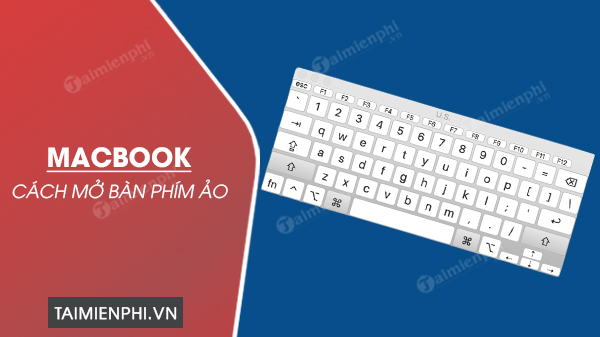
How to open the virtual keyboard on a MacBook
Table of contents: Method 1: Opening the virtual keyboard on a MacBook via Accessibility. Method 2: Opening the virtual keyboard on a MacBook from the login screen. Method 3: Using keyboard shortcuts to open the virtual keyboard on a MacBook. Method 4: Opening the virtual keyboard on a MacBook via the Input menu.
How to open the virtual keyboard on a MacBook
Method 1: Open the virtual keyboard on your MacBook via Accessibility
To open the virtual keyboard on your MacBook through Accessibility settings, follow these steps:
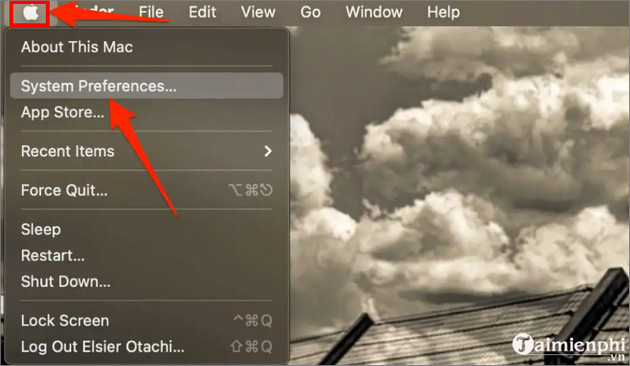
Step 1: First, click on the Apple Menu => System Preferences.
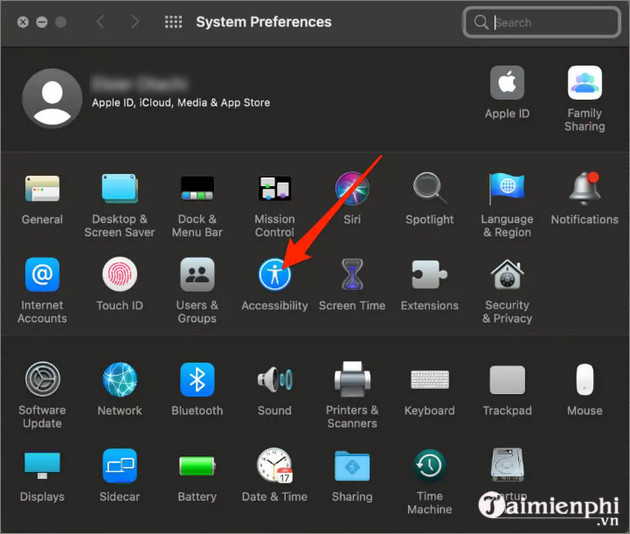
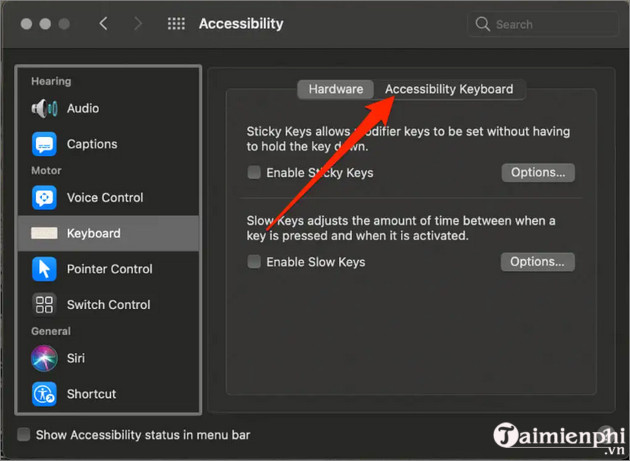
Step 2: Next, find and click Accessibility.
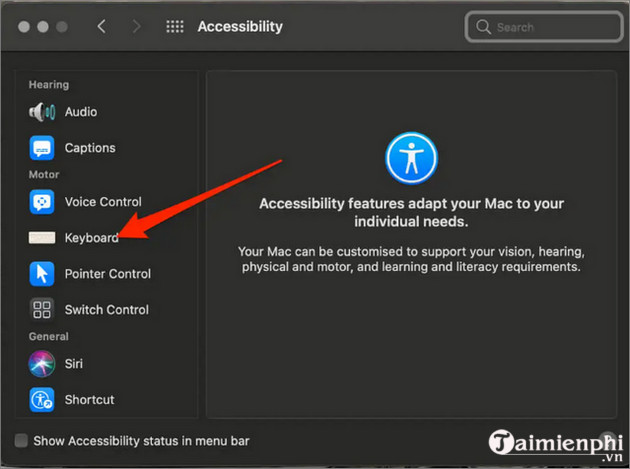
Step 3: Select Keyboard.
Step 4: Select Accessibility Keyboard.
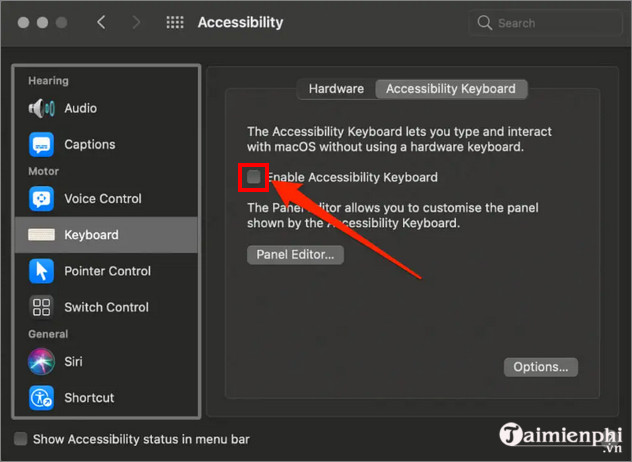
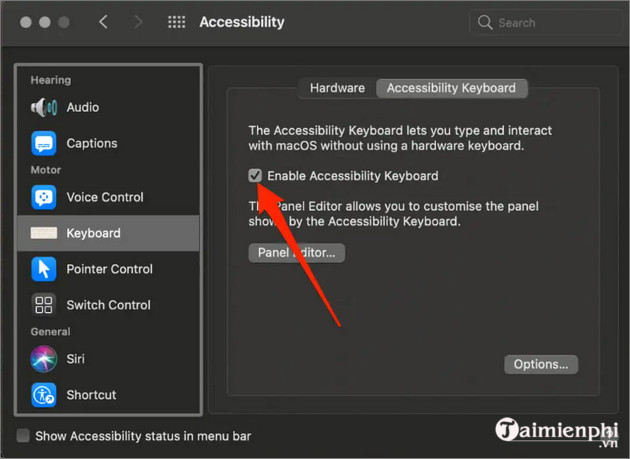
Step 5: Find and check the box next to the Enable Accessibility Keyboard option to activate and open the virtual keyboard on your MacBook.
Step 6: To close the virtual keyboard, click the X icon in the upper left corner.
Alternatively, go to the Apple Menu => System Preferences => Accessibility => Keyboard => Accessibility Keyboard. There, find and uncheck the box next to the Enable Accessibility Keyboard option.
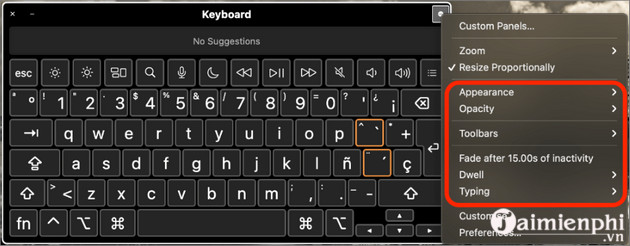
Step 7: To enlarge or shrink the virtual keyboard window, simply drag a corner of the window. Alternatively, you can click the Panel Options button and uncheck the box next to the Resize Proportionally option to change the keyboard size.
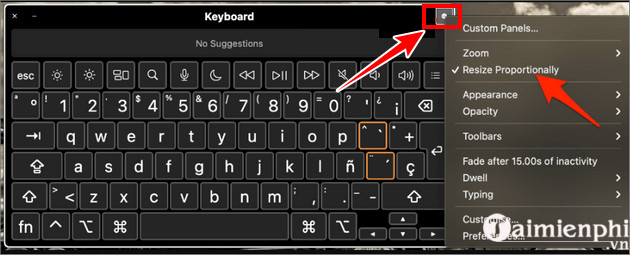
Step 8: Similarly, click the Panel Options button to change the keyboard interface or turn Dwell on or off.
Method 2: Open the virtual keyboard on your MacBook from the login screen
In addition to the method above, you can also open the virtual keyboard on your MacBook directly from the device's login screen.
Here are the detailed instructions:
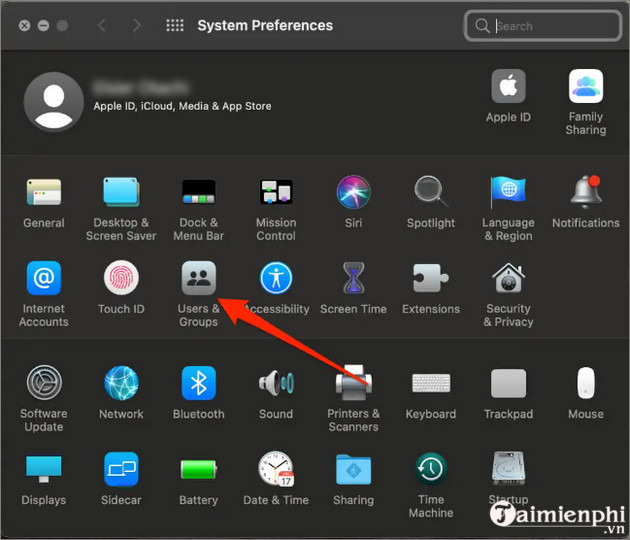
Step 1: Select the Apple Menu => System Preferences. Step 2: Select Users & Groups.
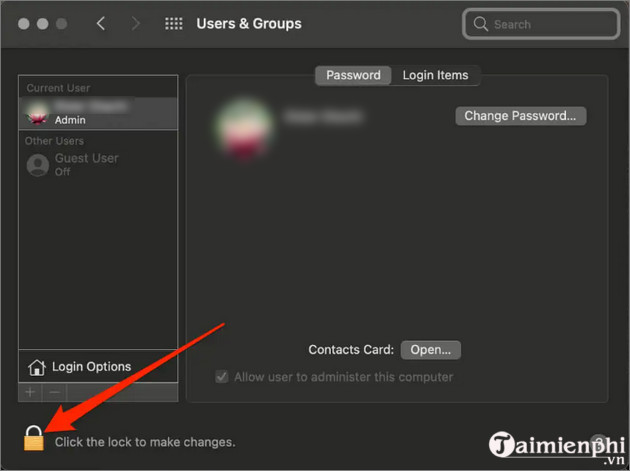
Step 3: Select the lock icon in the bottom corner of the screen and enter your username and password to log in to your Admin account. Alternatively, if your MacBook supports it, you can also use your Apple Watch or Touch ID to unlock.
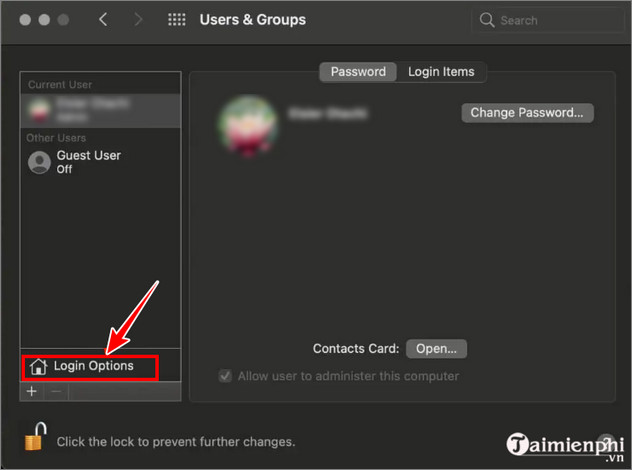
Step 4: Select the Login Options.
Step 5: click Accessibility Options.
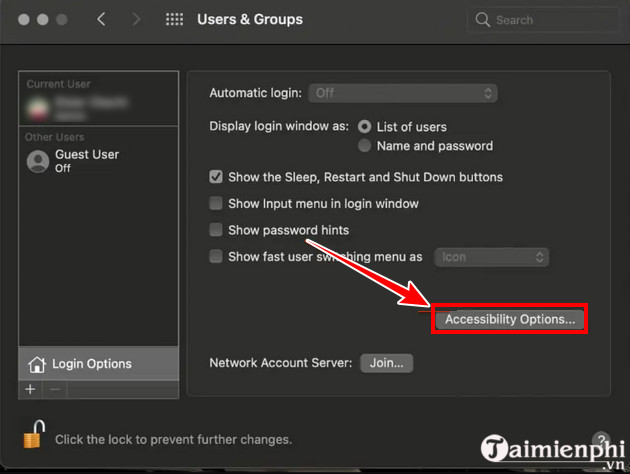
Step 6: Select the accessibility option you want to enable in the login window, including Accessibility keyboard, Zoom, Sticky Keys, Mouse Keys, Slow Keys, or VoiceOver.
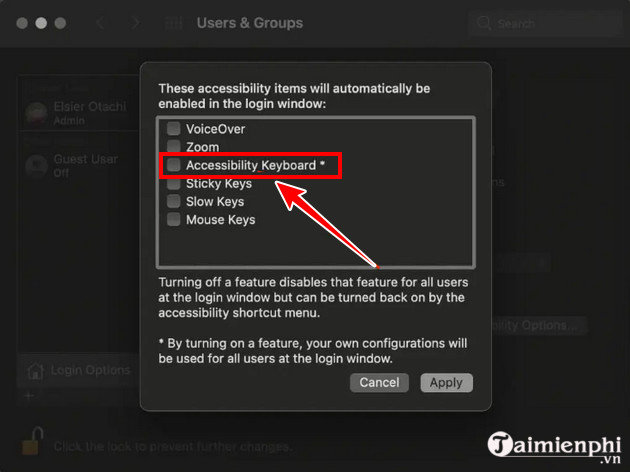
Step 7: Click Apply to apply the changes.
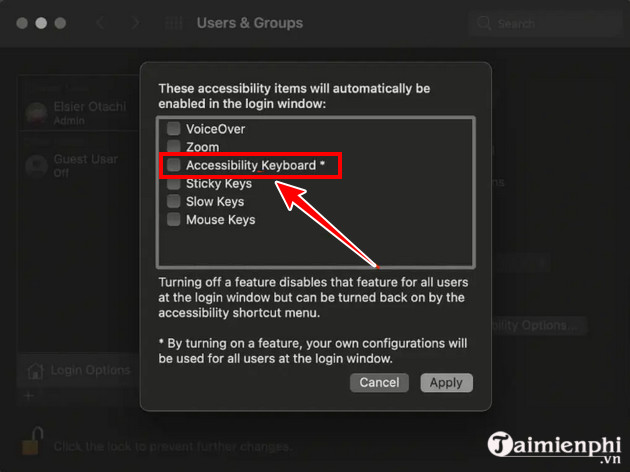
Note: You can also use the keyboard shortcut Option + Command + F5 to temporarily enable or disable accessibility options on the login window.
Additionally, if you are using Windows 11, you can also refer to the instructions on how to open and customize the virtual keyboard here.
Method 3: Use keyboard shortcuts to open the virtual keyboard on your MacBook
The advantage of opening the virtual keyboard on a MacBook this way is that it's faster and simpler to use.
Step 1: First, press the Option + Command + F5 key combination. Step 2: In the window that appears on the screen, find and check the box next to Accessibility Keyboard.
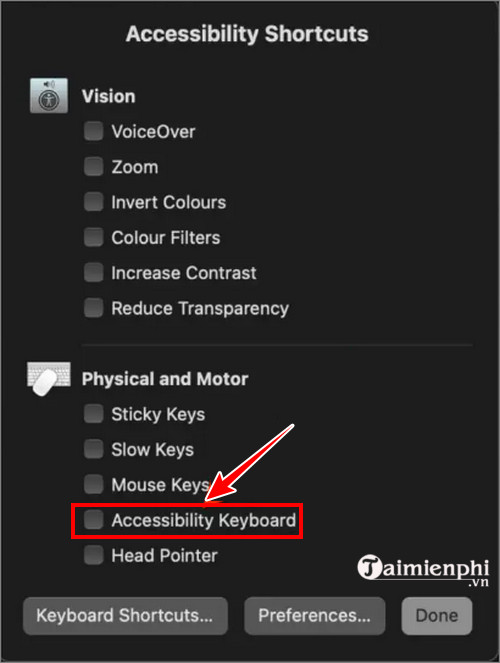
Step 3: Select Done to complete.
Method 4: Open the virtual keyboard on your MacBook via the Input menu
The Input menu is located in the upper right corner of the menu bar on your MacBook, which you can use to access Keyboard Viewer, Character Viewer, and enabled input.
To open the virtual keyboard on your MacBook via the Input menu, follow these steps:
Step 1: click the Input menu icon as shown below:

Step 2: Select Show Keyboard Viewer to open the virtual keyboard on your MacBook.

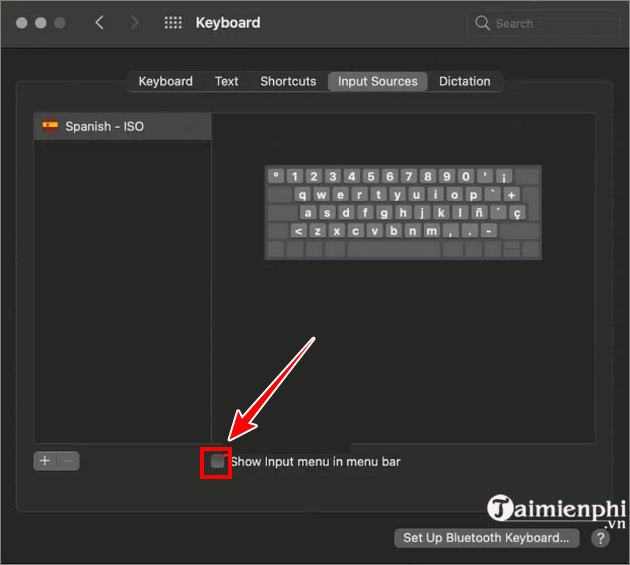
If the Menu Input icon is not displayed on the menu bar, follow the steps below to enable it:
- Click the Apple menu => System Preferences. - Select Keyboard.
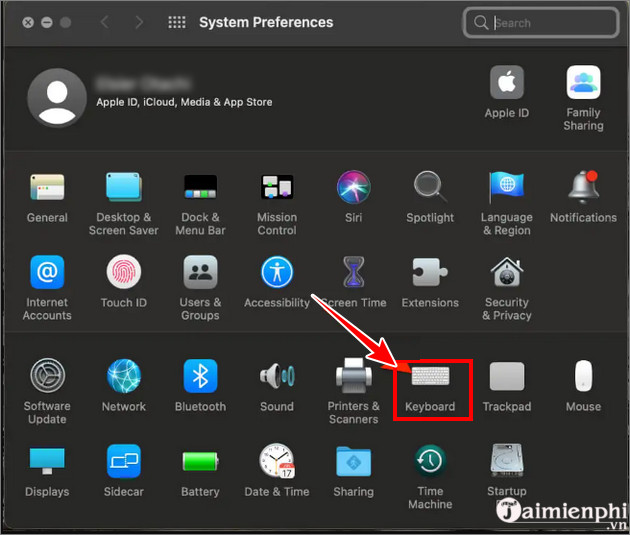
- Select the Input Sources tab.
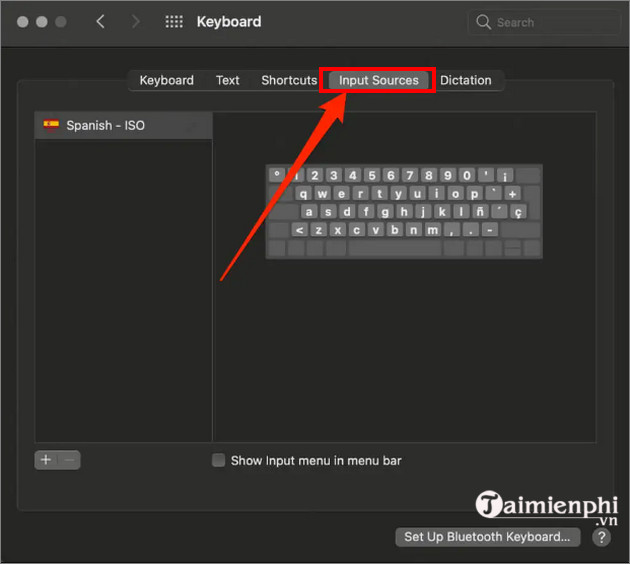
- Check the box for the "Show Input Menu in menu bar" option.
The article above has guided you through several ways to open the virtual keyboard on your MacBook. If you encounter any errors during the process, please leave a comment so everyone can discuss it.
FAQ
How can you Quickly open the Virtual keyboard on a MacBook?
Learn how to quickly open the Virtual keyboard on a MacBook with clear steps, practical tips, and troubleshooting guidance for common issues.
How can you open the virtual keyboard on a MacBook?
Table of contents: Method 1: Opening the virtual keyboard on a MacBook via Accessibility. Method 2: Opening the virtual keyboard on a MacBook from the login screen.
Do the steps or features vary by device or software version?
They can. Menu names, available settings, and compatibility may differ by device, region, account type, or software version, so check the options shown on your own screen.
Related Articles
 Summary of Several Ways to Open Virtual Keyboard on Windows XP //8 minutes read
 How to Quickly and Easily Open the Virtual Keyboard on Your Computer7 minutes read
 6 Ways to Open Virtual Keyboard on Windows 109 minutes read
 How to Open Virtual Keyboard with Shortcut Key, Open On-Screen Keyboard Quickly3 minutes read
 How to Open the Virtual Keyboard on Laptop Simply and Quickly: Practical Guide8 minutes read
 How to Open the Virtual Keyboard on Windows 103 minutes read
Reader Comments 0
Sign in with email or Google to join the discussion.