Table of Contents
If a keyboard stopped working immediately after a Windows installation or update, first restart the PC and test another connection or keyboard. Then turn off Filter Keys, reinstall the keyboard device in Device Manager, and install the computer manufacturer's supported chipset, USB, serial I/O, hotkey, and keyboard-related packages. Roll back an update only when the timing is clear and simpler checks fail.
Get temporary keyboard access
If the mouse or touchscreen works, open the On-Screen Keyboard:
- At the sign-in screen, select the Accessibility button and turn on On-Screen Keyboard.
- After signing in, open Settings > Accessibility > Keyboard and enable On-Screen Keyboard.
- If some keys work, press Windows + Ctrl + O.
For a laptop, connect a simple wired USB keyboard directly to the computer. Avoid a dock or hub during testing. For a desktop, try another USB port, preferably one built into the rear motherboard panel.
Identify the scope of the failure
| Test result | What it suggests |
|---|---|
| Built-in laptop keyboard fails; USB keyboard works | Built-in device, hotkey/serial I/O driver, firmware, cable, or hardware |
| One USB keyboard or port fails | Keyboard, receiver, cable, port, or hub issue |
| All keyboards work in firmware but fail in Windows | Windows setting, driver, service, update, or software conflict |
| No keyboard works before Windows loads | Hardware, firmware, USB compatibility, or power issue rather than only Windows |
| Only one app ignores keys | App shortcut, input method, accessibility, security, or remapping issue |
To test before Windows, enter the PC's firmware setup or startup menu using the manufacturer's documented key. Do not change settings; simply check whether arrow keys respond.
1. Restart and simplify the setup
- Save work with the mouse if possible and choose Start > Power > Restart. A restart reloads drivers more completely than shutting down with Fast Startup enabled.
- Disconnect docks, KVM switches, game controllers, external drives, and unnecessary USB devices.
- For a wireless keyboard, replace or charge the battery, power-cycle it, and reconnect its receiver directly.
- For Bluetooth, test a wired keyboard first. Do not remove the only usable input device until another access method is ready.
If the problem began during a Windows installation screen, use a wired keyboard and a basic USB port. Some systems need current firmware or chipset/USB drivers after setup completes.
2. Turn off Filter Keys
Filter Keys can ignore short or repeated keystrokes, making the keyboard seem unresponsive. Open Settings > Accessibility > Keyboard and turn Filter Keys off. Also disable its keyboard shortcut temporarily if it is being activated accidentally.
The legacy Control Panel route is Ease of Access > Ease of Access Center > Make the keyboard easier to use.
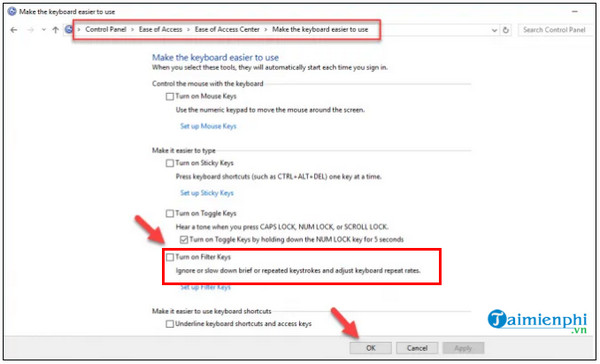
Review Sticky Keys and Toggle Keys only if their behavior matches the problem; they do not normally disable an entire keyboard.
3. Check Device Manager
Right-click Start with the mouse and select Device Manager. Expand Keyboards and Human Interface Devices.
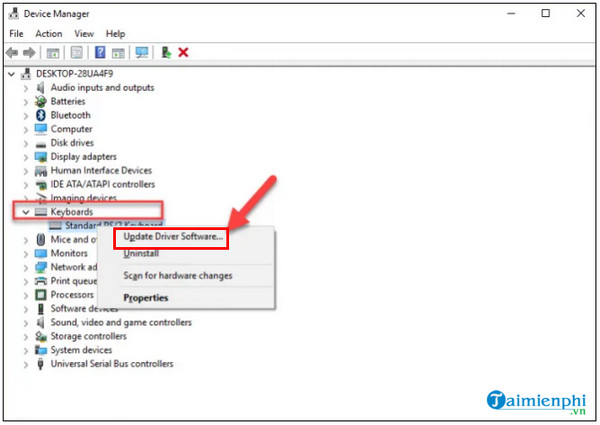
- If the device is disabled, select Enable device.
- Open Properties > General and note any device-status code.
- Under Driver, choose Roll Back Driver if the keyboard stopped working immediately after a driver replacement and the button is available.
- Otherwise, choose Uninstall device, do not select an option to delete a driver package unless you have the replacement, then restart so Windows redetects the device.
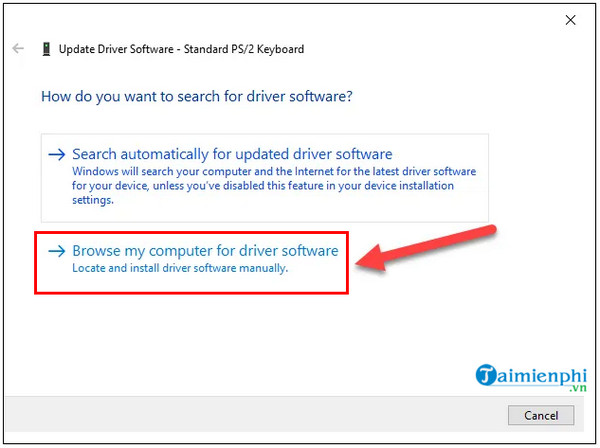
Do not choose an arbitrary item from a compatible-driver list. The original workflow below is retained for older Windows installations, but selecting “any driver” is not safe advice.
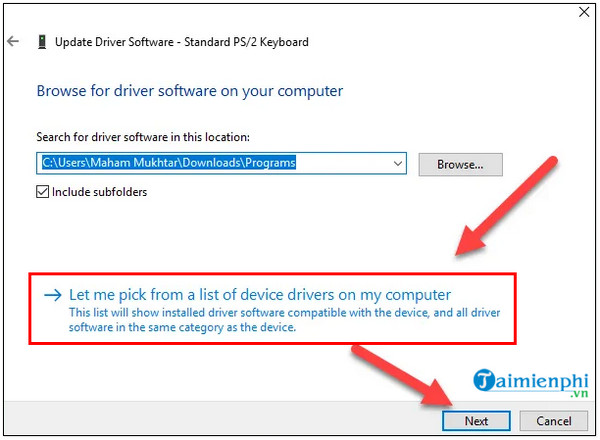
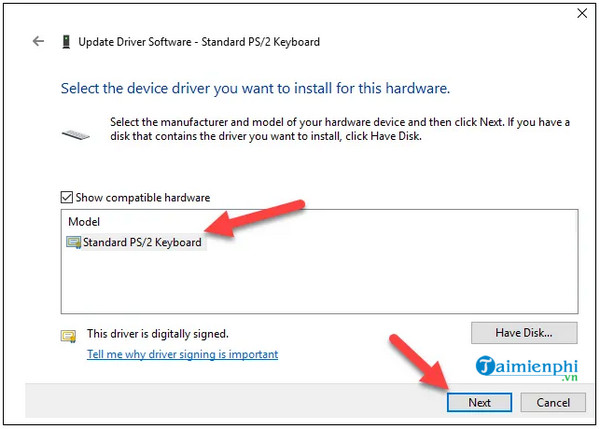
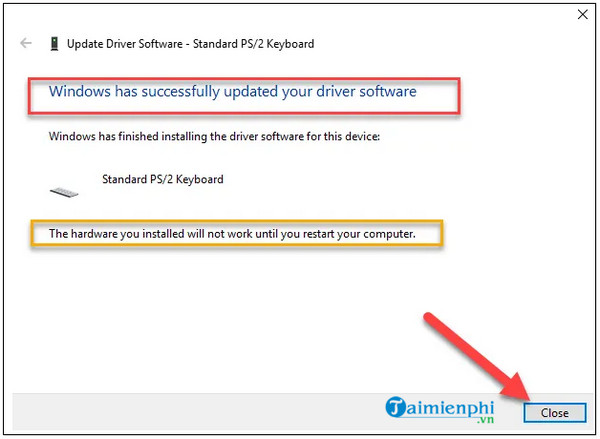
4. Install the computer maker's supported drivers
Keyboard input may depend on more than the device listed under Keyboards. From the support page for the exact PC or motherboard model, check for:
- chipset and USB controller drivers;
- Intel Serial IO or AMD chipset components where applicable;
- laptop system-interface, hotkey, or function-key utilities;
- touchpad/keyboard firmware offered for the exact model;
- BIOS or UEFI updates that specifically address input problems.
Install Windows updates first unless the manufacturer documents a different order. Use firmware only for the exact model, keep the device on reliable power, and follow the vendor's instructions. Avoid generic driver-updater programs.
5. Repair Windows system files
If several built-in devices or Windows components malfunction after the update, run supported repair commands from an administrator Terminal. Use the on-screen keyboard or a working external keyboard:
DISM.exe /Online /Cleanup-Image /RestoreHealth
sfc /scannow
Restart after both commands finish and note any reported errors. TipsMake's Command Prompt guide explains how to open and use the console safely.
6. Test in Safe Mode or a clean boot
If the keyboard works in Windows Recovery or Safe Mode, a third-party service, macro tool, remapper, security product, or peripheral utility may be interfering. Disable only recently added, non-Microsoft startup items for testing, then re-enable them methodically.
Remove keyboard-remapping software only if the timing matches. If a corporate security or accessibility configuration controls the device, contact the administrator rather than bypassing policy.
7. Uninstall a recent Windows update only when justified
Rollback is a diagnostic step, not the first response to any keyboard problem. Before removing an update:
- Confirm the keyboard worked immediately before that specific installation.
- Record the update's KB number and installation date.
- Create a current backup when possible.
- Check whether the PC maker or Microsoft documents a known issue and fix.
In current Windows, open Settings > Windows Update > Update history > Uninstall updates. Select only the suspected removable quality update, then restart and test.
The screenshot below shows the older Control Panel path through Programs and Features > View installed updates.
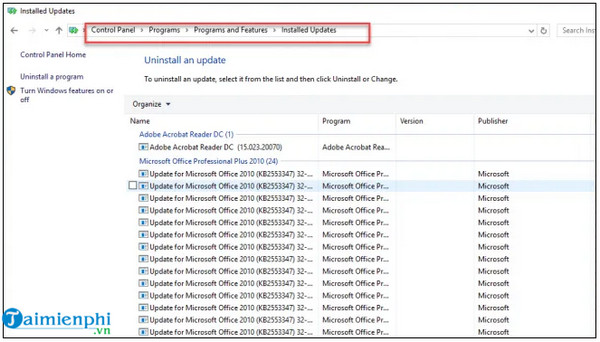
If Windows will not boot normally, Windows Recovery Environment may offer Troubleshoot > Advanced options > Uninstall Updates. Do not remove security updates indefinitely; install the corrected update when available.
8. Use System Restore when a restore point exists
A restore point can roll back system drivers and settings without deleting personal documents, but it can remove recently installed apps and drivers. Review the affected-programs list before confirming. TipsMake's System Restore guide shows the older interface; current Windows provides the same recovery concept through System Properties or WinRE.
When to suspect hardware
Arrange hardware service if the built-in keyboard does not respond in firmware, keys failed after liquid or impact damage, the keyboard appears only when the lid is moved, or a known-good USB keyboard works while supported driver and firmware steps do not restore the built-in unit.
Do not pry off laptop keycaps or open a battery-powered device without model-specific service instructions. After a liquid spill, power off, disconnect the charger, and seek appropriate service. For general testing, see TipsMake's keyboard reset and connection checks.
Related Articles
 9 Things to Do Before Updating to Windows 118 minutes read
 5 Functional Programming Languages You Should Know8 minutes read
 How to Fix the Virtual Keyboard Automatically Opens on Windows 105 minutes read
 How to Use Windows Keyboard on Mac4 minutes read
 6 Ways to Open Virtual Keyboard on Windows 109 minutes read
 Disable Windows 10 Keyboard in 5 Simple Ways6 minutes read
Reader Comments 0
Sign in with email or Google to join the discussion.