Table of Contents
You can read and follow the instructions below from TipsMake on adjusting your computer screen color to reduce eye strain and protect your eyes most.
Step-by-Step Instructions
From Windows 7 onwards, Microsoft has integrated the Display Color Calibrator tool to help you adjust your computer screen colors for optimal results. While not a widely used tool, it's very useful for those who need it.

GUIDE TO ADJUSTING COMPUTER MONITOR COLORS
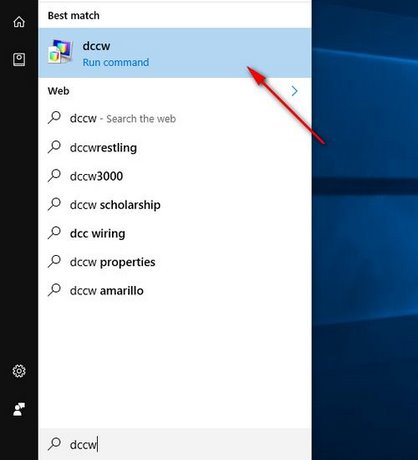
Step 1: Open the Start Menu, type "dccw" in the Search bar, then click the "dccw (Display Color Calibrator)" application displayed in the search results.
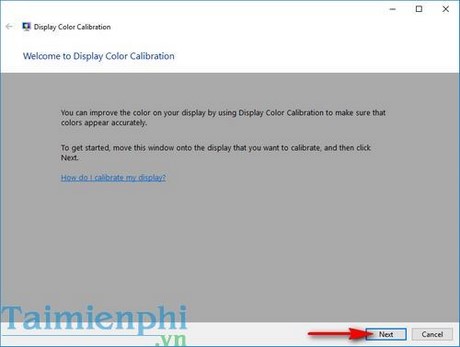
Step 2: On the first window that appears in the application, click Next to proceed with adjusting the computer screen colors.
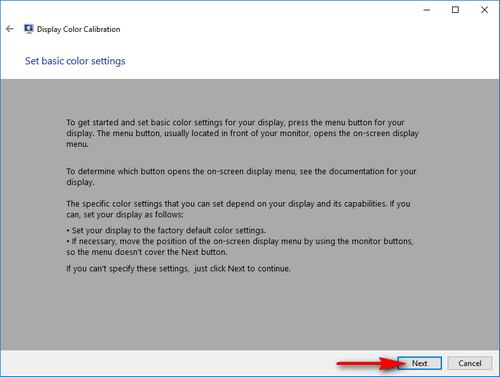
Step 3: In the next step, the tool will ask you to set the screen color to default; you can choose to do so or not, then click Next .
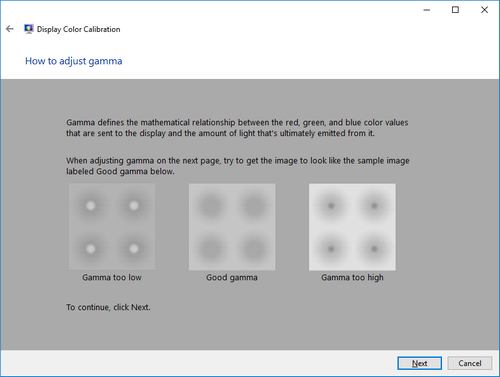
Step 4: The first step in adjusting screen color is setting the Gamma level. This window shows you that gamma is the color range between red, green, and blue. In the next step, you need to set the gamma so that the display meets the standard as shown in the middle box ( Good gamma ).
Step 5: Use your mouse to drag the gamma adjustment column on the left until you achieve the best display level. Press Reset to return to default settings.
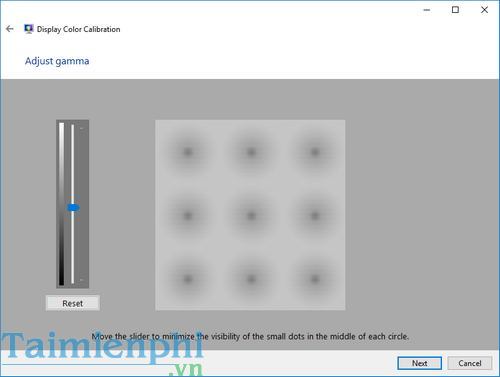
Step 6: Click Next to proceed to the next step of setting Brightness and Contrast.
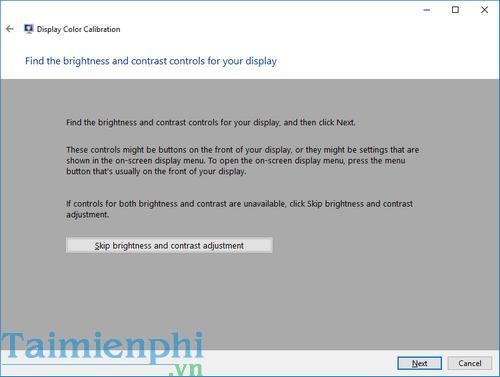
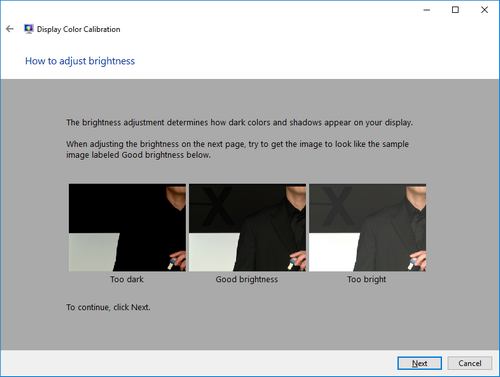
Step 7: You will be explained that Brightness refers to how light and dark colors are displayed on the screen. You need to adjust the screen color in the next step to achieve the best brightness .
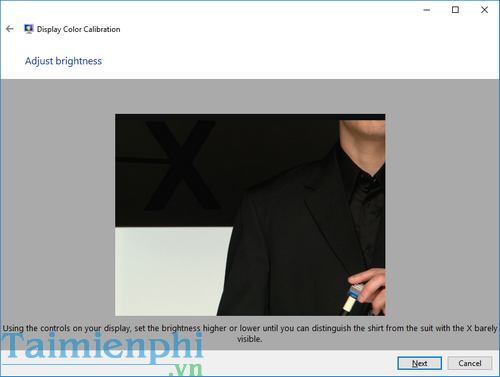
Step 8: You need to use the settings keys on your computer screen to adjust the brightness so that the X in the image is most clearly visible.
Step 9: Next is the step to adjust the Contrast . Contrast is the factor that determines the sharpness between two background colors, as shown in the image below. Click Next to set the contrast to achieve the sharpness shown in the middle image ( Good contrast ).
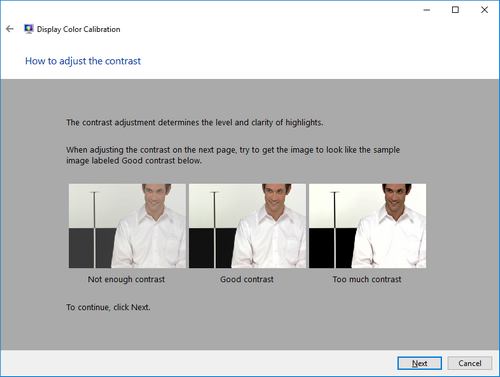
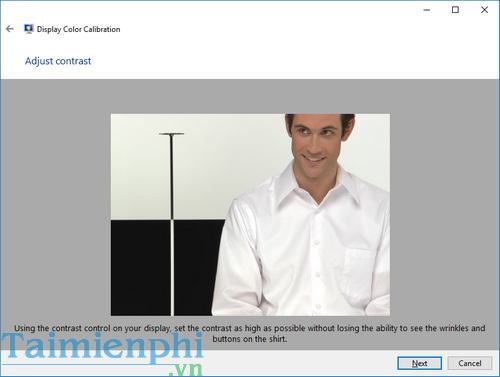
Step 10: Similar to adjusting brightness, use the on-screen physical buttons to adjust the contrast so that you perceive the image of the man in the tool as clear and sharp as possible.
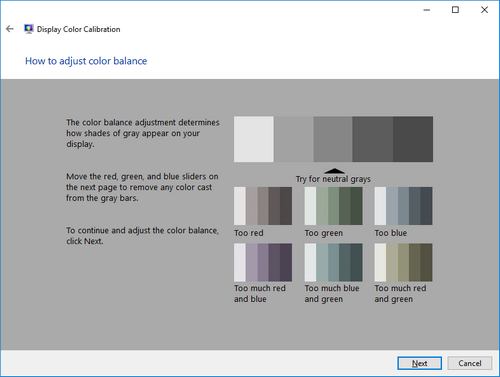
Step 11: You need to choose balanced color tones that suit your eyes. Click Next to continue.
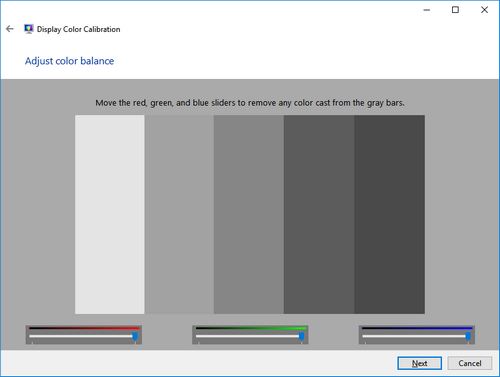
Step 12: Drag the sliders under the three shades of red, green, and blue to customize your computer screen's color to your liking.
Step 13: In this step, you can compare the old screen color ( Previous Calibration ) and the new color ( Current Calibration ) to choose which screen color adjustment suits you better. Click Finish to select the new screen color and Cancel to return to the old screen color.

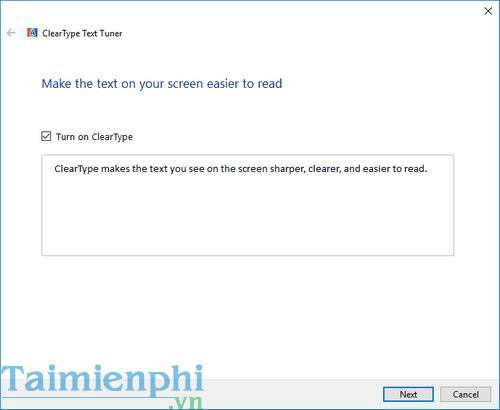
Step 14: If you click Finish, you will be taken to the ClearType Text Turner window. This window helps you read text and view images more clearly with the new screen color adjustment. Click Next to continue.
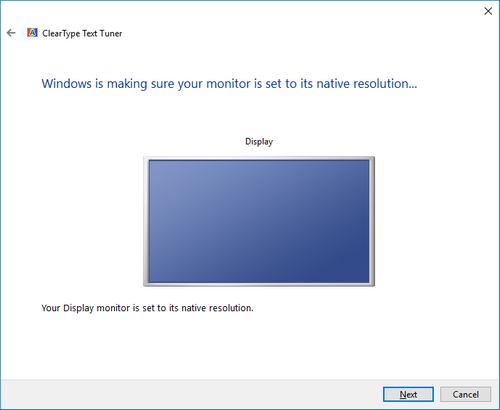
Step 15: You need to return your computer to its original factory resolution and click Next .
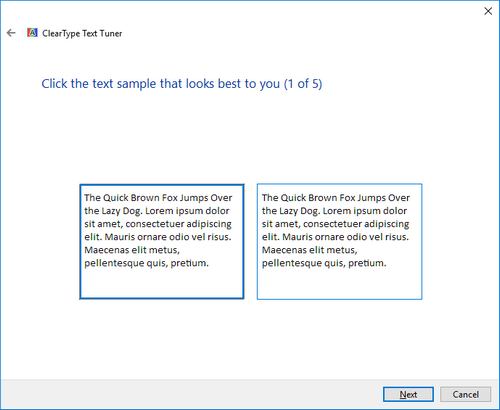
Step 16: The tool will present you with text templates. Simply choose the template where you feel the writing is displayed most clearly and sharply.
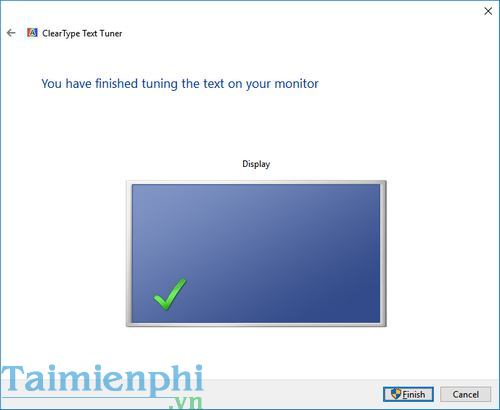
Step 17: After you have finished selecting, your screen will automatically adjust to display the text as you just set it up. Click Finish to complete.
So, TipsMake has completed the guide to help you adjust your monitor's color, allowing you to enjoy entertainment and work on your computer with the best quality. Besides manually adjusting screen brightness using the Display Color Calibration tool, you can also adjust screen brightness using Flux, which is very useful. Good luck!
FAQ
How can you Adjusting computer Screen Colors to Reduce Eye Strain?
You can read and follow the instructions below from TipsMake on adjusting your computer screen color to reduce eye strain and protect your eyes most.
Do the steps or features vary by device or software version?
They can. Menu names, available settings, and compatibility may differ by device, region, account type, or software version, so check the options shown on your own screen.
What should you do if the recommended method does not work?
Repeat the steps in order, confirm that the requirements are met, and restart the relevant app or device when appropriate. Also check for updates and review any error message before trying again.
Related Articles
 What Is the Best Color Correction for the Screen?13 minutes read
 How to Adjust the Color of the Computer Screen Helps with6 minutes read
 How to Calibrate Computer Screen Colors Is Extremely Simple: Clear Instructions13 minutes read
 How to Reduce iPhone Screen Brightness to Lower Than the iOS Limit5 minutes read
 Top 10+ Ways to Reduce Computer Screen Brightness8 minutes read
 How to Adjust Screen Brightness in Windows 11: Step-by-Step Guide4 minutes read
Reader Comments 0
Sign in with email or Google to join the discussion.